A monitor that reviews well on its own can still be a poor multi screen pick. Once two or three panels share a desk, the specs that matter change: bezel width decides how visible the seam between screens is, a VESA mount decides whether the panels can sit at exactly the same height on one arm, and a DisplayPort output with MST daisy-chaining decides whether the whole array runs off one cable from the PC or sprawls into a separate lead per screen. Panel consistency matters too, because two units of the same model are far easier to match for brightness and colour than two different monitors.

The five picks below are chosen on those multi-screen criteria first, then on the usual size, panel, resolution, refresh rate, ports and VRR comparison. Four are panels to buy in matching pairs or triples; the fifth is the honest single-screen alternative. As an Amazon Associate we earn from qualifying purchases.
What Actually Matters in a Multi Screen Setup
Bezels. Every monitor here has slim borders on three sides, but the combined gap between two screens is still two bezels plus the panel black border. Matching models keep that gap symmetrical, which is easier on the eye than a mixed pair.
VESA mounting and stands. All five picks are VESA 100 x 100 mm mountable, so they fit standard dual and triple arms. If you keep the stock stands, full height, swivel and pivot adjustment (offered by the Dell and ASUS picks) is what lets two screens align edge to edge and lets a side screen rotate to portrait for chat or code.
Daisy-chaining (DisplayPort MST). A monitor with a DisplayPort output can pass the signal to the next screen, so a chain of monitors uses one port on the graphics card or one USB-C cable from a laptop. Bandwidth is shared across the chain, so two 4K screens at 60 Hz is a realistic ceiling for one DP 1.4 chain, while QHD and Full HD chains have more headroom. One important limit: macOS does not support MST for extended desktops over a single cable, so Mac users should plan on one cable per screen or a Thunderbolt dock regardless of the monitor chosen.
Matching panels. Buy the same model for every position, ideally at the same time. Two units of one model share the same backlight behaviour and colour profile, and factory-calibrated lines such as ASUS ProArt narrow the gap further. Mixed sizes and resolutions can work for a main-plus-side layout, but text scaling and mouse movement between screens will never feel fully even. Panel size is the first decision here, and our breakdown of the best screen size for gaming covers how 24, 27 and 32 inch panels suit different desks and viewing distances.
Refresh rate and VRR. If a game spans all screens through Nvidia Surround or AMD Eyefinity, every panel should run at the same refresh rate, and adaptive sync only behaves predictably when all panels support it. For the more common layout, one fast screen for the game and slower side screens for chat, browsers and stream tools, matching matters much less.
Dell UltraSharp U2723QE: Best Daisy-Chain Hub for 4K Pairs
The U2723QE is the strongest chain-starter here. Its DisplayPort output feeds a second screen over MST, its USB-C input carries video, data and up to 90 W of power delivery from a single cable, and the built-in hub adds Ethernet and KVM switching. Two of these make a clean 4K dual setup for a desk that splits time between gaming and laptop work. The honest limits are gaming ones: this is a 60 Hz panel with no adaptive sync, so it suits strategy, sim and everyday play rather than fast competitive titles.
Specs
- Size and panel: 27-inch IPS Black, 3840 x 2160
- Refresh rate: 60 Hz
- Brightness and contrast: 400 cd/m2, 2000:1 (manufacturer ratings)
- Response time: 5 ms GtG in fast mode (manufacturer rating)
- Colour: 98% DCI-P3, 100% sRGB
- Ports: HDMI 2.0, DisplayPort 1.4 in, DisplayPort out (MST), USB-C with DP Alt Mode and 90 W power delivery, USB hub, RJ45 Ethernet
- VRR: none listed by Dell
- Mount and stand: VESA 100 x 100 mm, height, tilt, swivel and pivot stand
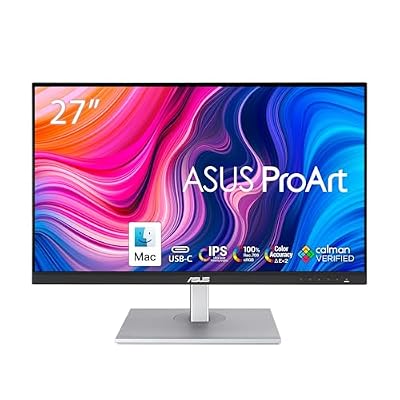
ASUS ProArt PA278CV: Best Colour-Matched QHD Pair
For dual or triple QHD arrays where the screens must agree with each other, the PA278CV’s factory calibration is the draw. Each unit is Calman Verified with a Delta E under 2 rating and ships with its calibration report, so two or three units start from a tighter match than uncalibrated panels. It daisy-chains over DisplayPort, takes USB-C video with 65 W power delivery, and its 75 Hz refresh with Adaptive-Sync is enough for casual gaming alongside colour-sensitive work.
Specs
- Size and panel: 27-inch IPS, 2560 x 1440
- Refresh rate: 75 Hz, Adaptive-Sync (48 to 75 Hz)
- Brightness and contrast: 350 cd/m2, 1000:1 (manufacturer ratings)
- Response time: 5 ms GTG (manufacturer rating)
- Colour: 100% sRGB, 100% Rec. 709, Calman Verified, Delta E < 2
- Ports: USB-C with DP Alt Mode and 65 W power delivery, DisplayPort 1.2 in, DisplayPort out (daisy chain), HDMI 1.4, 4-port USB hub
- Mount and stand: VESA 100 x 100 mm, height, tilt, swivel and pivot stand
Gigabyte M27Q: Best Gaming-First Pair

The M27Q is the pick when the game, not the spreadsheet, is the point of the array. A matched pair gives a 165 Hz (170 Hz overclocked) main-and-side setup with FreeSync Premium on both screens, plus a KVM switch for sharing peripherals with a second machine. The trade-off is connectivity: there is no DisplayPort output, so each screen needs its own output from the graphics card. Most desktop GPUs have three or four outputs, so a pair or triple still works; it just will not chain from one cable.
Specs
- Size and panel: 27-inch Super Speed IPS, 2560 x 1440
- Refresh rate: 165 Hz (170 Hz overclocked)
- Response time: 0.5 ms MPRT (manufacturer rating)
- Brightness: 350 cd/m2 typical (manufacturer rating)
- Colour: 92% DCI-P3
- VRR: AMD FreeSync Premium
- Ports: DisplayPort 1.2, 2 x HDMI 2.0, USB-C with DP Alt Mode and KVM, 2 x USB 3.0
- Daisy-chaining: not supported, no DisplayPort output
- Mount and stand: VESA 100 x 100 mm, height and tilt stand
Dell UltraSharp U2424H: Best for Triple Setups and Small Desks

Three 27-inch screens demand a wide desk. Three U2424H panels fit where 27-inch triples cannot, and the 120 Hz refresh rate is unusually high for a 24-inch productivity panel, so motion stays smooth across the array. A DisplayPort output with MST keeps cabling to one lead from the PC for the chain, the stand pivots to portrait for a vertical side screen, and ComfortView Plus with an ambient light sensor helps matched brightness across long sessions. The compromise is resolution: at 1920 x 1080 these are side-screen and compact-desk panels, not a sharp main display for detail work.
Specs
- Size and panel: 23.8-inch IPS, 1920 x 1080
- Refresh rate: 120 Hz
- Brightness and contrast: 250 cd/m2, 1000:1 (manufacturer ratings)
- Response time: 5 ms GtG in fast mode (manufacturer rating)
- Colour: 100% sRGB, 100% BT.709, 85% DCI-P3
- Ports: DisplayPort 1.4 in, DisplayPort out (MST), HDMI 1.4, USB-C hub upstream, USB-C downstream with 15 W, 3 x USB-A
- Mount and stand: VESA 100 x 100 mm, height, tilt, swivel and pivot stand
LG UltraWide 34WP65C-B: The Single-Screen Alternative
The honest alternative to two monitors is one wide one. This 34-inch curved ultrawide covers roughly the working area of two smaller screens with no centre bezel at all, which is better for spanned games and video timelines, and its 160 Hz refresh with FreeSync Premium makes it a genuine gaming panel rather than an office screen. What you give up versus a true pair is separation: there is no second panel to park chat or a stream dashboard on, window management depends on split-screen software, and there is no USB-C input or daisy-chaining. Buy it instead of a dual setup, not as part of one.
Specs
- Size and panel: 34-inch VA, curved 1800R, 3440 x 1440
- Refresh rate: 160 Hz
- Response time: 5 ms GTG (manufacturer rating)
- Brightness and contrast: 300 cd/m2 typical, 3000:1 (manufacturer ratings)
- Colour: 99% sRGB, HDR10
- VRR: AMD FreeSync Premium
- Ports: 2 x HDMI, 1 x DisplayPort, built-in speakers
- Mount and stand: VESA 100 x 100 mm, height and tilt stand
Multi Screen or Ultrawide: Which Way to Go
Choose matching monitors if you want a dedicated side screen for chat, streaming tools or reference material while a game runs, if you plan to add a third panel later, or if a portrait side screen appeals. Choose the ultrawide if the priority is one unbroken view for racing, flight sims or immersive single-player games and your desk time is mostly one task at a time. Either way, count your graphics card outputs before ordering: a daisy-chained Dell or ASUS array can run from one port, while the Gigabyte pair needs one output per screen.
Verdict
For most multi screen builds, start with the ASUS ProArt PA278CV in QHD or the Dell UltraSharp U2723QE in 4K: both daisy-chain, both mount on VESA arms, and both are built to match their siblings. Gamers building a fast pair should take the Gigabyte M27Q and accept the extra cable per screen. Tight desks and triple arrays belong to the Dell U2424H. And if the bezel in the middle has always bothered you, the LG 34WP65C-B is the one-screen way out.