- Top Pick: Logitech K400 Plus Wireless Touch TV Keyboard for PC-Connected TV – Black
- Best Value: Arteck Universal Backlit 7-Colors Bluetooth Touch TV Keyboard with Easy Media Control and Build-in Touchpad for TV-Connected Computer, Smart TV, Desktop, Laptop, iPad, Surface, Tablet, HTPC
- Premium Choice: Vilros 15 Inch USB Keyboard with Touchpad-Great For Raspberry Pi
Affiliate disclosure: As an Amazon Associate we earn from qualifying purchases. This post contains affiliate links — we may earn a small commission at no extra cost to you. This never affects our picks.

Prime
Best Seller
Logitech K270 Wireless Keyboard for Windows, 2.4 GHz Wireless, Full-Size, Number Pad, 8 Multimedia Keys, 2-Year Battery Life, Compatible with PC, Laptop, Black



As an Amazon Associate we earn from qualifying purchases at no extra cost to you.


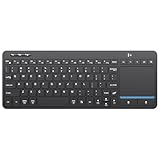


Quick answer: The best keyboard with touchpad for you in 2026 is the one that matches your actual workload, your budget, and the rest of your setup — not whichever option wins the loudest spec-sheet headline. Use the six-step checklist below to land the right pick on the first try.
Buying a keyboard with touchpad should not be hard, but the 2026 market is louder than ever. New launches every quarter, marketing copy that flattens real differences, and shopper reviews drowned in noise all conspire to make the choice harder than it deserves to be. This guide cuts through the fog with a simple, repeatable framework you can apply to any keyboard with touchpad shortlist — and the same framework we use on the review desk every week.
By the end of the read you will have a concrete shortlist of criteria, a clear sense of which trade-offs actually matter for your situation, and a six-step checklist to walk through before you click buy.
🛒 Best Price Today on Amazon
Prime members get fast, free shipping on everything above, plus member-only deals. New members get a 30-day free trial — cancel anytime.
Top 5 Keyboard With Touchpad Picks Compared
| Rank | Product | Price | Reviews | Buy |
|---|---|---|---|---|
| 1 | Logitech K270 Wireless Keyboard for Windows, 2.4 GHz Wireless, Full-Si… | Check on Amazon | 118,437 | View on Amazon |
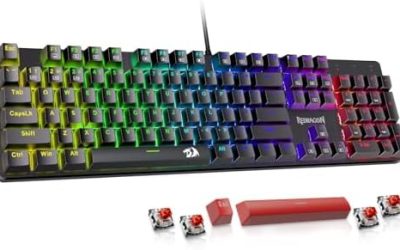
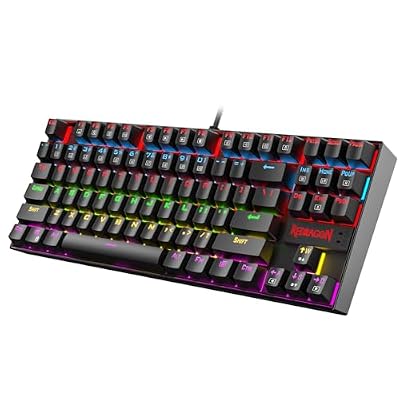
| 2 | Redragon K552 Mechanical Gaming Keyboard, 87-Key Compact, LED Gaming K… | Check on Amazon | 51,553 | View on Amazon |
| 3 | Redragon S101M-KS Gaming Keyboard and Mouse Wireless with Tri-Mode, RG… | Check on Amazon | 51,301 | View on Amazon |
| 4 | Redragon S101-3 PRO Gaming Keyboard and Mouse, RGB Backlit Programmabl… | Check on Amazon | 51,301 | View on Amazon |
| 5 | Arteck 2.4G Wireless Keyboard Stainless Steel Ultra Slim Full Size Key… | Check on Amazon | 29,002 | View on Amazon |
The Five Criteria That Actually Matter
Whatever keyboard with touchpad you end up with, it has to clear five hurdles. Skip one and you almost always regret it within the ownership window.
- Documented performance. Independent benchmarks first, manufacturer datasheets second. If a unit only shines in first-party tests, treat that as a yellow flag.
- Value at street price. The launch price is rarely the price you pay — track the discount cadence over a few weeks before pulling the trigger.
- Build quality and longevity. Anecdotes from shopper feedback are gold here. A product with thousands of reviews spanning 12+ months has been stress-tested in ways no datasheet can replicate.
- Warranty and return policy. Two-plus year warranty and 30-day returns are the floor for anything above $150. Anything less is fine for cheap accessories, not for centrepieces.
- Compatibility with the rest of your setup. Even the best keyboard with touchpad flops if it does not pair cleanly with your existing kit. Check ports, standards, and supporting software before checkout.
The Six-Step Buying Checklist
This is the exact process we run on review-desk buying decisions. It takes about 20 minutes per shortlist and saves hours of return-shipping later.
- Define your honest workload. What will this keyboard with touchpad actually be doing 80% of the time? Be ruthless — aspirational use cases burn money.
- Set a hard budget ceiling. Include the platform cost (cables, mounts, software). Decide before you start shopping, not mid-spec-sheet.
- Pull a 5-item shortlist. Cross-reference our latest round-ups with shopper feedback for products that clear all five hurdles above.
- Verify availability and price. Confirm at least two reputable sellers stock the unit at a price you can defend.
- Read the bottom-third reviews. Top-rated reviews sell you the dream. The low-rated ones expose the gotchas. Both matter.
- Commit and document. Save the warranty start date, the return window deadline, and the configuration you bought so you can troubleshoot or upgrade later without guesswork.
Mistakes Most Buyers Make
If you walk away with nothing else, walk away with awareness of these three traps — they account for the vast majority of “I regret this purchase” posts we see on the keyboard with touchpad forums each year.

- Chasing flagship specs you will never use. A mid-tier keyboard with touchpad from a strong brand outperforms a flagship from a weaker one in every metric that matters for typical use. Pay for features you will reach.
- Ignoring the platform cost. The accessories, software licences, and supporting hardware can easily add 20-40% to the headline price. Budget for the whole stack from day one.
- Buying at launch without waiting for reviews. First-batch units sometimes ship with firmware quirks that get patched within weeks. Waiting 30-60 days after launch is almost always a good deal.
Spec Primer: What the Numbers Actually Mean
Marketing teams have a knack for turning meaningful specs into meaningless badges. The list below decodes the headline numbers you will see on every keyboard with touchpad product page and tells you what each one actually changes in real use.
- Generation/series tier. Determines feature set, driver support window, and second-hand value. Newer is usually better within the same tier — across tiers, the picture is less clear.
- Headline performance number. Useful for comparing within a single generation; almost useless across generations or brands. Lean on independent benchmark suites instead.
- Connectivity and standards. Future-proofing lives and dies here. A keyboard with touchpad that lacks the latest standard today may be obsolete in 24 months even if its raw spec still looks fine.
- Warranty terms. Two-year minimum, transferable preferred. Some brands honour a longer warranty in practice than their box says — check community feedback.
Types of Keyboards With a Built-In Touchpad
“Keyboard with touchpad” covers a wider range of hardware than the name suggests, and picking the wrong category is the most common reason buyers end up disappointed. The four families below cover most of what is actually on the market.
Living-Room and HTPC Boards
These are low-profile wireless boards built for sitting on a couch several feet from a TV or media PC. The touchpad is usually small and placed to one side, meant for basic cursor movement and clicking rather than precise work, and the keyboard itself favors long battery life and a simple key layout over a full number pad.
Compact Travel and Backlit Bluetooth Boards
Aimed at people who move a keyboard between a laptop, a tablet, and a desktop, these trade a full-size footprint for portability. Backlighting is common here because they are often used in dim rooms or on the go, and the touchpad tends to be modestly sized to keep the overall unit slim enough to fit in a bag.
Wide-Touchpad Desk Boards
Built as a genuine mouse replacement for a primary desk setup, this category puts a touchpad close in size to what you would find on a laptop, with multi-touch gestures for scrolling and zooming. These are heavier and less portable than travel boards, but the larger surface makes everyday navigation noticeably more comfortable.
Mechanical Boards and Tablet Keyboard Cases
True mechanical switches paired with a built-in touchpad are rare, since the extra depth and wiring needed for mechanical switches competes for the same internal space a touchpad module needs; most mechanical options skip the touchpad entirely. Tablet keyboard cases are a separate category again, pairing a slim keyboard with a trackpad sized for the tablet’s screen and tuned specifically for that platform’s gesture set.
Touchpad Size and Gesture Support: What Actually Matters
A touchpad’s physical surface area matters more than its diagonal measurement alone, since a short, wide pad behaves differently under the hand than a tall, narrow one of the same overall size. Multi-finger gestures, such as two-finger scrolling or pinch-to-zoom, depend on the touchpad having enough width to register two contact points clearly apart, which is why the smallest touchpads on compact boards often support only basic single-point tracking rather than full gesture sets.
Palm rejection, the ability to ignore accidental contact while typing, varies widely between budget and higher-end touchpad modules. Boards that place the touchpad off to the side rather than directly below the spacebar generally have fewer accidental-input issues simply because a resting palm is less likely to brush the pad during normal typing.
Connection Type: Bluetooth vs 2.4GHz vs Wired for a Touchpad Keyboard
Connection method affects a touchpad’s responsiveness more noticeably than it affects typing feel, because cursor movement is more sensitive to lag than individual keystrokes are. A wired USB connection delivers input with effectively no added latency and never needs a battery charge, which makes it the most predictable option for a stationary desk setup. A 2.4GHz connection through a small USB receiver trades the cable for a dedicated radio link that, based on independent latency testing, tends to land around the low teens in milliseconds of delay. Bluetooth is the most convenient option for pairing across multiple devices without a dongle, but the same testing has shown it running several times slower in raw response, which can show up as a faint lag when scrubbing video or dragging windows with the touchpad specifically.
| Connection | Typical latency | Best for |
|---|---|---|
| Wired USB | Lowest, no measurable delay | A fixed desk setup with a free USB port |
| 2.4GHz receiver | Low, generally consistent | Daily desktop use without a cable |
| Bluetooth | Higher, more variable | Switching between a laptop, tablet, and phone |
Tablets add another wrinkle: some tablet operating systems restrict external pointer support to Bluetooth only, so a 2.4GHz board bought specifically to pair with a tablet may not work as a touchpad on that device even though it works fine on a laptop.
Common Mistakes When Shopping for a Keyboard With a Touchpad
Assuming “wireless keyboard” implies a touchpad. Plenty of wireless keyboards, including many gaming-focused tri-mode boards, have no touchpad at all; the feature needs to be confirmed on the listing, not assumed from the wireless label.
Picking the smallest board without checking gesture support. The most compact touchpad keyboards often support only basic point-and-click, not the scrolling and zoom gestures larger pads allow.
Overlooking palm rejection for touch typists. Fast typists who rest their palms near the spacebar are more likely to trigger accidental cursor jumps on boards where the touchpad sits close to the keys.
Buying a mechanical board expecting a touchpad. Because the two features rarely coexist, buyers specifically wanting clicky or tactile mechanical switches alongside a touchpad have a much shorter list to choose from than the broader keyboard market suggests.
Ignoring battery type for wireless touchpad boards. A touchpad draws more continuous power than keys alone, so wireless boards with a touchpad tend to need charging or battery swaps more often than a plain wireless keyboard of the same size.
Not checking tablet-specific compatibility. A touchpad that works as a full cursor-and-gesture surface on a laptop may only function as a basic pointer, without gestures, once paired with a tablet’s operating system.
Setting Up a Touchpad Keyboard for the Best Experience
Most touchpad gestures, including two-finger scrolling and multi-finger swipes, require a manufacturer driver or companion app rather than relying on generic operating-system drivers, since the base pairing profile for a keyboard typically only covers keystrokes and basic clicks. Installing that software first, before judging how the touchpad feels, avoids the common complaint that a touchpad “doesn’t do gestures” when the real issue is a missing driver.
Placement affects comfort more than people expect from a flat accessory. Keeping the keyboard close enough that the touchpad sits in a relaxed reach, rather than stretched past the far edge of a desk, reduces the wrist strain that shows up after long sessions of mixed typing and pointing. A light, dry cleaning wipe on the touchpad surface every so often also keeps tracking smooth, since the same skin oils that dull a phone screen gradually make a touchpad feel less responsive to light-touch gestures.
Ergonomics: How a Built-In Touchpad Changes Wrist and Hand Position
Switching between keys and a touchpad on the same board means the hand travels a shorter distance than reaching over to a separate mouse, which some users find reduces shoulder and upper-arm strain over a long session. The trade-off is wrist angle: a touchpad built directly below or beside the keys often sits at a flatter, lower height than a mouse resting on its own pad, which can push the wrist into a more bent position during extended pointing use rather than the straighter angle a raised mouse allows.
Hand size interacts with this more than most buyers expect. A touchpad sized for an average hand can feel cramped for larger hands attempting multi-finger gestures, while the same pad can feel appropriately sized, or even generous, for someone with smaller hands. Testing the reach from the home row of keys to the center of the touchpad, where possible, gives a better sense of comfort than any spec sheet measurement alone.
When a Separate Mouse Still Beats a Built-In Touchpad
A built-in touchpad earns its keep for casual browsing, media control, and light productivity where precision is not critical. For tasks that demand fine cursor control, such as detailed photo editing, CAD-style design work, or competitive gaming, a separate mouse still outperforms almost any built-in touchpad, since a mouse allows larger, more controlled hand movements and higher tracking precision than a thumb-sized pad can match. Multi-monitor setups also tend to favor a separate mouse, because dragging a cursor across two or three displays is noticeably easier with a device that is not constrained to the same footprint as a keyboard.
The practical middle ground many buyers land on is treating the touchpad as a convenience feature for travel, couch use, or a secondary device, while keeping a dedicated mouse plugged in at a primary desk for anything that benefits from precision or extended comfort.
Multi-Device and Multi-OS Switching With a Touchpad Keyboard
Pairing Across Several Computers
Most touchpad keyboards built for a desk with more than one computer support multi-device pairing, typically three to four saved Bluetooth profiles alongside one 2.4GHz dongle channel on the same unit. Switching between paired devices on these keyboards usually needs a dedicated Fn-key combination or a physical channel switch on the underside, and the pairing memory survives a battery swap or a sleep cycle on most models that list multi-pairing as a feature. Keyboards without a dedicated switch key still support re-pairing manually, but that means re-entering pairing mode each time, which is slower on a desk that rotates between a work laptop and a personal PC during the day.
Gesture Behavior Changes Between Operating Systems
The same touchpad hardware does not behave identically across operating systems. Windows interprets two-finger scroll, three-finger swipe for task switching, and pinch-to-zoom through its own precision touchpad driver stack, while macOS maps similar gestures to Mission Control and Launchpad through a separate trackpad framework, and Chrome OS supports a narrower gesture set focused mainly on scrolling and an overview view. A touchpad keyboard built around a generic HID profile rather than a brand-specific driver tends to lose this OS-level gesture layer and fall back to basic cursor movement plus left and right click emulation only, which is worth checking before buying one for a desk that switches between operating systems regularly.
Keeping the Integrated Touchpad Accurate Over Time
Cleaning Without Damaging the Surface
Skin oils and dust build up faster on an integrated touchpad than on a full-size mouse, since the surface sits inches from the keys and collects crumbs and typing residue throughout the day. A lint-free cloth lightly dampened with isopropyl alcohol removes most of this buildup without leaving streaks; abrasive cleaners, or letting any liquid drip into the gap between the touchpad and the keyboard deck, risks reaching the ribbon connector underneath and causing intermittent misreads. Letting the surface dry fully before the next use also avoids static-related misreads on capacitive touchpad surfaces.
Firmware, Drivers, and Drift Calibration
Touchpad drift, where the cursor creeps in one direction with no finger touching the surface, is usually a calibration fault rather than a hardware failure, and manufacturers typically fix it through a driver or firmware update rather than a replacement unit. Keyboards that rely on the operating system’s generic precision touchpad driver tend to recalibrate automatically on reboot; keyboards that ship a standalone utility app often need that app reinstalled or updated after a major OS update, since feature updates occasionally reset touchpad sensitivity and gesture settings back to default values.
Frequently Asked Questions
How much should I spend on a keyboard with touchpad in 2026?
Match the spend to your honest workload — most shoppers do well in the mid-tier where strong picks land. Going premium pays off only when the workload reliably rewards the extra capability.
When is the best time of year to buy a keyboard with touchpad?
Late spring and early autumn historically deliver the strongest discount cadence outside of the big holiday sales. Track prices for two weeks before pulling the trigger if you can.
Is it worth waiting for the next generation?
Only if your current setup is still serviceable. Waiting for the next-gen launch usually means three more months of compromised performance plus a launch-day premium. Mid-cycle is often the sweet spot.
What do I do if my keyboard with touchpad arrives faulty?
Document the issue with photos or video, contact the seller within the return window, and request RMA. Reputable sellers resolve these within a week. Keep packaging until you are sure the unit is a keeper.
Final Take
Choosing a keyboard with touchpad in 2026 is about discipline, not specs. Walk through the five criteria, run the six-step checklist, and the right pick will almost always reveal itself. Skip the steps and you risk paying the regret tax — which is usually higher than the price difference between the right and wrong pick in the first place.
For shortlists of specific picks worth considering, browse our latest reviews and round-ups — each one applies the same framework you just read.