Choosing a mouse for video editing is a decision about how you move through a timeline, not about how fast you can flick across a game map. Editors spend hours scrubbing footage, trimming clips, and jumping between tools, so a mouse that only does left click, right click, and a vertical wheel forces the keyboard to do most of the work. The real question is how the mouse fits your editing habits, your hand, and your desk.


This guide is for editors who cut in Premiere Pro, DaVinci Resolve, or Final Cut Pro, and for creators who edit long videos after work. We picked five mice from their Amazon titles and specifications: a productivity mouse with a horizontal thumb wheel, two tilt-wheel gaming mice, an MMO mouse with a swappable side panel, and a budget wired classic. Each one below lists only specifications taken from its Amazon product page.
Quick Picks
As an Amazon Associate we earn from qualifying purchases
| Product | Best for | Key spec from title |
|---|---|---|
| Logitech MX Master 3S | Long timeline scrubbing | 8K DPI Darkfield sensor, horizontal thumb wheel |
| Razer Basilisk V3 | Tilt-wheel editing at a desk | Focus Pro 26K sensor, HyperScroll tilt wheel |
| Logitech G502 X | Most programmable controls | HERO 25K sensor, 13 programmable controls |
| Razer Naga V2 Pro | Shortcut-heavy workflows | Swappable 12-button side plate, 19+1 buttons |
| Logitech G502 HERO | Budget editing setup | HERO 25K sensor, onboard memory, 5 profiles |
How to Choose
Count the Buttons You Will Actually Use
Video editing lives on shortcuts. A cut, a ripple delete, a marker, a tool switch, and an undo happen hundreds of times in a session, and moving your hand to the keyboard for each one breaks your rhythm. Look for a mouse with at least five programmable buttons beyond the two main clicks, and check that the extras sit where your thumb rests without stretching. Side buttons work well for blade and selection tools, while a DPI-shift button can double as a precision modifier. Avoid mice with buttons you cannot reach comfortably, because a shortcut you never press is wasted hardware.
Scroll Sideways, Not Just Up and Down
Timelines run left to right, so a mouse that only scrolls vertically leaves half the job to the keyboard. A tilt wheel lets you push the wheel sideways to move along the timeline, and a dedicated horizontal thumb wheel does the same job with a separate control. Free-spin wheels help you fly through long footage, while a notched mode gives you frame-by-frame control when you need precision. Before buying, check whether the sideways scroll works in your editing program, because some mice only support it through their own software. A mouse with no horizontal scrolling at all is a poor pick for serious editing.
Precision Matters More Than Maximum DPI
Editing is fine work. Placing a playhead, dragging a keyframe, or drawing a mask needs steady, small movements, and a sensor that tracks cleanly at low speeds matters more than a headline DPI number. Any modern optical sensor in this guide tracks well enough for editing, so focus on adjustable DPI steps that let you drop to a slow speed for detail work and jump back up for general navigation. A mouse with on-the-fly DPI buttons makes that switch instant. Do not chase the biggest DPI figure on the box, because nobody edits a timeline at twenty-six thousand DPI.
Comfort, Weight, and How It Connects
Editing sessions run long, so a mouse that cramps your hand after an hour will cost you more than any feature it lacks. A larger ergonomic shape suits a palm grip and a full day at the desk, while a lighter mouse suits quick flicks between panels. Weight matters less than shape, so pay attention to where your thumb and ring finger rest. Wired mice never need charging and work on any computer, while wireless mice keep the desk clear and suit a laptop setup. If you choose wireless, check the battery figure and whether the mouse works while it charges.
The 5 Best Options
Logitech MX Master 3S
The MX Master 3S is the odd one out here, and the article says so plainly: it is a productivity mouse, not a gaming mouse. It earns its place because video editing is exactly the job its horizontal thumb wheel was built for, letting you glide along a timeline without touching the keyboard. Its Darkfield sensor tracks on glass, so it keeps working on a desk with a glass top or a glossy surface where other sensors stutter. Quiet clicks and a sculpted shape suit long sessions, and the MagSpeed wheel switches between free spin and notched scrolling on its own.
Specs
- 8K DPI Darkfield sensor, tracks on glass
- MagSpeed electromagnetic scroll wheel
- Horizontal thumb wheel for sideways scrolling
- 7 buttons, quiet clicks
- Up to 70 hr battery, Bluetooth and Logi Bolt USB receiver
- 141 g, ergonomic right-handed shape
- USB-C charging
Best for: Editors who scrub long timelines all day and want a horizontal thumb wheel.
Watch out for: Check live availability before buying; it is a productivity mouse, so it has no gaming-grade polling or RGB lighting, and some editing shortcuts need Logitech software to program.
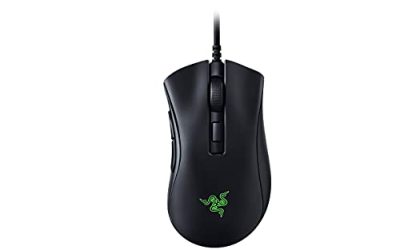
Razer Basilisk V3
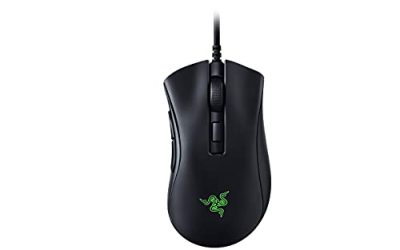
The Basilisk V3 is a wired gaming mouse that fits editing because its HyperScroll tilt wheel moves the timeline sideways as well as up and down. Eleven programmable buttons give you room for cut, ripple delete, marker, and tool shortcuts without reaching for the keyboard, and the Focus Pro 26K sensor tracks precisely at the slow speeds that keyframe work demands. Optical switches rated for long use keep clicks consistent, and the wired connection means there is no battery to watch and no wireless lag to think about. It is a strong pick if you edit at a fixed desk.
Specs
- Focus Pro 26K optical sensor, up to 26,000 DPI
- HyperScroll tilt wheel, free-spin and tactile modes
- 11 programmable buttons (10+1)
- 11-zone Chroma RGB lighting
- Optical switches Gen-2
- Wired USB connection
Best for: Editors at a fixed desk who want a tilt wheel and plenty of shortcut buttons.
Watch out for: Check live availability before buying; the tilt wheel and button programming work best with Razer software installed, and the newer 35K Basilisk V3 is a different listing with different specs.
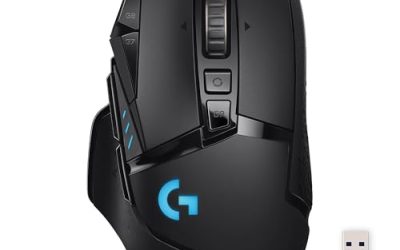
Logitech G502 X

The G502 X is a wired version of a long-running Logitech shape, and its thirteen programmable controls make it one of the most flexible mice in this guide. Its dual-mode scroll wheel tilts sideways for timeline movement and spins freely for fast scrubbing, while the HERO 25K sensor covers everything from slow mask work to quick panel jumps. LIGHTFORCE hybrid switches combine optical speed with a mechanical feel, and at 89 g it is light enough for long sessions without hand fatigue. The wired USB connection keeps it simple: plug it in and edit.
Specs
- HERO 25K sensor, 100-25,600 DPI
- 13 programmable controls
- Dual-mode hyper-fast scroll wheel with tilt
- LIGHTFORCE hybrid optical-mechanical switches
- 89 g, wired USB
Best for: Editors who want maximum programmable controls in a light wired mouse.
Watch out for: Check live availability before buying; avoid suspicious B07W6-era listings labelled G502 X, and note the wireless G502 X LIGHTSPEED is a separate listing with different specs.
Razer Naga V2 Pro

The Naga V2 Pro is the button king of this guide. Its swappable side plates let you choose two, six, or twelve thumb buttons, so you can build a layout for editing shortcuts, macros, and tool switching that no ordinary mouse can match. The Focus Pro 30K sensor is precise at any speed, and the HyperScroll Pro wheel handles fast timeline movement. It connects over HyperSpeed wireless, Bluetooth, or a wired USB-C cable, and the battery lasts up to 300 hours. If your editing workflow runs on shortcuts, this mouse puts the most of them under your thumb.
Specs
- Swappable side plates: 2-button, 6-button, 12-button grids
- 19+1 programmable buttons
- Focus Pro 30K optical sensor
- HyperScroll Pro wheel
- HyperSpeed wireless, Bluetooth, and wired USB-C
- Up to 300 hr battery
- 134 g
Best for: Editors whose workflow runs on dozens of shortcuts and macros.
Watch out for: Check live availability before buying; the tilt of the HyperScroll Pro wheel is not confirmed, so do not buy it for tilt scrolling, and the Mouse Dock Pro bundle is a different listing.
Logitech G502 HERO

The G502 HERO is the budget pick of this guide, and it covers the editing essentials for far less than the others. Eleven programmable buttons handle the usual cut, marker, and tool shortcuts, and its dual-mode scroll wheel tilts sideways for timeline movement. The HERO 25K sensor tracks from 100 to 25,600 DPI, and onboard memory stores five profiles, so your button layout travels with the mouse to another computer. Five small tuning weights let you adjust the balance, and the wired connection means there is nothing to charge. It is the sensible starting point.
Specs
- HERO 25K sensor, 100-25,600 DPI
- 11 programmable buttons
- Dual-mode hyper-fast scroll wheel with tilt
- Onboard memory for 5 profiles
- 121 g plus five 3.6 g tuning weights
- Wired USB connection
Best for: Editors on a budget who want tilt scrolling and onboard profiles.
Watch out for: Check live availability before buying; G HUB software is needed once to program profiles, and some owners report double-click switch problems over time.
Which One Fits Your Situation
You Edit Long Timelines Every Day
Pick the MX Master 3S. Its horizontal thumb wheel is the most natural way to move along a long timeline, and the Darkfield sensor keeps tracking on glass desks where other mice give up. The sculpted shape and quiet clicks suit full days of cutting, and the battery lasts up to 70 hours. Remember it is a productivity mouse, not a gaming mouse, so pair it with a gaming mouse if you also play.
You Switch Between Editing and Gaming
Pick the Basilisk V3 or the G502 X. Both are true gaming mice with tilt wheels, so they handle timeline scrubbing during the day and fast games at night without a second mouse on the desk. The Basilisk V3 gives you eleven programmable buttons and a wired connection, while the G502 X is lighter and offers thirteen controls. Choose the Basilisk for a fuller grip and the G502 X for quicker movement.
Your Workflow Runs on Shortcuts and Macros
Pick the Naga V2 Pro. No other mouse in this guide puts as many commands under your thumb, and the swappable side plates let you switch between a twelve-button grid for editing macros and a simple two-button plate for everyday use. The Focus Pro 30K sensor stays precise at any speed, and the battery lasts up to 300 hours. It costs more than the others, but for shortcut-heavy editors the button count pays for itself.
You Want the Lowest Cost That Still Works
Pick the G502 HERO. It covers the editing essentials: eleven programmable buttons, a tilt wheel for sideways timeline movement, and onboard memory that stores five profiles. The HERO 25K sensor is the same class as the pricier mice here, and the tuning weights let you set the balance you like. It is wired, so there is no battery to manage, and it is the cheapest way into a proper editing mouse.
Common Mistakes
- Buying a plain five-button FPS mouse and expecting it to handle editing shortcuts.
- Assuming every scroll wheel tilts sideways; many do not, so check the listing before buying.
- Programming all your shortcuts in the mouse software and forgetting to save them to onboard memory.
- Choosing a mouse by its maximum DPI number instead of its comfort and button layout.
- Picking a wireless mouse with a short battery and no way to use it while charging.
Frequently Asked Questions
Can I use a gaming mouse for video editing?
Yes. Gaming mice suit editing because they offer extra programmable buttons, precise sensors, and tilt wheels that move a timeline sideways. The features that help in games, such as on-the-fly DPI and onboard profiles, help just as much when you cut footage. The only real difference is comfort: an editing mouse needs to feel good after hours, not just after one match.
Do I need a tilt wheel for editing?
No, but it helps a lot. A tilt wheel or a horizontal thumb wheel moves the timeline sideways, which is the direction timelines run. Without one, you drag the scrollbar or hold a keyboard key while scrolling, which slows you down. If you edit short clips only, a normal wheel is fine, but for long timelines sideways scrolling is worth having.
Is the MX Master 3S a gaming mouse?
No. The MX Master 3S is a productivity mouse, and this guide says so plainly. It appears here because its horizontal thumb wheel and glass-tracking Darkfield sensor suit video editing very well. It has no high polling rate or gaming switches, so it is a poor pick for competitive play. Many editors keep it on the desk for cutting and a gaming mouse beside it for play.
How many buttons do I need for video editing?
Five to seven programmable buttons cover most editing workflows: cut, ripple delete, marker, undo, and a tool switch or two. More buttons help if you use macros or switch between many tools, which is where the twelve-button side plate of an MMO mouse earns its place. Fewer than five extras means the keyboard still does most of the work, so aim above that line.