A gaming mouse earns a place on a programmer’s desk for reasons that have little to do with gaming. The real decision is whether its hardware solves editing problems: a scroll wheel that can fly through a two-thousand-line file and then click back into precise steps, enough programmable buttons to hold shortcuts like run, debug, and split editor, and a shape your hand can sit on for an eight-hour stretch without complaining. Gaming lines happen to build exactly those features, with better sensors and switches than most office mice at similar money.
This guide is for developers who split their day between an IDE and the occasional game, and who want one mouse to cover both. Every pick was chosen from its Amazon product page, focusing on the listed scroll wheel design, button count, sensor, and weight. Button programming on all of them is handled through the maker’s software on Windows or macOS, so the guide also flags where onboard memory matters if you move between machines or operating systems.
Quick Picks
As an Amazon Associate we earn from qualifying purchases.
| Product | Best for | Key spec from title |
|---|---|---|
| Logitech G502 HERO | Coders who want a free-spin wheel and lots of shortcuts on a budget of buttons | HERO 25K sensor, 11 buttons |
| Razer Basilisk V3 | Tilt-wheel navigation through code plus a thumb rest for long days | 26K DPI optical sensor, HyperScroll tilt wheel |
| Logitech G502 LIGHTSPEED | The G502 formula without a cable across the desk | HERO 25K sensor, 11 programmable buttons |
| Razer Naga V2 Pro | Shortcut-heavy workflows that can fill a 12-button side plate | 19+1 programmable buttons, swappable side plates |
How to Choose
Put the scroll wheel at the top of the list
For coding, the wheel matters more than the sensor. A dual-mode wheel, like the one on the G502 HERO and G502 LIGHTSPEED, unlocks into a free spin that races through long files, logs, and documentation, then clicks back into ratcheted steps for line-by-line reading. Razer’s HyperScroll designs add tilt clicks on the Basilisk V3, which map naturally to horizontal scrolling through wide code or switching tabs, and the Naga V2 Pro’s HyperScroll Pro wheel lets you tune how it behaves. If you review large pull requests or scroll stack traces all day, this single feature decides more of your comfort than any DPI figure.
Count buttons against your actual shortcuts
Programmable buttons only help if you assign them. Most developers fill four to six easily: copy, paste, back, forward, run, and a debugger step. The eleven-button layouts on the G502 models and Basilisk V3 cover that with room to spare, and their thumb buttons sit where your hand already rests. The Naga V2 Pro goes much further with swappable side plates of two, seven, or twelve buttons, which suits developers who drive tmux, a tiling window manager, or an IDE full of chorded commands from the mouse. Buy the button count you will genuinely program; unused side grids mostly collect accidental presses.
Check where your settings live
Button assignments are created in software: Logitech G HUB or Razer Synapse, both on Windows and macOS. What happens next depends on onboard memory. The G502 HERO and G502 LIGHTSPEED store profiles on the mouse, so a layout built at home follows you to a work laptop or a Linux machine where the software may not run. Razer’s mice lean more heavily on Synapse staying installed, which is fine on a single personal machine and limiting on a locked-down work laptop. If your job involves hot-desking or dual-booting, treat onboard memory as a requirement rather than a bonus feature.
Match shape and weight to eight-hour comfort
Coding sessions punish a bad shape slowly. A sculpted right-handed mouse with a thumb rest, like the Basilisk V3 or the G502 pair, supports a relaxed palm grip and keeps your wrist off the desk edge. Weight cuts both ways: the G502 HERO starts at 121 grams and accepts extra tuning weights, which some developers prefer for slow, deliberate cursor work, while lighter mice reduce the effort of constant small movements between windows. There is no universal answer, but if your hand aches by mid-afternoon on your current mouse, prioritise the shape and grip style over any sensor specification.
The 4 Best Options
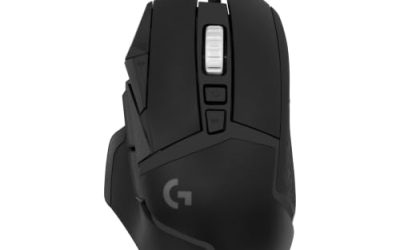
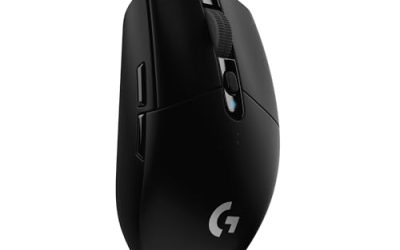
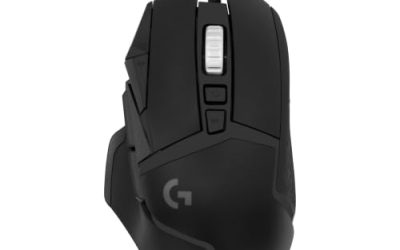
Logitech G502 HERO High Performance Wired Gaming Mouse

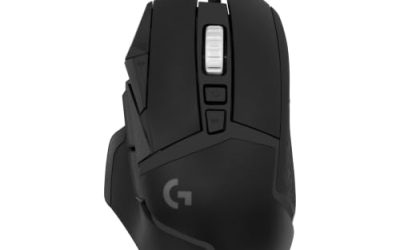
The G502 HERO is the classic coder’s gaming mouse because its dual-mode scroll wheel was built for exactly the jump between skimming and precision. Unlock it and a flick sends you hundreds of lines down a file; lock it and each notch is one deliberate step. Eleven programmable buttons cover the standard shortcut set with spares, and onboard memory means the layout you build in G HUB is stored on the mouse itself. The HERO 25K sensor is far beyond what an IDE needs, which simply means tracking is never the weak point, and the adjustable weight system lets you settle the balance for slow, careful pointer work.
Specs
- Sensor: HERO 25K optical sensor, 100 to 25,600 DPI
- Buttons: 11 programmable buttons
- Scroll wheel: dual-mode hyper-fast scroll wheel
- Weight: 121 grams, with five optional 3.6-gram tuning weights
- Connection: wired USB
- Memory: onboard memory for profiles
- Lighting: RGB lighting
Best for: Programmers who want the free-spin wheel and a full shortcut set in one wired mouse.
Watch out for: The sculpted shape is right-handed and fairly tall, and at 121 grams before weights it is a heavy mouse for anyone who prefers fingertip control.
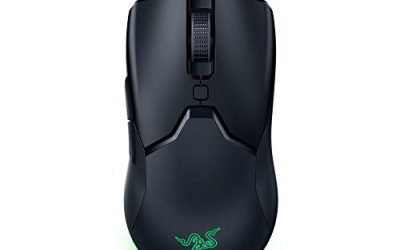
Razer Basilisk V3 Customizable Ergonomic Gaming Mouse

The Basilisk V3 brings a different wheel idea to the desk: its HyperScroll tilt wheel clicks left and right as well as spinning, and those tilt inputs map beautifully to horizontal scrolling in wide files, timeline-style editors, and spreadsheet-like data views. The listing counts eleven programmable buttons, and the ergonomic body includes a thumb rest that supports the hand through long sessions. Razer’s Focus+ 26K sensor and second-generation optical switches, rated for 70 million clicks with a 0.2ms actuation, make it a durable daily driver. Configuration runs through Razer Synapse, where the wheel can also switch between tactile and free-spin modes automatically at speed.
Specs
- Sensor: Focus+ 26K DPI optical sensor
- Buttons: 11 programmable buttons
- Scroll wheel: HyperScroll tilt wheel with tactile and free-spin modes
- Switches: Razer Optical Mouse Switches Gen-2, rated to 70 million clicks
- Connection: wired USB
- Lighting: 11 Razer Chroma RGB lighting zones
- Shape: ergonomic right-handed with thumb rest
Best for: Developers who navigate wide code and want tilt-wheel horizontal scrolling plus a supportive thumb rest.
Watch out for: Profiles depend on Synapse being installed, so a locked-down work machine may limit you to default behaviour; the wired cable also stays on the desk.
Logitech G502 LIGHTSPEED Wireless Gaming Mouse

The G502 LIGHTSPEED is the mouse for developers who love the G502 formula but are done with a cable snagging on monitor stands and coffee mugs. It keeps the eleven programmable buttons, the dual-mode hyper-fast scroll wheel, and the adjustable weights, then adds LIGHTSPEED wireless with a 1ms report rate, so the cursor feels identical to the wired version during both debugging and gaming. Onboard memory stores your G HUB profiles on the mouse, which makes it the easiest pick here for moving between a personal desktop and a work laptop. Battery life stretches across many workdays between charges, and it can be used wired while it tops up.
Specs
- Sensor: HERO 25K optical sensor, up to 25,600 DPI
- Buttons: 11 programmable buttons
- Scroll wheel: dual-mode hyper-fast scroll wheel
- Connection: LIGHTSPEED wireless via USB receiver, usable wired
- Weight: 114 grams, with optional tuning weights included
- Memory: onboard memory for profiles
- Lighting: RGB lighting
Best for: Coders who want the G502’s wheel and buttons in a wireless mouse that moves between machines.
Watch out for: The USB receiver takes a port on laptops that are short of them, and the flagship positioning means you are paying for wireless performance a pure office mouse would not need.
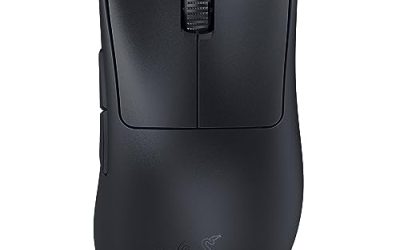
Razer Naga V2 Pro Wireless MMO Gaming Mouse

The Naga V2 Pro is the extreme end of the shortcut strategy: three magnetic side plates give you two, seven, or twelve side buttons, for a listed total of 19+1 programmable buttons. For a developer, the twelve-button plate can hold an entire layer of IDE commands, terminal shortcuts, or window-management actions under the thumb, and swapping plates takes seconds when you switch from coding to a game that needs fewer inputs. Its HyperScroll Pro wheel adjusts from smooth to tactile behaviour, the Focus Pro 30K sensor is flawless overkill, and the listing quotes up to 300 hours of battery on HyperSpeed wireless, so it rarely visits its cable.
Specs
- Sensor: Focus Pro 30K optical sensor
- Buttons: 19+1 programmable buttons with 3 swappable side plates (12, 7, and 2 buttons)
- Scroll wheel: HyperScroll Pro wheel
- Switches: Razer Optical Mouse Switches Gen-3
- Connection: HyperSpeed wireless, Bluetooth, and wired
- Battery: up to 300 hours on HyperSpeed Wireless, as listed
Best for: Power users whose IDE, terminal, and window manager shortcuts can genuinely fill a 12-button thumb grid.
Watch out for: The button grid has a learning curve and invites accidental presses early on, and full configuration needs Razer Synapse; it is also the largest commitment here if your shortcut needs are modest.
Which One Fits Your Situation
You read and review code all day
Take the G502 HERO or the Basilisk V3. The G502’s free-spin wheel is the fastest way down a long file, while the Basilisk adds tilt clicks for sideways movement through wide lines and diffs. Both keep a ratcheted mode for careful reading, and both cost less than the wireless flagships while giving up nothing a code review actually uses.
You switch between a work laptop and a home PC
The G502 LIGHTSPEED fits this life best. Build your shortcut layout once in G HUB, save it to the onboard memory, and the same eleven buttons behave identically on both machines, even where you cannot install software. The wireless link also means one less cable to replug every time the laptop moves.
Your workflow runs on shortcuts and macros
Choose the Naga V2 Pro and start with the seven-button plate while you learn the grid, then graduate to the twelve-button plate for your IDE layer. Developers who drive everything from the keyboard may find it excessive, but if you already keep a mental map of twenty commands, this mouse gives them a physical home.
You game after work on the same desk
Any of the four works, but the G502 pair is the natural double agent: the same free-spin wheel and button layout that serves your editor all day maps cleanly onto shooters and RPGs at night, and the HERO 25K sensor is a genuine gaming sensor rather than an office part in disguise.
Common Mistakes
- Buying for maximum DPI when coding comfort is decided by the scroll wheel, button placement, and shape.
- Choosing a huge button grid before knowing which shortcuts you will actually assign, then never programming half of it.
- Ignoring onboard memory and discovering your layout does not follow you to a work laptop or a second operating system.
- Assuming the configuration software runs everywhere; G HUB and Synapse need Windows or macOS, which matters on Linux or locked-down machines.
- Overlooking grip and weight, then blaming the sensor when an eight-hour session leaves your hand sore.
Frequently Asked Questions
Why use a gaming mouse for programming at all?
Because the features overlap. Gaming mice popularised free-spin and tilt scroll wheels, dense programmable button layouts, onboard memory, and high-grade switches rated for tens of millions of clicks. Each of those maps directly onto editing, navigating, and debugging work, and the sensors are more than accurate enough that tracking never becomes a distraction during precise cursor placement.
Can I program the side buttons for IDE shortcuts?
Yes. In Logitech G HUB or Razer Synapse you can assign keystrokes, key combinations, and macros to the side and top buttons, so actions like run, step over, toggle breakpoint, or split editor can live under your thumb. On the G502 models those assignments can be saved to onboard memory and carried to other computers.
Is a free-spin scroll wheel really useful for coding?
It is the single most practical feature in this guide. Long source files, build logs, and documentation pages become quick to traverse with a flick, and every wheel here can return to a notched mode for line-by-line control. The Basilisk V3 can even switch modes automatically based on how fast you spin the wheel.
Wireless or wired for a coding desk?
Both work well. Wired models like the G502 HERO and Basilisk V3 never need charging and cost less, while the G502 LIGHTSPEED and Naga V2 Pro remove cable drag and clutter, with the Naga listing up to 300 hours of battery. Decide based on how often the mouse travels between machines and how much you dislike cable management.