OBS Studio Gaming Setup Guide 2026: Scenes, Sources and Encoding
OBS Studio is the free, open source broadcasting app that most gaming streamers learn first, and it remains the reference point for nearly every streaming tutorial. It takes your game, webcam, microphone and overlays, mixes them into scenes, encodes the result and sends it to Twitch, YouTube or another platform. This guide explains how to build a working OBS Studio gaming setup from the first scene to the final encoder check, and which hardware choices support it. It is written as a buying and setup guide, so the advice holds regardless of which brand you end up buying.
The hero listing above is the main pick for the query “OBS Studio gaming setup”, with four alternatives that cover the same job from different angles. Treat each card as the closest match for its category rather than a promise about one exact model. Check the card for the model, the specifications and the price before you order, because listings change and sellers vary.


What OBS Studio Does in a Gaming Setup
OBS handles four jobs at once. It captures sources such as a game window, a webcam or a display. It composes those sources into scenes with positions, crops and filters. It mixes audio from several inputs into one track. Then it encodes the combined picture and sound and pushes the stream to the platform. Each job uses processing power, so the software choices you make affect how much your PC has left to run the game itself.
Most gaming streamers run OBS on the same PC that runs the game. That works well on a machine with a capable GPU that has a hardware encoder and enough CPU headroom. The main risk is dropped frames and stutter that viewers see but you may not notice while playing. A second PC or a dedicated capture device can remove that risk, and the roundup of streaming setups for gaming covers when that split is worth the cost.
Building Scenes and Sources Correctly
A scene is a named layout, such as “Gameplay”, “Starting Soon” or “Be Right Back”. Keep the number of scenes small. Most channels need three to five, and each extra scene is one more thing to check before going live. Sources sit inside scenes and can be reused across them, which keeps the setup simple to maintain.
Game Capture Versus Window Capture
Game capture is the most efficient option for full-screen games because OBS reads the game’s frames directly. Window capture and display capture are more flexible but can cost more processing power and sometimes show black frames with certain anti-cheat or exclusive full-screen modes. Test each game once in a private session before you stream it to an audience. If a game shows a black screen, switch the capture method rather than reinstalling the software.
Overlays, Alerts and Browser Sources
Browser sources let you load overlays, chat boxes and alert pages into a scene. They are convenient, but every loaded page uses memory and processing. Keep the number of active overlays low, and disable any browser source that is not visible in the current scene. A clean layout with one clear webcam frame and a readable chat box usually performs better than a crowded design that looks busy on screen.
Output Settings That Decide Stream Quality
The output section controls the encoder, the bitrate and the resolution. OBS offers a simple mode and an advanced mode. Simple mode is adequate for most first streams, but advanced mode gives you control over the keyframe interval, the encoder preset and the audio track layout. Learn the advanced options once, because every platform’s ingest rules are written in those terms.
Choosing an Encoder
If your graphics card is an NVIDIA GeForce or a recent AMD or Intel model, its hardware encoder usually costs less game performance than software encoding on the CPU. On a CPU-only setup, the software encoder can produce a better image at the same bitrate, but it competes with the game for processor time. Pick the hardware encoder first, run a short test recording, and check the dropped frame count in OBS before you switch.
Bitrate, Resolution and Keyframes
Bitrate is the amount of data sent each second. Higher bitrate gives cleaner motion but needs a stable upload connection. Most platforms publish a recommended ceiling for each resolution and frame rate, and those limits change over time, so check the current ingest guidance before you set a number. A common pattern is 1080p at 60 frames per second with a constant bitrate in the mid single-digit megabits range, plus a keyframe interval of two seconds. Test the setting for at least thirty minutes, because a bitrate that works in a short test can fail under a long, busy session.
For a broader view of bitrate choices, the bitrate guide for vertical streaming on YouTube shows how the same logic applies to different frame shapes. If your uploads are unreliable, the internet speed guide for gaming and streaming explains how much upload headroom a stream needs.

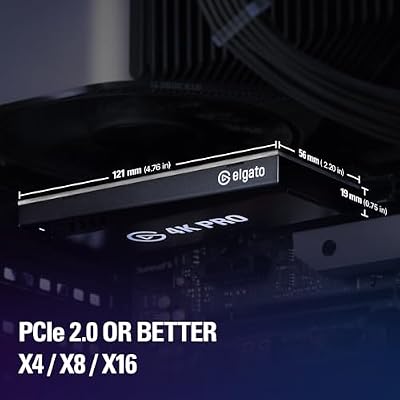
Elgato 4K Pro Internal Capture Card, 8K60 Passthrough | 4K60 HDR10 capture, HDMI 2.1, Up to 1080p240 recording, VRR support, Ultra-low latency, Dual PC setup compatible




As an Amazon Associate we earn from qualifying purchases. Product prices and availability are accurate as of the date/time indicated.
Audio Routing for a Clean Mix
Audio problems are the most common reason viewers leave a stream. OBS can route the game, the music, the microphone and any call audio to separate tracks. Put the microphone on its own track so you can record it cleanly, and keep the game audio at a level that does not drown out your voice. Use the mixer meters to aim for speech that peaks comfortably below the top of the scale, rather than pushing it into the red.
Microphone and Desktop Tracks
Add a noise suppression filter and a gain filter to the microphone source, and add a limiter to stop sudden loud sounds from clipping. Test the mix with a friend or a recording before going live. A microphone with a stable pickup pattern, placed at a consistent distance, makes every filter work better. The USB microphone guide for gaming covers the common options, and the microphone buying question answers the usual trade-offs between price and sound.
Comparing OBS Setup Options
The table below compares the hero listing and four alternatives by the role each plays in a typical OBS gaming setup. It does not list prices or ratings, because those change often and vary between sellers. Confirm every number on the live listing.
| Option | Role in this guide | Best for | What to confirm | Price |
|---|---|---|---|---|
| Hero listing | Primary pick for the OBS query | Single-PC streamers starting out | Compatibility with your OS and capture needs | Check current price |
| Alternative 1 | Same job, different emphasis | Streamers who want built-in alerts | Feature list and update policy | Check current price |
| Alternative 2 | Supporting hardware for the setup | Buyers adding a second input | Connection type and driver support | Check current price |
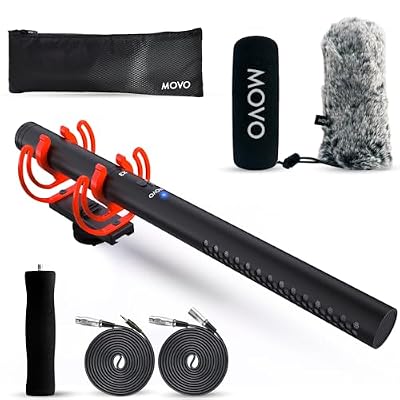
| Alternative 3 | Supporting hardware for the setup | Creators who need a cleaner audio path | Pickup pattern and cable length | Check current price |
| Alternative 4 | Optional add-on for control | Streamers who switch scenes often | Software compatibility and button count | Check current price |
Read the table as a checklist rather than a ranking. A setup needs one encoder, one clean audio path and one reliable upload connection, and the extra hardware only helps once those three are sound.

Elgato 4K Pro Capture Card 10GBK9901 - Black (Renewed) | 8K60 HDR passthrough, 4K60 capture, HDMI 2.1, VRR and HDR10, PCIe, for PC and Console


As an Amazon Associate we earn from qualifying purchases. Product prices and availability are accurate as of the date/time indicated.
Setup Checklist Before Going Live
Run a Test Recording
Record fifteen minutes of your normal gameplay and commentary. Watch the file for stutter, muffled speech and clipped audio. Fix any issue in the settings, then test again. A recording is the cheapest way to find a problem before an audience does.
Check the Dropped Frame Counter
OBS shows dropped frames in the status bar. Dropped frames from the network point to an upload or bitrate problem, while dropped frames from the rendering point to a scene that is too heavy. Each cause has a different fix, so read the status bar carefully before you change anything.
Keep a Backup Scene
Build a simple “Be Right Back” scene with a static image and your audio. If the game crashes or the connection drops, switch to it in one click. The Stream Deck review shows how a hardware button can make that switch faster, and the gaming PC for streaming guide covers the PC specs that keep the encoder and game running together.
Frequently Asked Questions
Is OBS Studio free to use for gaming streams?
Yes. OBS Studio is free and open source. Some plugins and services that work with it may charge separately, so check each add-on before you install it.
Should I use the NVIDIA encoder or x264 in OBS?
For most gaming PCs with a recent GeForce card, the hardware encoder is the better starting point because it costs less game performance. Use x264 when the GPU encoder cannot reach the quality you need at your bitrate, and only if the CPU has spare capacity.
How much CPU does OBS need for a single-PC stream?
The answer depends on the game, the resolution and the encoder. A single-PC stream with a hardware encoder usually needs far less CPU than a software-encoded stream. Test your own game and scene, and watch the rendering lag indicator during a long session.
Do I need a capture card to use OBS?
No. OBS can capture a PC game directly. A capture card is needed when you stream from a console or a separate machine, and the HDMI capture review explains how those devices fit into the chain.