
Streamlabs OBS Gaming Configuration Guide: Alerts, Overlays and Clean Output
Streamlabs Desktop is the streaming app most gaming creators reach for when they want built-in alerts, themed overlays and a guided setup without building every layer by hand. It is built on the same open source base as OBS Studio, so the core ideas of scenes, sources and encoders carry over. The difference is the layer on top: a widget library, a theme browser and an account that ties donations and alerts to your stream. This guide walks through a practical Streamlabs configuration for gaming, with an eye on keeping the output stable while the extra features run.
The hero listing above is the main pick for the query “streaming software OBS”, paired with four alternatives that support the same kind of setup. The card is the closest match for the category, not a promise about one exact model or edition. Check the card for specifications and price, and confirm the software version your PC needs before you buy any related hardware.


Why Choose Streamlabs for a Gaming Stream
The main reason to choose Streamlabs is time. A new streamer who wants a finished-looking channel can install a theme, connect an alert service and go live in an evening. An experienced streamer who builds custom layouts in OBS may find the built-in tools limiting. Neither choice is wrong. Decide based on how much design control you need and how much setup time you want to spend before your first broadcast.
Streamlabs features and account requirements change between releases. Some integrations depend on a connected account, and some optional services carry their own terms. Read the current release notes before you commit to a workflow, and keep a note of which features you rely on, so an update does not break your setup without warning.
Configuring Scenes and Themes
Start with one main gameplay scene and one starting scene. Apply a theme only after the basic layout works, because a theme can add layers that hide a misplaced webcam or a clipped game window. Set the canvas size to match your output resolution, then place each source inside the frame. Lock the sources you do not plan to move, so a stray click during a match does not shift your layout.
Choosing a Theme Without Overloading the Frame
A theme with a large chat panel, animated borders and a full-screen webcam can look impressive, but each element costs processing power and screen space. Pick a theme that leaves most of the frame for the game. A clean border, a readable chat box and a modest webcam frame usually perform better over a long session than a crowded design that competes with the gameplay.
Browser Sources and Widgets
Widgets such as alerts, goal bars and follower counters run as browser sources. Each one loads a web page into the scene, which uses memory and processing. Keep only the widgets you actually use, and turn off any widget that is not visible in the current scene. Test the scene with the widgets active during a busy match, not only in a quiet menu.
Output Settings and Encoder Choice
The output settings decide whether viewers get a sharp, stable picture. In Streamlabs, as in OBS, choose a hardware encoder when your graphics card supports one, because it usually costs less game performance than a software encoder on the processor. Set the bitrate to a level your upload connection can hold with room to spare, and set the keyframe interval to the value your platform requires.
Bitrate and Upload Headroom
Upload speed is the limit most streamers hit first. A stream that uses most of your upload capacity will drop frames whenever another device on the network starts a download. Leave a generous margin, and avoid setting a bitrate that the connection only reaches in a speed test. A stable lower bitrate often looks better to viewers than a high bitrate that stutters.
The internet speed guide for gaming and streaming explains how to measure upload headroom, and the router settings guide for gaming covers the network changes that protect a stream from background traffic.

Elgato 4K60 S+, External Capture Card, Record in 4K60 HDR10 with ultra-low latency to PC or SD Card on PS5/PS4, Xbox Series X/S, Xbox One X/S, in OBS and other broadcasting software, for Windows


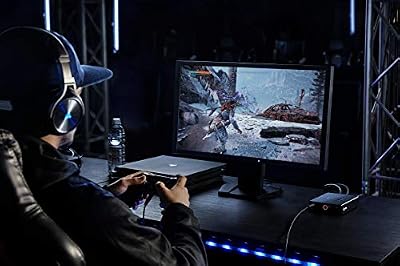


As an Amazon Associate we earn from qualifying purchases. Product prices and availability are accurate as of the date/time indicated.

Elgato 4K Pro Capture Card 10GBK9901 - Black (Renewed) | 8K60 HDR passthrough, 4K60 capture, HDMI 2.1, VRR and HDR10, PCIe, for PC and Console


As an Amazon Associate we earn from qualifying purchases. Product prices and availability are accurate as of the date/time indicated.
Audio and Alerts Without Clipping
Alerts are loud by design. A sudden donation sound can clip the mix and distort your voice for the viewers who are listening closely. Set the alert volume lower than your speech level, and test a few alerts at full volume before you go live. Use a limiter on the master track so a sudden peak does not reach the stream at full strength.
Keep the microphone on its own track when possible, so a loud alert or a game sound effect does not change your voice level. Monitor the mix with headphones during a test stream, not only with speakers. For a deeper look at voice pickup and placement, the gaming microphone guide compares the main microphone types, and the boom microphone guide explains when a boom arm makes a difference.
Comparing Streamlabs Setup Options
The table compares the hero listing and four alternatives by their role in a Streamlabs gaming setup. It does not state prices or ratings, since those change often and differ between sellers. Confirm each number on the live listing before buying.
| Option | Role in this guide | Best for | What to confirm | Price |
|---|---|---|---|---|
| Hero listing | Primary pick for the streaming software query | Streamers who want built-in alerts and themes | Software version and account requirements | Check current price |
| Alternative 1 | Supporting hardware for the same setup | Creators adding a second capture input | Connection type and driver support | Check current price |
| Alternative 2 | Supporting hardware for the same setup | Streamers who need a cleaner audio path | Pickup pattern and cable length | Check current price |
| Alternative 3 | Optional control hardware | Streamers who switch scenes and alerts often | Software compatibility and button count | Check current price |
| Alternative 4 | Optional lighting or camera support | Creators who want a consistent on-camera look | Mounting and power requirements | Check current price |
Use the table to pick the one or two items your channel needs now. The software decides the look, but the audio path and the upload connection decide whether that look reaches viewers in good shape.
Streamlabs Pre-Stream Checklist
Test Every Alert at Full Volume
Trigger each alert type once while speaking, then listen to the recording. Look for clipping, overlapping sounds and any alert that covers your voice for too long.
Confirm the Output Matches the Platform
Check the resolution, frame rate, keyframe interval and bitrate against the platform’s current ingest guidance. A mismatch can cause a dropped stream or a blurry picture even when your PC is fine.
Prepare a Fallback Scene
Keep a simple scene with a static image and an audio bed ready. If the game crashes or the connection drops, the fallback scene keeps the channel active while you recover. The streamer setup guide for 2026 shows how a fallback scene fits into a complete desk layout.
Further reading on the same stream: the gaming PC for streaming guide sets the hardware baseline, the CPU guide for gaming and streaming explains processor headroom, the how to stream on Twitch from a PC guide covers the account and key steps, and the compact camera review shows one option for the webcam frame.
Frequently Asked Questions
Is Streamlabs better than OBS Studio for beginners?
For many beginners, yes, because the built-in alerts and themes save hours of setup. Experienced streamers who want full control over every layer often prefer OBS Studio, and both can produce a good stream.
Does Streamlabs use more CPU than OBS?
It can, because the widgets and themes add browser sources and overlays. The effect depends on how many widgets you load and how heavy your scenes are. Test with your real layout during a busy match and watch the rendering lag indicator.
Can I use Streamlabs with a hardware encoder?
Yes, when your graphics card supports one. Choose the hardware encoder in the output settings, run a test stream, and check the dropped frame counters before you go live.
Should I connect my alerts to a live account?
Connecting alerts to your account is how donations and follows trigger on screen. Only connect services you trust, and review the permissions each service requests before you approve them.


