Capture Card Guide Streaming 2026: Choosing the Right Input for Your Stream
A capture card takes a video signal from a console, a second PC or a camera and turns it into an input your streaming software can use. For gaming streamers, that usually means putting a console or a separate machine on stream without asking the streaming PC to do the work of capturing the game itself. The choice depends on the source you want to capture, the resolution and frame rate you need, and whether you plan to stream and record at the same time. This guide explains the main types of capture hardware and how to choose among them.
The hero listing above is the main pick for the query “capture card 4K streaming”, with four alternatives that cover the same job in different ways. Treat each card as the closest match for its category, not a promise about one exact model. Check the card for the input types, resolution support and current price before buying, because capture specifications differ more than most buyers expect.


What a Capture Card Does in a Streaming Chain
A capture card reads a video signal from an HDMI or similar output and passes it to the streaming software as a video source. It does not usually encode the stream itself. Some cards include an onboard encoder, which takes the load off the PC, while others rely on the streaming software to encode the picture. Knowing which kind you have prevents a common mistake, which is assuming a card will reduce CPU use when it does not.
The basic chain is simple: the source outputs a picture, the capture card receives it, the streaming PC composes it into a scene, and the encoder sends the result to the platform. Every link must support the same resolution and frame rate, or the signal will be scaled, dropped or delayed.
Internal Versus External Capture
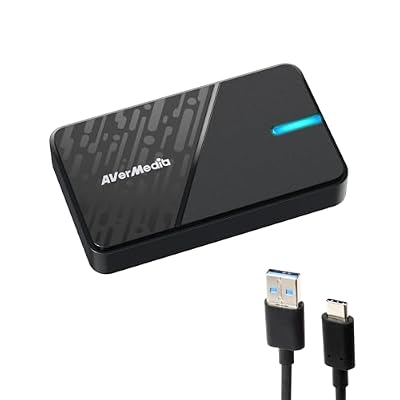
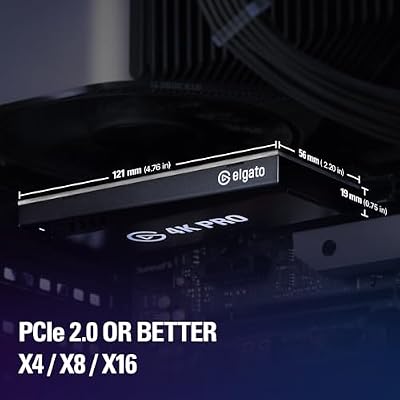
Internal capture cards sit inside the PC on a PCIe slot. They tend to offer low latency and a clean signal path, but they require an open slot, a compatible motherboard and some comfort with installation. External capture devices connect over USB. They are easier to set up and move between machines, but they depend on the USB bandwidth and the controller on the host PC.
Choosing the Connection for Your Desk
If your streaming PC has a free PCIe slot and you plan to keep the setup fixed, an internal card is often the more stable choice. If you use a laptop, a shared desk or a second machine that changes often, an external USB device is more practical. Check the USB generation on the host PC before buying an external device, because an older port can limit the resolution and frame rate.

Elgato 4K Pro Internal Capture Card, 8K60 Passthrough | 4K60 HDR10 capture, HDMI 2.1, Up to 1080p240 recording, VRR support, Ultra-low latency, Dual PC setup compatible




As an Amazon Associate we earn from qualifying purchases. Product prices and availability are accurate as of the date/time indicated.
Resolution, Frame Rate and Passthrough
Capture specifications describe the highest input the device accepts and the output it sends to the PC. A card that accepts 4K input may still output at a lower resolution, and the frame rate limits can differ between the two. Read the specification sheet carefully, and confirm the exact input and output modes you plan to use.
Passthrough for Local Play
Many capture devices offer passthrough, which sends the source picture to a display while also sending a copy to the PC. Passthrough lets you play on the monitor without a delay that the stream introduces. Confirm that passthrough supports your display’s refresh rate, because some devices downgrade the output to a lower mode. A downgraded picture can make a fast game look rough, even when the stream itself is fine.
Latency in the Capture Path
Every capture device adds some delay, and passthrough mode is designed to keep that delay low for local play. The stream itself will always carry a longer delay than the local picture, which is normal. Measure the gap between your hands on the controller and the on-screen result, then decide whether the delay is acceptable for your games.
The HDMI capture review shows how one external USB device behaves in a real chain, and the HDMI cable guide for gaming covers the cable side of the signal path, which matters as much as the capture device.
Comparing Capture Options
The table compares the hero listing and four alternatives by the role each plays in a capture setup. It does not list prices or ratings, because those change often and vary between sellers. Confirm every number on the live listing before ordering.
| Option | Role in this guide | Best for | What to confirm | Price |
|---|---|---|---|---|
| Hero listing | Primary pick for the 4K capture query | Console streamers and single-source setups | Input resolution, frame rate and passthrough modes | Check current price |
| Alternative 1 | External USB capture option | Laptop and shared-desk streamers | USB generation and host compatibility | Check current price |
| Alternative 2 | Internal PCIe capture option | Fixed desktop builds with a free slot | Motherboard slot and driver support | Check current price |
| Alternative 3 | Second-source capture or switching | Streamers with two or more inputs | Number of inputs and switching software | Check current price |
| Alternative 4 | Cable or adapter for the chain | Anyone upgrading to a higher resolution | Cable standard and length | Check current price |
Read the table as a list of compatibility checks rather than a ranking. A capture card only works as well as the slowest link, which is often the cable, the USB port or the display mode.
Setup and Testing Steps
Match the Source Output
Set the console or second PC output to the same resolution and frame rate you plan to stream. A mismatch forces the capture device to convert the signal, which can add delay or reduce quality.
Test the Audio Path
Confirm that game audio arrives through the capture device, and check whether the source audio and the stream audio are in sync. Record a short clip and listen for any lip sync problem.
Record Before You Stream
Make a fifteen-minute recording and watch it on a large screen. Look for frame drops, colour shifts and audio dropouts. The roundup of streaming setups for gaming shows how capture fits into a complete desk layout, and the Twitch streaming guide covers the first-time stream key and output steps.
Related reading: the gaming PC for streaming guide covers the streaming machine, the CPU guide for gaming and streaming explains processor limits, the Stream Deck review shows a control surface for switching sources, and the internet speed guide helps set the upload target for a capture-based stream.
Frequently Asked Questions
Do I need a capture card to stream from a PC?
No. A PC game can be captured directly by the streaming software. A capture card is needed when the source is a console, a second machine or a camera that cannot send its output straight into the streaming PC.
Is an internal or external capture card better?
Internal cards suit fixed desktop builds with a free slot and tend to be very stable. External USB devices suit laptops and shared desks. Choose based on your desk layout and your USB ports.
Why does my capture card show a lower resolution than my console?
Usually the capture device or the output mode is set below the source’s full resolution, or the cable does not support it. Check the input and output modes in the device’s settings and confirm the cable standard.
Will a capture card reduce the load on my PC?
Only if the card includes its own onboard encoder. Many cards pass the picture to the PC, and the streaming software still does the encoding. Check the specification before expecting a load reduction.