YouTube Gaming Streaming Settings 2026: Encoder, Bitrate and Latency
YouTube Live handles gaming streams differently from Twitch in a few important ways. Its ingest accepts a wider range of resolutions and frame rates, its latency options change how interactive a broadcast feels, and its recording behaviour can add a second copy of your stream to your channel archive. Getting the settings right means choosing an output that YouTube processes cleanly, and matching it to what your upload connection can hold. This guide explains the settings that matter for YouTube gaming streams and the trade-offs behind each one.
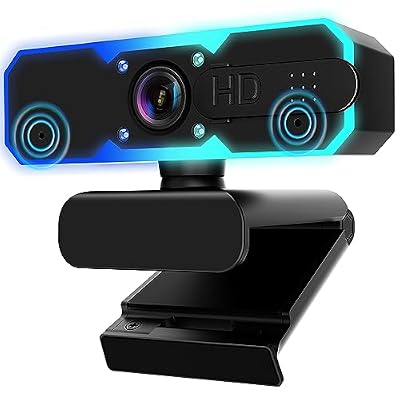
The hero listing above is the main pick for the query “YouTube streaming setup”, with four alternatives that support the same broadcast setup. Treat the card as the closest match for its category, not as a guarantee about one exact product. Check the card for specifications and the current price before ordering, and confirm the requirements in your own streaming software.


Understanding YouTube’s Ingest Requirements
YouTube publishes encoder guidance that lists supported resolutions, frame rates, keyframe intervals and audio formats. Those values change over time, so check the current guidance before you set a profile. The general pattern is that YouTube accepts a range of constant bitrate outputs, and it asks for a keyframe interval that lets its processing start quickly. Copy the numbers from the live documentation into your notes, and keep that note with your streaming profile.
Because the platform processes your stream into several qualities for viewers, a clean and stable input matters more than a very high bitrate. A stream that is smooth at a moderate bitrate usually produces a better archive and better playback than a high bitrate that drops frames during busy scenes.
Choosing a Resolution and Frame Rate
For most gaming channels, 1080p at 60 frames per second is the usual target. It gives smooth motion and a sharp picture on common screens. Lower frame rates can be sensible for slower games, and they free up bitrate for detail. A 720p stream at a higher frame rate can also look better than a 1080p stream that struggles, so judge the result on the screen your viewers actually use.
Bitrate Targets for a Stable Stream
Set the bitrate so your upload connection holds it with room to spare. A common approach is to measure your upload speed during normal household use, then choose a bitrate well below the lowest reading. Test for at least thirty minutes. A bitrate that works in a short trial can fail later when the game gets heavy or when another device starts a large upload.
The bitrate guide for YouTube streaming works through the same numbers for a different frame shape, and the internet speed guide explains how to measure your real upload headroom.

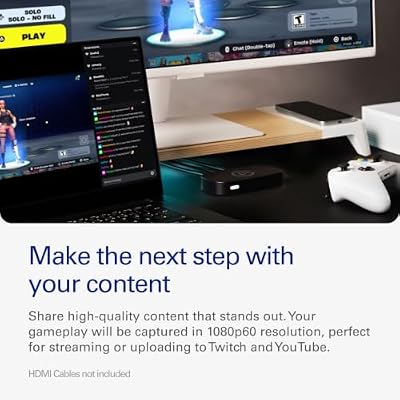
Elgato Game Capture Neo Black Portable Capture Card for Streaming, 4K60 HDR | For PS5, Xbox Series X/S, Switch 2, iPhone, 1080p60 recording, Ultra-low latency, USB-C, Plug and play, PC, Mac, iPad



As an Amazon Associate we earn from qualifying purchases. Product prices and availability are accurate as of the date/time indicated.
Latency Modes and Interaction
YouTube offers latency options that change the delay between the game and what viewers see. Lower latency makes chat feel more immediate, which suits games where viewers take part in the decisions. Normal latency gives the platform more room to buffer, which can improve stability on weaker connections. Choose the mode that matches your style of stream, and test the delay with a phone recording before you schedule a broadcast.
Low latency is not automatically better. A very low delay leaves less time to recover from a brief network problem, so the stream may stall more often on a shaky connection. If your chat is mainly reaction and conversation, the extra few seconds of delay rarely matter to viewers.
Encoder and Game Performance
A hardware encoder on the graphics card is usually the best choice for a single-PC gaming stream, because it takes less processing time from the game. A software encoder can give a good image at the same bitrate, but it needs spare processor capacity. Test both on your own game, and compare the frame rate and the dropped frame counter before choosing one.
If you stream from a second PC, the encoder runs on that machine, and the gaming PC only sends a clean picture. The CPU guide for gaming and streaming helps you judge whether a processor can handle a software encoder alongside a demanding game.
Audio, Archive and Recording
YouTube records live streams and keeps them on your channel as archives, so audio problems last longer than they do on a live-only platform. Use a clean stereo audio track, a sample rate of 48 kHz, and a bitrate that gives clear speech. Keep the microphone level steady, and avoid clipping during loud moments in the game.
Check the archive after the first broadcast. Watch a few minutes of the recording, listen for speech clarity and look for any frame drops. Fix problems before the next scheduled stream, because the archive is a visible record of the channel’s quality.
Comparing YouTube Streaming Setups
The table compares the hero listing and four alternatives by the role each plays in a YouTube gaming setup. It does not state prices or ratings, because those change often and vary between sellers. Confirm every number on the live listing before buying.
| Option | Role in this guide | Best for | What to confirm | Price |
|---|---|---|---|---|
| Hero listing | Primary pick for the YouTube streaming query | Gamers starting a YouTube Live channel | Compatibility with your streaming software | Check current price |
| Alternative 1 | Supporting hardware for the same setup | Creators who want a second scene input | Resolution and frame rate support | Check current price |
| Alternative 2 | Audio hardware for the setup | Streamers who record long archives | Pickup pattern and connection type | Check current price |
| Alternative 3 | Camera or capture accessory | Creators who appear on camera | Low-light performance and mounting | Check current price |
| Alternative 4 | Control or desk accessory | Streamers who switch scenes often | Software support and button layout | Check current price |
Pick the single item that removes your weakest point. On YouTube, that is often audio quality or upload stability rather than the hardware itself.

Elgato 4K Pro Capture Card 10GBK9901 - Black (Renewed) | 8K60 HDR passthrough, 4K60 capture, HDMI 2.1, VRR and HDR10, PCIe, for PC and Console


As an Amazon Associate we earn from qualifying purchases. Product prices and availability are accurate as of the date/time indicated.
Pre-Broadcast Checklist
Test the Full Chain
Stream privately for at least thirty minutes, then check the archive. Look for frame drops, stutter and any audio that is hard to hear.
Confirm the Stream Settings Match
Make sure the resolution, frame rate, keyframe interval and bitrate in your software match the values in the platform’s current guidance. A mismatch can cause a rejected stream or a poor archive.
Plan the Network
Wire the streaming machine to the router, and pause large downloads during the broadcast. The router settings guide for gaming covers the changes that keep a stream steady on a busy home network.
Related reading: the streamer setup guide for 2026 helps you plan the desk, the gaming PC for streaming guide covers the machine, the compact camera review shows a camera option for smaller rooms, and the AI avatar services guide explains an alternative for creators who prefer not to appear on camera.
Frequently Asked Questions
What bitrate should I use for YouTube Live gaming?
Choose a bitrate that your upload connection holds steadily during a long test, and check the current YouTube guidance for the recommended range at your resolution and frame rate. Leave a margin for other devices on the network.
Is low latency better for a gaming stream?
It is better for chat that reacts to the game in real time. It is less forgiving on weak connections, so choose the setting that matches your stream style and your connection.
Do YouTube streams stay on my channel after they end?
Live broadcasts can be saved as archives on your channel, depending on your settings. Check the archive after the first broadcast to confirm audio and picture quality.
Can I stream to YouTube from the same PC I game on?
Yes. A single-PC setup with a hardware encoder is the most common approach. Test the frame rate and the dropped frame counter during a real session before relying on it.