M0NESY CS2 Setup: How to Build a Pro-Style Counter-Strike 2 Config
Searches for the m0NESY CS2 setup usually come from one of two places. Some players want to copy a top AWPer’s gear and settings. Others want to understand why a pro-level config feels so consistent on screen. Both goals are reasonable, and both lead to the same conclusion: a config is a set of tools that fit one player’s hands, eyes and habits. Copying every line without understanding it rarely produces the same results.
This guide breaks down the parts of a competitive CS2 setup that actually matter: mouse, sensitivity, crosshair, monitor, video settings and the hardware that keeps frame times steady. It shows you how to build a similar configuration, how to test it, and which pieces are worth spending money on. Use it as a framework, not a copy-paste file.
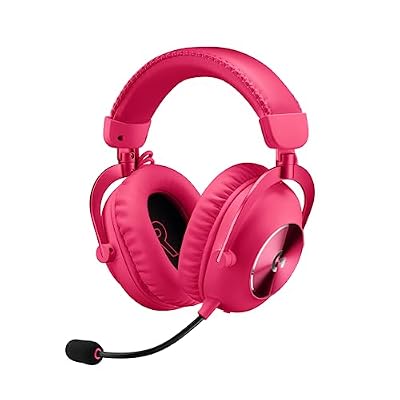
The listing above may be a close match for the kind of gear used in a pro-style CS2 setup rather than an exact replica of any player’s kit. Check the card for the exact model, specifications and current price before you buy. The selection logic in this guide holds regardless of which model you choose.
What Makes a Pro CS2 Config Work
A competitive config is built from a few decisions that reinforce each other. The mouse sets how your hand moves. Sensitivity converts that movement into on-screen motion. The crosshair and viewmodel show you where your shots land. The monitor decides how clearly you can read fast movement. Video settings decide how much detail you see versus how smooth the image stays. If one link is weak, the rest matter less.
Most pro-style configs share a few traits. They favour clarity over spectacle, so textures and effects are reduced. They keep sensitivity low enough for precise aim and consistent across sessions. They avoid unnecessary visual clutter on the crosshair. And they treat the setup as stable: once a player finds a combination that works, they rarely change it during a season.
Breaking Down the Core Settings
Mouse and Sensitivity
Sensitivity is the setting most players get wrong. A high value makes small movements feel fast, which looks exciting but often hurts precision at range. Many experienced players use a moderate, low-to-medium sensitivity and build muscle memory around it. The key is consistency. Pick a value, keep it for weeks, and only change it when you have a clear reason. Your mousepad surface and mouse sensor also affect how the value feels, so change one thing at a time.
For the mouse itself, weight, shape and grip matter more than headline specifications. Test a few models in your own grip style. A lightweight shape with a comfortable profile suits many players, but this is personal. Our guide to the best gaming mouse in 2026 covers the main categories, and the best FPS gaming mouse roundup narrows the choice for shooters.
Crosshair and Viewmodel
The crosshair should be readable against every map background, but not so large that it hides enemies. Many players use a small, simple shape with a clear centre gap or a thin outline. CS2 supports crosshair share codes, which let you import a layout someone else built. Treat a shared code as a starting point, then adjust size and colour under the lighting of your own room.
The viewmodel controls how your weapon appears on screen. Pro players often reduce its size and position it to keep more of the scene visible. This does not change game logic, but it does change what you see, so test it in practice and in deathmatch before you commit.
Launch Options and Video Settings
Some players add launch options to change how the game starts. Others prefer to leave the defaults alone. The safe approach is to add one option at a time, test it, and remove it if the result is unclear. Avoid long lists copied from forums without knowing what each option does.
Video settings are mostly about visibility. Lower shadows, effects and textures to improve clarity and frame stability. Keep the resolution and aspect ratio that suit your monitor. A stable frame rate matters more than a high peak, because sudden drops feel worse than a slightly lower but steady number.
Hardware That Supports the Config
A config cannot fix a system that stutters. CS2 rewards high and steady frame rates, so the CPU and GPU both matter. If you are upgrading, our guide to the best CPU for Counter-Strike 2 and the best GPU for Counter-Strike 2 show which parts give the most benefit for the money.
Monitor Choice
A fast monitor helps you track enemies that move quickly across the screen. A higher refresh rate shows more frames, and a low response time reduces blur. Check our guide to the best refresh rate for gaming to see whether the jump from 144Hz to 240Hz is worth it for your setup. Many players also choose a monitor that runs at a resolution their GPU can drive at high frame rates.
Peripherals Beyond the Mouse
A keyboard with comfortable switches and a layout you can reach without looking helps reaction and utility use. Our picks for the best gaming keyboard in 2026 explain the switch and layout trade-offs. A mousepad with consistent glide and stable friction supports the same muscle memory every session. For that, the best esports mousepads guide compares surface types.
Comparison: Config Components and What to Prioritise
| Component | Best for | What to look for | Typical price range |
|---|---|---|---|
| Mouse | Precise aim and comfort | Weight, shape, sensor consistency | Check current price |
| Monitor | Reading fast movement | Refresh rate, response time, panel type | Check current price |
| Keyboard | Utility keys and comfort | Switch feel, layout, build quality | Check current price |
| Mousepad | Consistent glide | Surface type, size, stitched edges | Check current price |
| GPU and CPU | Steady frame rate | Frame time consistency at your resolution | Check current price |
Use the table to decide where to spend first. For most players, mouse feel and a fast monitor produce the biggest change. Hardware upgrades that raise frame stability come next, and cosmetic items come last. For a wider view of how these parts fit a room, the best gaming setup guide shows layout options.
How to Test a Config Without Guessing
Change One Variable at a Time
Set up a baseline, then change a single setting. Play a short block of aim training or a few deathmatch rounds, then decide whether the change helped. Changing sensitivity, crosshair and video settings at once makes it impossible to know which change caused a result.
Keep a Simple Log
Write down each config version, the date and how it felt in play. After a week you will see patterns that a single session hides. This also protects you from the common trap of rebuilding your config every time a new video appears.
Common Mistakes to Avoid
The first mistake is chasing a pro’s exact sensitivity without considering your own grip and desk. The second is turning on every visual effect to match a stream, then wondering why the frame rate dips in fights. The third is treating launch options as magic. Most gains come from stable hardware, a comfortable mouse and a consistent routine. Keep your config simple enough that you can explain every setting.
Frequently Asked Questions
Can I copy the m0NESY CS2 config exactly?
You can use it as a reference, but an exact copy may feel wrong. Sensitivity, grip and monitor size all change how a config feels. Build a version that suits your hands and test it over several sessions.
Do I need the same mouse as a pro to improve?
No. Pick a mouse that fits your grip and that you can use consistently. Comfort and sensor reliability matter more than matching a specific model.
What is the single most useful upgrade for CS2?
For many players it is a fast monitor paired with a stable frame rate. Mouse feel comes next. Both change what you see and how reliably you react.
How often should I change my config?
Change it only when you have a clear reason, such as a new monitor or a specific problem in play. Frequent changes make it hard to measure what actually helps.