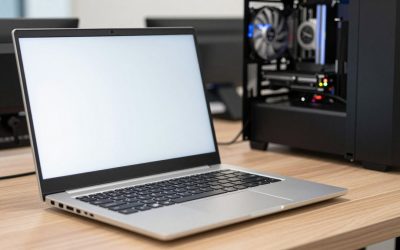
A good podcasting laptop is quiet, stable, and well connected. The three specs that matter most are low fan noise (or a fanless design) so your microphone never picks up the machine, at least 16GB of RAM so your recording and editing software stay responsive, and plenty of USB ports for a microphone, an audio interface, and headphones without a hub that adds latency or dropouts.
This guide is for solo hosts, interview shows, and small teams who record at a desk, on location, or remotely over video. In 2026, audio editing itself is light work for modern processors, so the decision is less about raw power and more about noise, ports, storage, and reliability. The sections below explain how to read a spec sheet with a microphone in the room.
Why Podcasting Needs a Different Spec Sheet
Recording audio is among the least demanding tasks a laptop does, but it is also the least forgiving. A fan that spins up in the middle of an interview, a USB port that drops a connection, or a background update that freezes the recorder ruins a take that cannot be repeated. That is why quiet operation, stable drivers, and a clean port layout matter more than a high GPU score.
Editing adds moderate demand. Multitrack sessions with noise reduction, compression, and a dozen plug-ins use the processor and RAM, and video podcasts add encoding and a webcam feed. Plan for the heaviest version of your show, not the simplest, and leave headroom.
Specs That Shape the Podcasting Experience
Noise: Fans and Coil Whine
A fanless laptop is the quietest option, and a laptop with a low-power processor often stays silent during recording. If you choose a model with fans, look for reviews or specifications that describe idle and light-load noise, and be wary of thin gaming machines that ramp fans aggressively. Even a quiet laptop should sit away from the microphone, so a USB extension or a stand helps.
RAM and Processor
Sixteen gigabytes of RAM is the recommended minimum for multitrack editing with plug-ins, and 8GB can work for simple stereo recordings. A modern processor with six or more cores handles noise reduction and export quickly, while an efficient chip keeps temperatures and fan noise low. Video podcasts and live streaming justify more cores and 32GB of RAM.
Ports and Audio Connectivity
Count the ports you need. A USB microphone or audio interface, a second interface for guests, headphones, an external drive, and perhaps a capture device add up quickly. Look for at least two USB-A ports, a USB-C or Thunderbolt port for an interface, and a headphone jack. Connecting an interface through a powered hub is possible, but direct ports are more reliable for recording.
Storage: Speed, Capacity, and Backups
Uncompressed audio is not huge, but multitrack sessions and video add up. A 512GB NVMe drive is a workable floor, and 1TB is more comfortable if you keep episodes locally. Plan for an external drive or cloud backup so a single drive failure does not erase your archive.
Battery and Portability
If you record on location, look for a battery rated for 10 hours or more and a light chassis. A laptop that holds performance on battery, rather than throttling, keeps recordings stable when you are away from an outlet.
Spec Targets by Budget Tier
| Spec | Budget | Mid-range | Premium |
|---|---|---|---|
| Processor | 4 to 6 cores, efficient | 6 to 8 cores | 8 or more cores, efficient design |
| RAM | 8 to 16GB | 16GB | 32GB |
| Storage | 256 to 512GB NVMe | 512GB to 1TB NVMe | 1 to 2TB NVMe |
| Ports | Two USB-A, USB-C, headphone jack | USB-A, USB-C or Thunderbolt, headphone jack | Multiple Thunderbolt or USB4, SD reader |
| Noise | Quiet at idle | Fanless or near silent in light use | Fanless or very quiet, with strong sustained performance |
| Webcam | 720p | 1080p | 1080p with good low-light performance |
Budget machines record audio well if you keep the session simple. Mid-range is the best fit for most hosts who edit their own shows. Premium suits video podcasts and teams handling many tracks.
Software, Drivers, and Remote Recording
Audio interfaces use drivers, and driver support varies by operating system. Before you buy, confirm your interface and recording software are supported on the platform you choose, and check whether the manufacturer provides recent updates. Class-compliant interfaces typically work with fewer problems.
Remote recording adds network demands. A stable Wi-Fi connection, preferably Wi-Fi 6 or newer, helps, and a wired Ethernet adapter is even better for a guest call that must not drop. Look for a laptop with a decent microphone array and webcam, since they can serve as a backup when your main gear fails.
Finally, consider power management. Disable aggressive sleep and background updates during recording, and choose a laptop whose power modes let you select a quiet profile. A laptop with a replaceable battery or long service life is a bonus if your show is a long-term project.
Which Setup Fits Which Podcaster
The Solo Voice Recorder
A fanless or quiet laptop with 16GB of RAM, a 512GB drive, and one or two USB ports covers a single microphone and simple editing. Keep an eye on port count if you add an interface later.
The Interview Host With a Mixer
Multiple guests mean multiple inputs. Choose a laptop with Thunderbolt or USB4, 16 to 32GB of RAM, and reliable USB ports. A multitrack session with several plug-ins benefits from six or more cores.
The Video Podcaster
Video adds encoding, camera inputs, and larger files. Target 32GB of RAM, a 1TB drive, a capable GPU for encoding acceleration, and strong cooling. Noise management matters more, so use a stand or place the laptop away from microphones.
The On-Location Journalist
Portability and battery life lead. Choose a light laptop with a long rated battery, an SD reader for field recorders, and rugged build quality. A second drive or fast external storage protects your recordings.
Keeping the Recording Room Quiet
Even a quiet laptop adds sound. Fans, spinning drives, coil whine from the power supply, and keyboard clatter can all reach a sensitive condenser microphone. Solid-state storage removes drive noise, and a fanless or low-power design removes most of the rest. If you buy a model with fans, check whether the power profile can cap fan speed during recording, and consider placing the laptop on a stand or even in an adjacent room with a remote desktop or a long cable.
Plan the physical setup as part of the purchase. A stand that raises the screen keeps it out of the microphone’s pickup pattern, and a USB extension keeps the interface at a comfortable reach. A laptop with ports on the side and rear is easier to route than one with everything crowded on the left edge. Cable strain also matters, so ports that are firmly seated and well supported reduce the risk of a connection wobbling mid-interview.
Power management is another quiet-room issue. Make sure the laptop can be set to avoid sleeping, throttling, or installing updates during a session, and that notification sounds can be fully muted. Operating-system sounds that leak into a recording are easy to avoid but hard to fix in editing.
Finally, consider monitoring. Listening on closed-back headphones prevents feedback and lets you catch problems as they happen. A laptop with a clean headphone output, or a separate interface with a dedicated headphone amp, ensures you hear what the microphone hears. If you edit on the same machine, a quality pair of headphones will be more useful than a faster processor.
Common Mistakes
- Buying a thin gaming laptop with loud fans that bleed into every recording.
- Counting only on a single USB port and then relying on cheap hubs that cause dropouts.
- Forgetting driver support for the audio interface on the chosen operating system.
- Choosing 8GB of memory and then struggling with multitrack sessions and plug-ins.
- Skipping a backup plan and storing every episode on one internal drive.
Before You Buy
- Check fan behavior and noise descriptions in the specification and reviews.
- Count the ports you need and confirm they are direct rather than hub-dependent.
- Verify driver support for your microphone or audio interface.
- Confirm RAM and storage meet the needs of your heaviest session.
- Look for Wi-Fi 6 or newer and an Ethernet option for remote guests.
- Plan for external backups from day one.
Related guides
- Aio Liquid Coolers For High Performance Gaming
- Wireless Gaming Headsets Under 100 For Pc
- What Is A Dac And Do You Need One For Gaming
Frequently Asked Questions
Is a fanless laptop better for podcasting?
It removes the biggest source of unwanted noise, so it is an excellent choice for solo hosts. The trade-off is lower sustained performance, which matters only if you also edit video or run heavy plug-ins.
How much RAM do I need for audio editing?
Sixteen gigabytes is a comfortable target for multitrack editing with plug-ins. Eight gigabytes can work for simple recordings, and 32GB helps for video podcasts.
Do I need a dedicated graphics card?
Not for audio-only shows, since integrated graphics are enough. A dedicated GPU is useful only if you edit or stream video with hardware-accelerated encoding.
Can I record with the built-in microphone?
You can in an emergency, but it will sound thin and pick up the keyboard and fan. An external USB microphone or audio interface gives a much cleaner result.