
Wi-Fi 7 Router Gaming Setup Guide 2026
Wi-Fi 7 is the newest consumer wireless standard, and router makers have pushed it hard for gaming. The headline claims are fast peak speeds and lower delay on a crowded network. Both are real features, but neither one fixes a poor setup on its own. This guide explains what Wi-Fi 7 changes for gamers, where the benefit is genuine, and how to set up a Wi-Fi 7 router so your console or PC gets the most from it.
This is a buying and setup guide. We have not run our own timed tests on any router for this article, so we do not quote latency or throughput figures. Instead we describe the features that matter, the conditions that make them useful, and the mistakes that waste them. Treat any performance claim on a product page as a starting point and check independent reviews before you spend money.
The listings below were returned for this search. The first is the primary pick and the others are close alternatives. The listing above may not be the exact model you had in mind, so confirm the model, the Wi-Fi 7 support and the price on the card before ordering.


What Wi-Fi 7 Changes for Gaming
Wi-Fi 7, also called 802.11be, builds on Wi-Fi 6 and Wi-Fi 6E. It adds wider channels, more efficient use of the spectrum and features that let a device use more than one band at the same time. For a gamer, the useful parts are not the peak numbers printed on the box. They are the features that reduce waiting when several devices share the airwaves.
Multi-Link Operation
Multi-Link Operation, usually shortened to MLO, lets a compatible device maintain connections on more than one band. A supported laptop or PC can send traffic over two bands, and the router can choose the cleaner path when one band gets busy. In practice this can make a gaming session steadier when a streaming TV, a phone and a cloud backup are all active at the same time. It does nothing for a device that does not support MLO, so check the client hardware, not just the router.
320 MHz Channels and the 6 GHz Band
Wi-Fi 7 defines 320 MHz channels in the 6 GHz band, which are twice as wide as the 160 MHz channels used by many Wi-Fi 6E networks. Wider channels can carry more data per transmission, but they also need a clean slice of spectrum. In a dense apartment block, a 320 MHz channel may be harder to find than a narrower one. That is why channel planning matters as much as the headline specification.

ASUS ROG Rapture GT-BE98 Pro WiFi 7 Gaming Router - Quad-Band, 30Gbps, Mesh | Coverage up to 3,500 Sq. Ft., 10G Port x2, 2.5G Port x4. Game Boost for Low Latency Gaming & Streaming. VPN support


As an Amazon Associate we earn from qualifying purchases. Product prices and availability are accurate as of the date/time indicated.
Where Wi-Fi 7 Helps and Where It Does Not
Wi-Fi 7 is most useful when the network is busy. A single gamer on an empty network with a wired connection will see little difference from a good Wi-Fi 6 router. The benefit shows up when you stream, download a game update, run a video call and play at the same time. If your home is quiet and your games run on a cable, spend your money on a better internet plan or a better cable instead.
Latency and Jitter Under Load
Most gamers feel jitter, the variation in delay between packets, more than raw delay. Jitter rises when the airwaves are congested or when a device has to retry transmissions. Wi-Fi 7 aims to reduce both by giving the router more ways to schedule traffic. The improvement is real but depends on the environment, so judge it by stable in-game ping during a busy evening, not by the speed test you run in the morning.
Your Device Has to Keep Up
A Wi-Fi 7 router only delivers Wi-Fi 7 features to a device that also supports them. Many gaming PCs still use Wi-Fi 6 or Wi-Fi 6E adapters, and many consoles connect at the older standards. Check the wireless card in your PC and the connection details in your console before assuming you will get the full benefit. A USB or PCIe adapter with Wi-Fi 7 support can help a desktop, but it will not change what a console can do.
Step-by-Step Wi-Fi 7 Gaming Setup
Setup decides how much of the hardware you actually use. The steps below apply to most Wi-Fi 7 routers, although menu names differ between brands. Follow them in order, and change one setting at a time so you can see what helps.
Placement and Channel Choice
Place the router in a central, elevated spot with few walls between it and your gaming desk. Keep it away from metal cabinets, microwaves and thick masonry. In the wireless settings, let the router choose the channel at first, then check whether a fixed channel gives a steadier connection. Many routers default to automatic settings that work well, so only override them if you see drops or heavy interference in your area.
Security and Firmware
Enable WPA3 where your devices support it, or WPA2/WPA3 mixed mode if some older devices need it. Update the firmware before you start gaming, then check for updates every few months. Wi-Fi 7 features depend on driver and firmware maturity, so an early firmware release may fix a problem that looked like a hardware fault. Disable remote administration unless you need it.
Prioritise Your Gaming Device
Most routers offer a quality of service setting or device priority list. Use it to place your gaming PC or console at the top of the list. This does not make the connection faster, but it helps the router choose your game traffic when the link is busy. Pair this with a wired connection where possible, because a wired device is never affected by neighbours and other devices sharing the airwaves.

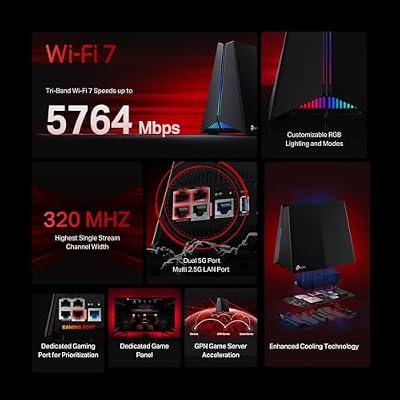
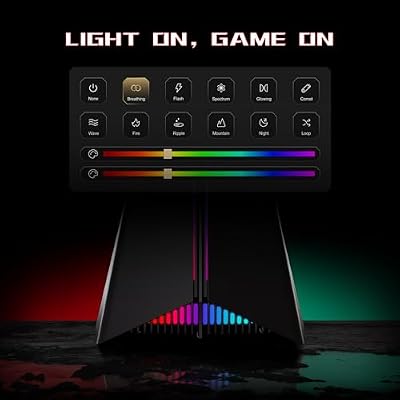
TP-Link Tri-Band BE11000 Wi-Fi 7 Gaming Router (Archer GE650) | 6-Stream, 11 Gbps, 320MHz, 2×5G + 3×2.5G Ports, USB 3.0, Game Acceleration, Gaming Port & Panel, RGB Lighting, HomeShield



As an Amazon Associate we earn from qualifying purchases. Product prices and availability are accurate as of the date/time indicated.
Comparison Table: Wi-Fi 7 Router Options
The table below compares the five listings by role rather than by ranking. Use it to match the router to your home, your devices and your budget. Price guidance is intentionally a range of checks, because prices move often and differ by retailer.
| Option | ASIN | Best for | Price guidance | Check before buying |
|---|---|---|---|---|
| Primary pick (hero) | B0CPQYSXCW | Most households with several gaming and streaming devices | Check current price | Wi-Fi 7 support, band count, wired port speed |
| Alternative 1 | B0DVV9KJSN | Single-floor homes with a few devices | Check current price | Coverage area, number of gigabit ports |
| Alternative 2 | B0FTP4PMYX | Players who want port control and manual settings | Check current price | Port forwarding and QoS options |
| Alternative 3 | B0FX9C5QVJ | Buyers who plan to add mesh nodes later | Check current price | Mesh compatibility and backhaul options |
| Alternative 4 | B0DW1M1S71 | Budget-conscious buyers who still want Wi-Fi 7 | Check current price | Client support list and warranty terms |
Common Mistakes That Waste a Wi-Fi 7 Router
The most common mistake is buying a premium router and connecting a gaming PC to it over Wi-Fi with an old adapter. The second is placing the router inside a cabinet, which blocks signal and heats the unit. The third is leaving every device on the same network with no priority, so a large download runs at the same time as a match. Fix these three issues before you buy anything else.
Many buyers also overlook the modem. If your internet provider supplies a combined modem and router, you may need to put that device into bridge mode or add the new router behind it. A double NAT setup can cause connection problems in some games, so check the network type after setup. If you want to go deeper into network types, the router settings for gaming guide walks through the common menus.
For a desktop that sits near the router, a wired connection still beats any wireless setup. The ethernet for gaming guide explains when a cable is worth running, and the best ethernet cable for gaming article covers the cable grades that matter. If your console is far from the router, a wired link through a switch may be the simplest fix.
If you want to widen the picture, these related guides cover neighbouring parts of the setup: gaming router roundup top router picks for gamers Wi-Fi for gaming guide mesh extenders for gaming mesh system comparison.
Frequently Asked Questions
Is Wi-Fi 7 better than Wi-Fi 6 for gaming?
Wi-Fi 7 adds features that help on busy networks, such as Multi-Link Operation and wider channels. On a quiet network with a single device, the difference is small. The gain depends on your home, your devices and whether your gaming hardware supports the new standard.
Do I need a Wi-Fi 7 adapter for my PC?
You need a Wi-Fi 7 adapter for the PC to use Wi-Fi 7 features. An older Wi-Fi 6 or Wi-Fi 6E card will still connect to a Wi-Fi 7 router, but it will not use the new features. If the PC sits next to the router, a wired connection is often a better use of money than an adapter upgrade.
Should I still use a cable for gaming?
Yes, whenever you can. A cable gives the steadiest connection and avoids interference from neighbouring networks and household devices. Use Wi-Fi 7 for the devices you cannot cable, such as phones, tablets and some consoles, and keep your main gaming machine on a wired link if the room allows.
Final Verdict
Wi-Fi 7 is worth considering if your home is busy and your devices support the standard. It is not a magic fix for lag. Place the router well, update the firmware, prioritise your gaming device and cable the PC where you can. Choose the listing that matches your floor plan and device count, and confirm the Wi-Fi 7 support on the card before you order.


