
Ping Reduction Network Optimization Guide
Ping reduction is the most searched problem in online gaming, and it attracts the most nonsense. Apps promise to cut your ping with one click, optimisers promise a faster route and some sellers promise impossible numbers. This guide takes a direct approach. Ping is the round trip time to a server, and it is set by distance, routing, congestion and your own equipment. Only some of those can be changed from your desk. The steps below focus on the ones that actually move the needle.
We have not measured any ping-reduction product for this guide, and we do not quote before-and-after figures. Claims about specific apps or settings should be verified on your own line. The advice here reflects how networks behave and the common causes of high or unstable ping in home setups. Results vary with your provider, your location and the game.
The listings below were returned for this search. The first is the primary pick and the others are close alternatives. The listing above may be a closest match rather than a dedicated ping product, so check the card for what it actually is and what it does before ordering.


What Ping Actually Measures
Ping is the time for a small packet to travel from your PC to a server and back. It includes the delay in your home network, the delay on your provider’s line, the routing between networks and the delay at the server end. You cannot change the physical distance to a server, but you can change most of the other parts. Knowing which part is the problem is the first step.
Stable Ping Matters More Than Low Ping
A steady ping feels better in most games than one that swings between low and high readings during a session. Stability depends on jitter and packet loss, which often come from congestion, wireless links or a busy router. When you optimise, aim for a line that stays consistent through the evening, not a single good reading.
Measure Before You Change Anything
Record your in-game ping, jitter and packet loss on the same server at the same time of day for several sessions. Use the game’s network display or a monitoring tool. Without a baseline, you cannot tell whether a change helped. Most people who believe they have fixed ping never measured the problem in the first place.

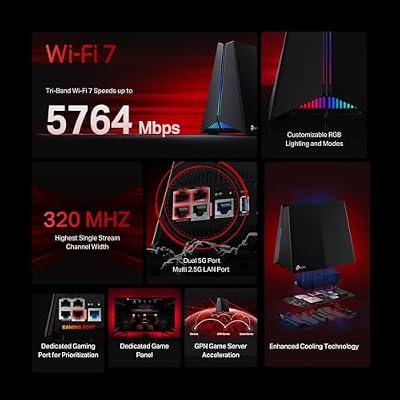
TP-Link Tri-Band BE11000 Wi-Fi 7 Gaming Router (Archer GE650) | 6-Stream, 11 Gbps, 320MHz, 2×5G + 3×2.5G Ports, USB 3.0, Game Acceleration, Gaming Port & Panel, RGB Lighting, HomeShield




As an Amazon Associate we earn from qualifying purchases. Product prices and availability are accurate as of the date/time indicated.
The Fixes That Actually Work
These fixes address the causes that you can influence. Work through them in order, measure after each one and keep only the changes that help.
Use a Wired Connection
A cable removes wireless interference and retransmissions from your path. For a fixed gaming PC, this is the single most reliable change. If a cable is impossible, use the 5 GHz or 6 GHz band, keep the device close to the router and avoid crowded channels. Wireless is the most common source of unstable ping in home setups.
Pick the Right Server Region
Most games let you choose a server region. Pick the closest region that has enough players, not the one with the lowest number on a random day. Choosing a distant server adds delay that no optimiser can remove. Check the region settings each time you launch, because some games default to the wrong one.
Stop Background Traffic
Large downloads, cloud backups, game updates and video streams all compete with your game traffic. Pause or schedule them for after your session. Check your router’s device list for anything running that you did not expect. Quality of service can help when a download is unavoidable, because it keeps game packets ahead of bulk traffic.
Fix Bufferbloat With Quality of Service
Bufferbloat is the delay that builds up when a link is full and packets queue behind each other. Quality of service with a sensible bandwidth limit reduces the queue. Set the limit slightly below your measured speed, then test under load. This is the most useful router-side change for players in a busy home.

ASUS ROG Rapture GT-BE98 Pro WiFi 7 Gaming Router - Quad-Band, 30Gbps, Mesh | Coverage up to 3,500 Sq. Ft., 10G Port x2, 2.5G Port x4. Game Boost for Low Latency Gaming & Streaming. VPN support


As an Amazon Associate we earn from qualifying purchases. Product prices and availability are accurate as of the date/time indicated.
Comparison Table: Network Options for Lower Ping
The table compares the five listings by the role each one plays in a ping-reduction plan. It does not rank them. Match the row to the cause you have identified in your measurements, not to a promise on the box.
| Option | ASIN | Best for | Price guidance | Check before buying |
|---|---|---|---|---|
| Primary pick (hero) | B0DVV9KJSN | Players with a clear wireless or congestion problem | Check current price | Quality of service options and wired ports |
| Alternative 1 | B0CPQYSXCW | Households with many devices on one network | Check current price | Device priority and Wi-Fi band options |
| Alternative 2 | B0FTP4PMYX | Players who want manual control of settings | Check current price | Manual QoS and port controls |
| Alternative 3 | B0DW1M1S71 | Large homes where coverage causes weak links | Check current price | Coverage and wired backhaul options |
| Alternative 4 | B0FX9C5QVJ | Players who want a simpler setup | Check current price | Firmware update policy and admin controls |
What Usually Does Not Work
Ping reducer apps are the most common disappointment. Many change a few system settings, and some do nothing that a manual change would not do. Some install background services that add load. Treat any app that promises a fixed reduction with suspicion, and test it against your baseline. If it does not move your measured numbers, remove it.
A VPN is another common attempt. It adds a hop and usually raises ping. The gaming VPN guide explains the narrow cases where a tunnel helps. Changing DNS also rarely lowers ping, because DNS only resolves the address and does not change the route. The DNS for gaming article covers what a resolver can and cannot do.
Step-by-Step Optimisation Plan
Start with a baseline. Test the game on the same server for several sessions and note the ping, jitter and loss. Move the gaming device to a wired connection if you can. Pick the closest server region, then pause background traffic during play. Set a quality of service limit on the router if your household is busy. Finally, check your router settings and firmware. The ethernet settings for gaming guide covers the adapter and driver details, and the router settings for gaming article covers the menus.
If the line itself is the problem, check the provider. The best gaming internet guide explains what to look for in a plan, and the internet speed for gaming and streaming article shows how much capacity a busy household needs. A plan with a poor route will not be fixed by any router setting.
If you want to widen the picture, these related guides cover neighbouring parts of the setup: gaming ISP guide Wi-Fi for gaming guide.
Frequently Asked Questions
What is a good ping for online games?
It depends on the game and your location. Fast-paced shooters feel more sensitive to delay than slower strategy titles. Stability matters as much as the number, so aim for a ping that stays steady through a session.
Do ping reducer apps really work?
Most do little that a careful manual setup cannot do. Test any app against a measured baseline. If your ping, jitter and loss do not change, the app is not helping, whatever its marketing says.
What is the fastest fix for high ping?
For most home players, the fastest fix is a wired connection and a closer server region. Both are simple to change and both address common causes. Measure before and after so you can confirm the effect on your own line.
Final Verdict
Lowering ping is mostly about the parts you control: a wired link, a sensible server region, a clear network during play and a quality of service limit for busy households. Ignore the one-click promises and measure your own line. If the numbers stay high after the local fixes, the cause is likely the route or the provider, and that is where your next effort belongs.


