
DumaOS Gaming Router Setup & Config
DumaOS is a router firmware platform associated with Rivet Networks and its Killer-branded gaming routers. It offers quality of service controls aimed at gaming, along with device and traffic monitoring. Many players buy a router that runs it expecting an automatic gaming boost, then find that the software only helps in specific conditions. This guide explains what DumaOS-style gaming controls do, how to set them up sensibly, and where they make little difference.
We have not tested DumaOS on any router for this article, and we do not quote performance figures. The steps below describe the common structure of gaming-focused router firmware. Menu names and options change between versions and between hardware, so use the explanations to find the matching controls on your own device. If the listing is from a different vendor, the same logic applies to that vendor’s quality of service menu.
The listings below were returned for this search. The first is the primary pick and the others are close alternatives. The listing above may not be a DumaOS router, so check the card for the firmware, the features and the price before ordering.


What Gaming Router Firmware Actually Does
Gaming firmware usually adds three things: a traffic classifier that spots gaming packets, a quality of service engine that decides which packets go first, and a dashboard that shows what is using your bandwidth. The classifier is the most variable part. It may use application signatures, port lists or manual rules, and it does not always identify every game correctly.
Quality of Service Only Matters When the Link Is Full
Quality of service is most useful when the connection is saturated. If a download fills your line, latency spikes for everything else sharing it. A good QoS setup holds back the download a little so gaming packets can move ahead of it. When the line has spare capacity, QoS does very little, because nothing is queued behind anything else. This is why QoS is a fix for congestion, not a general speed boost.
The Realistic Expectation
A gaming firmware can reduce the lag spikes caused by a busy household. It cannot shorten the distance to a server, fix a poor ISP route or change how a game’s netcode works. Set expectations accordingly, and test before and after your changes so you know whether the firmware is helping.

Predator Connect T7 Wi-Fi 7 BE11000 Mesh Gaming Router | Intel Killer Prioritization Engine | Up to 3000 Sq. Ft. | Up to 200 Devices | 2.5Gbps WAN & 2 x 1Gbps LAN | Lifetime Internet Security


As an Amazon Associate we earn from qualifying purchases. Product prices and availability are accurate as of the date/time indicated.
Step-by-Step Setup
Work through the steps in order. Change one group of settings at a time, and test a game session after each change. That way you can tell which change helped and which made no difference.
Update the Firmware and Secure the Admin Panel
Install the latest firmware before you configure anything. Change the default admin password, and disable remote management unless you need it. Gaming firmware is a network device, so keeping it updated and locked down matters more than any QoS tweak.
Connect the Gaming Device by Cable
Plug your gaming PC or console into a wired port if you can. Wired devices avoid the wireless contention that QoS cannot fix. If the device must stay on Wi-Fi, check that it is on the band with the best signal and the least interference.
Measure Your Bandwidth and Set the Limit
Run a speed test at a quiet time to find your real download and upload speeds. Many guides suggest setting the QoS bandwidth limit slightly below the measured speed, often around 85 to 90 percent of it, so the router controls the queue rather than your modem. Treat this as a starting point and adjust it if you see problems. Enter the figure in the QoS settings and retest under load.
Set Device or Application Priority
Set your gaming device to the highest priority your firmware allows. If the firmware has a game category or a list of applications, add the games you play most. Leave background devices at a normal or low priority. Avoid setting every device to high priority, because priority only works when it is relative.

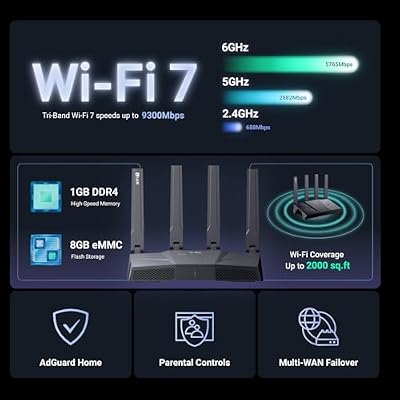
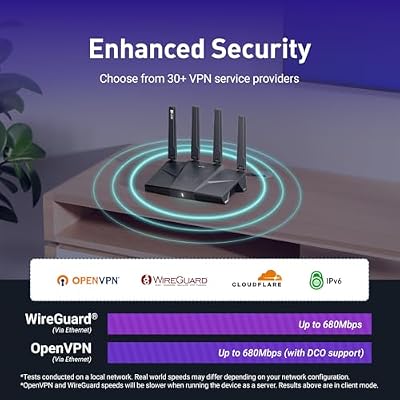
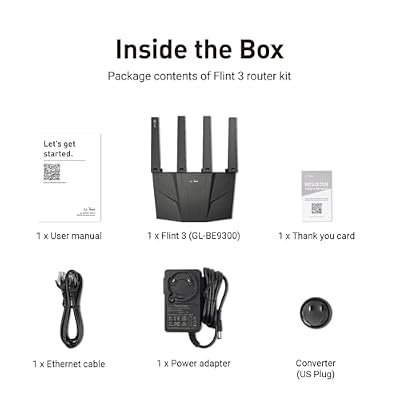
GL.iNet GL-BE9300 Flint 3 Tri-Band Wi-Fi 7 Router 5 x 2.5G VPN Router | Tri-Band Wi-Fi 7 with 6GHz, 9 Gbps wireless speed for smooth 8K streaming, low-latency gaming, and video calls




As an Amazon Associate we earn from qualifying purchases. Product prices and availability are accurate as of the date/time indicated.
Comparison Table: Gaming Router Options
The table compares the five listings by the role each one plays in a gaming home. It does not rank them. Use the right-hand column to check that the firmware and features match what you want before you buy.
| Option | ASIN | Best for | Price guidance | Check before buying |
|---|---|---|---|---|
| Primary pick (hero) | B0DW1M1S71 | Gaming households that want dedicated QoS tools | Check current price | Firmware name, QoS controls, update policy |
| Alternative 1 | B0FB8X43KJ | Players who host private lobbies | Check current price | Port rules and firewall options |
| Alternative 2 | B0CPQYSXCW | Homes with several streaming and gaming devices | Check current price | Wi-Fi standard and device priority list |
| Alternative 3 | B0DVV9KJSN | Single-floor homes with a simple setup | Check current price | Bandwidth limit control and admin interface |
| Alternative 4 | B0FTP4PMYX | Users who want manual port and address control | Check current price | DHCP reservation and port forwarding menus |
Testing and Troubleshooting
After setup, play a session with a known server and watch the in-game ping, the jitter and the packet loss while someone else downloads a large file. Repeat the test with QoS off, then with QoS on. If the QoS version holds steadier, keep it. If you see no difference, the bandwidth limit may be too high, the classifier may be missing your game or your bottleneck may be your ISP rather than your home.
If the router seems to block a game entirely, check the port rules and the NAT type. The router settings for gaming guide explains the common menus, and the gaming router roundup compares models by their QoS and port controls. For general port rules, the port forwarding guide explains the safe way to open one.
Compare your router against the wider market before you commit. The best gaming routers article lists the main options, and the budget gaming router guide covers cheaper choices if you do not need premium firmware. A gaming router with a good QoS engine can help, but a clean network and a wired connection usually matter more.
If you want to widen the picture, these related guides cover neighbouring parts of the setup: gaming router guide ethernet settings for gaming gaming DNS guide.
Frequently Asked Questions
Does DumaOS reduce ping?
It can reduce lag spikes that come from a busy network, because QoS keeps gaming packets from waiting behind bulk traffic. It does not shorten the route to a server, so it will not lower ping in the way a closer server would. Test with and without it to see what it does on your line.
What QoS percentage should I use?
A common starting point is about 85 to 90 percent of your measured speed. Use a recent speed test taken at a quiet time, then adjust the figure if you see problems under load. There is no universal number, so treat the starting point as a test value.
Is gaming firmware safe to use?
Keep the firmware updated, change the default admin password and disable remote management unless you need it. Review any open port rules and keep the list short. Safe use depends on the same basic habits as any other router.
Final Verdict
Gaming firmware is worth using when your household is busy and you see lag spikes during downloads or streams. Update it, connect the gaming device by cable, set a sensible bandwidth limit and give the PC priority. Verify the result under load. Choose the listing that gives you clear QoS controls and a firmware update policy you trust, and confirm the firmware on the card before you order.


