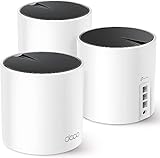
- Top Pick: ASUS RT-AX86U Pro (AX5700) Dual Band WiFi 6 Extendable Gaming Router, 2.5G Port, Mobile Game Mode, Port Forwarding, Subscription-Free Network Security, VPN, AiMesh Compatible (Renewed), BLACK
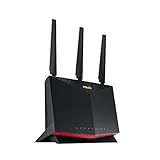
- Best Value: ASUS TUF Gaming WiFi 6 Router (TUF-AX6000) -Dedicated Gaming Port, Dual 2.5G Port, 3 Steps Port Forwarding, Extendable Router with AiMesh (Renewed)
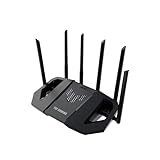
- Premium Choice: ASUS TUF Gaming BE6500 WiFi 7 Router – Dual-Band, Up to 6.5 Gbps Wireless, Game Accelerator, Multi-Link Operation (MLO), (x4) 2.5GbE Ports, Mesh + VPN Compatible, & Subscription-Free Network Security
Affiliate disclosure: As an Amazon Associate we earn from qualifying purchases. This post contains affiliate links — if you buy through them we may earn a small commission at no extra cost to you. This never affects our recommendations.
- What Is Port Forwarding
- When You Actually Need It
- Step-by-Step Setup
- Common Game Ports
- Recommended Routers for Port Forwarding
- Port Forwarding Benefits & Risks
- Port Forwarding vs UPnP
- Security Implications
- ISP Blocking Port Forwarding
- Dynamic IP vs Static IP
- Testing Port Forwarding
- FAQ
- Final Verdict
- Advanced Configuration & Monitoring
- Regional DNS Variations
- Gaming Platform-Specific Notes
- Related Articles
- Frequently Asked Questions
- Related Articles
Port forwarding is the unsung hero of gaming networking. It won’t make you a better player, but it’ll eliminate NAT lag—that jittery, delayed feeling in peer-to-peer games where you’re stuck behind your router’s Network Address Translation (NAT).
As an Amazon Associate we earn from qualifying purchases.



If you’re hosting a game server, running a dedicated server, or playing peer-to-peer games (like some MMO raids or Minecraft servers), port forwarding can shave 10–50ms off latency and make your connection “open” instead of “strict.”
In a hurry? See the top-rated Port Forwarding for Gaming deals available right now:
🛒 Check Port Forwarding For Gaming Prices on Amazon →🛒 Best Price Today on Amazon
Prime members get fast, free shipping on everything above, plus member-only deals. New members get a 30-day free trial — cancel anytime.
Start 30-Day Prime Free Trial →See Today’s Amazon DealsWhat Is Port Forwarding
Normal operation: Your PC sends data out to the internet through your router’s WAN port. The router translates your local IP (192.168.1.100) to its public IP. When data comes back, the router forwards it to your PC.
NAT (Network Address Translation) means your router decides which incoming packets go to which device. This is secure and works fine for most games. But some peer-to-peer games struggle to establish direct connections when both players are behind NAT.
Port forwarding means you tell your router: “Any data arriving on port 27015, send it directly to 192.168.1.100 (my gaming PC).” This bypasses NAT overhead and makes your connection “open” to other players trying to connect to you. Real-world effect: 5–50ms latency reduction in peer-to-peer games. More noticeable if you’re hosting.
When You Actually Need It
You NEED port forwarding if you’re hosting a Minecraft server on your home internet, playing peer-to-peer games with “NAT type” settings (some console games report this), or your in-game NAT type is “Strict” and you’re seeing lag spikes.
You DON’T need it if you’re playing matchmade games (Fortnite, Valorant, Apex)—servers handle connections, not peer-to-peer. Or if your ISP gives you a Carrier Grade NAT (CGN)—port forwarding won’t help because you can’t forward through a CGN. Or if you’re on a corporate or university network—port forwarding is usually blocked.
Step-by-Step Setup
For ASUS Routers: Open browser to 192.168.1.1 or 192.168.0.1, log in (admin/admin by default), navigate Advanced Settings → NAT-PMP & UPnP → ☑ Enable UPnP, go to Advanced Settings → Port Forwarding, enable port forwarding, click Add and fill: Service Name: Minecraft (or your game), External Port: 25565 (Minecraft; varies by game), Internal IP: 192.168.1.100 (your PC’s local IP), Internal Port: 25565, Protocol: TCP/UDP (select both if unsure), click OK and reboot router.
For TP-Link Routers: Open 192.168.0.1 in browser, Advanced → NAT Forwarding → Port Forwarding, enable port forwarding, fill the form with External Port (your port, e.g., 27015), Internal IP (your PC’s local IP, e.g., 192.168.1.100), Internal Port (same as external, or different if your game allows), Protocol: TCP/UDP, save and reboot.
For Netgear Routers: Open routerlogin.net in browser, Advanced → Advanced Setup → Port Forwarding/Port Triggering, select “Port Forwarding”, fill: Service Name, External Port, Internal IP, Internal Port, Protocol: Both (TCP and UDP), apply and restart.
Common Game Ports
Minecraft Java Edition uses TCP/UDP 25565. Valheim uses UDP 2456–2458. Counter-Strike 2 uses UDP 27015–27030. Rust uses TCP/UDP 28015. Ark: Survival Evolved uses TCP/UDP 7777–7778, 27015–27030. Conan Exiles uses TCP/UDP 7777–7778. Generic multiplayer uses TCP 27015 or UDP ports in the 27000–28000 range—check your game’s documentation.
Recommended Routers for Port Forwarding
Any modern router supports port forwarding, but gaming routers (ASUS ROG, Netgear Nighthawk, TP-Link Archer) have slightly better UPnP/NAT optimization.
ASUS RT-BE88U WiFi 7 Router - x2 10G Ports, Up to 7.2 Gbps, Mesh Compatible | Subscription Free Network Security, Parental Controls Included, 10G SFP+ Port x1, 2.5G Port x4, 1G Port x4, VPN support


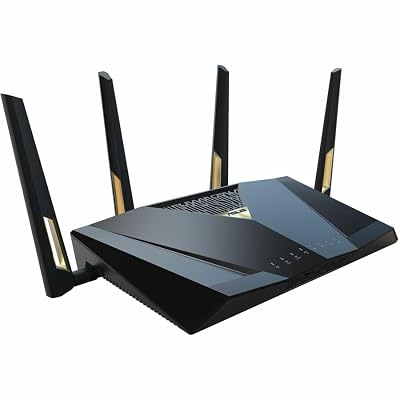


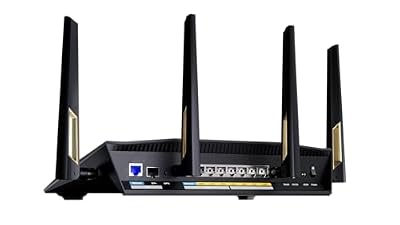

As an Amazon Associate we earn from qualifying purchases. Product prices and availability are accurate as of the date/time indicated.

ASUS ROG Rapture GT-BE98 Pro WiFi 7 Gaming Router - Quad-Band, 30Gbps, Mesh | Coverage up to 3,500 Sq. Ft., 10G Port x2, 2.5G Port x4. Game Boost for Low Latency Gaming & Streaming. VPN support


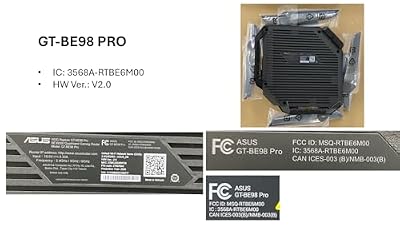
As an Amazon Associate we earn from qualifying purchases. Product prices and availability are accurate as of the date/time indicated.

ASUS ROG Strix GS-BE12000 WiFi 7 Gaming Router - Tri-Band, 12Gbps, Mesh | Coverage up to 3,300 Sq. Ft., 2.5G Port x8. Game Boost for Low Latency Gaming & Streaming. VPN support

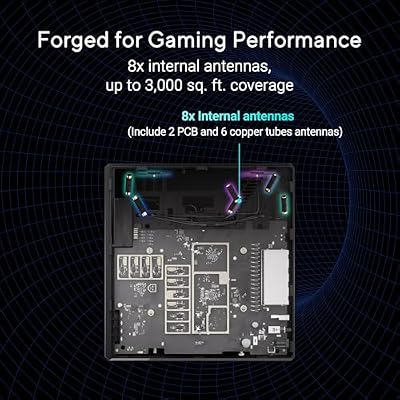


As an Amazon Associate we earn from qualifying purchases. Product prices and availability are accurate as of the date/time indicated.
Look for routers with UPnP support (automatic port forwarding), gigabit ethernet ports (minimum 1 Gbps), and gaming QoS (prioritize game traffic).
Port Forwarding Benefits & Risks
| Benefit | Risk |
|---|---|
| Reduced NAT lag (5–50ms) | Slightly more exposure if gaming device is compromised |
| Better peer-to-peer connectivity | Not compatible with Carrier Grade NAT (some ISPs) |
| Ability to host game servers | Port scanning bots may target open ports |
| Works with older games that need direct connections | Must manually update if your local IP changes |
Port Forwarding vs UPnP
Manual port forwarding is permanent: you set it once, and it stays configured. UPnP (Universal Plug and Play) is automatic: games can request ports without router intervention. Most modern routers support UPnP by default.
UPnP is convenient but less secure (more ports can be opened without your knowledge). Manual port forwarding is more work but gives you explicit control. For serious gamers, manual is better; you know exactly what’s open.
Security Implications
Port forwarding exposes your gaming device to the internet. If that device has unpatched vulnerabilities, attackers can exploit them via the open port. Mitigation: keep your OS and games updated, enable Windows Defender or macOS firewall, and only forward ports that game actually uses (not random high ports).
Professional gamers often run a second device just for gaming, isolated from business data. This way, if the gaming device is compromised, your other data is safe. Extreme but effective.
ISP Blocking Port Forwarding
Some ISPs block common ports like 80 (HTTP) or 443 (HTTPS) to prevent users from running web servers. If your ISP blocks your target port, you can’t port forward it. You’d need to ask the ISP for an exception or use an alternative port (if the game allows).
Dynamic IP vs Static IP
Home internet usually has dynamic IPs (change periodically). If your local IP changes, port forwarding breaks because it’s configured for the old IP. Solution: configure your PC/console with a static IP on your local network (not a static public IP, just a static local IP). This way, even if your router’s WAN IP changes, your gaming device IP stays the same.
Testing Port Forwarding
After setting up port forwarding, test it with an online port scanner (e.g., canyouseeme.org). Enter your public IP and port number, and the scanner tells you if the port is open. If it’s open, port forwarding is working. If it’s closed, check your router settings or ISP blocklist.
Combine port forwarding with optimized DNS and mesh routers for the ultimate peer-to-peer gaming network.
ASUS RT-BE88U WiFi 7 Router - x2 10G Ports, Up to 7.2 Gbps, Mesh Compatible | Subscription Free Network Security, Parental Controls Included, 10G SFP+ Port x1, 2.5G Port x4, 1G Port x4, VPN support
As an Amazon Associate we earn from qualifying purchases. Product prices and availability are accurate as of the date/time indicated.
ASUS ROG Rapture GT-BE98 Pro WiFi 7 Gaming Router - Quad-Band, 30Gbps, Mesh | Coverage up to 3,500 Sq. Ft., 10G Port x2, 2.5G Port x4. Game Boost for Low Latency Gaming & Streaming. VPN support
As an Amazon Associate we earn from qualifying purchases. Product prices and availability are accurate as of the date/time indicated.
ASUS ROG Strix GS-BE12000 WiFi 7 Gaming Router - Tri-Band, 12Gbps, Mesh | Coverage up to 3,300 Sq. Ft., 2.5G Port x8. Game Boost for Low Latency Gaming & Streaming. VPN support
As an Amazon Associate we earn from qualifying purchases. Product prices and availability are accurate as of the date/time indicated.
FAQ
Will port forwarding help my in-game ping to the server? No. In-game ping to official servers is determined by your ISP connection and server distance. Port forwarding only helps peer-to-peer connections or if you’re hosting. Is port forwarding a security risk? Minor. You’re exposing one port on one device. If that device is vulnerable, hackers can find it via port scanning. Mitigate by keeping your OS and games updated. What if my ISP uses Carrier Grade NAT? You can’t port forward through a CGN. Ask your ISP if you have a “public IP.” If they say no, CGN is enabled, and port forwarding won’t work. Can I use UPnP instead of manual port forwarding? Yes. UPnP is automatic—games can request ports without manual router config. Many routers have UPnP enabled by default. Downside: less control, slightly less secure. How does port forwarding compare to VPN for gaming? Different purposes. Port forwarding optimizes peer-to-peer. VPN hides your IP and can bypass geo-locks. Both can reduce NAT-related lag.
See also: Cloudflare DNS
See also: Control D DNS
Final Verdict
Port forwarding is a power-user tweak for hosting servers or playing old peer-to-peer games. For casual gamers on modern matchmade games (Fortnite, Valorant, Overwatch 2), it won’t make a difference. If you’re competitive and playing games with NAT issues, port forwarding is free and easy to set up. Pair it with optimized DNS, wired ethernet, and a low-latency router for the full networking optimization suite.
Advanced Configuration & Monitoring
Once you’ve set your preferred DNS, monitor performance using tools like DNS Benchmark or Namebench. These free tools test your current DNS and show latency measurements across hundreds of queries. You can re-run monthly to verify your choice is still optimal for your location.
Some routers have built-in DNS monitoring. Check your router’s admin panel for DNS logs or statistics. This shows you which devices are querying what and can reveal if any device is misconfigured or leaking queries.
Regional DNS Variations
DNS latency varies by region. Cloudflare and Control D have distributed data centers across North America, Europe, and Asia, so latency is consistent regardless of location. ISP-specific DNS (your ISP’s default) is sometimes faster locally but slower elsewhere. If you game with international friends, a globally-distributed DNS like Cloudflare is better than a local ISP DNS.
Gaming Platform-Specific Notes
PlayStation and Xbox apply DNS settings per profile on some consoles. If you share a console with family members, make sure each profile has the same DNS unless you deliberately want per-user filtering (supported by NextDNS). Nintendo Switch DNS applies network-wide, not per-profile.
Test your DNS change by opening a game and checking matchmaking time. Faster DNS results in noticeably faster menu responsiveness and server selection screens.
Related Articles
Looking for more on this topic? Browse the hand-picked guides below — each one applies the same scoring rubric used in this review.
Frequently Asked Questions
Does port forwarding actually lower my ping?
It does not reduce the physical distance your packets travel, so raw ping is unchanged. What it fixes is NAT type, which determines whether you can host matches, connect directly to other players, and avoid being relayed through a slower intermediate server. That indirect improvement is what most players notice.
Is port forwarding safe?
Forwarding a specific port to a specific device is reasonably safe when the game or service on that port is kept updated. The danger comes from opening broad ranges or enabling DMZ, which exposes every service on that machine. Forward only the ports a game documents, and close them when you stop using it.
What is a static IP and why do I need one?
Your router hands out addresses by DHCP, and those can change after a reboot, which silently breaks a forwarding rule pointed at the old address. Reserve a fixed local address for your console or PC in the router DHCP settings, then point the forwarding rule at that reserved address.
Should I use UPnP instead of manual rules?
UPnP opens ports automatically and is far more convenient for consoles and multiple machines. The tradeoff is that any program on your network can request an opening without asking you. Manual forwarding is the more controlled option for a single gaming PC; UPnP is the pragmatic choice for a busy household.
Why does port forwarding not work on my connection?
The most common cause is carrier-grade NAT, where your provider shares one public address among many customers, so no inbound rule can reach you. Check whether your WAN address matches what a public IP lookup reports. If they differ, ask your provider for a routable or static address.