The pointer dies mid-fight, Windows plays the device-removed sound, and a second later everything works again as if nothing happened. A mouse that disconnects and reconnects at random is rarely a dying sensor. The sensor either tracks or it does not. Dropouts live in the link between mouse and PC: a port that sleeps, a receiver sitting in radio noise, a hub that cannot feed everything plugged into it, or a cable whose wires have fatigued where they bend. This guide works that link layer by layer, starting with the pattern the drops make, because the pattern names the layer that is failing.


As an Amazon Associate, we earn from qualifying purchases.
Quick Answer
Random mouse dropouts are almost always a link problem, not a sensor problem. Note when the drops happen, test the mouse on a second port or PC, then work the chain: turn off USB power saving, move the wireless receiver closer on an extension lead, and rule out a fatigued cable or a dying battery before replacing anything.
Read the Dropout Pattern First
Before changing a single setting, spend one session noting when the mouse lets go. Four patterns cover nearly every case, and each points at a different layer.
Drops that happen only under heavy system load, during a download, a shader compile or a big file copy, point at the bus: the controller or the hub is saturated or browning out. Drops that happen the moment you touch the mouse after it sat idle point at power management waking the device badly. Drops on one port but never on another point at that port or its internal wiring. Drops everywhere, on every machine, at every time of day point at the mouse itself, its cable or its battery.
Write down which pattern you have. Every step below maps to one of them, and skipping the mapping is how people reinstall drivers three times for a fault that was a loose front-panel header.
Step 1: Prove Whether the Mouse or the PC Drops the Link
Two swaps split the problem in half. First, plug the mouse into a different port, ideally a rear motherboard port rather than a front-panel or hub port, and play until the fault would normally have appeared. Second, if you can, connect the mouse to another computer, or connect a different mouse to this one.
If the drops follow the mouse across ports and machines, the fault is inside the mouse, its cable or its battery, and steps two to four will not help; go straight to step five. If the drops stay with the PC no matter which mouse is attached, the fault is in the port chain or the power settings, and the mouse is innocent. If the drops vanish on a rear port but return on the front panel, you have already found it: the front-panel cable or header is the weak link, a common fault on cases where that cable runs unshielded past the power supply.
Step 2: Stop Windows From Powering the Link Down
Windows aggressively sleeps USB devices to save energy, and a sleeping hub that wakes badly looks exactly like a random disconnect. This is the single most common cause of the idle pattern.
Open Device Manager, expand Universal Serial Bus controllers, and open each USB Root Hub entry. On the Power Management tab, clear the option that lets the computer turn off the device to save power. Repeat for the mouse itself under Human Interface Devices and Mice. Then open your power plan’s advanced settings and set USB selective suspend to disabled. On laptops the same setting exists per plan, and it is a frequent reason a mouse drops on battery but never on mains power.
Bluetooth mice get the same treatment in a different place: find the Bluetooth radio in Device Manager and clear its power-saving option too, because a radio that naps mid-session drops every device paired to it, not just the mouse.
Step 3: Fix the Path Between Receiver and Mouse
Wireless mice on a 2.4 GHz receiver fail in ways wired ones cannot. The receiver is a tiny radio sitting in a metal box full of other radios and high-speed cables, and its signal has to cross that environment to reach your desk.
Move the receiver out of the back of the case. A short USB extension lead that places the receiver on the desk, within clear sight of the mouse, fixes more wireless dropouts than any driver reinstall. Keep it away from USB 3 external drives and their cables in particular: that interface radiates noise in the same band the receiver listens on, and a drive that spins up during a game can knock the mouse off the air for exactly the second you notice. If your mouse came with a receiver extender in the box, this is what it is for.
Hubs deserve suspicion in both directions. A passive hub shared with a headset, a capture device and a drive splits both bandwidth and power four ways, and the mouse is usually the device that complains first. Give the mouse or its receiver a motherboard port of its own, and move the low-demand devices to the hub instead.
Step 4: Rule Out the Cable and the Battery
On a wired mouse, flex the cable slowly along its length while watching the pointer, especially where the cable leaves the mouse shell. That exit point bends thousands of times and the conductors inside break one strand at a time, so the mouse survives gentle movement and dies on a fast flick. A dropout you can trigger by wiggling one spot is a cable at the end of its life.
On a wireless mouse, a battery near empty often misbehaves before it dies: voltage sags under the load of a high polling rate, the radio resets, and the mouse reconnects a moment later looking healthy. Charge it fully or swap in a fresh cell and retest before concluding anything else. Check the battery contacts for corrosion while you are there, and on mice with a storage slot, confirm the receiver is fully seated in its own port and not half-latched in the mouse body.
How to Choose a Replacement That Stays Connected
If the fix ladder ends at the mouse itself, choose the next one by its link, not its sensor. Wired removes the radio from the equation entirely and suits a fixed desk. A 2.4 GHz receiver mouse is the low-latency wireless option, but only with the receiver placed well. Bluetooth is the convenience option for laptops and the first to suffer from power saving. The five mice below cover those three paths with links that hold up under gaming loads.
Logitech G305 Lightspeed
The value wireless pick, built around a receiver connection that stays stable at desk range and a single AA cell that removes charge anxiety from the equation entirely. Specs: Lightspeed 2.4 GHz wireless, HERO sensor, AA battery powered, ambidextrous shape at about 99 grams. Choose it if your dropouts came from a rechargeable mouse dying in stages and you want the simplest possible link to maintain.
Logitech G502 HERO
The wired anchor of the list: no radio, no battery, nothing between the sensor and the port but one cable. Specs: wired USB connection, HERO sensor, adjustable weight system, eleven programmable buttons. Choose it if step one proved your wireless environment is hostile and you would rather delete the problem than manage it.
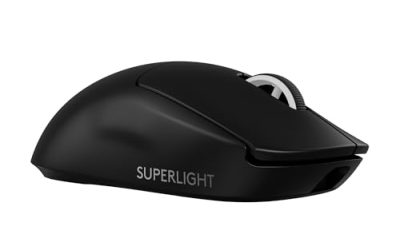
Logitech G Pro X Superlight 2

The esports wireless standard, pairing a high-stability receiver link with a frame light enough that fast flicks stop stressing the connection at the mouse end. Specs: Lightspeed 2.4 GHz wireless, HERO 2 sensor, rechargeable with USB-C charging, about 60 grams. Choose it if you play competitive titles and need wireless that behaves like a wire.
Razer Viper V3 Pro
Built for the highest polling rates in the group, with a dedicated receiver designed to hold its link under tournament conditions. Specs: HyperSpeed 2.4 GHz wireless with a high-polling receiver, Focus Pro optical sensor, rechargeable, about 54 grams in a symmetrical shell. Choose it if your old mouse dropped specifically when its polling rate was pushed up.
Razer DeathAdder V3

The wired ergonomic option, for players whose grip never suited symmetrical shapes. Specs: wired USB connection, Focus Pro optical sensor, optical switches, about 63 grams in a right-handed ergonomic shell. Choose it if you want the zero-radio reliability of the G502 in a shape built for palm and claw grips.
Who Should Skip This Fix
Skip this guide if your pointer freezes or jumps without disconnecting; that is a tracking fault, covered in the guide to a mouse cursor that freezes or jumps while gaming. Skip it if every USB device on the machine drops at once, keyboard and headset included; that wider fault is covered in the guide to USB devices randomly disconnecting, and it points at the controller rather than any one mouse. Skip it if a controller is the device dropping, which has its own guide, and if the mouse double-clicks instead of disconnecting, that switch fault has a separate fix as well.
Frequently Asked Questions
Why does my mouse disconnect only when I play games?
Games raise the polling rate the mouse reports at and load the USB bus and the system at the same time. A marginal link that survives desktop use, a weak port, a nearly empty battery, a receiver in radio noise, fails under exactly that extra load. The pattern is a clue, not a coincidence: work steps two and three first.
Can a USB hub really cause mouse dropouts?
Yes. A passive hub splits one port’s power and bandwidth between everything attached to it. When a drive or headset on the same hub draws hard, the mouse can brown out and reconnect. Give the mouse or its receiver a motherboard port and move low-demand devices onto the hub instead.
Does USB selective suspend affect wireless receivers?
It does. Selective suspend can power down the port the receiver sits in, and some receivers recover slowly or not at all until they are replugged. Disabling selective suspend and clearing the power-saving option on the root hubs is the standard fix for receivers that vanish after idle periods.
How do I tell a dying cable from a dying sensor?
Wiggle the cable gently along its length, especially at the shell exit, while moving the mouse in slow circles. Dropouts you can trigger from one spot on the cable mean broken conductors. A sensor fault looks different: the pointer skips, spins or loses tracking on certain surfaces without the device ever disconnecting.
Final Verdict
A mouse that disconnects and reconnects is telling you its link is marginal, and marginal links have a short list of causes. Read the pattern, prove which side of the cable the fault lives on, then clear the power settings, fix the receiver’s path, and only replace hardware when the cable or battery confesses. Most dropouts end at step two or three, with the mouse you already own.
Product and ASIN Reference
| Product | ASIN |
|---|---|
| Logitech G305 Lightspeed Wireless Gaming Mouse | B07CMS5Q6P |
| Logitech G502 HERO Wired Gaming Mouse | B07GBZ4Q68 |
| Logitech G Pro X Superlight 2 Wireless Gaming Mouse | B09NBWL8J5 |
| Razer Viper V3 Pro Wireless Gaming Mouse | B0CW25XR5R |
| Razer DeathAdder V3 Wired Gaming Mouse | B0B6XTDJS1 |