You turned Night Light off, or its schedule ended an hour ago, yet every game still looks like it is being played through amber plastic. Whites are yellow, blues look muddy, and the desktop only seems fine until you compare it with a phone screen and realize the tint never left. This happens because Night Light is not one switch. It is a color transform that several layers of your system can hold on to, and any one of them can keep the tint alive after the others let go.
So stop flipping the same toggle and work out which layer owns the tint. There are four usual owners: the schedule itself, a stuck color state in Windows, your graphics driver, and a second filter hiding in a helper app or the monitor’s own menu. The fixes below go layer by layer, with a quick test after each one.
As an Amazon Associate, we earn from qualifying purchases.
Quick Answer
A stuck Night Light tint means one of four layers still owns your color: the Windows schedule, a leftover color profile, your graphics driver, or a filter inside the monitor or a helper app. Turn Night Light fully off, restart with fast startup disabled, reset the driver color page to defaults, and check the monitor menu for its own blue light mode.
First, Prove the Tint Is a Filter and Not Your Panel
Before changing any setting, take a screenshot of a scene that looks yellow and view it on your phone. If the screenshot looks normal on the phone, the game rendered correct colors and the tint is added between Windows and the panel. That is the Night Light family of problems, fixable in software. If the screenshot itself looks yellow on the phone, the tint is baked into the rendered image, pointing at a color profile or a game setting instead.
A second check is a plain white page in a browser. Drag it between two monitors if you have them. A tint on one screen only lives in that screen’s chain: cable, input settings, or monitor menu. A tint on every screen at once lives in Windows or the driver.
Layer One: The Schedule and the Stuck Toggle
Open Settings, go to System, then Display, then Night Light. The first trap is the schedule mode. When Night Light runs from sunset to sunrise, Windows works out sunset from your location, and if location services are off or the location is stale, the schedule drifts, so the filter stays inside its window at times that feel wrong. Switch to set hours with a narrow window, or turn scheduling off while you troubleshoot.
Next, turn Night Light off on this page, not just in the quick settings panel. The tile and the settings page can disagree after a schedule event, and the settings page shows the real state. As a test, toggle Night Light on and confirm the screen warms, then off and confirm it fully cools. A toggle that warms but never fully cools is the classic stuck state, and it usually clears at the next layer.
Layer Two: A Stuck Color State in Windows
If the toggle behaves but the tint survives, the color transform is probably stuck in the loaded display state. The most common reason is fast startup, which hibernates the kernel session instead of closing it, so a corrupted display state is restored at every boot and survives dozens of restarts. Do a full shutdown instead: hold Shift while clicking Shut down, then power on. If the tint is gone, fast startup was the keeper, and you can disable it permanently in the Control Panel power options.
While Windows is in a clean state, open Color Management and check the profile assigned to your display. A vendor ICC profile with a warm white point can look exactly like a mild Night Light, and Windows sometimes keeps an old profile after a monitor swap. Set the standard sRGB profile as a test. If the tint vanishes, the profile was the owner.
Layer Three: The Graphics Driver and HDR
Graphics drivers have their own color page, and it can hold a tint independently of Windows. In the driver control panel, find the display color settings and choose the default or reference option rather than a custom page. Saturation, gamma, or hue changes made months ago for one game can read as a warm cast across everything, and resetting that page rules the driver in or out at once.
HDR interacts badly with Night Light on some systems. The filter is designed to switch off when HDR content runs, but a stuck driver state can blend the two, leaving SDR games warm while the HDR toggle claims everything is normal. As a test, turn HDR off in Windows display settings, restart the game, and check a white menu screen. If the tint only exists while Windows HDR is enabled, update the graphics driver next, because that handoff belongs to the driver. Also check the color settings inside the game, since a colorblind or sepia leaning filter in one title can imitate this whole problem.
Layer Four: Helper Apps and the Monitor’s Own Filter
Many gaming laptops and prebuilt PCs ship with a vendor utility that has its own eye comfort or blue light mode. If that suite has a display filter enabled, it applies on top of Windows, so Night Light can be honestly off while the vendor filter keeps the screen warm. Open the suite, find its display or eye care page, and turn its filter off. The same applies to f.lux, which keeps running from the system tray after its window is closed. Exit f.lux fully and see whether the tint leaves with it.
Finally, open the monitor’s own on-screen menu. Most gaming monitors include a low blue light, reading, or paper mode, and some store that mode per input, so a recent switch from HDMI to DisplayPort can land you on a warm preset. Set the picture mode to its standard or sRGB preset, turn the low blue light option off, and run the picture factory reset if offered. A tint that survives a different PC or a console on the same input lives in this menu or the panel, not in Windows.
How to Choose a Replacement Monitor or Cable
Work through the four layers before spending anything, because a stuck tint is almost always free to fix. Replacement hardware only makes sense when the tint follows the monitor to a second PC or console, when the menu cannot clear its warm preset, or when a cable keeps forcing the signal to renegotiate into a limited color format. When you do shop, choose a monitor with a hardware sRGB mode, a picture factory reset, per input picture memory, and a DisplayPort input. For the cable, choose a certified DisplayPort cable of the right length for your desk.
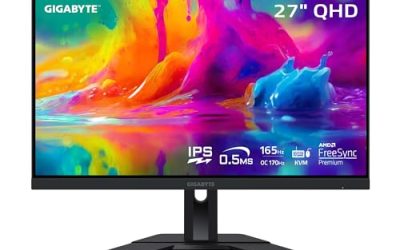
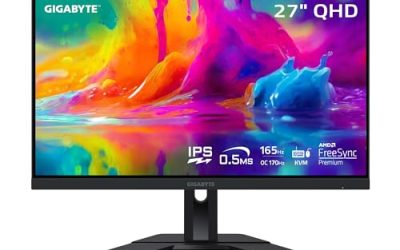
Gigabyte M27Q 27-Inch QHD Gaming Monitor

A strong all round pick for this problem: its menu is fast to reset, and DisplayPort and HDMI carry separate picture memory, so one input can hold a clean reference preset while you test the other.
Specs
- Panel: 27-inch IPS, 2560 by 1440
- Refresh rate: up to 170 Hz overclocked
- Inputs: DisplayPort 1.2, two HDMI 2.0, USB-C
- Extras: built-in KVM switch, height adjustable stand
Dell U2724DE 27-Inch QHD Thunderbolt Monitor
The Dell suits players who also work at the same desk. Its color controls are unusually complete, with a proper sRGB mode and per input settings, and the Thunderbolt hub puts a laptop and a gaming PC on one screen for quick comparisons.
Specs
- Panel: 27-inch IPS Black, 2560 by 1440
- Refresh rate: 120 Hz
- Inputs: Thunderbolt 4 hub, DisplayPort 1.4, HDMI 2.1
- Extras: USB-C docking with power delivery, auto KVM
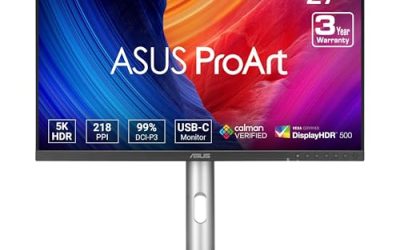
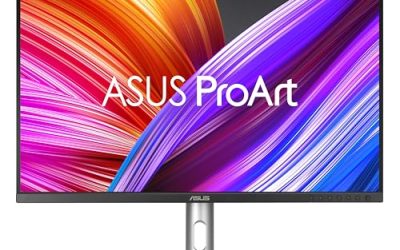
ASUS ProArt PA279CRV 27-Inch 4K Monitor
If accurate color is the whole point of your setup, the ProArt line is built around it. It covers 98 percent of the DCI-P3 space, ships with a factory calibration report, and centers its menu on color modes, which makes a warm cast easy to spot and clear.
Specs
- Panel: 27-inch IPS, 3840 by 2160
- Color: 98 percent DCI-P3, factory calibrated
- Inputs: USB-C with power delivery, DisplayPort 1.4, HDMI 2.0
- Extras: Mac and Windows color profiles, slim profile stand
Samsung S65UA 34-Inch Ultrawide Curved Monitor
The ultrawide option. One curved screen replaces a dual monitor pair, removing the two screens disagree problem entirely, and USB-C carries picture and data on a single cable.
Specs
- Panel: 34-inch curved VA, 3440 by 1440
- Refresh rate: 100 Hz
- Inputs: USB-C, DisplayPort, HDMI
- Extras: built-in KVM, picture by picture mode
Cable Matters DisplayPort 1.4 Cable, 10 Ft
When a cable is the suspect, replace it with a certified one. This 10 ft DisplayPort 1.4 cable carries high refresh QHD and 4K signals at full bandwidth, so the link stops renegotiating.
Specs
- Standard: DisplayPort 1.4, HBR3 bandwidth
- Length: 10 ft
- Support: up to 8K at 60 Hz, 4K at high refresh rates
- Connectors: gold plated with latches
Who Should Skip These Fixes
Skip the Windows and driver layers if the tint is visible in the BIOS screen or boot logo, because no operating system filter reaches that far, and the fault is the monitor menu, cable, or panel. Skip them too if only one game is tinted while the desktop and other games are clean, since that is a per game filter or colorblind mode. And if screenshots look yellow on every other device, go straight to the profile and driver steps, because the tint is in the rendered image.
Frequently Asked Questions
Why does Night Light turn itself back on at the same time every evening?
That is the schedule doing its job with a window you forgot you set, or a sunset window that drifted because location services are off. Open the Night Light page in Settings, switch to set hours, or turn scheduling off.
Why is the tint still there after I turned Night Light off and restarted?
A normal restart can preserve the stuck state when fast startup is enabled, because the kernel session is hibernated rather than closed. Use a full shutdown by holding Shift while you click Shut down, then power on. If the tint is gone, disable fast startup so the state cannot return.
Can HDR cause a warm tint that looks like Night Light?
Yes. HDR and Night Light are supposed to hand off cleanly, but a stuck driver state can blend them and leave SDR games warm while every toggle reads normal. Test with HDR off in Windows display settings. If the tint follows the HDR toggle, update the driver.
My monitor has its own low blue light mode. Can that be the whole problem?
It can, and it is the easiest layer to miss because it survives every Windows change. Open the monitor menu, check the picture mode on the input you game on, and turn the low blue light or reading mode off. Some monitors store that mode per input, so check DisplayPort even if HDMI was clean.
Final Verdict
A Night Light tint that will not leave is almost never a broken monitor. It is one filter too many, held by one layer too many: a drifting schedule, a display state preserved by fast startup, a custom driver color page, a vendor app, or the monitor’s own blue light mode. Peel the layers off in order, test with a white page after each one, and the tint will lift at the step that owned it. Only price a new monitor or cable when the tint follows the screen to a different machine.
Product and ASIN Reference
| Product | ASIN |
|---|---|
| Gigabyte M27Q 27-Inch QHD Gaming Monitor | B08JWCHR5N |
| Dell U2724DE 27-Inch QHD Thunderbolt Monitor | B0CMXGDK5S |
| ASUS ProArt PA279CRV 27-Inch 4K Monitor | B0BQPSX5CR |
| Samsung S65UA 34-Inch Ultrawide Curved Monitor | B0BLT79X2G |
| Cable Matters DisplayPort 1.4 Cable, 10 Ft | B07J2PGGFX |