You did the obvious thing. You opened the graphics menu, switched VSync on, and the tear is still there, slicing the picture in half every time you pan the camera. That feels impossible, because VSync exists for exactly one job: presenting only whole frames. The resolution is that VSync is not a single switch. It is a chain of settings spread across the game, the graphics driver, the window mode and the display itself, and every link can quietly countermand the others. When one link disagrees, frames present mid-scan as if sync were off, and the menu toggle becomes a promise nothing downstream honours. This guide works through that chain, on the assumption that you want VSync itself to work; players who would rather abandon VSync for the lower-lag alternatives have a different problem, with different answers.


As an Amazon Associate, we earn from qualifying purchases.
Quick Answer
When tearing survives VSync, one link in the sync chain is overriding another: the driver profile is set to off or to an adaptive variant, the game is running in a windowed mode that ignores its own VSync toggle, or a second screen is dragging presentation to the wrong refresh rate. Restore exclusive fullscreen, set the driver to a plain on state, and remove competing caps and screens.
VSync Is a Chain, Not a Switch
Four links decide whether a frame is ever allowed to present mid-scan. The first is the game’s own toggle, the one you already flipped. The second is the driver profile: both NVIDIA Control Panel and AMD Software can force vertical sync off, force it on, or defer to the application, per game or globally, and a stale profile overrides the menu without telling you. The third link is the presentation mode. In exclusive fullscreen the game talks to the display almost directly, and its sync request reaches the hardware. In a borderless window the frames pass through the Windows desktop compositor first, which applies rules of its own, and in older engines the in-game toggle does nothing in a window. The fourth link is the display’s timing: the refresh rate Windows has actually selected for the panel, and any second screen sharing the desktop. VSync exists only when all four links agree. Your tear means at least one of them does not.
Read the Tear: What the Pattern Tells You
Before changing anything, watch where and when the tear appears. The pattern points at the broken link more reliably than any settings screen.
Tearing at every frame rate, in every game. Sync is not engaging anywhere: suspect a global driver profile forcing sync off, or a driver mode you set once and forgot.
Tearing only when the frame rate drops below the refresh rate. An adaptive variant is in play. NVIDIA’s Adaptive VSync, for example, switches sync off entirely below the refresh rate by design, so the menu can honestly say VSync while the driver disengages it exactly when the game gets heavy.
Tearing in one game, perfect frames in the rest. The chain is fine globally and broken locally: a per-game driver profile, or that title running in a borderless window while the others run exclusive.
Tearing only while a second monitor is connected. Mixed refresh rates are the classic cause. When the desktop spans a fast panel and a slow one, the compositor’s timing can follow the wrong screen, and a windowed game inherits that timing.
Tearing only in cutscenes. Pre-rendered video plays at its own fixed rate through a path the game’s sync settings never governed, so gameplay can be flawless while every cinematic splits.
One tear line parked in roughly the same place. Sync is late rather than absent: the frame rate hovers a whisker above the refresh rate, so each frame lands at nearly the same point in the scan. A limiting problem, not a broken toggle.
The Chain Audit: Seven Checks in Order
Work down the list, testing with a fast horizontal pan after each step; the tear reacts within seconds, so one change at a time names the broken link.
- Switch the game to exclusive fullscreen. This removes the compositor from the path and is the most common fix. If the tear dies here, the window mode was the broken link; stop.
- Open the game’s driver profile and set vertical sync to a plain on state, or to application-controlled with the in-game toggle on. Remove adaptive and fast variants for the test; you are auditing, not optimising.
- Remove third-party frame caps temporarily. A limiter cannot switch VSync off, but overlapping limiters in the driver, the game and an overlay make the audit unreadable. Test clean, then restore only the cap you need.
- Confirm the refresh rate Windows has selected under Display settings, Advanced display. The chain syncs to that number, not to the rate on the monitor’s box, and a high-refresh panel parked at a low setting makes every downstream calculation wrong.
- Disconnect the second screen for one run. If the tear vanishes, mixed-refresh composition was the culprit; reconnect it and prefer exclusive fullscreen, which sidesteps the compositor’s compromise.
- On a laptop, check which GPU presents the game. Hybrid graphics route the dedicated GPU’s frames through the integrated GPU’s output path, adding a presentation layer with its own sync behaviour. Assign the game to the high-performance GPU in Windows graphics settings and retest.
- For an older game stuck in a borderless window, force sync at the driver level. In engines of that era the in-game toggle in windowed mode is decorative; the driver profile is the only link that reaches the hardware.
How to Choose Your Fix Path
Your setup decides which links deserve suspicion first. A single fixed-refresh monitor with tearing everywhere is almost always link one or two: window mode or driver profile, in that order. Owners of variable refresh monitors who keep VSync on as a seatbelt at the top of the range should look at the window’s edges instead: tearing that appears only when the frame rate climbs out of the variable range means the companion frame cap, set a few frames below the ceiling, is missing. Multi-monitor desks should start at check five, because the second screen breaks more chains than every driver quirk combined. Laptop players start at check six, since the hybrid output path inserts a link desktop players do not have. Fix the chain before judging the hardware: a tear with sync requested is a settings fault until the audit proves otherwise.
Displays That Make the Chain Forgiving
A working chain needs no new hardware, but a variable refresh display widens the margin for error, absorbing small disagreements between links instead of showing them as a tear. These are the upgrade paths worth considering once the audit is done.
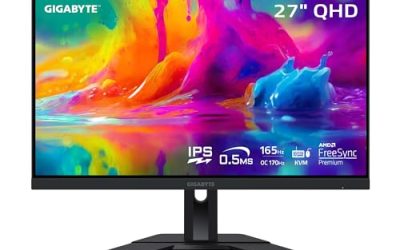
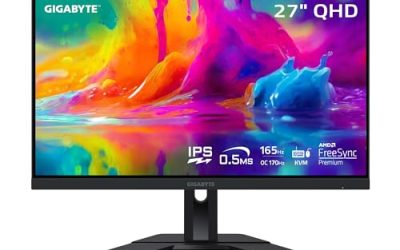
Gigabyte M27Q Gaming Monitor
The balanced variable refresh pick. Its high ceiling gives adaptive sync a wide window, and the built-in KVM keeps a work laptop and a gaming PC on one panel, so no second screen ever enters the chain.
Specs
- Panel: 27-inch Super Speed IPS
- Resolution: 2560 x 1440
- Refresh rate: 170 hertz overclocked
- Adaptive sync: FreeSync Premium
- Extras: KVM switch, height-adjustable stand
Dell UltraSharp U2724DE
The productivity hybrid. Its 120 hertz rate and Thunderbolt hub suit desks where the gaming PC shares space with a docked laptop, and the rate gives sync far more headroom than a fixed 60 hertz panel.
Specs
- Panel: 27-inch IPS Black
- Resolution: 2560 x 1440
- Refresh rate: 120 hertz
- Connectivity: Thunderbolt 4 hub, USB-C, HDMI, DisplayPort
- Extras: built-in USB and Ethernet hub
Samsung S65UA Ultrawide Monitor
The one-screen answer to the mixed-refresh problem. Replacing a fast panel plus a slow side monitor with one ultrawide removes the second timing source entirely, the cleanest fix for the multi-monitor pattern above.
Specs
- Panel: 34-inch VA ultrawide, curved
- Resolution: 3440 x 1440
- Refresh rate: 100 hertz
- Adaptive sync: FreeSync
- Connectivity: USB-C with power delivery, HDMI, DisplayPort
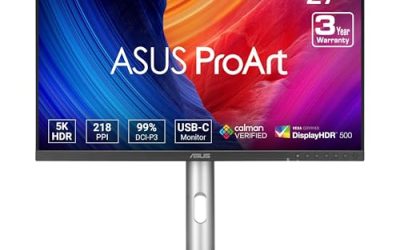
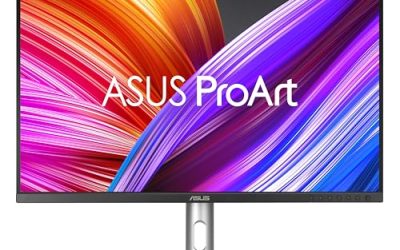
ASUS ProArt PA279CRV

The strict control case. A 60 hertz ceiling leaves no headroom and no variable window to hide behind, so this colour-focused creator panel shows a broken chain exactly as it is. Buy it for colour work, and expect honest sync settings.
Specs
- Panel: 27-inch IPS
- Resolution: 3840 x 2160
- Refresh rate: 60 hertz
- Colour: wide-gamut, factory calibrated
- Connectivity: USB-C with power delivery, HDMI, DisplayPort
Sony DualSense Wireless Controller
The couch case. Living-room play ends the chain at a television, most of which run a fixed rate with no variable window, so the audit matters more, not less. This is the controller for those sessions, with haptics that survive the trip from desk to sofa.
Specs
- Connection: Bluetooth and USB-C
- Feedback: haptic feedback, adaptive triggers
- Microphone: built-in, with mute button
- Battery: built-in rechargeable
Who Should Skip This Guide
Skip it if your real goal is lower input lag rather than working VSync: replacing VSync is a separate guide’s subject, and this audit deliberately restores the thing those players are trying to leave. Skip it if the tearing is on a handheld’s built-in screen, which presents through a different path with different rules. And skip it if the split in the picture never moves and is visible on the desktop and in menus too: a tear frozen in one place at all times points at the panel or the cable, not at any link in the sync chain.
Final Verdict
Tearing with VSync on is never a mystery fault; it is one disagreement in a four-link chain. Read the pattern first, because where the tear appears names the link, then run the audit in order: exclusive fullscreen, a plain driver state, a clean limiter setup, the refresh rate Windows actually selected, the second screen, and the laptop presentation path. Most players find their broken link inside the first three checks. Only when the whole chain agrees and the tear remains should hardware enter the conversation, and even then a variable refresh panel widens the margin rather than replacing the audit.
Frequently Asked Questions
Why does VSync work in one game but not in another?
Because two of the four links are per-game. A driver profile can force sync off for one title while leaving the rest alone, and a game running in a borderless window hands its frames to the desktop compositor while an exclusive fullscreen title presents directly. Check that game’s profile and window mode before touching global settings.
Is Adaptive VSync the same as VSync?
No. Plain VSync holds every frame for the next refresh cycle, at any frame rate. The adaptive variant disengages the moment the frame rate falls below the refresh rate, which removes the stutter VSync causes but lets tearing straight back in. If your tears appear only in heavy scenes, an adaptive variant is the first suspect.
Can a frame rate limiter cause tearing while VSync is on?
A limiter cannot disable sync, and if frames are genuinely held for refresh, no cap setting can produce a tear. What it can do is park the frame rate a hair above the refresh rate where sync was never really engaged, leaving one slow, stationary tear line. Treat the cap as a clue about the broken link, not the cause.
Does borderless windowed mode respect the in-game VSync toggle?
It depends on the engine and the Windows version. Modern Windows composites borderless games with its own synchronised presentation, often hiding tearing while ignoring what the toggle says. Older engines in a window may apply no sync at all. Exclusive fullscreen is the only mode where the toggle’s meaning is guaranteed, hence check one in the audit.
Product and ASIN Reference
| Product | ASIN |
|---|---|
| Gigabyte M27Q Gaming Monitor | B08JWCHR5N |
| Dell UltraSharp U2724DE | B0CMXGDK5S |
| Samsung S65UA Ultrawide Monitor | B0BLT79X2G |
| ASUS ProArt PA279CRV | B0BQPSX5CR |
| Sony DualSense Wireless Controller | B0CQKLS4RP |