Your game runs perfectly for three hours, through the heaviest fights it has, and then dies the moment you alt-tab to answer a message. No warning, no error box, or a frozen screen when you try to come back. This is not the general crashing problem, because the game clearly survives real rendering load. It is not the minimizing problem either, because there the game stays alive in the taskbar. And it is not a game refusing fullscreen. The crash lives inside the switch itself: the few seconds where Windows takes the display away from the game and later hands it back. That hand-off has its own failure points, and each one has a matching fix.


As an Amazon Associate, we earn from qualifying purchases.
Quick Answer
If the game runs fine until you alt-tab, the crash lives in the switch: the game tears down and rebuilds its display mode while overlays and Windows compete for the frame. Switch the game to borderless mode first. If the crashes stop, work through the culprits below, starting with overlays and fullscreen optimizations, and only change one setting at a time.
What the Switch Actually Does to Your Game
In exclusive fullscreen, the game owns your display directly. When you alt-tab, Windows takes that display back for the desktop compositor, and the game is expected to release its swap chain and graphics resources cleanly. When you tab back in, everything is renegotiated and rebuilt: resolution, refresh rate, HDR state, and the game’s rendered frames, while your browser and chat apps kept living in video memory the whole time. A borderless game never leaves the compositor, so it skips this entire negotiation. That is why borderless mode is both the fastest test in this guide and, for many players, the permanent answer. Before changing anything, note whether your game dies on the way out or on the way back in. That single detail cuts the suspect list roughly in half.
The Five Culprits That Break the Hand-Off
Exclusive fullscreen and fullscreen optimizations
The classic failure is the mode switch itself. Some engines handle losing and regaining the display badly, especially older titles and ports. Windows adds its own layer on top: fullscreen optimizations quietly run many fullscreen games through the desktop compositor instead, and the hybrid path confuses some games about which mode they are really in. Right-click the game executable, open Properties, then Compatibility, and tick Disable fullscreen optimizations. Test that one game. If the crashes stop, the hybrid path was the problem, and the setting only affects that title.
Overlays hooked into the frame
Overlays from Steam, Discord, the NVIDIA App, AMD Software, Xbox Game Bar, and frame-rate tools all attach to the game’s presentation path. When the swap chain is torn down and rebuilt during a switch, a hook that worked during play can fail at exactly that moment. Disable every overlay you run, confirm the game survives twenty switches, then turn them back on one at a time. The overlay that brings the crash back is your culprit, and most have a per-game toggle so you do not lose the feature everywhere else.
Multi-plane overlay conflicts
Windows can composite some windows, including games and video, on dedicated hardware planes instead of mixing everything in one pass. This feature, called multi-plane overlay, causes flicker, black screens, and switch crashes on some driver and monitor combinations. It is an advanced suspect: there is a documented registry change that disables it, involving a value named OverlayTestMode under the Windows Dwm key. Treat this as a late step, create a restore point first, and undo it if nothing changes, because it affects the whole system rather than one game.
Display renegotiation on the way back in
Returning to the game re-runs the display handshake, and anything that changes mid-handshake can break it. HDR turning back on, a refresh rate that differs between your two monitors, and variable refresh re-engaging are the usual triggers. Test with HDR off in Windows, and if you run two screens, test with the second one unplugged. If the game survives with one screen and dies with two, set both monitors to the same refresh rate or keep the game on the display that matches its target rate.
A crowded desktop and full video memory
While you are tabbed out, your browser, chat apps, and recording tools keep their share of video memory, often with hardware acceleration enabled. When the game returns, it needs its resources back, and a game that was already close to the video memory limit can fail the rebuild. Close the heavy tab-out apps, or turn off hardware acceleration in your browser and Discord, and see whether the switch survives. A game installed on a nearly full system drive makes this worse, because Windows also leans on that drive for paging during the shuffle.
How to Choose Which Culprit to Chase
Read the crash signature before touching settings. A game that dies on the way out, the instant you press the keys, points at overlays and focus handling, so start there. A game that dies on the way back in points at the rebuild: display renegotiation, HDR, and video memory. A game that crashes in exclusive fullscreen but never in borderless is telling you the mode switch itself is the fault line, so test fullscreen optimizations next. A single affected game points at that game’s engine and settings; crashes across every game point one level deeper, at the driver and compositor. Whatever you change, change one thing, then switch in and out ten times before judging it. Intermittent switch crashes forgive sloppy testing and punish it later.
The gear below cannot fix a software conflict. It removes hardware variables, a display that renegotiates cleanly and fast storage with room to breathe, so your test results mean something.
Who Should Skip This Guide
Skip this if your game minimizes but keeps running in the taskbar, because that is a focus-stealing problem with different causes and its own fix. Skip it if your game crashes mid-session without any switching, because that is the general crashing problem, not a hand-off failure. Skip it if the game crashes on startup before you ever reach gameplay. And skip the registry step entirely if you are not comfortable restoring system settings; the other four culprits cover most cases on their own.
Test Gear That Rules Out the Hardware Side
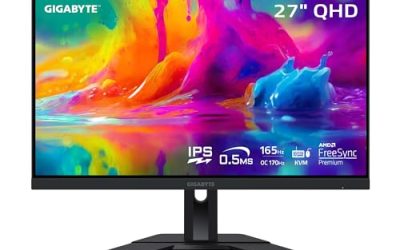
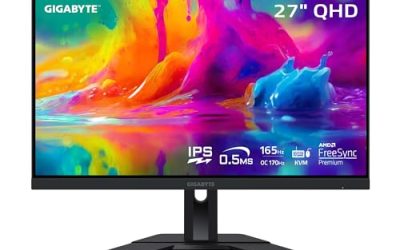
Gigabyte M27Q Gaming Monitor
A mainstream 1440p high-refresh panel is a clean reference display: if switches survive here, your original monitor’s renegotiation is a suspect.
Specs
- Size and resolution: 27-inch, 2560 x 1440
- Refresh rate: 170 Hz overclocked
- Panel: IPS
- Extra: built-in KVM switch for sharing peripherals between two computers
Dell UltraSharp U2724DE Monitor
A Thunderbolt hub monitor gives you a single-cable direct display path, which removes docks and adapters from the switch path while you test.
Specs
- Size and resolution: 27-inch, 2560 x 1440
- Refresh rate: 120 Hz
- Panel: IPS Black
- Connectivity: Thunderbolt hub with USB-C downstream ports
Samsung 990 PRO NVMe SSD

Fast storage shortens every part of the test loop: relaunching after a crash, verifying game files, and reloading assets when a game rebuilds after a switch.
Specs
- Interface: PCIe 4.0 NVMe, M.2 2280
- Sequential read: up to 7,450 MB/s
- Sequential write: up to 6,900 MB/s
- Features: nickel-coated controller and heat spreader label
WD Black SN850X NVMe SSD

A second fast drive is the practical fix for the crowded-drive problem: moving the game off a nearly full system drive gives Windows and the game separate room.
Specs
- Interface: PCIe 4.0 NVMe, M.2 2280
- Sequential read: up to 7,300 MB/s
- Sequential write: up to 6,600 MB/s
- Features: Game Mode 2.0 and optional heatsink versions
Sony DualSense Wireless Controller
A controller changes nothing about the switch, but on a TV setup it keeps the game playable while a wireless keyboard handles the actual tabbing during tests.
Specs
- Connectivity: Bluetooth and USB-C
- Features: haptic feedback and adaptive triggers
- Battery: built-in rechargeable
- Compatibility: PC, PlayStation 5
Final Verdict
An alt-tab crash is a hand-off failure, not a broken game. The switch tears down and rebuilds your display mode while overlays, the compositor, and everything on your desktop compete for the same resources, and one of those five culprits usually loses. Borderless mode is the fastest way to prove it and often the fix itself. When you want exclusive fullscreen back, work from the crash signature: overlays for deaths on the way out, renegotiation and video memory for deaths on the way back in, and one change at a time so you know which setting earned the fix.
Frequently Asked Questions
Why does my game crash only when I alt-tab and never during play?
Because gameplay and switching stress different code. Rendering frames for hours never asks the game to surrender the display; alt-tab does, instantly. The teardown and rebuild of the swap chain, plus overlays and Windows re-negotiating the display, only happen during the switch, so a fault there stays invisible until you tab out.
Is borderless mode a real fix or just a workaround?
Both, and for most players that distinction does not matter. Borderless removes the mode switch entirely, which removes the crash, at the cost of the small input and composition differences of running through the desktop compositor. If you need exclusive fullscreen for a specific reason, treat borderless as your diagnostic proof and keep working through the culprits.
Will disabling fullscreen optimizations fix every game?
No. It changes the presentation path for that one executable, which helps games confused by the hybrid compositor path and does nothing for overlay or video memory failures. It is fully reversible, so it is a safe early test, but it is a per-game setting, not a system-wide cure.
Does crashing on alt-tab mean my graphics card is failing?
Almost never by itself. A failing card usually also crashes under sustained rendering load, shows artifacts, or triggers driver resets during play. A card that renders for hours and only dies during task switches is pointing at the software hand-off: modes, overlays, and drivers, not dying hardware.
Product and ASIN Reference
| Product | ASIN |
|---|---|
| Gigabyte M27Q Gaming Monitor | B08JWCHR5N |
| Dell UltraSharp U2724DE Monitor | B0CMXGDK5S |
| Samsung 990 PRO NVMe SSD | B0BHJJ9Y77 |
| WD Black SN850X NVMe SSD | B0B7CMZ3QH |
| Sony DualSense Wireless Controller | B0CQKLS4RP |