Your mouse software insists the polling rate is set to 1,000 Hz, or 4,000, or 8,000. A rate checker disagrees: the trace touches the set value, sags to half, recovers, sags again. Before the Windows update the same checker drew a steady line. The setting was never the problem; the update changed something underneath it.


This guide covers that measured instability, proven with a checker rather than judged by feel. Run the test below, read your graph’s shape, and go straight to the matching fix.
As an Amazon Associate, we earn from qualifying purchases.
Quick Answer
Open a polling rate checker, draw wide circles for ten seconds, and compare the trace with your set rate. A healthy mouse draws a flat line at that value. A sawtooth points at USB power saving, a stable but wrong plateau at a profile that never loads, an in-game sag at the controller driver, and a wireless-only wander at the receiver path.
The Flat Line Test
Every fix here hangs off one measurement, so make it properly. Open a browser-based polling rate checker or the tester in your mouse suite. Move in wide, steady circles for ten seconds and watch the average rate and the shape of the graph behind it.
Averaging hides the fault, so read the shape. A healthy setup draws a flat line hugging the set rate throughout. A faulty one draws one of four shapes, each belonging to a different layer: the power feeding the port, the profile carrying the setting, the driver moving the reports, or the radio carrying them. Note your shape, work only its section, and retest after every change, so results stay comparable.
Shape One: The Sawtooth
The trace holds the set rate, then drops to half or a quarter of it in regular teeth, worst after the pointer has sat still. That rhythm is a power signature. Feature updates restore balanced power plans, which switch USB selective suspend back on and restore the per-hub option that lets Windows turn devices off. A port that dozes between bursts of movement cannot deliver a steady stream of reports, so the rate saws as the path wakes and sleeps.
Open the advanced settings of your active power plan and disable USB selective suspend. Then open each USB Root Hub in Device Manager, go to the Power Management tab, and clear the option that allows the computer to turn the device off. Restart and rerun the test; the teeth should disappear. On a laptop, check on battery and mains power too, since the two profiles can carry different USB settings.
Shape Two: The Wrong Plateau
The trace is perfectly flat, but at the wrong value: you set 1,000 Hz and the checker sits calmly at 500, or the rate holds while the mouse suite is open and falls when it closes. That is a profile that lives in software only. The update may have replaced the vendor driver with a generic one, stopped the suite’s service from starting, or broken the link between suite and mouse, so the tuned rate is applied late or not at all.
Confirm the driver first: in Device Manager, a Microsoft provider dated near the update is the smoking gun. Install the current package from the mouse maker’s site, set the suite to start with Windows, and check its service is running. Then remove the dependency entirely: save your rate to the mouse’s onboard memory if it offers a profile slot. A rate stored on the device is applied by the mouse itself, beyond the reach of any service or driver swap. Without onboard memory, the plateau returns whenever the suite fails to load.
Shape Three: The Load Sag
The desktop trace is a clean flat line, but inside a game the rate sags and scatters, recovering the moment you alt-tab out. The setting did not change; the delivery path is starving under load. Updates replace USB controller and chipset drivers too, and a fresh controller driver can change how interrupts are batched and scheduled. At 1,000 reports a second the mouse forgives that. At 4,000 or 8,000, a busy CPU and a conservative driver stretch the gaps between reports, and the checker draws the sag.
Install the current chipset and USB controller drivers from your motherboard or laptop maker’s site rather than relying on the copies the update delivered. Then be honest about the rate you need: step down one level, from 8,000 to 4,000 or from 4,000 to 1,000, and rerun the in-game test. A flat 1,000 Hz line beats a sagging 8,000 Hz line in every aim duel. If the sag survives at 1,000 Hz with current drivers, test a rear motherboard port before blaming the mouse.
Shape Four: The Wireless Wander
Plug the mouse in with its cable and the trace goes flat; unplug it and the wander returns. The fault is in the radio path: the hub power settings from shape one now apply to the receiver, a replaced chipset driver changes how the 2.4 GHz link is managed, or the receiver shares a port group with a busy drive enclosure.
Work the path in order. Put the receiver in a rear motherboard port, on the short extension cable most gaming mice include, close to the mouse and clear of the desk’s metal frame. Keep it away from USB 3 storage devices and their cables, a well-known source of 2.4 GHz interference. Rerun the test after each move. If the wander appears only when a second wireless peripheral wakes, separate the receivers onto different port groups. A wired-flat, wireless-wandering result is never the sensor, and rarely the mouse.
How to Choose
Let your graph choose the fix. Sawtooth means power: change the plan and hub settings before touching drivers. Wrong plateau means profile: restore the vendor driver and service, then move the setting onto the device. Load sag means delivery: update the controller drivers and step the rate down to a level the path can hold. Wireless wander means placement: ports, extension cable, and distance from interference.
If you are buying your way out, buy the feature that removes your shape. Software-only profiles caused the plateau, so onboard memory is the fix that travels with the mouse. High-rate wireless caused the wander, so a receiver path designed for the top rate matters more than the headline number. Every mouse below holds its rate on the device or over a mature link.
The Mice That Hold Their Rate
Razer Viper V3 Pro
Razer’s flagship wireless esports mouse answers both the plateau and the wander. Its settings save to onboard memory, so the rate you choose is the rate the mouse reports, suite or no suite. With the included HyperPolling dongle it sustains the highest wireless rate in this list, over a receiver path built for that load.
Specs
- Sensor: Focus Pro 35K optical
- Connection: HyperSpeed wireless and wired
- Polling rate: up to 8,000 Hz with the HyperPolling dongle
- Weight: about 54 g
- Onboard memory: one profile with DPI and polling settings
- Tier: premium
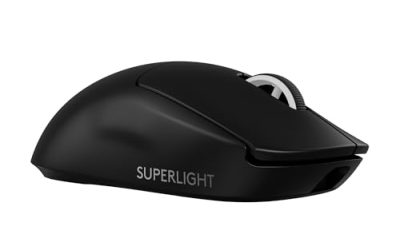
Logitech G Pro X Superlight 2
Logitech’s tournament staple pairs a mature LIGHTSPEED link with full onboard profile storage. Save the rate once in G HUB, and the mouse carries it across PCs and driver changes, precisely the failure an update causes. The link is famously steady at its set rate.
Specs
- Sensor: HERO 2, up to 32,000 DPI
- Connection: LIGHTSPEED wireless and wired
- Polling rate: up to 8,000 Hz over LIGHTSPEED
- Weight: 60 g
- Onboard memory: yes, full profile storage
- Tier: premium
Razer DeathAdder V3
The wired DeathAdder V3 removes the radio from the equation entirely. A cable has no receiver to doze and no link to wander, and this one reports at up to 8,000 Hz over that cable with an onboard profile holding the setting.
Specs
- Sensor: Focus Pro 30K optical
- Connection: wired USB
- Polling rate: up to 8,000 Hz wired
- Weight: 63 g
- Onboard memory: one profile
- Tier: mid-range
Logitech G502 HERO

The G502 HERO is the plateau-proof route: five onboard profiles, a wired connection, and a 1,000 Hz ceiling any healthy USB path can hold flat. If your current mouse keeps its settings only inside a suite the update broke, this makes the setting a property of the hardware.
Specs
- Sensor: HERO 25K, 100 to 25,600 DPI
- Connection: wired USB
- Polling rate: 1,000 Hz
- Weight: about 121 g with optional tuning weights
- Onboard memory: five profiles
- Tier: mid-range
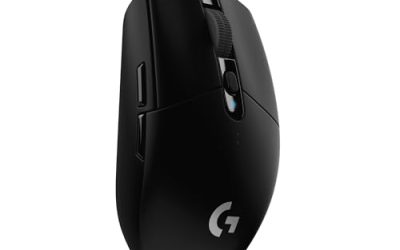
Logitech G305

The G305 makes the honest case for a modest rate held perfectly. Its LIGHTSPEED link tops out at 1,000 Hz, its single onboard profile keeps that rate with no suite running, and the connection is among the steadiest in its class. If your 8,000 Hz setup sags under load, this is proof that a flat 1,000 feels better than a wandering line at eight times the rate.
Specs
- Sensor: HERO, 200 to 12,000 DPI
- Connection: LIGHTSPEED wireless
- Polling rate: 1,000 Hz over LIGHTSPEED
- Weight: 99 g
- Onboard memory: one profile
- Tier: budget
Who Should Skip This Guide
If your polling rate reset once, right after the update, and re-applying your profile fixed it for good, that was the post-update settings reset, and the floaty-mouse-after-an-update guide owns it. If your DPI stage reverts at every reboot while the rate stays put, that is the DPI reset fault. If clicks go missing while the rate measures flat at a high setting, that is the high-polling click-loss fault. And if nothing measures wrong but the mouse feels heavy on the pad, the fault is friction and mass. This guide is only for a set rate a checker proves will not hold.
Frequently Asked Questions
How do I check my mouse polling rate?
Use a browser-based polling rate checker or the tester in your mouse suite. Move in wide, steady circles for ten seconds and read the average and the graph. Judge the graph, not just the average: a healthy setup draws a flat line at the set rate, while faults draw teeth, plateaus, sags, or wander.
Why did a Windows update change my polling rate behaviour?
Feature updates restore power plan defaults, re-enable USB selective suspend, replace vendor drivers with generic ones, and can stop a mouse suite’s service from starting. Any one of those leaves the set rate intact on paper while the delivered rate drops or wanders, which is why the fix starts with measurement.
Is a higher polling rate always better?
Only when it holds. A stable 1,000 Hz delivers a report every millisecond, evenly, and muscle memory is built on even spacing. An 8,000 Hz rate that sags under load delivers uneven spacing, which feels and aims worse. Set the highest rate your system holds flat in a game.
Should I save my polling rate to onboard memory?
Yes, if your mouse offers it. A rate stored on the device is applied by the mouse itself at power-on, so driver swaps, broken suite services, and updates cannot take it away. It is the single change that stops the wrong-plateau shape returning.
Final Verdict
A polling rate that will not hold after a Windows update is a delivery fault, not a settings fault, and the flat line test separates its four causes in one ten-second measurement. Fix the layer your graph names: power for the sawtooth, profile storage for the plateau, controller drivers and a realistic rate for the load sag, and receiver placement for the wander. Do that, and the line stays flat.
Product and ASIN Reference
| Product | ASIN |
|---|---|
| Razer Viper V3 Pro | B0CW25XR5R |
| Logitech G Pro X Superlight 2 | B09NBWL8J5 |
| Razer DeathAdder V3 | B0B6XTDJS1 |
| Logitech G502 HERO | B07GBZ4Q68 |
| Logitech G305 | B07CMS5Q6P |