🛒 Best Price Today on Amazon
Prime members get fast, free shipping on everything above, plus member-only deals. New members get a 30-day free trial — cancel anytime.
Top Buy Motherboard Gaming Definitive Buyer Picks for 2026
Here are our current top buy motherboard gaming definitive buyer picks, compared on real Amazon owner reviews, price, and features. Live prices update below.


Affiliate disclosure: GamingPCGuru is reader-supported. When you buy through links on our site, we may earn an affiliate commission at no extra cost to you. This does not influence our independent reviews.
By Alex Rivera, Hardware Reviewer · May 2026
How to Buy a Motherboard for Gaming: VRM Quality Matters More Than RGB
Quick Answer (TLDR)
For 2026 gaming builds, the right motherboard is a quality B850 or X870 (AMD) or B860 / Z890 (Intel) board from one of the four reputable manufacturers — ASUS, MSI, Gigabyte, ASRock. Budget $179–$249 for B850 / B860 if you don’t plan to overclock, $249–$399 for X870E / Z890 if you want PCIe 5.0 storage, USB4, and Wi-Fi 7. The $500+ flagship boards (Crosshair Hero, Aorus Master) are for content creators and showcase builds, not pure gaming. Avoid bottom-tier sub-$150 boards even on budget builds — VRM throttling on high-TDP CPUs and missing M.2 heatsinks cost more in performance than the savings justify. Most “gaming” features on premium boards are marketing; focus on VRM quality, M.2 slot count, and BIOS reputation.
The Five Criteria That Matter
1. VRM (Voltage Regulator Module) quality. The VRM converts 12V from your PSU to the 1.0–1.4V the CPU needs. Cheap VRMs on budget boards (4+2 phase designs) throttle high-TDP CPUs like the Ryzen 9 9950X or Intel Core Ultra 9 285K under sustained load, causing performance loss. Quality VRMs (12+1 phase minimum, 70A+ power stages) handle any current consumer CPU cleanly. Read VRM reviews specifically for your target CPU — boards rated for 7950X handle 285K too.
2. PCIe lane configuration. Modern CPUs (Ryzen 9000, Core Ultra 200S) provide 20+4 PCIe 5.0 lanes from the CPU. A quality board allocates these as: x16 to the primary GPU slot, x4 to the primary M.2 slot. Cheaper boards may downgrade primary GPU to x8 when secondary M.2 is populated. Check the manual’s PCIe sharing diagram before buying if you need multiple PCIe 5.0 devices.
3. M.2 slot count and configuration. Modern enthusiast boards offer 3–5 M.2 slots, with the primary slot getting CPU-attached PCIe 5.0 x4 and secondary slots running PCIe 4.0 x4 through the chipset. Verify slot heatsinks are included (most are), check whether secondary slots share lanes with USB or SATA ports, and confirm the slots support your drive form factor.
4. Connectivity matching your peripheral ecosystem. Wi-Fi 7 (802.11be) is standard on mid-tier 2026 boards. USB4 / Thunderbolt 4 is increasingly common but not universal — verify your target board has it if you use USB4 docks. Rear panel USB count varies dramatically: budget boards offer 4–6 ports, premium boards offer 10–12. Match to your peripheral count plus headroom.
5. BIOS quality and update history. Motherboard BIOS quality varies enormously between manufacturers and even between boards from the same brand. ASUS ROG STRIX and Gigabyte AORUS Master tier boards reliably hit memory speeds and handle CPU overclocking. Budget-tier boards from any brand may struggle with high-speed memory or new CPU support. Check recent BIOS update frequency — a board with monthly BIOS releases is being actively maintained; one with no updates since launch is abandoned.
Buying Checklist
- Identify your CPU socket: AM5 (AMD), LGA1851 (Intel Core Ultra), LGA1700 (older Intel)
- Choose chipset tier based on features needed: B850/B860 for mainstream, X870/Z890 for enthusiast
- Verify VRM quality for your specific CPU (read reviews)
- Check M.2 slot count and configuration for your storage plans
- Confirm Wi-Fi 7 support if you need wireless
- Verify rear panel USB port count and types
- Match form factor to case (ATX, mATX, ITX)
- Check memory QVL for your specific RAM kit (verified compatibility)
- Confirm CPU is supported with current BIOS (check ship date)
- Verify warranty length (3-year standard for premium tiers)
Spec Primer: What the Numbers Actually Mean
Chipset tier. AMD B850 = mainstream, supports overclocking, PCIe 4.0 chipset lanes. X870 = enthusiast, adds USB4. X870E = enthusiast, USB4 plus PCIe 5.0 chipset lanes. Intel B860 = mainstream, no CPU overclocking. Z890 = enthusiast, full overclocking and most I/O options.
VRM phase count. Total power stages dedicated to CPU. Higher count = better load distribution and lower temperatures per stage. 12+1 phase is excellent for any consumer CPU. 16+2 or 18+2 phase is premium for high-TDP CPUs and heavy overclocking. Don’t be fooled by marketing — “doublers” inflate phase counts; look at actual power stage count.
DIMM slot count. 2-slot boards hit highest memory frequencies (DDR5-8000+) due to better signal integrity. 4-slot boards offer capacity flexibility but typically force frequency drops to DDR5-5600 or DDR5-6000 when all four slots are populated.
Form factor. E-ATX (305 x 330mm) = workstation flagship. ATX (305 x 244mm) = standard enthusiast. mATX (244 x 244mm) = budget or compact builds. ITX (170 x 170mm) = SFF builds. Match to your case and feature needs.
Audio codec. ALC1220 = midrange standard. ALC4080 (USB audio with DAC) = enthusiast standard in 2026, significantly better SNR. Realtek ALC892 = budget-tier, audibly worse than mid-tier options. For headphone gaming, the codec quality matters.
Common Buyer Mistakes
Buying a $500+ flagship board for pure gaming. Most flagship features (10G Ethernet, post-LED debug, multiple Thunderbolt ports, water-cooled VRM) don’t improve gaming performance. Save $250 with a quality X870E or Z890 mainstream board and put the money into GPU or storage.
Underspeccing the board for a high-end CPU. A $150 budget B850 board running a Ryzen 9 9950X will throttle the CPU under sustained load due to inadequate VRM. The cost savings disappear in performance loss. Match board tier to CPU tier.
Ignoring BIOS update history. A board released in 2023 with no BIOS updates since 2024 may not support current CPUs without a BIOS update flash, which requires either CPU compatibility or BIOS Flashback functionality.
Buying based on RGB and aesthetics over function. The most aggressive RGB designs often have worst-in-class VRM cooling because heatsink design prioritized aesthetics over thermal capacity. Pretty boards can be poor performers.
Choosing the wrong form factor for your case. mATX boards don’t fit ATX standoff patterns, ITX boards waste 70% of an ATX case. Confirm form factor match before purchasing.
FAQ
Do I need an X870E if I’m not using PCIe 5.0 storage? No. B850 boards support PCIe 5.0 GPU connectivity and offer at least one PCIe 5.0 M.2 slot. X870E adds more PCIe 5.0 chipset lanes for additional storage or expansion. If you’re only using one PCIe 5.0 SSD, B850 is the value sweet spot.
Is Wi-Fi 7 worth the upgrade over Wi-Fi 6E? If you have a Wi-Fi 7 router, yes — 320MHz channels and 4K-QAM delivers 3–5x throughput improvement. If you’re on Wi-Fi 6 or older networking gear, Wi-Fi 7 on the board is wasted. Plan for the network you have, not the network you might upgrade to.
What about ASRock — are their boards reliable? Yes. ASRock has been the value brand for years and delivers consistently good motherboards at lower prices. The Taichi Lite and Phantom Gaming series are excellent value plays. ASRock’s BIOS maturity has improved dramatically and now rivals ASUS.
Can I overclock my CPU on a B850 / B860 board? AMD: yes, B850 supports full CPU overclocking. Intel: no, Intel restricts CPU overclocking to Z-series chipsets only. B860 supports memory overclocking but not CPU.
Brand Comparison: The Four Major Players
ASUS dominates the premium segment with the ROG Maximus and ROG STRIX lines. Their BIOS is the most polished in the industry, memory tuning is best-in-class, and post-LED debug displays are universally helpful. Premium pricing reflects this; ASUS B850 boards typically run 10–15% higher than equivalent MSI or Gigabyte.
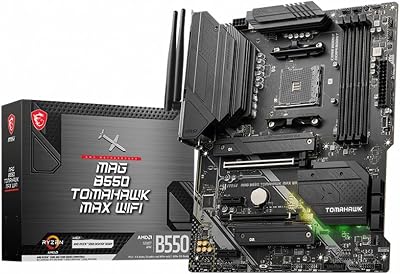
MSI’s MAG Tomahawk and MEG Carbon lines deliver excellent value at the mainstream and enthusiast tiers. Their VRMs match ASUS in mid-tier; BIOS is slightly less polished but reliable. MSI’s Tomahawk tier ($179–$249) is the value sweet spot for AMD AM5 builds in 2026.
Gigabyte AORUS Elite, Pro, and Master cover the same tiers as MSI with comparable quality. Gigabyte’s flagship boards (Aorus Xtreme) have the best VRM cooling in the industry, often topping reviewer thermal tests. Their mid-tier has occasionally had BIOS quirks but current 2026 releases are mature.
ASRock is the value champion. The Phantom Gaming and Taichi lines deliver flagship features at mainstream pricing. ASRock’s BIOS has improved dramatically in 2024–2026 and now rivals the bigger three. For builders willing to research specific board reviews, ASRock often delivers the best features-per-dollar.
Form Factor Sweet Spots
For most 2026 gaming builds, ATX remains the right choice — full feature loadouts, ample M.2 slots, standard case compatibility. mATX is fine for budget builds and shrinks footprint without losing major features, though VRM quality on mATX is sometimes compromised due to thermal density. ITX is for SFF enthusiasts willing to pay 20–30% premium for the compact form; it requires careful component selection (low-profile cooling, compact GPUs) and offers no expansion headroom.
Final Take
The motherboard purchase in 2026 should be the most considered part of your build because it determines your upgrade path for 4+ years. For AMD AM5 builds, a quality B850 board at $199–$249 (ASUS TUF Gaming, MSI Tomahawk, Gigabyte Aorus Elite) covers 90% of gamer needs perfectly. Step up to X870E for enthusiast features like multiple PCIe 5.0 M.2 slots and full USB4. For Intel LGA1851 builds, Z890 mainstream boards at $249–$349 deliver everything you need; B860 is for budget-tier builds that won’t overclock. Focus your money on VRM quality, M.2 configuration, and BIOS reputation — these matter for years. Skip the $500+ flagship tier unless you’re building a showcase rig or need professional features. The boring, mid-tier, well-built board outperforms the flashy mistake at the same price every time.
Frequently Asked Questions
Does the motherboard affect gaming performance?
Only indirectly. Two boards with the same CPU and memory settings will produce nearly identical frame rates. What the board changes is stability under load, how far memory can be tuned, sustained CPU boost behaviour under weak VRM cooling, and which features and upgrade paths are available to you later.
Which chipset should I choose?
On AM5, B650 covers most gaming builds and X670E adds more PCIe 5.0 lanes and connectivity. On Intel LGA1700, B760 is the value option while Z790 adds CPU overclocking and better memory support. Pick the cheaper chipset unless you specifically need extra M.2 slots or overclocking headroom.
How do I judge VRM quality?
Look at the phase count relative to the CPU you plan to run and, more importantly, whether the power stages sit under real finned heatsinks. A 12-phase board with proper cooling will hold boost clocks on a high core count chip, while a bare 6-phase entry board can throttle under sustained load.
Which features are genuinely worth paying for?
A second or third M.2 slot with its own heatsink, 2.5Gb Ethernet, a rear USB Type-C port, Wi-Fi 6E or Wi-Fi 7 if you cannot run a cable, and BIOS flashback so you can update firmware for a newer CPU without having an older one installed.
Do I need PCIe 5.0 for the graphics card?
Not today. Current GPUs do not saturate PCIe 4.0 x16, and the performance difference measured across generations is around one percent. PCIe 5.0 matters more for storage, where it doubles NVMe bandwidth, and as insurance for a future card several generations away.