A home office quickly outgrows the few Ethernet ports on a typical router. A desktop, a laptop on a dock, a printer, a network storage drive, and a work phone already need five wired connections, and Wi-Fi is not always ideal for calls or large file transfers. An unmanaged Ethernet switch solves this simply: run one cable from the router to the switch, plug your devices into the remaining ports, and every device gets a wired connection with no login, no app, and no configuration.
As an Amazon Associate we earn from qualifying purchases.
This guide compares five unmanaged switches currently sold on Amazon US, from five-port models for a single desk to a sixteen-port model for a whole room, focusing on port count, speed, build, power, and placement. If you are also wiring a gaming setup, our guide to the best Ethernet switches for gaming covers similar hardware from a gaming angle.
What Unmanaged Means
An unmanaged switch has no web interface and no settings menu. It learns which device sits on which port automatically and negotiates the fastest link speed each device supports. That simplicity is a strength at home: there is nothing to misconfigure and nothing that needs its own IP address.
The trade-off is control. An unmanaged switch cannot separate devices into virtual networks, prioritise one port through settings, or report traffic statistics. Some models here include automatic traffic features in hardware, such as quality-of-service handling and IGMP snooping, but those run without your input. If you need to isolate a work computer by configuration, choose a managed model instead.
One counting rule applies throughout: one port is used for the cable back to the router, so usable ports are always the port count minus one. A five-port switch adds four devices, an eight-port switch adds seven, and a sixteen-port switch adds fifteen.
Comparison Table
| Model | Ports | Usable after uplink | Speed | Case | Fan | Placement |
|---|---|---|---|---|---|---|
| NETGEAR GS308 | 8 | 7 | Gigabit on all ports | Metal | Fanless | Desktop or wall mount |
| TP-Link TL-SG108 | 8 | 7 | Gigabit on all ports | Metal | Fanless | Desktop or wall mount |
| TP-Link TL-SG105 | 5 | 4 | Gigabit on all ports | Metal | Fanless | Desktop or wall mount |
| NETGEAR GS305 | 5 | 4 | Gigabit on all ports | Metal | Fanless | Desktop or wall mount |
| TP-Link TL-SG116 | 16 | 15 | Gigabit on all ports | Metal | Fanless | Desktop or wall mount |
All five are plug-and-play, support auto-negotiation and Auto MDI/MDIX, and work with Cat5e or Cat6 cabling. None provides Power over Ethernet, so devices that expect power from the Ethernet cable still need their own supply or a separate PoE model.
The Picks
1. NETGEAR GS308 — Best Overall for Most Home Offices

The NETGEAR GS308 gives a typical home office useful headroom. Eight gigabit ports leave seven for devices after the uplink, covering a desktop, a laptop dock, a printer, a NAS, and a streaming box, with spares for growth. NETGEAR lists it as an unmanaged Essentials model with silent fanless operation, a metal case, and desktop or wall-mount placement.
With no fan, it can sit near a microphone without adding noise to calls. Its metal housing handles desk knocks better than plastic, and NETGEAR lists IEEE 802.3az Energy Efficient Ethernet support.
Choose the GS308 if you have four to seven wired devices, or fewer today with plans to add storage or a second workstation. Skip it if you need more than seven extra ports, or if you need Power over Ethernet.
2. TP-Link TL-SG108 — Best Eight-Port Alternative With Traffic Features

The TP-Link TL-SG108 is the closest direct alternative to the GS308: eight gigabit ports, a sturdy metal case, shielded ports, and a fanless design for desktop or wall mounting. TP-Link lists auto-negotiation and Auto MDI/MDIX on all ports, IEEE 802.3X flow control, and energy-efficient technology intended to reduce power consumption.
It differs in automatic traffic handling: TP-Link describes port-based 802.1p/DSCP QoS and IGMP snooping, aimed at keeping voice, video, and multicast streams flowing smoothly without setup — useful if one switch carries a work phone, video calls, and a streaming device at once.
Choose the TL-SG108 if you want an eight-port switch and value those built-in features, or if you prefer TP-Link. Usable capacity matches the GS308, so the decision is about features and brand, not port count.
3. TP-Link TL-SG105 — Best for a Single Desk
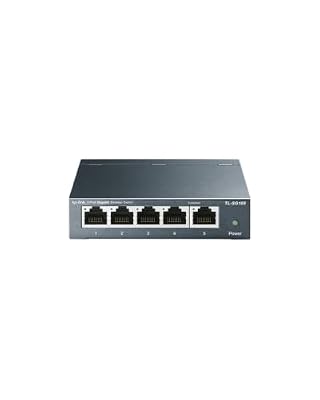
The TP-Link TL-SG105 does the same job in a smaller box. Five gigabit ports leave four for devices, enough for a classic single-desk setup: a desktop or dock, a printer, a storage drive, and one spare. TP-Link lists a metal case with shielded ports, a fanless design, desktop or wall mounting, and traffic optimisation including QoS and IGMP snooping. The listing gives dimensions of about 3.94 by 3.85 by 0.98 inches, so it fits behind a monitor or in tight spaces.
Choose the TL-SG105 if your wired devices fit on one hand and that is unlikely to change. If you may soon add a second workstation, a wired access point, and storage, step up to an eight-port model now rather than replacing this one later.
4. NETGEAR GS305 — Best Compact NETGEAR Option

The NETGEAR GS305 is NETGEAR’s five-port Essentials counterpart. It provides five gigabit ports, plug-and-play operation with no software to install, a compact metal design for desktop or wall-mount placement, and fanless silent operation. NETGEAR also lists IEEE 802.3az Energy Efficient Ethernet.
It suits the same single-desk pattern as the TL-SG105: four usable ports for a computer, a dock, a printer, and one more device. Choosing between them comes down to brand support and dimensions. Both are unmanaged, fanless, and metal-bodied, with no PoE or management.
Choose the GS305 if you prefer NETGEAR for a small, quiet expansion and four extra connections are enough. Choose an eight-port model if those ports are already filled with nothing left over.
5. TP-Link TL-SG116 — Best for a Room Full of Wired Devices

The TP-Link TL-SG116 scales the same formula to sixteen gigabit ports, leaving fifteen usable connections. That suits a shared home office with several desks, a home lab corner, or a room where multiple computers, a printer, storage drives, and media devices all need wired connections in one central place.
TP-Link lists sixteen 10/100/1000 Mbps RJ45 ports with auto-negotiation and Auto MDI/MDIX, a metal case, shielded ports, a fanless design, and desktop or wall-mount placement. The Amazon listing notes on-mode power consumption of 10 watts and an operating temperature rating up to 40 degrees Celsius. Even at this size there is no fan, so it suits a quiet room if air can circulate around the case.
Choose the TL-SG116 to wire a whole room once and avoid chaining two smaller switches. Skip it for a single desk, where most ports would sit empty.
How to Choose
Port Count and Speed
Count every device you want wired, add one for the uplink, then add a spare. All five picks are gigabit on every port, matching modern laptops, docks, NAS drives, and printers, unlike older fast Ethernet models that cap a port at a tenth of gigabit speed.
Build and Noise
Prefer a metal case on a busy desk: it resists damage, helps dissipate heat, and stays in place under several cables. Every pick here is fanless, which matters during calls. Fanless designs still need airflow, so do not seal one inside an unventilated box with other warm equipment.
Power
These switches draw only a few watts, with the TL-SG116 listed at up to 10 watts on-mode. Each needs a mains outlet nearby. None powers other devices over Ethernet, so a ceiling access point or camera with no nearby outlet requires a PoE switch instead.
Placement and Installation Limits
Plan placement before ordering: the switch must be within cable reach of the router and of every device it serves. Desktop placement is simplest; wall mounting keeps it off the desk. Check that you can still see the port lights and reach the adapter. An unmanaged switch also does not create a separate network, extend Wi-Fi by itself, or increase internet speed beyond what your router and service provide.
FAQ
How many ports do I need for a home office?
List your wired devices, add one for the uplink, and add a spare. A single desk usually fits a five-port switch. A desk plus printer, storage, and a second machine usually needs eight ports. A shared office or home lab is where sixteen ports make sense.
Will an unmanaged switch slow down my connection?
Each port negotiates its own gigabit link, so a slower device does not force others to run slowly. Internet speed is still limited by your service and router, and local transfers are limited by the slowest device involved and by your cabling.
Can I plug a switch into another switch?
Yes, to add ports in another part of the room. Each connection uses one port on each switch. For most home offices, one correctly sized switch is simpler and tidier than chaining two smaller ones.
Do I need Cat6 cables, or will Cat5e work?
Cat5e supports gigabit links over typical home-office distances, and the listings for these switches reference Cat5e and Cat6 use. If a link negotiates below gigabit speed, check for damaged or very old cables first.
Can these switches power an access point or camera?
No. None of the five models provides Power over Ethernet. Such devices need their own adapter, a PoE injector, or a different switch designed to supply power on its ports.
Conclusion
For most home offices, the NETGEAR GS308 is the safest default: eight gigabit ports, a fanless metal case, and room to grow. The TP-Link TL-SG108 is the strongest eight-port alternative. For a single desk, the TL-SG105 and NETGEAR GS305 keep things compact and quiet. For a shared office or many wired devices, the TL-SG116 provides sixteen ports in one fanless unit. Match port count to your real device list, leave a spare, and the switch should disappear into the background — exactly what this hardware is for.