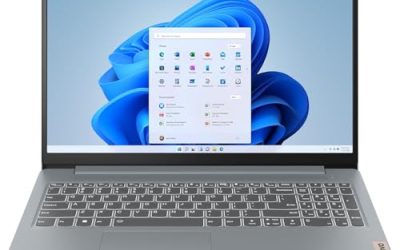
A gaming laptop is built to be fast first and frugal second. The powerful processor and discrete graphics chip that make games smooth also drain the battery far quicker than the hardware in a thin office notebook. That does not mean you are stuck near a wall socket all day. With the right settings, the same machine that runs demanding games at your desk can stretch through classes, meetings, and long travel days without a charger. The key is knowing which settings actually save power, which ones only look like they do, and which trade-offs are worth making.
This guide splits the job into two honest halves. The first half covers the settings that extend unplugged time for study, work, and travel. The second half tells the truth about gaming on battery: why performance drops, why plugging in is still the real recommendation, and which settings soften the drop when you have no other option. Every change here is a software setting, so every change is reversible in seconds. Nothing needs to be opened, removed, or replaced. If battery life is your top priority when choosing a machine in the first place, our roundup of the gaming laptop with best battery life is a good companion to this guide.
As an Amazon Associate we earn from qualifying purchases
Settings That Stretch Unplugged Time
Start With the Windows Power Mode
The single most effective switch is the Windows power mode. On Windows 11, open Settings, then System, then Power and battery, and set the power mode to Best power efficiency while unplugged. This tells the system to favor lower clock speeds and quicker sleep states for the processor, which cuts power draw during everyday tasks like writing, browsing, and video playback. Windows also offers a Battery saver option on the same screen. Turn it on, or set it to switch on automatically at a charge level you choose. Battery saver dims background activity, pauses some syncing, and trims visual effects, and it is the fastest way to buy extra time when a charge is running low. Both settings apply only while unplugged if you leave the plugged-in mode alone, so your desk performance stays untouched.
Drop the Refresh Rate When You Leave the Desk
High-refresh displays are a headline feature on gaming laptops, but a fast panel refreshes the screen many more times per second and draws noticeably more power doing it. For documents, web pages, and video, a standard refresh rate looks identical. In Windows, go to Settings, then System, then Display, then Advanced display, and choose the lower refresh rate option while on battery. Many gaming laptops can also do this automatically. Vendor control apps often include a panel power saver or auto refresh feature that lowers the rate the moment you unplug and restores it when you plug back in. Enabling that automatic behavior is the best of both worlds: smooth motion at your desk, longer life away from it, and nothing to remember.
Force Everyday Apps Onto the Integrated Graphics
Most gaming laptops carry two graphics processors: an efficient integrated GPU built into the processor and a hungry discrete GPU meant for games. The discrete chip should sleep through your whole workday, but some apps wake it up and keep it awake. Windows lets you decide per app. Open Settings, then System, then Display, then Graphics, add the apps you use for work and study, and set them to Power saving, which points them at the integrated graphics. Browsers, office suites, chat tools, and media players all belong on the integrated side. Reserve the high-performance option for games and heavy creative software. The vendor control apps offer a broader switch as well. Hybrid or iGPU-only modes in apps such as Armoury Crate, Legion Toolkit, and similar utilities keep the discrete GPU off entirely until you ask for it, which removes the risk of a stray background process draining the battery through the big chip.
Treat Brightness as a Budget
The display backlight is one of the largest single power draws in any laptop, and gaming panels are brighter than most. Lowering brightness a few steps usually extends a session more than any other single habit, and the difference in a shaded classroom or a dim cabin is barely visible. Use the keyboard brightness keys rather than a fixed setting, and match the screen to the room: bright enough to read comfortably, no brighter. While you are in display settings, shorten the screen timeout too. Setting the screen to turn off after a few idle minutes, and the laptop to sleep soon after, quietly saves more charge across a day than almost any advanced tweak. Dark wallpapers and dark app themes help a little on OLED panels, where black pixels draw almost no power, though the effect on standard LCD panels is negligible.
Quiet the Background
A surprising share of battery drain comes from software you are not looking at. Launchers updating game libraries, cloud drives syncing large folders, and chat apps polling for messages all keep the processor and network awake. Open Task Manager and check the Startup tab, then disable anything that does not need to launch with Windows. In Settings, the Battery usage view under Power and battery shows which apps have used the most charge, so you can spot the worst offenders and close or restrict them. When you need maximum endurance, turn off Bluetooth if no accessory is connected, and use airplane mode during flights or in areas with weak signal, where the wireless radios work harder and drain faster. None of this needs to be permanent. These are levers to pull on travel days and restore at home.
Use Vendor Battery Care and Charge Limits
Every major gaming brand ships a control app, and most include battery health features worth enabling. Names vary — Armoury Crate on ASUS machines, Lenovo Vantage and Legion Toolkit on Lenovo models, MSI Center, OMEN Gaming Hub, Alienware Command Center, and PredatorSense or NitroSense on Acer systems — but the ideas repeat. A charge limit caps charging below full, commonly at a level the maker recommends for desk-bound machines. A battery that spends its life plugged in ages faster when held at a full charge, so capping it is a kindness on days when the laptop never leaves the desk. Just remember to lift the cap before a trip, or you will leave with a partly filled battery. The same apps usually include a silent or eco performance profile. Those profiles cap processor power and fan noise together, and for lectures and libraries they are the right default away from home.
The Honest Truth About Gaming on Battery
Why Frame Rates Drop When You Unplug
It surprises many owners, but a gaming laptop is designed to slow down on battery. The battery simply cannot deliver power at the rate the charger can, and pushing it harder would shorten its life and generate heat the cooling system struggles to clear in a thin chassis. So the system caps the power available to the processor and graphics chip the moment the cable comes out. The result is lower clock speeds and lower frame rates, sometimes dramatically lower in demanding titles. Vendor apps make this visible: performance profiles that exist while plugged in may be locked or reduced on battery, and some machines warn you outright that full performance requires the charger. This is not a fault, a defect, or a setting you failed to find. It is the hardware protecting itself.
Plugged In Is Still the Real Recommendation
Because the limits are deliberate, the honest advice is simple: for serious gaming sessions, plug in. A charger restores full power limits, full fan curves, and the frame rates the hardware was sold on. Playing plugged in also spares the battery repeated deep discharges under heavy load, which is the pattern that wears a battery out fastest. If you game away from home often, the practical setup is a charger at the places you play, not a bigger settings checklist. Treat battery gaming as a fallback for short sessions and lighter titles rather than the main way you play.
Settings That Soften the Drop
When unplugged play is the only option, a few changes make it far more pleasant. First, lower the in-game resolution or use the game’s built-in upscaling and quality modes, since rendering fewer pixels is the fastest way to recover frames under a power cap. Second, cap the frame rate at a modest, steady target instead of letting it swing; a stable pace feels smoother than a higher average that stutters. Third, pick the balanced or performance profile in your vendor app rather than silent mode, and close every background app so the whole power budget goes to the game. Fourth, choose lighter titles for battery sessions: older games, indie games, and strategy or card games sip power compared with the latest blockbusters. Finally, start with a full charge and keep sessions short. A battery drained to empty under heavy load ages quickly, so stopping with charge to spare is better for the machine and for your next session.
FAQ
Does lowering the refresh rate really save much battery?
Yes. The display is one of the biggest power draws in a gaming laptop, and refreshing it at the highest rate costs energy on every frame, all day long. Dropping to the standard rate for work and study is one of the largest single savings available, and automatic switching in the vendor app means you never have to remember to turn the fast rate back on for games.
Is it bad to leave a gaming laptop plugged in all the time?
Keeping a battery held at a full charge for weeks does age it faster than partial charging does. That is exactly why the vendor control apps offer charge limits for desk use. Enable the limit while the laptop lives on your desk, disable it before travel, and the battery stays healthier without costing you anything in daily use.
Why does my laptop get slower the moment I unplug it?
The system lowers the power limits for the processor and graphics chip on battery, by design. The battery cannot safely supply power at the charger’s rate, so clocks fall and frame rates follow. It happens on essentially every gaming laptop, and plugging back in restores full performance immediately.
Can settings alone make a gaming laptop last like an office laptop?
Settings close much of the gap for light work: efficient power mode, integrated graphics, a lower refresh rate, sensible brightness, and quiet background apps can stretch a gaming laptop through a normal work or study day. They cannot repeal physics, though. The big battery is still feeding powerful hardware, so expect good endurance rather than class-leading endurance.
Final Verdict
The best battery settings for a gaming laptop are a routine, not a single magic switch. Run the efficient Windows power mode unplugged, let the display drop its refresh rate away from the desk, keep everyday apps on the integrated graphics, treat brightness as a budget, silence background software, and let the vendor app guard the battery with a charge limit while you work at home. Then be honest about play: the machine is built to reserve its full strength for the charger, so plug in for real sessions and save battery gaming for short, lighter runs with capped frame rates and lowered resolution. Set these options once, and the same laptop covers both halves of your day without a fight.