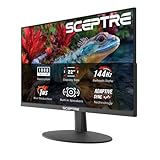
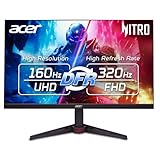
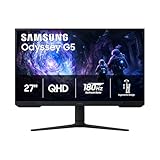
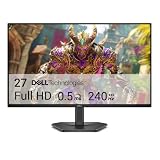
For most people, the best screen size and resolution for gaming PC setups is a 27-inch 1440p monitor at 144-180 Hz: it gives sharp detail at a normal desk distance and runs well on mid-range graphics cards. Pick 24-inch 1080p if you play competitive shooters at very high frame rates or have an entry-level GPU, and 32-inch 4K only if you have a high-end card and sit a little farther back.
- Best screen size and resolution for gaming PC setups at a glance
- 1080p vs 1440p gaming: what changes
- Monitor size for gaming: match it to your desk distance
- What resolution should I game at? A step-by-step way to decide
- Worked example: bandwidth for resolution and refresh rate
- Ultrawide, curved and 16:9: which shape?
- Panel type and refresh rate matter too
- Common mistakes when choosing a gaming monitor size and resolution
- Gear that helps
- Frequently asked questions
The right answer depends on three things working together: how far you sit, which graphics card you have, and what you play. This guide explains each one with numbers, including pixel density, the GPU load each resolution creates, and the cable bandwidth you need, so you can match the monitor to your PC instead of guessing.
Key takeaways
- 24-inch 1080p (about 92 PPI) suits esports and entry-level GPUs; it is the easiest resolution to drive at 240 Hz.
- 27-inch 1440p (about 109 PPI) is the best balance of sharpness and performance for most gaming PCs.
- 32-inch 4K (about 138 PPI) looks the sharpest but renders 4x the pixels of 1080p, so it needs a high-end GPU or upscaling.
- Desk distance matters: about 50-70 cm suits 24-27 inches; 32 inches works best from about 70-90 cm.
- Refresh rate is only useful if your GPU can reach it; match resolution to the frame rate your card can actually deliver.
As an Amazon Associate we earn from qualifying purchases at no extra cost to you.



Best screen size and resolution for gaming PC setups at a glance
| Size and resolution | Pixel density | Best for | GPU class that suits it | Typical refresh target |
|---|---|---|---|---|
| 24-inch 1080p | About 92 PPI | Competitive shooters, small desks, budget builds | Entry level (RTX 3050 / RX 6600 class and up) | 144-360 Hz |
| 27-inch 1080p | About 82 PPI | Rarely the best choice; text and edges look soft up close | Entry level | 144-240 Hz |
| 27-inch 1440p | About 109 PPI | All-round gaming, mixed work and play | Mid-range (RTX 4060 Ti / RTX 5060 Ti / RX 7700 XT class and up) | 144-240 Hz |
| 32-inch 1440p | About 93 PPI | Bigger image on a budget, sitting farther back | Mid-range | 144-180 Hz |
| 34-inch ultrawide 3440×1440 | About 110 PPI | Racing, flight sims, immersive single-player | Upper mid-range to high end | 100-175 Hz |
| 27-inch 4K | About 163 PPI | Very sharp text plus gaming, creators | High end, or upscaling | 60-160 Hz |
| 32-inch 4K | About 138 PPI | Cinematic single-player games, large desks | High end (RTX 5080 / RX 9070 XT class and up), upscaling helps | 120-240 Hz |
Pixel density is calculated from the diagonal and resolution; GPU classes are general guides, and actual frame rates vary by game, settings, CPU and driver version.
1080p vs 1440p gaming: what changes
The jump from 1080p to 1440p is the most common decision for PC gamers. Here is what changes in practice.
- Pixel count: 1080p is about 2.1 million pixels; 1440p is about 3.7 million, roughly 78% more. Your GPU has to render all of them every frame.
- Frame rate: moving from 1080p to 1440p usually costs a noticeable share of frame rate in GPU-limited games. The exact drop depends on the title and settings.
- Sharpness: at 27 inches, 1440p looks clearly crisper than 1080p, especially for text, HUD elements and distant detail.
- CPU load: resolution mostly affects the GPU. At 1080p and very high frame rates, the CPU is more likely to become the limit.
- Cost: 27-inch 1440p high-refresh monitors have become mainstream, so the price gap to 24-inch 1080p is smaller than it used to be.
The short version: choose 1080p when frame rate is everything or the GPU is entry level; choose 1440p when you want a visibly better image and your GPU is mid-range or better.
Monitor size for gaming: match it to your desk distance
Size is not “bigger is better.” If a screen is too large for the distance, you move your head to see the minimap and the edges of the image fall outside comfortable vision. A useful rule is that the screen should fill roughly 30-40 degrees of your horizontal field of view.
| Eye-to-screen distance | Comfortable size range | Suggested resolution |
|---|---|---|
| 40-55 cm (shallow desk) | 24 inches | 1080p or 1440p |
| 55-70 cm (standard desk) | 27 inches | 1440p |
| 70-90 cm (deep desk or reclined) | 32 inches, or 34-inch ultrawide | 4K or 3440×1440 |
| Over 1.5 m (couch) | 42-inch TV or larger | 4K |
Competitive players often prefer smaller screens even with plenty of space, because the whole image stays in central vision. That is why many esports tournaments use 24- to 25-inch monitors.
What resolution should I game at? A step-by-step way to decide
- Identify your GPU class. Look up your graphics card and compare it to the GPU classes in the first table. The GPU sets the ceiling for resolution and frame rate.
- Decide your frame-rate goal. Competitive shooters benefit from 144-240 fps or more. Single-player games feel smooth at 60-100 fps, especially with variable refresh rate (G-Sync or FreeSync).
- Measure your desk distance. Sit normally and measure from your eyes to where the screen will be. Use the distance table to narrow the size.
- Pick resolution by pixel density. At a given size, aim for roughly 90-110 PPI for a good gaming balance, higher if you also read a lot of text.
- Check the cable and port. High resolution at high refresh needs enough bandwidth (see the worked example below).
- Plan for upscaling. DLSS, FSR and XeSS render at a lower internal resolution and upscale. They make 1440p and 4K much more reachable for mid-range cards, with some trade-offs in fine detail.
- Leave headroom for future games. New releases get heavier each year. If your card only just reaches your target today, a lower resolution keeps the setup comfortable longer.
Worked example: bandwidth for resolution and refresh rate
Every frame has to travel down the cable. You can estimate the raw bandwidth by multiplying width x height x refresh rate x bits per pixel. With 8-bit color (24 bits per pixel), before timing overhead:
| Mode | Calculation | Approximate data rate | Connection that fits |
|---|---|---|---|
| 1080p at 240 Hz | 1920 x 1080 x 240 x 24 | About 12 Gbps | DisplayPort 1.4, HDMI 2.1 |
| 1440p at 180 Hz | 2560 x 1440 x 180 x 24 | About 16 Gbps | DisplayPort 1.4, HDMI 2.1 |
| 1440p at 240 Hz | 2560 x 1440 x 240 x 24 | About 21 Gbps | DisplayPort 1.4 (close to its limit), HDMI 2.1 |
| 4K at 144 Hz | 3840 x 2160 x 144 x 24 | About 29 Gbps | DisplayPort 1.4 with DSC, HDMI 2.1, DisplayPort 2.1 |
| 4K at 240 Hz | 3840 x 2160 x 240 x 24 | About 48 Gbps | DisplayPort 2.1, or DSC |
DisplayPort 1.4 carries about 25.9 Gbps of usable data, so 4K at high refresh rates relies on Display Stream Compression (DSC) unless both GPU and monitor support DisplayPort 2.1 or HDMI 2.1. Always use the cable that came with the monitor or a certified one, and plug it into the graphics card, not the motherboard.
Ultrawide, curved and 16:9: which shape?
- 16:9 flat: the safest choice; every game supports it, and it suits competitive play.
- 21:9 ultrawide (3440×1440): very immersive for racing, flight and open-world games. Some games show black bars or need tweaks, and it renders about 34% more pixels than 2560×1440.
- Curved: curvature helps on 32-inch and larger screens and ultrawides by keeping edges at a similar distance from your eyes. On 24 inches it adds little.
Panel type and refresh rate matter too
Size and resolution set sharpness, but the panel decides how motion and contrast look:
- IPS: good color and viewing angles, fast enough for most gaming.
- VA: higher contrast for dark scenes, sometimes slower dark transitions that show as smearing.
- OLED: near-instant response and perfect blacks; check burn-in warranty terms and brightness for bright rooms.
For refresh rate, 144-180 Hz is the current sweet spot for most players. Higher refresh only helps if your GPU and CPU can produce the frames.
Common mistakes when choosing a gaming monitor size and resolution
- Buying 4K for a mid-range card: the GPU cannot reach the monitor’s refresh rate, so you pay for smoothness you never see. Either lower the resolution or rely on upscaling.
- Choosing 27-inch 1080p to save money: the soft image is noticeable every day; a 24-inch 1080p or a 27-inch 1440p is usually the better buy.
- Ignoring desk depth: a 32-inch screen on a 60 cm deep desk often feels too close and causes more head movement.
- Leaving Windows at 60 Hz: after connecting a new monitor, open Settings, System, Display, Advanced display and select the highest refresh rate.
- Using the wrong cable or port: an older HDMI cable or the motherboard port can cap refresh rate or resolution.
Gear that helps
Examples of the size and resolution classes recommended above. We did not personally use them; check the latest specs and ports before buying.
Dell 24 240Hz Gaming Monitor (SE2426HG): 24-inch 1080p for esports
A 23.8-inch IPS panel at 1920×1080 and 240 Hz, the classic competitive size and resolution.
23.8 inches · 1080p · 240 Hz · IPS
ASUS TUF Gaming VG27AQ3A: 27-inch 1440p all-rounder
The sweet-spot class for most gaming PCs, with a fast IPS panel and adaptive sync.
27 inches · 1440p · 180 Hz · Fast IPS · G-Sync Compatible
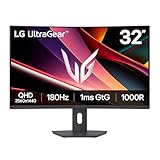
LG 32GS60QC-B UltraGear: 32-inch curved 1440p
A bigger screen without the GPU load of 4K, best from a slightly deeper desk.
32 inches · 1440p · 180 Hz · 1000R curved VA
Dell 32 Monitor S3225QS: 32-inch 4K for mixed use
A 4K VA screen with a 120 Hz refresh rate, more for sharp work plus single-player gaming than for esports.
31.5 inches · 4K · 120 Hz · VA · FreeSync Premium
Frequently asked questions
Is 1440p worth it over 1080p for gaming?
Yes, if your GPU is mid-range or better and you use a 27-inch screen. The image is much sharper at that size. If you have an entry-level GPU or only play fast competitive shooters, 1080p at a high refresh rate can be the better experience.
What monitor size is best for gaming?
For most desks, 27 inches is the best overall size, sitting about 55-70 cm away. Choose 24 inches for competitive play or shallow desks, and 32 inches or a 34-inch ultrawide if you sit 70 cm or farther away.
Is 4K good for a gaming PC?
4K looks excellent but asks the GPU to render four times the pixels of 1080p. It suits high-end cards, or mid-range cards using DLSS, FSR or XeSS upscaling, mostly in single-player games.
Is 1080p on a 27-inch monitor bad?
It is not bad, but at around 82 PPI text and edges look noticeably softer at a normal desk distance. If you want 27 inches, 1440p is the better match.
Does screen size affect FPS?
No. Resolution and settings affect FPS, not physical size. A 24-inch and a 32-inch 1440p monitor put the same load on your GPU.
What resolution should I game at with an RTX 4060 or RTX 5060?
Cards in this class are well suited to 1080p at high refresh rates and can handle 1440p in many games with tuned settings or upscaling. Expect to lower some settings at 1440p in the newest demanding titles; results vary by game and patch.
Should I get an ultrawide for gaming?
Ultrawides are great for racing, flight sims and immersive single-player games. For competitive shooters or if you want maximum compatibility, a 16:9 monitor is simpler and less demanding on the GPU.