- Top Pick: SANDISK 256GB microSD Card, Super Mario Super Star Edition | Officially Licensed for Nintendo Switch, UHS-I, Up to 100MB/s Read Speeds
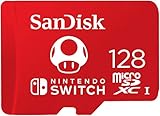
- Best Value: SANDISK 128GB microSD Card, Super Mario Super Mushroom Edition | Officially Licensed for Nintendo-Switch, UHS-I, Up to 100MB/s Read Speeds – SDSQXAO-128G-GNCZN
- Premium Choice: Samsung microSD Express Card – 256GB for Nintendo Switch™ 2
If you own a Nintendo Switch 2, buy a microSD Express card, and if you own an original Switch, OLED or Lite, buy any reputable UHS-I microSDXC card from a brand such as SanDisk, Samsung, Lexar or PNY. The two console generations use different card standards, so the right choice depends almost entirely on which console sits on your desk. This guide covers both, explains the specs makers print on the packaging, and shows which capacity tier suits which kind of player.
- At a Glance: Which Card Type Goes With Which Console
- Why the Switch 2 Is Picky
- Reading the Card Label
- Current Picks for Switch 2 (microSD Express)
- Current Picks for Original Switch, OLED and Lite
- How Much Capacity Do You Need?
- Pick X If… Decision Table
- Care, Safety and Compatibility Notes
- Alternatives to Consider
- Frequently Asked Questions
As an Amazon Associate we earn from qualifying purchases at no extra cost to you.



At a Glance: Which Card Type Goes With Which Console
| Console | Card type to buy | Best for | Limits |
|---|---|---|---|
| Switch 2 | microSD Express (PCIe/NVMe based) | Storing Switch 2 games and downloads | Older UHS-I cards are very limited on this console, reviewers report |
| Switch (original), Switch OLED | UHS-I microSDHC or microSDXC | Digital libraries on a budget | Faster UHS-II cards gain nothing here |
| Switch Lite | UHS-I microSDHC or microSDXC | Handheld-only players | Same card limits as original Switch |
| Switch (any model), mixed use | microSD Express | Owners planning to upgrade to Switch 2 | Reviewers report these cards run at UHS-I speed on the older console |
Why the Switch 2 Is Picky
The Switch 2 reads game storage through a PCIe/NVMe-style interface rather than the older UHS bus. That is the technology behind the microSD Express label, and it is why a card from your original Switch will not simply carry over. Reviewers at several outlets report that an old UHS-I card still lets a Switch 2 view screenshots and videos copied from the older console, but it will not serve as storage for new games. If you are moving up from a Switch 1, treat your old card as a backup for photos and clips, and plan to buy a new Express card for the new machine.
Reviewers report that the Switch 2 supports microSD Express cards up to 2TB. In practice most buyers will never need that much, and the capacity tier you pick matters more than raw speed once you are on a card that meets the Express standard.
Reading the Card Label
microSD Express
Look for the words microSD Express and the Express logo. These cards have a second row of pins so they can talk over a PCIe lane. The maker typically lists a read speed in the hundreds of megabytes per second, far above the figure on a UHS-I card. A card marked simply A2, V30 or U3 is not an Express card, no matter how fast the packaging looks.
UHS-I, U1/U3, V30 and A1/A2
For the original Switch, the console’s slot works at UHS-I speed. Reviewers generally point to U1 or U3 and V30 as plenty. Application performance classes such as A1 and A2 describe random access behavior, and they are a nice-to-have rather than a requirement. Spending extra on a UHS-II card brings no benefit, because the slot cannot use the extra pins.
Capacity labels: HC versus XC
Cards up to 32GB are usually labeled microSDHC, while larger ones are microSDXC. Larger cards are labeled XC and are the norm for modern libraries. Be cautious of very cheap cards with an unusually large capacity from unknown brands, since oversized fakes are a recurring problem in this category. Buy from the maker’s own storefront or an authorized reseller, and run a free capacity check tool when the card arrives.
Current Picks for Switch 2 (microSD Express)
Outlets disagree on a single winner, which is typical when several cards reach similar speeds. The names that show up repeatedly across Tom’s Hardware, GamesRadar, Stuff and TechRadar are summarized below.
| Card | Where it is praised | Tier | Notes |
|---|---|---|---|
| Samsung microSD Express (256GB) | GamesRadar and Stuff name it their overall pick; Tom’s Hardware names the Samsung P9 Express 256GB its best 256GB budget card | Mid-range | A common first choice for entry capacity |
| SanDisk microSD Express (officially licensed version) | TechRadar names it best overall; GamesRadar lists a SanDisk as budget runner-up | Budget to mid-range | Licensed design matches the console theme |
| Lexar Play Pro | Stuff lists the 1TB model for large libraries; another independent guide favors it overall | Mid-range to premium | Good when capacity is the priority |
| TeamGroup Apex SD7.1 | Tom’s Hardware names it best at 1TB | Premium | For very large digital libraries |
| Adata Premier Extreme | Tom’s Hardware names it best at 256GB and 512GB in its benchmarks | Mid-range | Strong results in published benchmarks |
| PNY microSD Express | Praised by one roundup as the pick for most people; GamesRadar lists a 1TB PNY for eShop-heavy owners | Mid-range | Wide capacity range |
| AGI TF338 (128GB) | Tom’s Hardware names it its best 128GB card | Budget | Small, so best as a stopgap |
Price tiers here are relative: Express cards cost noticeably more per gigabyte than UHS-I cards, and larger capacities cost more again. Retail pricing shifts constantly, so compare the same capacity across brands instead of fixating on a single figure.
Current Picks for Original Switch, OLED and Lite
For these consoles, a UHS-I card from a major brand is enough. SanDisk (including its Nintendo-themed cards), Samsung, Lexar and PNY all sell microSDXC cards in sizes from 128GB up to 1TB. The differences between mainstream cards are small on the older hardware, because the slot caps performance. Reviewers who benchmark them generally find load times within a few seconds of each other, so lean on warranty length, brand reputation and the capacity you need.
If you may upgrade to a Switch 2 within a year or two, buying an Express card now can make sense since reviewers report it will run at UHS-I speed on the original console and will move over to the new one. If you will stay on the original console, an Express card is an unnecessary expense.
How Much Capacity Do You Need?
- 128GB: Fine for a handful of indie titles and an occasional big game. Tom’s Hardware lists a 128GB Express option, but it is best seen as a stopgap on Switch 2.
- 256GB: The usual entry point for Switch 2. Enough for a few large downloads plus several smaller ones.
- 512GB: Several guides describe this as the best fit for most owners, balancing cost and room to grow.
- 1TB and up: For players who prefer buying digital and keeping everything installed, or who record lots of video clips.
Physical game cartridges keep the game itself off the card, though some titles still require installs or updates. Digital buyers should plan the most room.
Pick X If… Decision Table
| Pick this | If you |
|---|---|
| Samsung or SanDisk microSD Express, 256GB | Own a Switch 2, buy a mix of physical and digital games, and want a mainstream brand |
| 512GB Express card from PNY, TeamGroup or Adata | Own a Switch 2 and download most of your games |
| Lexar Play Pro or TeamGroup Apex 1TB | Want a large digital library and never want to delete a game |
| 128GB Express card | Need a short-term, low-cost fix on a Switch 2 |
| Any major-brand UHS-I microSDXC | Use an original Switch, OLED or Lite |
| An Express card on an older console | Plan to upgrade and want one card for both machines |
Care, Safety and Compatibility Notes
- Power the console off before removing a card. Pulling a card mid-write risks corrupted data.
- Back up save data using the console’s own tools where supported, since a failing card can take locally stored items with it.
- Format the card in the console when you first insert it, following the on-screen prompt. This removes everything on the card.
- Keep the card in its case when traveling, because the connectors are tiny and the card is easy to lose.
- Avoid unbranded bargain cards that claim huge capacity, a pattern associated with counterfeits.
Alternatives to Consider
- Game management: If you only play a few titles, deleting and re-downloading games can delay the need for a bigger card.
- Physical copies: Cartridges keep download storage needs low on many titles.
- A second card: Keeping an older UHS-I card for screenshots and clips, and a new Express card for games, is a practical split on a Switch 2.
Frequently Asked Questions
Can I use my old Switch microSD card on the Switch 2?
Reviewers report that an older UHS-I card is very limited on the Switch 2. It can be used to view screenshots and videos from the older console, but it will not serve as storage for new games. Plan to buy a microSD Express card for the Switch 2.
Will a microSD Express card work in my original Switch?
Yes, according to several outlets, Express cards work in the original Switch and OLED. They run at UHS-I speed there, so you will not see a speed benefit. That makes sense only if you intend to move to a Switch 2.
What is the best capacity to buy?
For Switch 2, 256GB is the entry size and 512GB is the size several guides call the best fit for most owners. Heavy digital buyers should look at 1TB. For an original Switch, 128GB to 256GB covers most players.
Does a faster card make games load faster on the original Switch?
Not meaningfully. The slot runs at UHS-I speed, so a UHS-II card has no advantage. Brand reliability and capacity matter more than a bigger speed number.
How do I avoid a fake microSD card?
Buy from the maker’s own store or an authorized reseller, avoid unknown brands offering very large capacities at very low prices, and run a capacity check when the card arrives. If the card reports less space than the label says or errors out, return it.
What should I do if the console does not recognize my card?
Power the console off, reseat the card, and make sure it is the right type for your console. If it still fails, try the card in a computer to check it, and contact the card maker’s support. Back up anything important first.