As an Amazon Associate we earn from qualifying purchases.
A graphics tablet turns a computer into a drawing desk: the pen replaces the mouse and pressure controls line weight. The main choice is a screenless pad that you draw on while watching a monitor, or a pen display that puts the image directly under the stylus. This guide compares five graphics tablets still sold on Amazon US, from a compact first pad to a full pen display.
Pen Display or Screenless Pad
A screenless pad is a flat surface with no display: you draw on the pad and watch the cursor on your monitor. The hand-eye split feels strange at first, and most artists adjust within a week. Screenless pads cost less, weigh less, and last for years because there is no display to wear out. They suit illustrators who already own a good monitor and anyone who travels with a laptop.
A pen display is a monitor with a pen layer. You draw directly on the image, which feels closer to paper and shortens the learning curve. Pen displays need a video connection, either a full-featured USB-C port or an HDMI port plus USB, and most need a separate power adapter. They weigh more and cost more, but drawing on the image is the main reason to choose one.
Pressure, Size and Tilt
Pressure sensitivity is the number of distinct pressure steps the pen can report. A pen with 4,096 levels is the long-standing standard and is enough for line art, inking, and photo retouching. Pens with 8,192 levels add finer control at the lightest touch, which painters notice when building up soft washes. Pens with 16,384 levels add still finer steps at the bottom of the pressure range. Initial activation force matters too: the HUION pen here lists 2 grams, so light strokes start easily.
Active area is the drawing surface, measured in inches or millimetres. A small active area, around 6 by 4 inches, fits a laptop bag and suits quick sketches. A medium area, around 10 by 6 inches, matches a wide monitor and suits most illustration work. Tilt support lets the pen act like a real pencil held at an angle, which matters for shading; three of the five tablets here support it.
Operating System, Ports and Charging
Every tablet in this guide works with Windows and macOS. Most also work with Android, and some with ChromeOS or Linux. Check the exact version your computer runs, because driver support depends on it.
Ports decide how the tablet connects. Screenless pads use a single USB cable and draw power from the computer, so they need no charger and no wall outlet. Pen displays need a video signal as well as power. The newer pen displays in this guide accept a full-featured USB-C to USB-C cable that carries video, data, and power in one lead, provided the computer port supports DisplayPort Alt Mode. Older pen displays use a 3-in-1 cable that splits into HDMI and USB, plus a separate power adapter. None of the five tablets has a battery to charge: the pens are battery-free, drawing power from the tablet surface.
Accessories Worth Checking
Spare nibs in the box save an early separate order, since nibs wear down with use. A pen stand, a drawing glove, and a display stand are useful extras. Confirm accessories match the exact model: pens, nibs, and cables are rarely interchangeable across brands or generations. A Wacom Pen 4K fits the Intuos Small in this guide but not a Wacom One pen display, and a HUION PenTech 4.0 pen fits the Kamvas 13 (Gen 3) but not an older Kamvas model. Search for accessories by the tablet model number, and confirm they are still sold. See our guide to best desks for digital artists for layouts that fit a tablet, a monitor, and a keyboard without crowding the drawing hand.
The 5 Best Graphics Tablets for Artists
1. Wacom Intuos Small
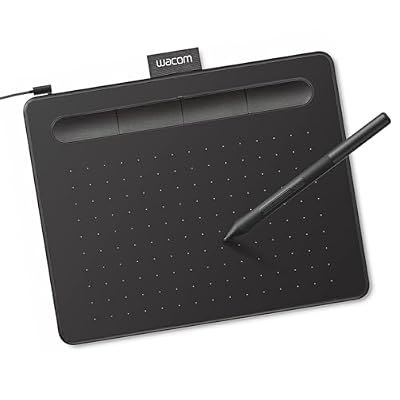
The Wacom Intuos Small is the safe first tablet. It is a screenless pad with a 6.0 by 3.7 inch active area, a battery-free Wacom Pen 4K with 4,096 pressure levels, and four customisable ExpressKeys. At 200 by 160 by 8.8 millimetres and 230 grams, it fits in a laptop sleeve and leaves room on a small desk. It connects over USB, works with Windows, macOS, Chromebook, and Android, and ships with creative software and training material. It suits sketching, inking, and retouching.
Specs
- Model: Wacom Intuos Small CTL4100
- Active area: 6.0 x 3.7 inches
- Pressure levels: 4,096 (Wacom Pen 4K LP-1100K, battery-free)
- Shortcut keys: 4 customisable ExpressKeys
- Connection: USB wired
- Operating systems: Windows, macOS, Chromebook, Android
- In the box: tablet, battery-free pen, software and training included
2. HUION Kamvas 13 (Gen 3)
The HUION Kamvas 13 (Gen 3) is the pen display to buy when colour accuracy and pen feel matter more than brand name. Its 13.3-inch full-laminated screen shows 1920 by 1080 pixels with 99 percent sRGB and 90 percent Adobe RGB coverage. Canvas Glass 2.0 cuts glare, and full lamination keeps the pen tip close to the image. The PenTech 4.0 pen reports 16,384 pressure levels with a 2-gram initial activation force, tilt auto-alignment, and three side buttons, and two dials plus five press keys sit beside the screen. It is 11.7 millimetres thick, weighs 865 grams, and connects with a 3-in-1 cable or a full-featured USB-C cable. The box holds the pen holder, ten spare nibs, a glove, and a cleaning cloth, with a one-year warranty.
Specs
- Model: HUION Kamvas 13 (Gen 3) GS1333
- Display: 13.3-inch LCD, 1920 x 1080, full lamination, Canvas Glass 2.0
- Colour: 99% sRGB, 90% Adobe RGB, factory-calibrated to Delta E below 1.5
- Pressure levels: 16,384 (PenTech 4.0, 2 g initial activation force, tilt support)
- Active area: 293.8 x 165.2 mm
- Size: 14.22 x 7.98 inches, 11.7 mm thick
- Connection: 3-in-1 cable or full-featured USB-C to USB-C
- Operating systems: Windows 10+, macOS 10.12+, Android (USB 3.1 DP 1.2), Linux Ubuntu 20.04
- In the box: pen, pen holder, 10 spare nibs, glove, cleaning cloth, cables
- Warranty: 1 year
3. XPPen Artist 13.3 Pro V2

The XPPen Artist 13.3 Pro V2 is a 13.3-inch pen display built around the X3 Pro stylus, which reports 16,384 pressure levels and supports tilt. Its full-laminated anti-glare screen covers 99 percent sRGB, and the active area measures 294.76 by 166.24 millimetres. A red dial and eight shortcut keys sit beside the screen, and a foldable stand is included so the display can be angled without a separate purchase. It works with a full-featured USB-C cable for a single-cable setup, or with the included 3-in-1 cable for computers that need HDMI. It works with Mac, PC, Android, and Chromebook. Confirm current availability on the listing before buying, because stock of this model varies between sellers.
Specs
- Model: XPPen Artist 13.3 Pro V2
- Display: 13.3-inch full-laminated anti-glare screen
- Colour: 99% sRGB
- Pressure levels: 16,384 (X3 Pro smart-chip stylus, battery-free, tilt support)
- Active area: 294.76 x 166.24 mm
- Controls: red dial, 8 shortcut keys
- Connection: full-featured USB-C or 3-in-1 cable
- Operating systems: Mac, PC, Android, Chromebook
- In the box: pen display, X3 Pro stylus, pen holder, spare nibs, foldable stand, glove, cloth, cables
4. Wacom One HD 13.3

The Wacom One HD 13.3, model DTC133, is the pen display for artists who want Wacom pen quality in a simple, proven package. Its 13.3-inch display shows 1920 by 1080 pixels with a matte, anti-reflective surface and 72 percent NTSC colour coverage. The included Wacom One Pen is battery-free, reports 4,096 pressure levels, and supports 60 degrees of tilt. The active area measures 294 by 166 millimetres. Fold-out legs hold it at a 19-degree angle, and it measures 357 by 225 by 14.6 millimetres at about 1 kilogram. It connects with an X-shape cable that splits into HDMI and USB, plus a power adapter, and it works with Windows, macOS, and Android. There are no shortcut keys on the tablet itself. This is the older generation of the Wacom One line, so confirm current availability on the listing before buying, and confirm the listing is model DTC133, not the newer touch model.
Specs
- Model: Wacom One HD Creative Pen Display DTC133
- Display: 13.3-inch, 1920 x 1080, matte anti-reflective surface, 72% NTSC
- Pressure levels: 4,096 (Wacom One Pen, battery-free, 60-degree tilt)
- Active area: 294 x 166 mm
- Stand: built-in fold-out legs, 19-degree angle
- Connection: X-shape cable (HDMI and USB) with power adapter
- Operating systems: Windows, macOS, Android
- In the box: pen display, Wacom One Pen, 5 replacement nibs, X-shape cable, power adapter
5. GAOMON S620

The GAOMON S620 is the compact screenless pad in this guide, and the right pick for a small desk, a laptop bag, or a first tablet on a tight budget. Its active area measures 6.5 by 4 inches, and the battery-free ArtPaint AP20 pen reports 8,192 pressure levels, 5,080 lines per inch, and a 266 points-per-second report rate. Four customisable ExpressKeys sit along the top edge, and the driver allows the orientation to be flipped 180 degrees for left-handed use. The tablet connects over USB and draws power from the computer, so there is nothing to charge. It works with Windows and macOS, and with Android devices over OTG. There is no tilt support, so painters who shade with a tilted pen should look at the pen displays above.
Specs
- Model: GAOMON S620
- Active area: 6.5 x 4 inches (165 x 102 mm)
- Pressure levels: 8,192 (ArtPaint AP20 battery-free pen)
- Shortcut keys: 4 customisable ExpressKeys
- Tilt support: none
- Connection: USB wired
- Operating systems: Windows, macOS, Android (OTG)
Side-by-Side Comparison
| Tablet | Type | Pressure | Display | Best for |
|---|---|---|---|---|
| Wacom Intuos Small | Screenless pad | 4,096 | None | First tablet, travel, retouching |
| HUION Kamvas 13 (Gen 3) | Pen display | 16,384 | 13.3-inch, 99% sRGB | Colour-critical painting |
| XPPen Artist 13.3 Pro V2 | Pen display | 16,384 | 13.3-inch, 99% sRGB | Single-cable setup, dial controls |
| Wacom One HD 13.3 | Pen display | 4,096 | 13.3-inch, 72% NTSC | Simple Wacom pen display |
| GAOMON S620 | Screenless pad | 8,192 | None | Compact desk, first tablet |
If you already own a good monitor, pick a screenless pad: the GAOMON S620 for the smallest desk, or the Wacom Intuos Small for proven drivers and bundled software. To draw on the image, pick a pen display: the HUION Kamvas 13 (Gen 3) for colour accuracy, the XPPen Artist 13.3 Pro V2 for dial controls and a single cable, or the Wacom One HD for the simplest Wacom option. Painters should favour the HUION or the XPPen, both listing 99 percent sRGB, while photo editors may prefer a screenless pad, since their monitor is the colour reference.
FAQ
Which graphics tablet is best for a beginner artist?
A screenless pad is the easiest start. The Wacom Intuos Small and the GAOMON S620 need only a USB port and a driver, cost less than a pen display, and teach the hand-eye coordination digital art needs. Upgrade to a pen display later.
Do I need a pen display, or is a screenless tablet enough?
A screenless tablet is enough for illustration, inking, photo retouching, and note-taking, and many working artists never switch. A pen display is worth the extra cost when you paint for hours or shade with tilt. Try a screenless pad first if you are unsure, since it costs less to switch later.
What pressure level should an artist look for in a graphics tablet?
Look for 4,096 levels as the minimum, enough for line art and retouching. Pens with 8,192 or 16,384 levels give finer control at light pressure, which painters notice most. Pressure levels matter less than pen feel: a well-built 4,096-level pen can beat a rough 16,384-level pen.
Can I use a graphics tablet with a laptop and an Android phone?
Most tablets in this guide work with Windows and macOS laptops, and several work with Android devices that support USB OTG or a full-featured USB-C connection with DisplayPort. Check your operating system version and port against the listing before buying, because support depends on the model and the connection.
Conclusion
The best graphics tablet for artists is the one that matches your desk, your computer, and the way you draw. A screenless pad like the Wacom Intuos Small or the GAOMON S620 is the low-cost start. A pen display like the HUION Kamvas 13 (Gen 3), the XPPen Artist 13.3 Pro V2, or the Wacom One HD puts the image under the pen for painters and long sessions. Check your ports, confirm accessories match the model, and pick the tablet you will use every day.