

Affiliate disclosure: As an Amazon Associate we earn from qualifying purchases. This post contains affiliate links — if you buy through them we may earn a small commission at no extra cost to you. This never affects our recommendations.
As an Amazon Associate we earn from qualifying purchases at no extra cost to you.


If you are serious about streaming or creating gaming content, your webcam is no longer an afterthought. In 2026, audiences expect crisp, professional-looking face cams — and a 4K webcam is one of the fastest ways to get there. Even if your stream output is 1080p, shooting in 4K gives you a significant advantage: the camera captures four times the pixel data and downsamples it to 1080p, producing an image that is noticeably sharper, cleaner, and more detailed than a native 1080p camera would deliver. You also get more flexibility for cropping, reframing in post, and keeping your face sharp even when your background is cluttered or unevenly lit.
Beyond resolution, the best 4K webcams for gaming and streaming in 2026 bring large image sensors, wide apertures, advanced autofocus systems, and smart software features that rival entry-level cinema cameras — at a fraction of the cost. Whether you stream on Twitch, upload YouTube content, or run a professional podcast, investing in the right 4K webcam pays off in viewer retention and perceived production value. Here are the five best options you can buy right now.
In a hurry? See the top-rated 4K Webcam for Gaming and Streaming deals available right now:
🛒 Check 4K Webcam For Gaming And Streaming Prices on Amazon →🛒 Best Price Today on Amazon
Prime members get fast, free shipping on everything above, plus member-only deals. New members get a 30-day free trial — cancel anytime.
Start 30-Day Prime Free Trial →See Today’s Amazon DealsQuick Comparison Table
| Webcam | Resolution | FPS | Low-Light | Price Range |
|---|---|---|---|---|
| Logitech Brio 4K Pro | 4K UHD | 30 fps (4K) / 60 fps (1080p) | Good (HDR) | ~$150–$180 |
| Razer Kiyo Pro Ultra | 4K UHD | 30 fps (4K) / 60 fps (1080p) | Excellent | ~$200–$230 |
| Elgato Facecam Pro | 4K UHD | 60 fps (4K) | Good | ~$200–$250 |
| AverMedia PW513 | 4K UHD | 30 fps (4K) | Good | ~$120–$150 |
| Anker PowerConf C200 | 2K (upscaled 4K) | 30 fps | Moderate | ~$50–$80 |
Our Top Picks
1. Logitech Brio 4K Pro — Best Overall
The Logitech Brio 4K Pro has been a benchmark in webcam quality for years, and the 2026 version continues to earn its reputation. It shoots true 4K at 30 fps or drops to 1080p at 60 fps when you need buttery-smooth face cam footage synced with fast gameplay. HDR support ensures your face stays balanced even in rooms with strong backlighting — a common problem for desk streamers sitting in front of a window.
What makes the Brio stand out in daily use is its adjustable field of view: 65-degree narrow, 78-degree normal, and 90-degree wide. You can switch profiles inside the Logi Tune software to match whatever framing your stream layout demands. The built-in infrared sensor also doubles as a Windows Hello face-recognition login camera — a useful bonus for streamers who unlock their PC dozens of times per session.
Autofocus is fast and reliable, locking onto your face within a second and holding it steady even if you lean back or shift position. The dual omnidirectional microphones are serviceable, though most streamers will pair it with a dedicated mic regardless.
Pros
- True 4K/30 or 1080p/60 — flexible for different stream setups
- HDR handles backlit and mixed-lighting environments well
- Adjustable FOV (65/78/90) covers every layout need
- Windows Hello IR face login built in
- Strong software ecosystem via Logi Tune
Cons
- 4K is capped at 30 fps (not 60)
- Low-light performance is good but not class-leading
- Bulkier physical design than some competitors
2. Razer Kiyo Pro Ultra — Best for Low-Light
If your streaming setup lives in a dim room or you deliberately keep your background dark for aesthetic reasons, the Razer Kiyo Pro Ultra is the webcam to beat. Its defining feature is a 2.1-inch Sony STARVIS image sensor — one of the largest sensors available in any consumer webcam — combined with an f/1.7 large-aperture lens. That combination lets in dramatically more light than standard webcams, meaning your face stays clear and noise-free even with minimal ambient lighting.
The adaptive light sensor technology automatically reads your environment and adjusts exposure settings in real time, so you do not have to manually correct exposure every time you dim your room lights or switch scenes. At 4K/30 fps or 1080p/60 fps, footage is smooth and rich in detail. Skin tones render accurately, and the shallow depth of field from the wide aperture gives a pleasing background separation that makes your face cam look more cinematic.
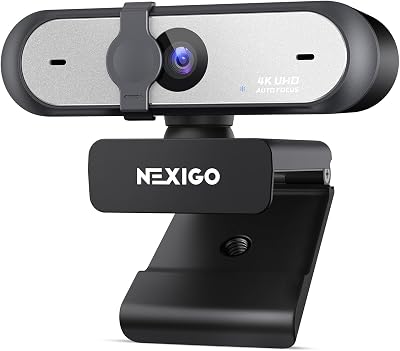
Razer’s Synapse software provides granular manual controls over white balance, sharpness, saturation, and exposure — important for streamers who want a consistent look across sessions. The Kiyo Pro Ultra is the go-to pick for late-night streamers, horror game content, or anyone who just refuses to light their desk like a TV studio.
Pros
- 2.1″ Sony STARVIS sensor delivers exceptional low-light performance
- f/1.7 aperture creates background separation and passes more light
- Adaptive light sensor adjusts automatically
- Accurate skin tones across lighting conditions
- Deep manual control in Razer Synapse
Cons
- Premium price tag
- Razer Synapse software is resource-heavy
- 4K still limited to 30 fps
3. Elgato Facecam Pro — Best for OBS Users
The Elgato Facecam Pro is the only webcam on this list that shoots true 4K at 60 fps — a meaningful distinction if you want your face cam to match a 60 fps game capture without any motion blur. Powered by a Sony STARVIS 2 sensor, it captures rich detail and handles dynamic range confidently. The real differentiator, however, is what Elgato does not do: it does not compress the video signal before sending it to your PC. You receive a raw, uncompressed feed over USB, which means OBS and other capture software get the cleanest possible input to encode on their own terms.
Elgato’s Camera Hub software takes this further, giving you full manual control over shutter speed, ISO, white balance, focus, and zoom — the kind of controls you expect from a DSLR, not a webcam. Everything you set is saved as a persistent profile, so your look is identical every time you launch a stream. The physical build is clean and minimal, with a sliding lens cover and a mount that works on monitors, tripods, and Elgato’s own desk accessories.
For OBS users specifically, the combination of an uncompressed feed and Camera Hub’s manual controls means you can dial in your image once and trust it to stay consistent across every session.
Pros
- 4K at 60 fps — the highest frame rate on this list at native 4K
- Uncompressed video feed gives OBS the cleanest input
- Full manual control: ISO, shutter, white balance, focus
- Sony STARVIS 2 sensor with strong dynamic range
- Settings persist across sessions via Camera Hub profiles
Cons
- Expensive for what is still a webcam
- Uncompressed USB bandwidth demand — requires a fast USB-C port
- No Windows Hello / IR face login
Check Price on Amazon
4. AverMedia PW513 — Best Value 4K
The AverMedia PW513 hits a sweet spot that most streamers are actually looking for: genuine 4K/30 fps quality without the flagship price. It is a true 4K camera — not an upscaled 1080p — and the image quality at its price point is hard to argue with. Skin tones are natural, autofocus tracks smoothly, and the low-light performance is decent enough for a well-lit desk setup.

The standout feature is AI-powered auto framing, which uses on-camera processing to detect your face and keep you centered in the frame automatically. This is genuinely useful for streamers who move around, stand up during gameplay, or use the webcam in a larger room where they are not always perfectly positioned. You can set the framing zone in AverMedia’s software, and the camera handles the rest.
The PW513 supports 4K at 30 fps and 1080p at 60 fps, covers standard plug-and-play USB-C connectivity, and works with OBS, Streamlabs, Zoom, and Teams out of the box. It is not going to outperform the Razer or Elgato options in a head-to-head low-light or detail test, but at roughly half the price, it delivers 80% of the experience.
Pros
- True 4K/30 fps at a mid-range price
- AI auto framing keeps you centered automatically
- Decent low-light for a well-lit environment
- Plug-and-play USB-C, broad software compatibility
- Good value for creators on a budget
Cons
- Low-light not competitive with Razer or Elgato
- Software is functional but less polished
- Auto framing AI can lag in fast movement scenarios
5. Anker PowerConf C200 — Best Budget Entry 4K
The Anker PowerConf C200 is the honest entry point for creators who want to upgrade from a basic 1080p webcam without spending over $100. Technically, it captures at 2K resolution and upscales to a 4K output — so it is not native 4K in the way the cameras above are. That said, the upscaled image is visibly better than standard 1080p webcams in the same price bracket, and for streamers just starting out, the quality gap is meaningful.
What the C200 does particularly well is audio. Its dual built-in microphones include AI-powered noise cancellation that actively filters keyboard clicks, fan noise, and background hum. For a streamer who has not yet invested in a dedicated microphone, this is a useful bridge. The form factor is compact and lightweight, making it easy to clip onto a monitor or position on a laptop.
Low-light performance is moderate — adequate in a normally lit room, less impressive in dim conditions. It is also worth noting that at 4K output (upscaled), the image does show some softness compared to native 4K cameras when viewed at full resolution. But for streaming at 1080p or even 1440p, the difference is minimal, and at under $80, the C200 is the most accessible route into the 4K webcam category.
Pros
- Sub-$80 price — the most affordable on this list
- AI noise cancellation on dual mics helps without a dedicated microphone
- Compact, lightweight design
- Good plug-and-play compatibility
- Solid choice for beginners upgrading from 720p/1080p
Cons
- 2K upscaled to 4K — not native 4K resolution
- Low-light performance is only adequate
- Image softness visible when viewed at full 4K resolution
- Limited manual control in companion app
How to Choose a 4K Webcam for Streaming
Sensor Size Matters More Than Resolution
Resolution tells you how many pixels a camera captures. Sensor size tells you how much light each pixel can collect. A larger sensor — like the 2.1-inch STARVIS in the Razer Kiyo Pro Ultra — produces brighter, cleaner images with less noise, especially in low-light conditions. Smaller sensors in budget cameras can capture 4K resolution but will struggle in anything other than bright, well-controlled lighting. If your stream environment is not perfectly lit, prioritize sensor size over spec-sheet resolution numbers.
Low-Light Performance: What to Actually Look For
Do not rely on a camera’s stated lux rating alone. Instead, look for two things: aperture (measured as f-number, where lower means more light) and the presence of a Sony STARVIS or STARVIS 2 sensor, which are engineered for low-light shooting. An f/1.7 aperture like on the Kiyo Pro Ultra lets in roughly four times more light than a typical f/2.8 webcam lens. If you stream in a dim room or at night, this specification is the single most important number to check.
Autofocus Type: Contrast vs. Phase Detection
Most webcams use contrast-detection autofocus, which hunts back and forth to find focus — noticeable as a brief blur when you move. Higher-end webcams increasingly use phase-detection autofocus (PDAF) or hybrid systems, which lock focus almost instantaneously. For streaming, where you might lean forward to adjust settings or gesture to your screen, fast autofocus prevents the distraction of a soft, hunting camera. Check the manufacturer spec sheet and look for “PDAF” or “hybrid AF” in the feature list.
Software Features: Profile Saving and Manual Control
The best streaming webcams are not just plug-and-play — they give you persistent manual control. Look for cameras that save your white balance, exposure, and sharpness settings between sessions so your look is consistent every time you go live. If you use OBS, check whether the camera has a dedicated OBS plugin or Camera Hub integration. Elgato’s Camera Hub and Logitech’s Logi Tune are both strong examples of software that extends the camera’s capability well beyond what Windows or macOS drivers provide on their own.
Final Verdict
The Logitech Brio 4K Pro remains the safest all-around recommendation for most streamers. It balances true 4K quality, HDR, flexible FOV options, and a mature software ecosystem at a price most creators can justify.
If low-light is your primary concern, the Razer Kiyo Pro Ultra is worth the premium — its Sony STARVIS sensor and f/1.7 aperture are genuinely in a different class when lighting is imperfect.
For OBS power users who want the cleanest possible uncompressed signal at 4K/60, the Elgato Facecam Pro is the professional choice.
Budget-conscious creators should look at the AverMedia PW513 for a true 4K experience under $150, or the Anker PowerConf C200 as a capable entry point under $80 — especially if you also need better mic performance before investing in a standalone microphone.
Whichever you choose, moving to a 4K webcam in 2026 is one of the highest-impact upgrades you can make to your stream’s visual quality without overhauling your entire setup.
Frequently Asked Questions
Do I need a 4K webcam if I stream at 1080p?
Yes — and it is actually one of the best reasons to buy one. When a 4K camera downsamples its output to 1080p, it averages four sensor pixels into each output pixel. The result is a 1080p image that is sharper, cleaner, and has less noise than a native 1080p camera would produce. You are essentially getting oversampled 1080p, which looks significantly better on stream.
What USB standard do I need for a 4K webcam?
Most 4K webcams connect via USB-C and require at least USB 3.0 (also called USB 3.1 Gen 1 or SuperSpeed USB) to handle the high-bandwidth video data. The Elgato Facecam Pro, which sends an uncompressed 4K/60 signal, benefits from USB 3.1 Gen 2 or better. Plugging into a USB 2.0 port will either drop the camera to a lower resolution or cause connection errors. Check your PC’s available ports before buying, and use the cable that ships with the camera rather than substituting an older one.
Can I use a 4K webcam for Zoom or Microsoft Teams calls?
Yes, all five cameras on this list work with Zoom, Microsoft Teams, Google Meet, and any other video conferencing software that recognizes a standard USB camera. However, most video calling platforms cap their output at 1080p (and often lower, depending on your subscription tier and network conditions). You will still benefit from the camera’s larger sensor and better low-light performance, even if the platform does not display the full 4K resolution during a call.
Related Articles
Looking for more on this topic? Browse the hand-picked guides below — each one applies the same scoring rubric used in this review.






