🛒 Best Price Today on Amazon
Prime members get fast, free shipping on everything above, plus member-only deals. New members get a 30-day free trial — cancel anytime.
- Top Drawing Tablets Beginners Picks for 2026
- Best Beginner Drawing Tablets at a Glance
- 1. UGEE M708 10×6 Inch Large Drawing Tablet with 8 Hot Keys
- 2. Wacom Intuos Small Graphics Drawing Tablet with Training and Software
- 3. XPPen Deco 01 V3 Drawing Tablet with 16384 Levels Pressure Battery-Free Pen
- 4. HUION HS610 Drawing Tablet Graphic Tablet with Battery-Free Stylus
- 5. Wacom Intuos CTL6100WLK0 Creative Pen Tablet Bluetooth Medium (Renewed)
- 6. Wacom Intuos Medium Bluetooth Graphics Drawing Tablet Portable
- How to Choose Your First Drawing Tablet
- Related Guides
- Frequently Asked Questions
- Related Guides
- Related Articles
- Related Guides
Top Drawing Tablets Beginners Picks for 2026
Here are our current top drawing tablets beginners picks, compared on real Amazon owner reviews, price, and features. Live prices update below.
As an Amazon Associate we earn from qualifying purchases at no extra cost to you.






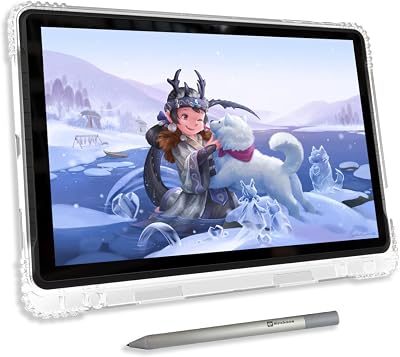


If you are just starting out with digital art, your first drawing tablet should be a pen-only tablet rather than a pen display — and that single decision will save you both money and frustration. A pen-only tablet is a flat drawing surface with no screen of its own: you look at your monitor while your hand moves on a tablet that sits in front of your keyboard. The hand-eye coordination feels odd for the first few hours, but learning that skill first is what professional illustrators do, and the tablets are dramatically cheaper than the pen displays you may have seen on social media. This guide rounds up the best drawing tablets for beginners in 2026, all pen-only and all priced under $130.
Our picks were chosen on the things that really matter for a first tablet: a sensible work area, a comfortable battery-free pen, pressure sensitivity for expressive strokes, broad software compatibility, and value. We have included a deliberate price spread — from around $40 to around $129 — because the best starter tablet is the one you actually buy and use. Whether you want the cheapest possible entry from UGEE or XP-Pen, the safest trusted-brand pick from Wacom Intuos, the largest work area for the money with HUION, or the long-term keeper in the Wacom Intuos Medium, there is a tablet here. Note one honest caveat: pressure levels above roughly 4,096 levels are rarely perceivable, so do not chase the 8K/16K spec numbers on a beginner tablet. Below is an at-a-glance comparison, then a closer look at each tablet and a buyer’s guide built around the things that genuinely help a beginner learn faster.
Best Beginner Drawing Tablets at a Glance
| Tablet | Best For | Standout Spec | Approx Price |
|---|---|---|---|
| UGEE M708 10×6″ | Cheapest large work area | 10×6″ surface, 8 hot keys | around $40 |
| Wacom Intuos Small | Trusted-brand first tablet | Wacom driver maturity, bundled software | around $40 |
| XP-Pen Deco 01 V3 | Battery-free pen value | Battery-free stylus, 8 shortcut keys | around $45 |
| HUION HS610 | Largest beginner work area | 10×6.25″ surface, 28 express keys | around $50 |
| Wacom Intuos Medium (Renewed) | Medium Wacom on budget | Bluetooth, medium size, refurb pricing | around $80 |
| Wacom Intuos Medium | Long-term beginner keeper | Bluetooth, medium 8.5×5.3″ active area | around $129 |
1. UGEE M708 10×6 Inch Large Drawing Tablet with 8 Hot Keys

8


As an Amazon Associate we earn from qualifying purchases. Product prices and availability are accurate as of the date/time indicated.
The UGEE M708 is the cheapest way to put a serious-sized drawing surface in front of you. It is a 10×6 inch pen-only tablet with eight programmable hot keys along one edge and a battery-free stylus, and at around $40 it costs barely more than a couple of meals out. For a complete beginner who wants to find out whether digital art is actually for them, it is an exceptionally low-risk way to get started.
The large 10×6 inch active area is the real story here. Many tablets at this price compress you into a postcard-sized surface, but the M708 gives you room to use your shoulder and elbow rather than just your wrist, which is how illustrators are taught to draw long, confident lines. The battery-free pen needs no charging, the eight hot keys can hold your most-used shortcuts, and drivers cover the major operating systems. It will not feel like a Wacom, but for the money it is a serious learning tool, not a toy.
Pros: Cheapest large work area, battery-free pen, eight programmable hot keys, broad compatibility.
Cons: Driver software is less polished than Wacom or Huion; build is plastic and light.
2. Wacom Intuos Small Graphics Drawing Tablet with Training and Software
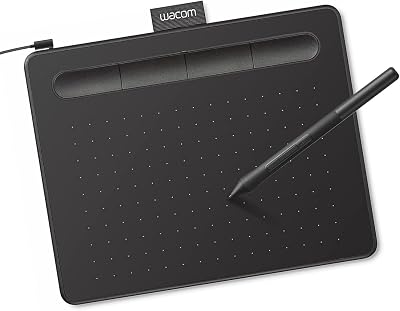
25
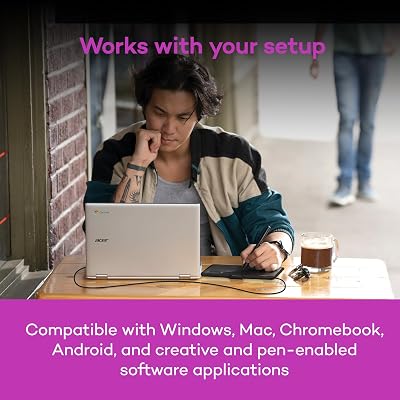
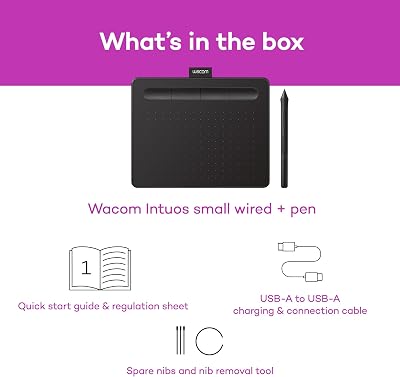
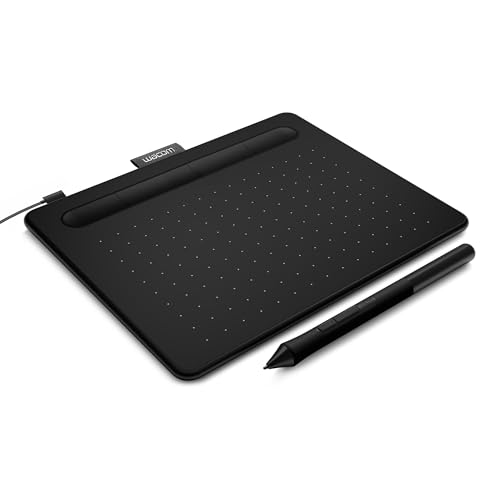
Wacom Intuos Small Graphics Drawing Tablet, Includes Training & Software; 4 Customizable ExpressKeys Compatible with Chromebook Mac Android & Windows, Black
In Stock





As an Amazon Associate we earn from qualifying purchases. Product prices and availability are accurate as of the date/time indicated.
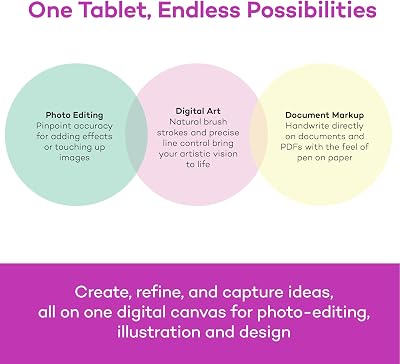
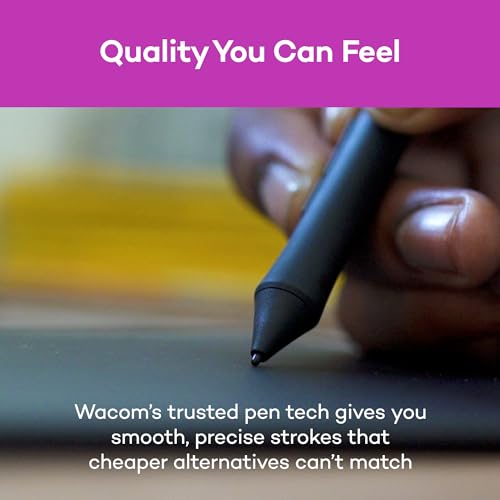
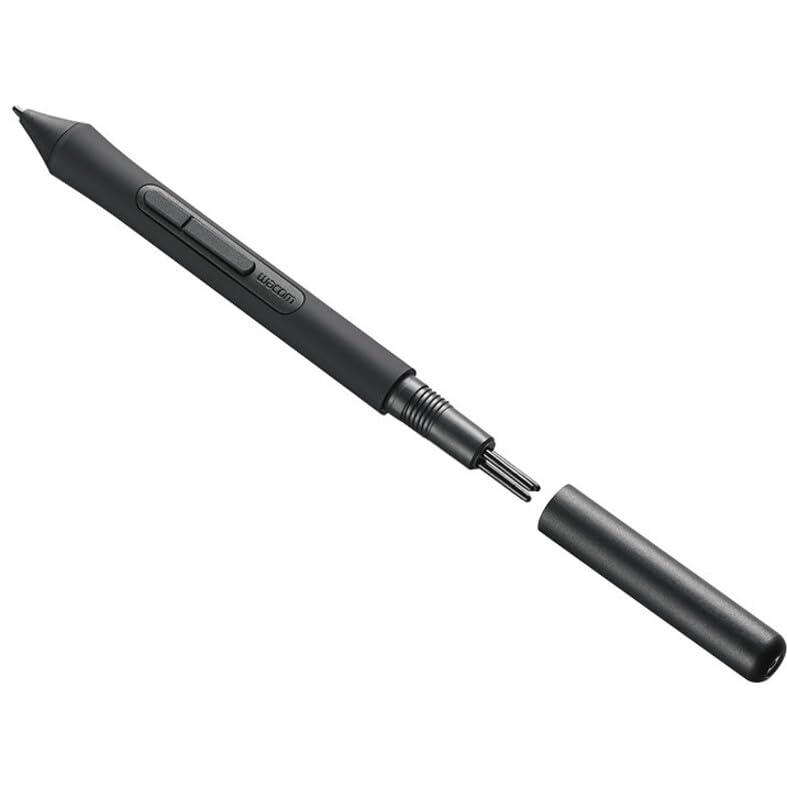
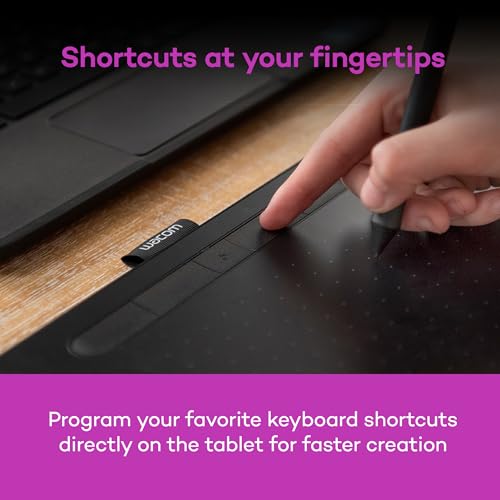
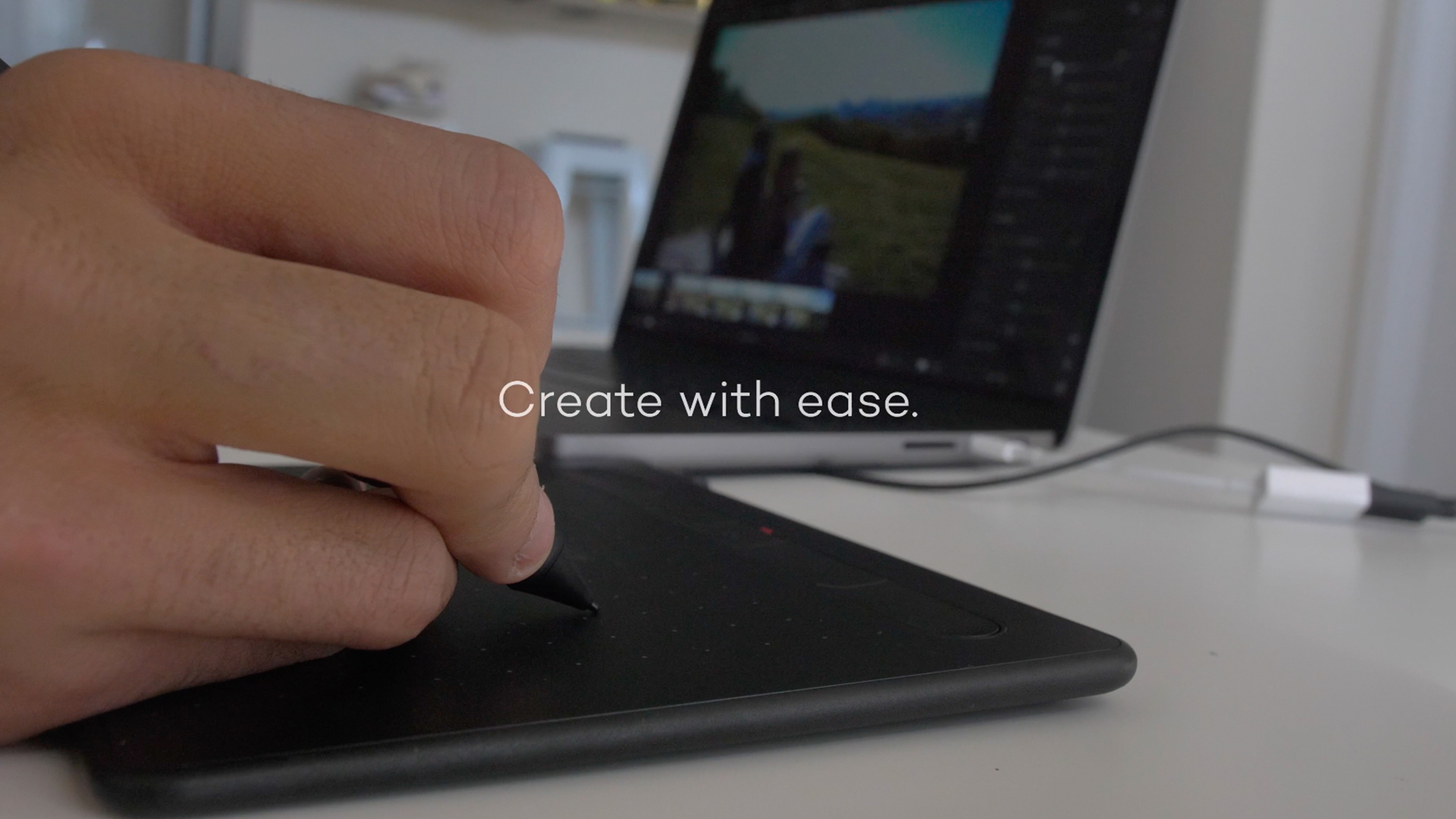
The Wacom Intuos Small is the safe, trusted-brand pick for your first tablet. Wacom has been making drawing tablets since the 1980s, and the small Intuos puts that decades-deep ecosystem into your hands at the same roughly $40 price as the budget alternatives. It is a small but capable pen-only tablet with Wacom’s signature battery-free pen, four express keys, and a typically bundled art-software offer that gets a beginner painting on day one.
What you are buying with the Intuos Small is not raw size — the active area is genuinely small — but driver maturity, software bundling and a brand ecosystem that integrates cleanly with Adobe Photoshop, Clip Studio Paint and the rest of the industry-standard tools. The pen feels balanced and the drivers update reliably. If you have heard that Wacom ‘just works’ and want that experience as a beginner, this is the way in. The small work area is the honest trade for that polish at this price.
Pros: Industry-leading drivers, trusted brand, bundled art software, battery-free pen.
Cons: Active area is genuinely small; you outgrow it faster than the larger budget picks.
3. XPPen Deco 01 V3 Drawing Tablet with 16384 Levels Pressure Battery-Free Pen
34
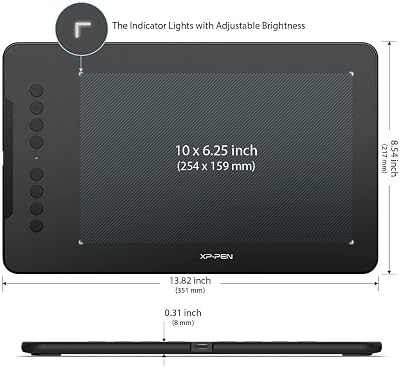
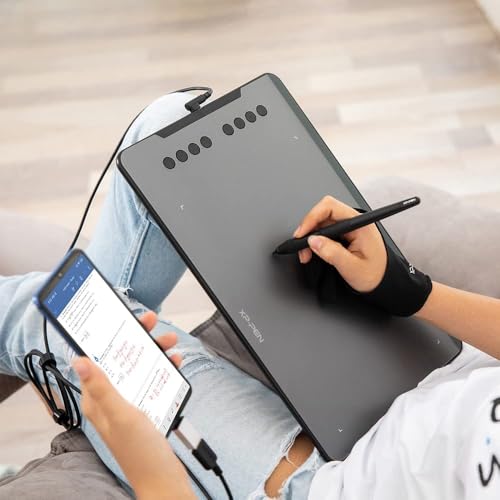
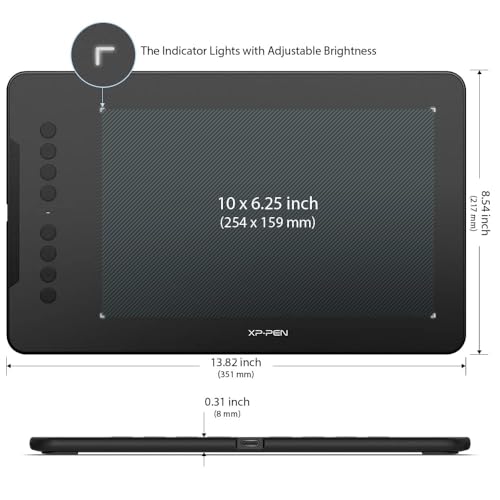
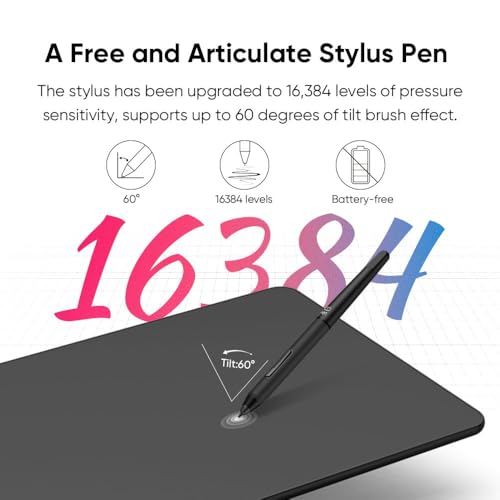
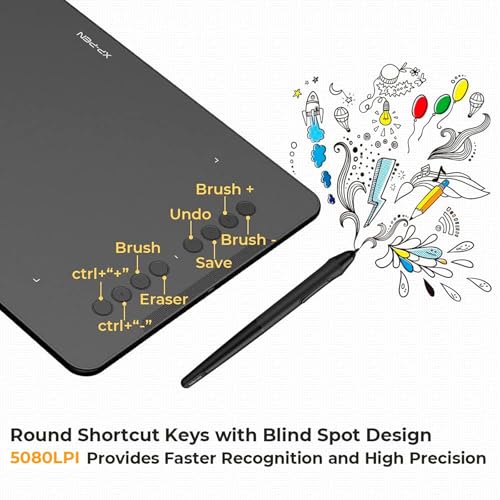
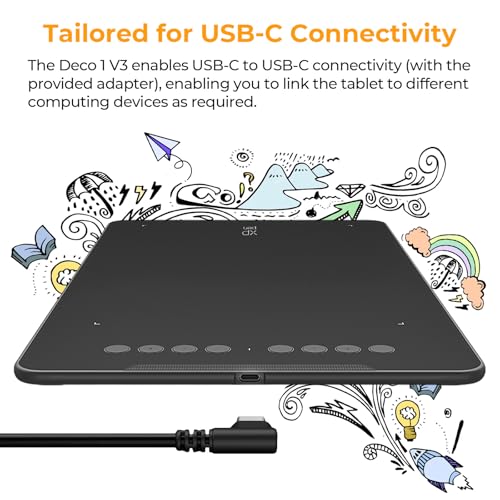
XPPen Updated Deco 01 V3 Drawing Tablet-16384 Levels of Pressure Battery-Free Stylus, 10×6 Inch OSU Graphic Tablet, 8 Hotkeys for Digital Art, Teaching, Gaming Drawing Pad for Chrome, PC, Mac, Android
In Stock




As an Amazon Associate we earn from qualifying purchases. Product prices and availability are accurate as of the date/time indicated.
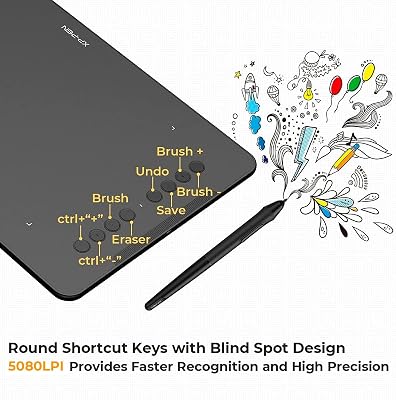
The XP-Pen Deco 01 V3 lands between UGEE and Wacom on price and feel. It is a 10×6.25 inch pen-only tablet with a battery-free stylus, eight programmable shortcut keys, and XP-Pen’s headline 16,384-level pressure rating, all at around $45. The pressure number sounds dramatic, but in honesty almost no beginner — and very few professionals — can perceive a difference above about 4,096 levels. What you actually get is a well-built starter tablet from a manufacturer with mature driver support.
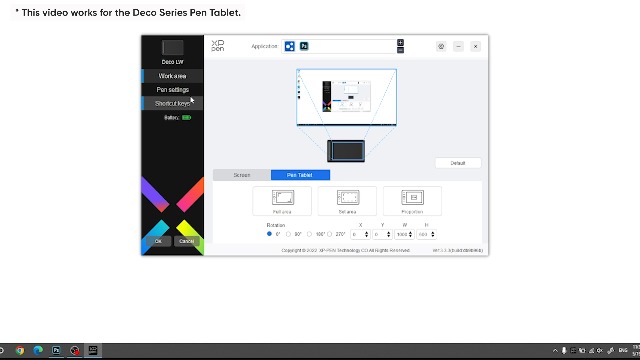
For a first tablet, the Deco 01 V3 hits a sweet spot. The work area is comparable to the UGEE M708 and the HUION HS610 but with somewhat better driver polish, the battery-free pen never needs charging, and the shortcut keys can be remapped to your most-used commands in Photoshop or Krita. If you want a budget tablet but are slightly nervous about an unfamiliar brand like UGEE, XP-Pen is the recognisable mid-step at almost the same price.
Pros: Battery-free pen, generous active area, mature drivers, programmable shortcut keys.
Cons: 16K pressure spec is mostly marketing — beginners will not perceive it over 4K.
4. HUION HS610 Drawing Tablet Graphic Tablet with Battery-Free Stylus

29
Prime
HUION Drawing Tablet HS610 Graphic Tablet with Battery-Free Stylus 8192 Pen Pressure Tilt Function, 10×6.25 Inches Digital Art for Animation & Design, Compatible with Windows/Mac/Android
In Stock






As an Amazon Associate we earn from qualifying purchases. Product prices and availability are accurate as of the date/time indicated.
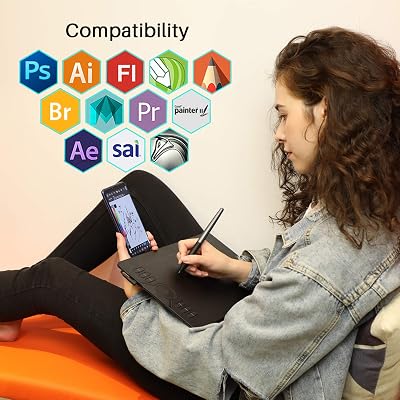
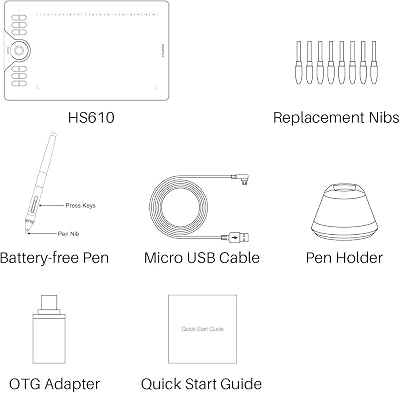
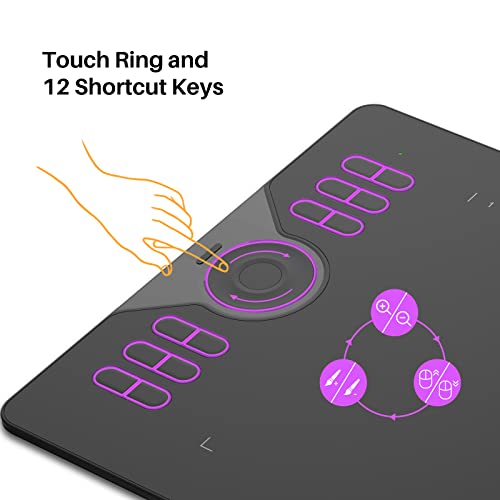
The HUION HS610 gives you the biggest work area in the sub-$50 group. It is a 10×6.25 inch pen-only tablet with a battery-free stylus, 8,192 pressure levels, sixteen express keys, and twelve programmable soft keys arranged along the edges of the active area. At around $50 it offers more dedicated shortcuts than any other beginner tablet on this list, which is genuinely useful as you learn the workflow of digital art.
For a beginner, the HS610 makes sense if you intend to take this seriously. The large work area encourages drawing from the shoulder, the dense array of express keys means you can keep your non-drawing hand on the tablet rather than reaching for the keyboard, and HUION’s drivers are well-maintained on macOS and Windows. It is a touch heavier than the budget rivals and the shortcut-key cluster does take some learning, but if your goal is to outgrow your first tablet slowly rather than quickly, the HS610 has the headroom.
Pros: Largest budget work area, dense shortcut-key array, battery-free stylus, solid HUION drivers.
Cons: Many shortcut keys can be overwhelming on day one; slightly heavier than rivals.
5. Wacom Intuos CTL6100WLK0 Creative Pen Tablet Bluetooth Medium (Renewed)

7
wacom Intuos CTL6100WLK0 Creative Pen Tablet Bluetooth – Medium, Black (Renewed)
Out of Stock


As an Amazon Associate we earn from qualifying purchases. Product prices and availability are accurate as of the date/time indicated.
The Wacom Intuos Medium in renewed condition gives you Wacom’s medium-size Bluetooth tablet at a meaningfully lower price than buying new. At around $80 it sits in the middle of this list, offering the medium 8.5×5.3 inch active area, wireless Bluetooth connectivity, four express keys, and the same battery-free pen as the new model — refurbished and re-certified rather than fresh out of the factory.
This is the pick for the beginner who wants the long-term Wacom Intuos Medium experience but has heard about the new-versus-refurbished price gap and wants to take advantage of it. Renewed Wacom hardware is generally a safe buy thanks to the brand’s build quality, the medium size is a genuine upgrade over any small tablet for drawing from the shoulder, and Bluetooth lets you work away from your desk. The honest caveat: ‘renewed’ means it has been used and refurbished, so cosmetic wear is possible and the warranty is typically shorter than new. Worth it for the saving if cosmetics do not bother you.
Pros: Medium Wacom work area at a budget price, Bluetooth wireless, battery-free pen, refurbished savings.
Cons: Renewed condition means possible cosmetic wear and shorter warranty than new.
6. Wacom Intuos Medium Bluetooth Graphics Drawing Tablet Portable

10
Wacom Intuos Medium, Bluetooth Graphic Drawing Tablet with Pen + Software
In Stock





As an Amazon Associate we earn from qualifying purchases. Product prices and availability are accurate as of the date/time indicated.
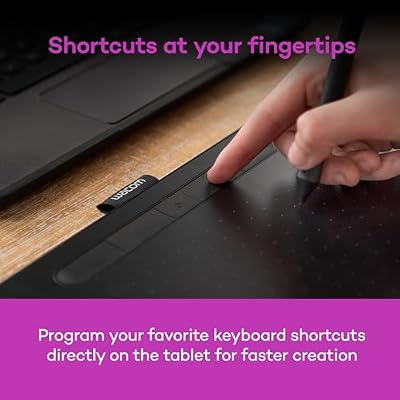
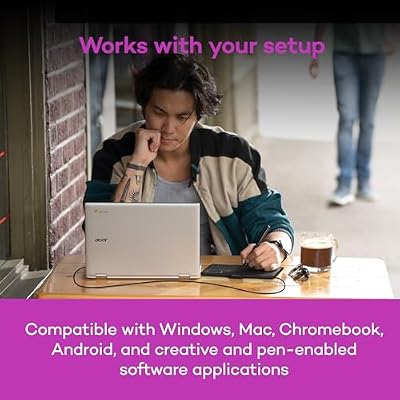
Rounding out the beginner list is the Wacom Intuos Medium new, the most expensive pick here at around $129 and the one to choose if you can stretch the budget. It is a 8.5×5.3 inch medium Bluetooth pen tablet with four customisable express keys, Wacom’s battery-free pen, and a typically bundled creative-software offer. It crosses the line from ‘cheap first tablet’ into ‘tablet you keep using for years’, which is why it earns the closing spot.
For a beginner with a real commitment to digital art, the Intuos Medium new is the smartest single buy on this list. The medium active area gives the same shoulder-driven drawing the larger budget tablets enable, but it pairs that with Wacom’s polished drivers, a wireless Bluetooth option for a cleaner desk, and the long-running ecosystem of bundled software and tutorials Wacom supplies. You spend more up front, but you stop shopping for a ‘next tablet’ for a long time. If your honest answer to ‘will I keep drawing in six months?’ is yes, this is the keeper pick.
Pros: Long-term beginner keeper, medium active area, Bluetooth, polished Wacom drivers and software.
Cons: Most expensive beginner pick; you pay for the brand polish over raw active area.
How to Choose Your First Drawing Tablet
The first decision is pen-only versus pen display — and as a beginner you almost always want pen-only. Pen-only tablets like every one on this list cost $40 to $130, while pen displays start at around $200 and easily run into the thousands. Pen displays put a screen under your hand so what you draw appears directly under the pen tip, which feels intuitive, but learning the hand-on-tablet, eyes-on-monitor coordination of a pen-only tablet first builds skills that transfer to every other input device, including iPads and pen displays. Almost every professional illustrator learned on a pen-only Intuos or equivalent, and you should too.
Work-area size matters more than headline pressure-level numbers. A larger active area like the 10×6 inch UGEE, HUION HS610 or 8.5×5.3 inch medium Wacoms lets you draw long strokes from your shoulder and elbow, which is how professional illustrators work. A small active area like the Wacom Intuos Small compresses you to wrist-only drawing, which is faster to learn but limits expression. Be honest: pressure-level specs above about 4,096 levels are not perceivable by humans, so do not let an 8K or 16K marketing figure influence your choice over actual size.
Driver quality and ecosystem matter more for a beginner than you might think. When a tablet’s driver crashes or its pen pressure stops responding mid-stroke, the frustration can put you off digital art entirely. Wacom has the most mature drivers and the broadest software bundling, which is why both Intuos picks here carry premium-ish prices for the small and medium sizes. HUION and XP-Pen have caught up significantly in recent years and their drivers are now reliable on macOS and Windows. UGEE drivers are usable but less polished. If you value reliability over raw specs, pay the Wacom tax.
Finally, match the tablet to your real ambition and budget. If you are experimenting and want to spend the least possible, the UGEE M708 or HUION HS610 give you serious work area for under $50. If you want the safest brand-name first tablet and your budget is tight, the Wacom Intuos Small is the trusted starter. If you can stretch to around $130 and you genuinely intend to keep drawing, the Wacom Intuos Medium is the keeper. Whatever you choose, remember the single most important thing: the best beginner drawing tablet is the one you actually pick up and use every day for the first month.
Frequently Asked Questions
Should I start with a pen-only tablet or a pen display?
As a beginner you should almost always start with a pen-only tablet like the ones on this list. Pen-only tablets cost $40 to $130, while pen displays start at around $200 and easily run higher. Learning the hand-on-tablet, eyes-on-monitor coordination first builds a fundamental skill professional illustrators rely on, and the lower cost lets you find out whether digital art is for you without a big commitment.
Do pressure levels above 8,192 actually matter?
Not really. Human hands cannot reliably perceive a difference in pen pressure above roughly 4,096 levels, so the 8,192-level rating on the HUION HS610 and the 16,384-level rating on the XP-Pen Deco 01 V3 are largely marketing. Focus on work-area size, driver quality and pen comfort instead. All current beginner tablets have plenty of pressure precision for any digital art task.
Is the Wacom Intuos Small worth $40 when UGEE gives me a 10×6 inch tablet for the same money?
It is, if reliability and brand support matter more to you than raw work area. The Intuos Small has a notably smaller active area than the UGEE M708, but it carries Wacom’s mature drivers, bundled creative software and decades of ecosystem support. If you outgrow the small area you upgrade later; if a less-polished UGEE driver crashes mid-stroke and frustrates you out of digital art, the cheaper tablet was a false economy.
Can I really learn digital art on a $40 drawing tablet?
Yes, absolutely. The fundamentals of digital drawing — line quality, shape design, value, color — are all skills you build with your hand and eye, not with hardware. Every professional illustrator working today began on a tablet no fancier than the ones on this list. Buy the cheapest tablet that gives you a comfortable work area and reliable drivers, then spend your money on tutorials and brushes instead.
Related Guides
- Best Drawing Tablets Overall
- Best Pen Display Drawing Tablets
- Best Wacom Drawing Tablets
- Best Huion Drawing Tablets
- Best XP-Pen Drawing Tablets
- Best Monitors for Content Creation
- Best Budget Gaming Setup
- Best Gaming PC Picks
Affiliate Disclosure: As an Amazon Associate, we earn from qualifying purchases. If you click a link and make a purchase, we may earn a small commission at no extra cost to you. Prices and availability are accurate as of publication and may change.