- Top Pick: Seagate BarraCuda 2TB Internal Hard Drive HDD – 3.5 Inch SATA 6Gb/s 7200 RPM 256MB Cache – Frustration Free Packaging (ST2000DM008/ST2000DMZ08)
- Best Value: Seagate 8TB BarraCuda Internal Hard Drive | SATA 6 Gb/s (ST8000DM004) | Desktop HDD for everyday PC storage, gaming, & computing. Trusted reliability with 2-Year Warranty + 2-Year Rescue
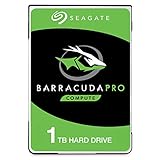
- Premium Choice: Seagate BarraCuda Pro 1TB Internal Hard Drive Performance HDD – 2.5 Inch SATA 6 Gb/s 7200 RPM 128MB Cache for Computer Desktop PC Laptop, Data Recovery – Frustration Free Packaging (ST1000LM049)
A 7200 RPM spindle speed is a specific promise: faster seek times and higher sustained transfers than the 5400 RPM drives that dominate quiet, low-power storage. Gamers use that speed for a game library that still lives on a spinning disk, editors use it for scratch footage, and home-server owners use it for media archives. This guide narrows the field to drives whose listing titles state the 7200 RPM figure outright, so you are not left guessing about what the label means. Every model here sits in the same SATA family, which keeps installation simple whichever one you choose.
Speed is only the starting filter. Capacity, cache size, form factor, and drive class (desktop, NAS, or enterprise) change how a disk behaves inside your case or enclosure. A 3.5-inch drive and a 2.5-inch drive both spin at 7200 RPM yet fit entirely different builds. Read the comparison below as a shortlist for 2026 upgrades, then match the class of drive to the job it will actually do.
Quick Picks
As an Amazon Associate we earn from qualifying purchases at no extra cost to you.




| Product | Best for | Key spec from the title |
|---|---|---|
| Seagate BarraCuda 2TB | Everyday desktop game library | 2TB, 3.5 inch, 256MB cache |
| Seagate BarraCuda Pro 1TB | Laptops and compact builds | 2.5 inch, 128MB cache |
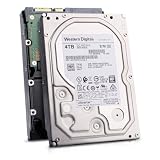
| Hitachi HGST Ultrastar 4TB | Renewed bulk storage on a tight budget | 4TB, 512e, renewed |
| Seagate Enterprise Capacity 6TB | Always-on archive drive, renewed | 6TB, 128MB cache, renewed |
| WD Blue 10TB | Large desktop capacity | 10TB, 512MB cache |
| WD Red Pro 12TB | Multi-bay NAS builds | 12TB, CMR, NAS-class |
| WD Red Plus 10TB | Home NAS with a lighter workload | 10TB, CMR, NAS-class |
How to Choose
Match the form factor first
Desktop towers and most NAS bays take 3.5-inch drives. A 2.5-inch drive suits laptops, small-form-factor cases, and external enclosures, but 7200 RPM 2.5-inch models top out at far lower capacities than their larger siblings. Confirm that your bay, caddy, or enclosure matches before you compare anything else, and make sure you have a free SATA data port and a SATA power connector for each drive you plan to add.
Pick the right drive class
Desktop drives are tuned for a few hours of use a day. NAS drives are built for round-the-clock operation inside a bay with neighbors that generate vibration, which is why the Red lines in this list exist. Enterprise-branded drives are designed for heavy duty cycles in servers. If the drive will spin all day, move up from a desktop model; if it holds a game library that your PC reads a few hours each evening, a desktop drive is the sensible fit.
Understand CMR, cache, and sector format
CMR (conventional magnetic recording) writes each track separately, which keeps sustained writes steady and makes rebuilds in a RAID or ZFS array less painful. Look for the CMR label on any drive going into a NAS. Cache of 128MB suffices for light use, while 256MB to 512MB helps when many small requests arrive at once. The 512e label means the drive uses 4K physical sectors but presents 512-byte sectors to the system, which is compatible with nearly every modern operating system.
Weigh new versus renewed
Renewed drives are used units that have been refurbished and resold. They can stretch a budget, particularly at large capacities, but they arrive with unknown hours already on the spindle. Look at the seller terms for the return window, keep a second copy of anything important, and never run a renewed disk as the only home of irreplaceable files. Ignore marketing phrases such as “performance” unless a spec like cache size or CMR backs them up.
One more habit helps: write down the model number of every drive you buy and check it against the compatibility list of your NAS or motherboard maker. Capacity limits, bay depth, and power draw during spin-up all vary by device, and a quick lookup avoids a return. For budget-minded builds, prefer one larger drive over two small ones; it uses a single SATA port and leaves a slot free for later expansion.
The 7 Best Options
Seagate BarraCuda 2TB (ST2000DM008)
This is the straightforward desktop pick: a 3.5-inch SATA 6Gb/s drive spinning at 7200 RPM with a 256MB cache, according to the listing. It suits a second drive for a gaming tower or a spare-parts system that needs bulk space beyond a small SSD, and the model number makes it easy to look up the manufacturer data sheet before you order.
- Strength: the 256MB cache is generous for a drive of this capacity.
- Strength: standard 3.5-inch SATA fits virtually any desktop case.
- Trade-off: 2TB is a modest amount of space for a large modern game library.
Skip it if you need NAS-grade operation or more than a couple of terabytes.
Seagate BarraCuda Pro 1TB (ST1000LM049)
The odd one out here is a 2.5-inch drive, listed with 128MB of cache and a 7200 RPM spindle and aimed at desktop and laptop use. Pick it when you have a laptop that still has a spinning-disk bay, a compact PC, or an enclosure that only accepts 2.5-inch media.
- Strength: the small footprint fits where a 3.5-inch disk cannot.
- Strength: the listing mentions data recovery support alongside the drive.
- Trade-off: 1TB is the smallest capacity in this group.
Skip it if you have a regular desktop bay; a larger 3.5-inch drive gives you far more space for the same slot, and you will not need an adapter bracket.
Hitachi HGST Ultrastar HUS726T4TALE6L4 (renewed)
This is a 4TB, 3.5-inch, 7200 RPM SATA 6Gb/s drive with the 512e format, sold renewed. The Ultrastar name points to a data-center lineage, which makes it attractive for archive and secondary storage in a home build. It also pairs well with a small SSD that handles the operating system while this disk keeps the bulk files.
- Strength: 4TB sits at a comfortable middle capacity for bulk files.
- Strength: 512e keeps it compatible with common operating systems.
- Trade-off: renewed status means its prior use is unknown, so keep a backup.
Skip it if you want a factory-new drive with a fresh manufacturer warranty.
Seagate Enterprise Capacity 6TB (ST6000NM0024, renewed)
The Enterprise Capacity line is built for servers, and this renewed 6TB unit pairs the 7200 RPM spindle with a 128MB cache and 512e sectors on SATA 6Gb/s. It fits a media archive or a backup target that stays powered for long stretches, such as a machine that records or syncs overnight.
- Strength: enterprise-class design suits continuous operation.
- Strength: 6TB gives real room for libraries and backups.
- Trade-off: the 128MB cache is smaller than the 512MB found on the WD models here.
Skip it if you want the quietest possible drive for a living-room machine.
Western Digital WD Blue 10TB (WD100EAGZ)
WD Blue is the brand’s desktop line, and this 10TB version lists a 7200 RPM spindle, a 512MB cache, and a 3.5-inch SATA 6Gb/s interface. It targets people who want one big drive for games, downloads, and project folders inside an ordinary tower, without building a multi-disk array.
- Strength: 10TB capacity and a 512MB cache in a desktop-class model.
- Strength: the Blue line is aimed at general PC storage.
- Trade-off: the title does not list CMR, so it is a weaker choice for NAS arrays.
Skip it if the drive is headed for a multi-bay NAS; take a Red model instead.
Western Digital WD Red Pro 12TB (WD122KFBX)
This is the largest drive in the group and the one with the NAS badge, CMR recording, and a 512MB cache, all stated in the listing, along with 7200 RPM and SATA 6 Gb/s. It is written for larger NAS enclosures where several drives share one chassis, so confirm your enclosure supports drives of this size before ordering.
- Strength: 12TB offers the most capacity here per bay.
- Strength: the CMR label and Pro tier suit busy multi-drive setups.
- Trade-off: more capacity per disk means more data at risk if one fails, so plan redundancy.
Skip it if you only need a single internal game disk.
Western Digital WD Red Plus 10TB (WD100EFGX)
Red Plus carries the NAS tag, CMR, and a 512MB cache, with a 7200 RPM spindle and SATA 6 GB/s. It is the step below Red Pro and fits a two- to four-bay home NAS that holds photos, backups, and a media collection, and the model code helps you confirm it against your enclosure compatibility list.
- Strength: CMR recording and NAS tuning at 10TB.
- Strength: the capacity matches the WD Blue 10TB but adds the NAS label.
- Trade-off: the title does not call out the heavier duty class that the Pro name implies.
Skip it if you run a large rack with many drives in one enclosure.
Which One Fits Your Situation
You are filling a gaming tower with game installs
Take the Seagate BarraCuda 2TB if the library is modest, or the WD Blue 10TB if you hoard dozens of large installs. Both are desktop-class 3.5-inch drives spinning at 7200 RPM with generous cache.
You are building a home NAS
The WD Red Plus 10TB is the sensible default for a small enclosure. Step up to the WD Red Pro 12TB when you have more bays and want maximum capacity per slot, and plan for redundancy either way.
You are working with a laptop or small enclosure
The Seagate BarraCuda Pro 1TB is the only 2.5-inch option listed, so it is the clear answer when a 3.5-inch drive will not fit.
You need archive space and accept renewed units
The Hitachi HGST Ultrastar 4TB and the Seagate Enterprise Capacity 6TB both offer server-class storage in renewed form. Treat them as secondary storage and keep a separate backup.
Common Mistakes
- Assuming every 7200 RPM drive is NAS-ready; desktop models may lack CMR and the vibration tolerance of Red drives.
- Ignoring form factor and ordering a 2.5-inch drive for a 3.5-inch bay, or the reverse.
- Using a renewed drive as the only copy of important files.
- Buying the largest capacity without planning for a backup or RAID layout, which leaves a single point of failure.
- Expecting a hard disk to feel like an SSD; load times for the operating system and active games are still faster from solid-state storage.
Related guides
- Aio Liquid Coolers For High Performance Gaming
- How To Lower Input Delay In Competitive Shooters
- External Hard Drives For Music Production
Frequently Asked Questions
Is 7200 RPM noticeably faster than 5400 RPM?
The higher spindle speed shortens the time the head waits for data to rotate into place, so random access and sustained transfers are quicker. The tradeoff is more noise and a little more heat, which matters in a silent living-room build.
Can I put a desktop drive in a NAS?
You can physically do it, but desktop drives are not designed for continuous operation or tightly packed bays. For NAS use, look for the NAS label and CMR in the listing, as on the Red models above.
What does 512e mean?
It stands for 512-byte emulation: the drive stores data in 4K physical sectors but reports 512-byte logical sectors for compatibility. Modern operating systems handle it without any extra setup.
Should I still buy a hard drive today?
Yes, when the goal is bulk capacity for backups, media, and archives. Keep your operating system and the games you play most on an SSD, and let the 7200 RPM disk handle everything else.