🛒 Best Price Today on Amazon
Prime members get fast, free shipping on everything above, plus member-only deals. New members get a 30-day free trial — cancel anytime.
- Top Clean Gaming Step Step Picks for 2026
- Why a six-month cleaning schedule matters
- What you will need before you start
- The step-by-step cleaning procedure
- Common pitfalls we see repeatedly
- Pro tips from years of cleaning rigs
- Related Guides
- Related Guides
- Frequently asked questions
- Putting it all together
- Related Articles
- Related Guides
Top Clean Gaming Step Step Picks for 2026
Here are our current top clean gaming step step picks, compared on real Amazon owner reviews, price, and features. Live prices update below.
As an Amazon Associate we earn from qualifying purchases at no extra cost to you.


If you have spent any meaningful time building, repairing, or living with gaming PCs, you already know that dust is the silent killer. It is not the dramatic overclock that fries your CPU on day one. It is the slow, patient accumulation of pet hair, carpet fibres, and household particulates that wraps around your heatsink fins, chokes your intake fans, and quietly raises your idle temperatures by five, then ten, then fifteen degrees Celsius until one summer afternoon you are thermal throttling in the middle of a ranked match. We have cleaned hundreds of gaming PCs over the last decade, ranging from beige office towers full of cat hair to brand new mesh-front bespoke builds that picked up surprising amounts of debris in just six months. The procedure below is the exact step-by-step we run every six months on our own rigs and the rigs we look after for friends and clients.
Before we get into the actual work, an honest framing note. If your PC currently runs cool, runs quiet, and your dust filters look visually clean through the mesh, you can almost certainly skip a seasonal cleaning. There is no medal for cleaning a PC that did not need cleaning. The point of this routine is preventative maintenance, not ritual. We recommend a six-month baseline for most households, dropping to every three months if you have pets, smokers, or recently completed flooring renovations that kicked up construction dust. If you have not opened your case in over two years and your CPU temperatures are creeping up, you are overdue.
Why a six-month cleaning schedule matters
Modern gaming PCs are remarkably good at hiding thermal problems until they become emergencies. Boost algorithms in current generation CPUs and GPUs will silently downclock to protect the silicon long before you notice anything wrong in a benchmark. You might assume your 4070 Super is just having a quiet evening, when in reality it is dropping clock speeds because the heatsink is matted with dust and the junction temperature is pegged at 87 degrees. We have lost count of how many “my PC feels slower lately” support requests turn out to be exactly this. A 20-minute cleaning routine restored full performance in nearly every case.
The other reason this matters is acoustic. Dust acts like a thermal blanket on your heatsinks, which forces your fans to spin faster to maintain the same temperatures. Faster fans are louder fans, and louder fans become normalised so gradually that you stop noticing how loud your PC has become. Clean the dust off and your fans drop a couple of hundred RPM, which translates to a noticeably quieter desk. For more on this acoustic balance, see our deep dive in our trending quiet gaming PCs deep comparison.
What you will need before you start
Gathering your tools before you open the case is one of those steps that seems pedantic until you find yourself elbow deep in your build with one hand holding a fan still and the other reaching frantically for a cloth that is across the room. Lay everything out on a clean, flat surface within arm’s reach of where you plan to work.
You will need an electric compressed air duster or several cans of compressed air, a pack of clean microfiber cloths, a small bottle of 99 percent isopropyl alcohol, an anti-static brush, a Phillips head screwdriver appropriate for your case screws, and ideally a small soft paint brush for stubborn dust pockets. If you have a magnetic parts tray that is even better, because case screws have a habit of rolling into the worst possible places on hardwood floors.
We strongly recommend electric duster over canned air for anyone who cleans more than one PC a year. The economics tip in favour of electric within about three cleanings, and you get unlimited continuous airflow without the freezing condensation that canned air sometimes produces when you hold the trigger too long. If you stick with canned air, keep the can upright and use short bursts to avoid liquid propellant venting onto your components.
For solvent work on the CPU integrated heat spreader and any other surfaces that contact thermal paste, you want 99 percent isopropyl alcohol specifically. The 70 percent stuff from the pharmacy is mostly water and will leave residue. Pure isopropyl evaporates cleanly without trace, which is exactly what you want anywhere near electronics. A small bottle will last you years.

12
Prime
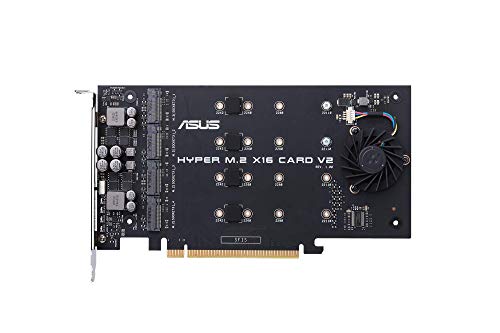
ASUS Hyper M.2 X16 PCIe 3.0 X4 Expansion Card V2 Supports 4 NVMe M.2 (2242/2260/2280/22110) Upto 128 Gbps for Intel VROC and AMD Ryzen Threadripper NVMe Raid
In Stock




As an Amazon Associate we earn from qualifying purchases. Product prices and availability are accurate as of the date/time indicated.
An anti-static brush sounds like the kind of thing manufacturers invented to upsell, but it genuinely earns its place in the toolkit. The bristles are conductive and grounded through the handle, which means you can sweep stubborn dust off heatsink fins and PCB surfaces without risking the static buildup that a regular nylon brush would generate. If you have ever zapped yourself walking across a carpet in winter, that is exactly the kind of discharge that can ruin a memory module.
The step-by-step cleaning procedure
Step 1: Shut down completely and unplug everything
Save your work, close your applications, and shut down the operating system properly. Once the system is fully powered off, flip the switch on the back of the power supply to the off position, then unplug the power cable from the wall. Disconnect all peripherals including the monitor, keyboard, mouse, USB devices, and any audio interfaces. The goal is a completely de-energised system that you can move freely without anything tugging or snagging.
Some experienced builders skip the wall unplug step and rely solely on the PSU switch. We disagree with this approach for cleaning work. Belt and braces. The few extra seconds of unplugging gives you absolute certainty that no current can reach the components while you have your hands inside the case.
Step 2: Move the PC to a well-ventilated area
Cleaning a PC indoors is how you discover exactly how much dust was inside, because it all ends up airborne in the room. We strongly recommend moving the PC to a garage, balcony, patio, or any space with good ventilation and a floor you do not mind being slightly dusty for a few hours. If you have no outdoor option, lay down an old bed sheet or drop cloth in a spare room with the window wide open.
Step 3: Ground yourself before touching internals
Static discharge is the most common way home users damage hardware during cleaning. The voltage that you can build up walking across a synthetic carpet is more than enough to permanently damage a memory module or a PCIe device. Touch a known grounded metal surface before you start, and again periodically during the work. An anti-static wrist strap clipped to the unpainted metal of the case is the gold standard. If you do not own one, frequently touching the case chassis with your bare hand achieves most of the protection.
Step 4: Open the case panels
Most modern cases use either thumbscrews or captive screws to retain the side panels. Remove the main side panel first to expose the motherboard, then the opposite side panel to expose the cable management compartment. Some cases also have a removable front panel that hides the intake filters and front fans. If you are unsure how your specific case opens, a 30-second search for your case model plus “side panel removal” will save you guessing.
Step 5: Document everything with photos before you touch anything
This is a step we added to our routine after we put a fan back in upside down once. Take a few photos with your phone of the interior from different angles before you disturb anything. Cable routing, fan orientation, and any tubing arrangement should all be captured. If something ends up unplugged accidentally, you have a reference for how it should look.
Step 6: Blast dust from fans and heatsinks, holding fans still
This is the most important technique to get right. When you blow compressed air across a fan blade, the fan acts as a small generator and produces voltage. This voltage can backfeed through the fan header into the motherboard and damage components. Always physically hold the fan blade still with a finger before applying compressed air. For larger fans that are awkward to hold, a small wedge of folded paper jammed between the blade and the frame works equally well.
Work from top to bottom so dust falls away from cleaned areas. Hit the CPU cooler heatsink first, then the GPU heatsink fins, then case fans, then the cable management area on the back side. Short bursts of air work better than sustained blasts. You want to dislodge the dust, not jet wash the components.
Step 7: Vacuum carefully outside the case
Once the dust is airborne inside the case, you want it outside the case. A handheld vacuum held just outside the open panel will catch the majority of dust as it gets blown out. This is where the safety rule comes in. Never put a household vacuum nozzle inside the case or directly against components. The friction of air moving through plastic vacuum tubing generates significant static, and that static can discharge into your hardware. Always vacuum the air space outside the case, not the components themselves.
Step 8: Consider thermal paste replacement if you are due
Thermal paste does not need replacing on a six-monthly cycle. Modern pastes are good for two to three years in normal use, sometimes longer for high-end pastes. We only replace paste during a cleaning session if the PC is over two years old AND we have noticed temperatures trending upward, OR if the PC has hit the five-year mark regardless of temperatures. If your build is newer than two years and runs cool, leave the paste alone. Replacing it preventatively introduces risk for no benefit.
If you are due, remove the cooler, wipe the old paste from the CPU and cooler base with a microfiber cloth dampened in 99 percent isopropyl alcohol, let everything dry for a minute, then apply a fresh pea-sized dot of new paste before reseating the cooler. This is a procedure worth a separate tutorial. For prebuilts under warranty, do not touch the thermal paste, as it usually voids the warranty. Check our best prebuilt gaming PC for May 2026 coverage for warranty terms by brand.
Step 9: Wipe GPU heatsink fins and shroud
The GPU is usually the dustiest component in a gaming PC because it pulls so much air through such tight heatsink spacing. After the initial compressed air pass, sweep the heatsink fins with the anti-static brush to dislodge anything compacted in there. A microfiber cloth lightly dampened with isopropyl alcohol cleans the shroud and exterior surfaces. Do not get liquid anywhere near the PCB.
Step 10: Clean and reseat the dust filters
Almost every modern case has removable dust filters on the intake fans. These are the first line of defence against dust accumulation inside the case, and they only work if they are clean. Pop them out, rinse them under warm water until they run clear, shake them out, and let them air dry completely. Do not put a damp filter back in the case. While the filters dry, give the filter mounting surface a quick wipe with a dry microfiber cloth.
Step 11: Close the case and reconnect
Once the filters are dry and everything looks clean, close the case panels in reverse order. Make sure no cables are pinched. Reconnect peripherals one at a time, then the power cable. Flip the PSU switch back on. Do not skip the visual check before pressing the power button. A quick scan for anything obvious that was disturbed during cleaning takes 30 seconds and can save you a panic moment.
Step 12: Boot test and verify temperatures
Power on the PC and let it boot to the desktop. Listen for any unusual fan behaviour, watch for any error messages, and check that all your storage devices appear. Open your favourite monitoring tool such as HWiNFO64 or the temperature widget in Steam, and verify that idle temperatures look reasonable. Run a quick game or benchmark to confirm load temperatures are in the same range as before, or hopefully a bit better thanks to the cleaning.
Common pitfalls we see repeatedly
Using a household vacuum directly on components
This is the single most damaging thing well-intentioned users do to their PCs during cleaning. The plastic nozzle of a household vacuum can generate hundreds of volts of static electricity, and putting that nozzle close to a memory module or a GPU PCB can permanently damage components. Always vacuum the air outside the case, never the components inside.
Spinning fans freely with compressed air
The voltage generated by a freewheeling fan can backfeed into the motherboard and damage fan headers or worse. This is one of those failure modes that is hard to detect because the fan still works afterward. The header or a nearby controller chip dies silently. Always hold fans still while you blast them with air.
Forgetting the GPU fans entirely
The GPU is often the dirtiest component in the system and the most awkward to access. Many users do a thorough job on the case fans and CPU cooler but skip the GPU because it requires reaching down and around. If you only do one component thoroughly, make it the GPU. It runs the hottest and pulls the most air. Skipping it defeats the purpose of cleaning.
Using 70 percent isopropyl alcohol
The standard pharmacy strength of isopropyl is 70 percent, which means 30 percent water. Water plus electronics is bad. Always use 99 percent isopropyl for any cleaning that involves contact with components. The price difference is negligible and the safety margin is enormous.
Reapplying thermal paste preventatively
If your temperatures are good, leave the paste alone. Reapplying paste introduces risk such as air bubbles, incorrect amount, cooler misalignment, and potential damage during cooler removal. Paste only needs replacement when temperatures show it is degrading, or as part of a major component swap.
Pro tips from years of cleaning rigs
Set a calendar reminder
The single highest-impact tip we can offer is to put a recurring six-month reminder in your calendar right now. Most users skip cleaning not because they cannot be bothered but because they forget. A reminder removes that friction entirely.
Photograph filter cleanliness as a baseline
Take a photo of your dust filters at the end of each cleaning session. Six months later, when you remove them again, you have an exact reference for how dirty they have gotten in that time. This tells you whether your environment justifies a more frequent cleaning schedule.
Use a temperature log to track trends
HWiNFO64 can log temperatures during gameplay. Capture a baseline immediately after cleaning, then again after three months and six months. The trend tells you exactly how quickly dust is affecting your thermals in your specific environment.
Replace the rear exhaust fan filter sock first
If your case does not have a rear exhaust filter, the inside of the rear exhaust fan grille is usually the dustiest external surface on the entire case. Wiping this off mid-cycle, between full cleanings, takes ten seconds and noticeably reduces the dust load reaching your components.
Address the room before you address the PC
A truly clean PC environment makes a much bigger difference than a marginally cleaner cleaning routine. Vacuuming the floor under and around the PC twice a month, keeping pets off the desk, and not running the PC directly on carpeted floors all drop dust intake dramatically. If your PC sits on a carpeted floor, even a small wooden riser to lift it a few inches helps.
Related Guides
- Highwings 8K HDMI Cable 6.6ft 48Gbps Braided Review
- Klipsch ProMedia 2.1 THX Computer Speaker System Review
- Best Mouse for 4K Gaming in 2026
Frequently asked questions
How often should I clean a gaming PC?
Every six months is the baseline for a typical household with no pets. Drop to every three months if you have shedding pets, anyone smokes indoors, or you have recently completed flooring or construction work. If you live in a clean apartment with no pets and your PC sits on a desk rather than the floor, you can sometimes stretch to nine or twelve months without thermal consequences.
Can I use a leaf blower instead of compressed air?
We do not recommend it. Leaf blowers produce very high air velocity that can damage delicate components and they tend to spin fans hard enough to generate damaging voltage even faster than canned air does. Stick to a proper electric duster or canned air designed for electronics.
Do I need to clean the inside of the power supply?
No, and you should not open the power supply housing. PSUs contain high voltage capacitors that can hold charge after disconnection and seriously injure you. Compressed air through the exhaust grille from outside the case is the only PSU cleaning you should do. If your PSU is more than five years old and visibly dusty, the safer move is replacement rather than internal cleaning.
How do I know if my temperatures are normal after cleaning?
For a modern gaming PC, idle CPU temperatures around 35 to 45 degrees Celsius and full-load gaming temperatures of 65 to 80 degrees are typical. GPU temperatures of 65 to 80 degrees under load are similarly normal. If you are seeing 90+ degrees under load after a thorough clean, something else is going on such as a poor cooler mount or degraded thermal paste, and you should investigate further.
Putting it all together
A six-month cleaning routine is one of the highest return-on-time activities you can do for your gaming PC. Twenty minutes of careful work twice a year keeps your thermals in check, your fans running quietly, and your hardware healthy for years longer than a neglected build would last. The technique matters more than the frequency. Doing it carefully twice a year beats doing it carelessly four times a year.
If you are reading this because you are considering an upgrade and want to know how to maintain it, take a look at our current best gaming PC for streaming May 2026 picks and our trending RTX 5070 builds deep comparison. For builders weighing component choices, our AMD vs Intel 2026 which is better guide and our DDR5 vs DDR4 2026 which is better comparison are worth a read. For pre-built shoppers, our best prebuilt gaming PC May 2026 roundup remains current and includes warranty notes on which manufacturers will void coverage if you open the case for cleaning.
Set a calendar reminder for six months from today, gather your tools in a small toolbox so they are ready to grab, and your PC will reward you with years of quiet, cool, reliable gaming.