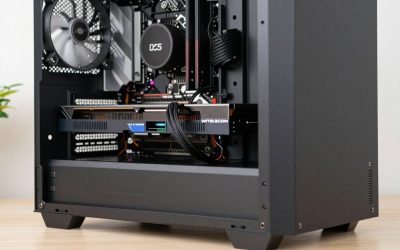
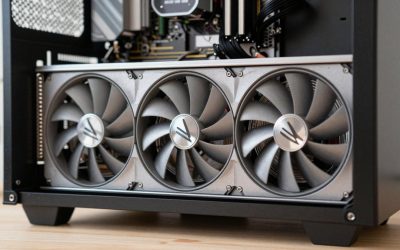
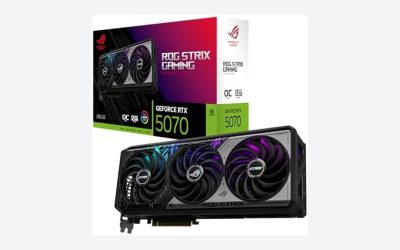
Before you add anything to a cart, six pairings decide whether a PC build works: CPU to motherboard socket, memory type to board, board size to case, graphics card length and thickness to case space, cooler to socket and height, and power supply wattage and cables to the parts it must feed. Getting those six right removes nearly every returns-and-refunds story you read about on forums.
- Step 1: CPU and Motherboard
- Step 2: Memory Standard and Clearance
- Step 3: Case, Form Factor and Expansion Space
- Step 4: Power Supply Capacity and Connectors
- Compatibility Matrix
- PCIe Lanes and Thermal Constraints
- A Multi-Step Verification Procedure
- When to Stop and Ask Before Buying
- Frequently Asked Questions
This guide goes through them in a sensible order, gives you a diagnostic matrix and a worked power example, and ends with a procedure you can follow with a spreadsheet or a parts-list tool open beside you. The advice is based on common standards and manufacturer documentation; always confirm exact figures on the maker’s specification page for your specific model.
Step 1: CPU and Motherboard
A processor fits only the socket it was designed for, and each socket supports a limited set of chip families. Matching the socket name is the first filter: the board’s specification page lists a socket, and the processor’s page lists the socket it needs. If the names differ, stop there.
The second check is the chipset and firmware. Even when the socket matches, a board may support some processors only after a firmware update. The board maker publishes a CPU support list that names each processor and the minimum firmware version. If a board ships with an older version than the chip needs, the system may not start until you update. Some boards include a flash feature that works from a USB stick without a CPU installed, but it is not universal, so check the manual.
The third check is features. Chipsets differ in how many fast storage slots, USB ports and PCIe lanes they provide, and whether they allow memory overclocking. A chip that fits the socket may be paired with a basic board that lacks features you assumed you would have.
Step 2: Memory Standard and Clearance
DDR4 and DDR5 are physically different, with different notch positions, so one will not seat in the other’s slot. Your motherboard supports one generation. Read the memory line in the board’s specification and buy accordingly. Also check the maximum capacity, the number of slots, and the official supported speed list; running faster than that list usually means using an overclocking profile such as XMP or EXPO, which depends on the board and processor.
Clearance is the second memory concern. Tall modules, especially those with decorative heat spreaders, can collide with a large air cooler that overhangs the first memory slot. The cooler’s product page lists “RAM clearance” or a maximum module height. Compare that with the module’s height from its own page.
For best performance most platforms prefer two matched modules in the slots the manual recommends, which is usually the second and fourth slot counting from the CPU. Buy them as a kit so the pair is verified together.
Step 3: Case, Form Factor and Expansion Space
Motherboards come in standard sizes such as ATX, micro-ATX and mini-ITX. A case supports a list of sizes, and a smaller board fits in a larger case, but not the other way around. The case specification names the board sizes, the number of expansion slots, and the maximum graphics card length, CPU cooler height, and radiator sizes for liquid coolers.
Graphics cards are the usual surprise. Modern cards can be long and thick, taking two and a half or three slots. Measure from the card’s specified length and thickness against the case’s listed maximums, and leave a small margin for cables at the card’s rear edge and for airflow. Front-mounted radiators and fans also reduce available length.
Do not forget drive bays and M.2 slots. A board may have only a couple of M.2 connectors, and some share bandwidth with SATA ports, which leads into the lane-sharing check later in this guide.
Step 4: Power Supply Capacity and Connectors
A power supply must offer enough total power, enough of the right connectors, and the right physical size. Total power is easier to estimate than people expect; the second and third checks are where mistakes hide.
Worked example with stated assumptions (illustrative values, not for a specific product): suppose the processor is rated near 125 W, the graphics card is rated near 220 W, and the rest of the system (board, memory, drives, fans) adds roughly 75 W. That is 420 W of rated demand. Adding 40 percent headroom gives about 590 W, so a 650 W unit would be a reasonable floor. Always use the graphics card maker’s own recommended wattage if it is higher.
| Line in the estimate | Assumed rating | Note |
|---|---|---|
| Processor | 125 W | Use the maker’s listed power figure, not a boost peak |
| Graphics card | 220 W | Use the card’s board power from its specification page |
| Board, memory, drives, fans | 75 W | Rough allowance; add more for many drives or RGB-heavy builds |
| Subtotal | 420 W | Rated demand, not wall draw |
| With 40 percent headroom | About 590 W | Round up to the next common size, here 650 W |
If you plan to upgrade the graphics card later, size the supply for the bigger card now, since swapping a supply means re-routing every cable.
Connectors: confirm the supply has the CPU power cables your board needs (commonly 8-pin, sometimes two connectors) and the graphics card’s required PCIe power connectors. Newer cards may use a 16-pin style connector; check whether your supply includes it or whether the card includes an adapter. Cable counts and types are listed on the supply’s specification page.
Size: most cases take ATX supplies, while small cases may need a smaller form factor. Check the case page for the supported supply type and length.
Compatibility Matrix
| Pairing | What must match | Where to find it | Common failure |
|---|---|---|---|
| CPU and motherboard | Socket, chipset support, firmware version | Board CPU support list | Right socket, but firmware too old |
| Memory and board | DDR generation, capacity, slots, speed list | Board memory section | Buying DDR4 for a DDR5 board |
| Cooler and socket | Mounting brackets for that socket | Cooler compatibility list | Missing bracket for newer socket |
| Cooler and case/RAM | Cooler height, RAM clearance, radiator size | Case and cooler specifications | Side panel will not close |
| Graphics card and case | Length, thickness, slot count | Case max GPU length | Card hits front fans or drive cage |
| Power supply and parts | Wattage, CPU and PCIe connectors, form factor | PSU specification page | Not enough PCIe power cables |
| Storage and board | M.2 length and interface, SATA ports | Board storage section | M.2 slot shares lanes with SATA |
PCIe Lanes and Thermal Constraints
A processor and chipset supply a fixed pool of PCIe lanes. Boards divide them across the main graphics slot, M.2 drives and extra slots, and sometimes one feature takes lanes from another. A typical note in the manual reads that populating a certain M.2 slot disables two SATA ports, or that a second long slot runs at a lower lane count when the first is in use. Read these footnotes before planning many drives or add-in cards.
Thermals are the other quiet limit. A powerful processor in a small case with few fans may run hotter than expected, and tightly packed graphics cards can recirculate heat. The cooler’s rated capacity, listed on its page, should comfortably exceed your processor’s rated power. Check airflow: at least one intake and one exhaust path, and no large obstacle between the front fans and the card. If airflow turns out to be the weak spot, our list of PC case fan picks is a place to start.
Cooling and compatibility overlap at the cooler mount. Each cooler lists the sockets it supports, and a model built for an older socket may need a different bracket or may not mount at all on a newer board. Confirm that the bracket is in the box rather than assuming it, and note that tower coolers also affect the memory clearance covered in step 2.
A Multi-Step Verification Procedure
- Write your parts list in a spreadsheet with columns for model, socket or interface, size, and power draw.
- Run the list through a compatibility checker. A simple parts picker comparison is a good first pass; treat warnings as things to verify, not final answers.
- Open each manufacturer’s page and confirm the socket, memory type, firmware support, and dimensions yourself.
- Measure available space in the case: GPU length, cooler height, radiator and fan positions.
- Add up power draw and confirm cable types for CPU and graphics.
- Read return and warranty terms for each store before you buy, so you can send back a part that does not fit.
When to Stop and Ask Before Buying
Pause if any pairing relies on a footnote you cannot find, if a processor needs a firmware version your board might not have, if the margin between your card’s length and the case limit is under a centimeter, or if your power estimate is within 10 percent of the supply’s rating. Those are the cases where a quick message to the maker’s support or the seller before purchase is cheaper than a return afterward. If you are upgrading an existing PC, also run a CPU versus GPU bottleneck check so you do not buy a part that the rest of the system cannot feed.
Frequently Asked Questions
What is the most important compatibility check when building a PC?
The CPU and motherboard pairing comes first, because the socket must match and the board’s firmware must recognize the exact processor. After that, confirm the memory generation, then the physical fit of the case, cooler and graphics card, and finally power supply capacity and connectors. A mistake at the first step affects everything after it.
Can I use DDR4 memory in a DDR5 motherboard?
No. DDR4 and DDR5 modules use different notch positions and electrical designs, so they do not fit each other’s slots. Your motherboard supports one generation only, with rare exceptions on boards that have both slot types, and even those cannot run both at once. Always read the memory section of the board specifications.
Do I need to update the BIOS before installing a newer CPU?
Sometimes. A motherboard on the right socket may still need a firmware update to recognize a newer processor, and the board maker’s CPU support list tells you the minimum version. Some boards offer a flash feature that works without a CPU installed. Check the support page for your exact board model before buying.
How much power supply headroom should I leave?
A common rule of thumb is to add the rated power of your major parts, then choose a supply with roughly 30 to 50 percent more rated capacity. That covers transient spikes and keeps the supply in a comfortable efficiency range. Check your graphics card maker’s recommended supply wattage too, since it accounts for typical systems.
Will a compatibility checker tool catch everything?
No. Checkers are good at sockets, memory types and basic dimensions, but they depend on the data entered and can miss details such as exact cooler height, cable lengths, BIOS versions or PCIe lane sharing. Use a checker as a first pass, then confirm the details on each manufacturer’s specification page.