Updated November 2026 – To build a retro gaming PC or a DIY console, install RetroBat on an existing Windows PC or Batocera on a dedicated mini PC or Raspberry Pi 5, add RetroArch cores, load game files you legally own, and plug in a controller.
A retro machine can be tiny and quiet because older consoles need far less power than modern games. The real decisions are which hardware tier you want, which operating system and frontend to use, and how to handle legal files and display settings. This guide covers how to build a retro gaming PC, the best retro gaming OS and front end options, laptops for emulation and monitors for retro games.
How to Build a Retro Gaming PC: Pick a Hardware Tier
| Tier | Hardware | Handles well | Limits |
|---|---|---|---|
| Small board | Raspberry Pi 5 with active cooling | 8-bit to PS1 and Dreamcast, much of N64 and PSP | PS2 and GameCube are inconsistent |
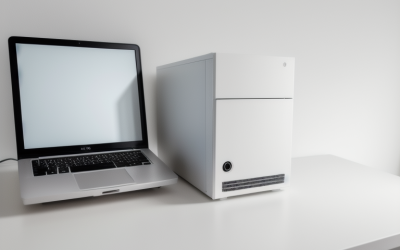
| Mini PC | Small x86 PC with a modern integrated or entry GPU | All of the above, plus most PS2 and GameCube | Heavier systems need more power |
| Existing gaming PC | Your Windows desktop | Almost all emulated systems, including upscaling | Uses a full-size machine for a light task |
| Mini-ITX build | Small custom case with a mid-range GPU | Heavy systems at high resolution | More expensive and more parts to choose |
Raspberry Pi and low-power options
Sources covering the Raspberry Pi 5 report that it handles N64 and Dreamcast well, with Flycast running nearly all Dreamcast games and most N64 titles running smoothly. PlayStation 2 is where reports disagree: one source puts around half the library as smooth, others call it spotty. One report adds that without active cooling the Pi 5 throttles within minutes under load, so use a fan or an active-cooled case. For reliable PS2 and GameCube, outlets suggest a mini PC instead. Batocera is the usual operating system recommendation for Pi builds, and a 4 GB or 8 GB model is sufficient for most retro libraries.
Mini-ITX and mini PCs
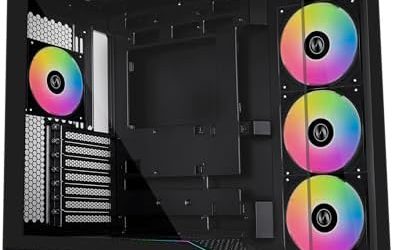
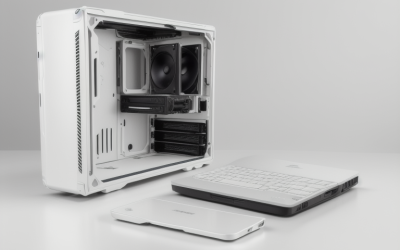
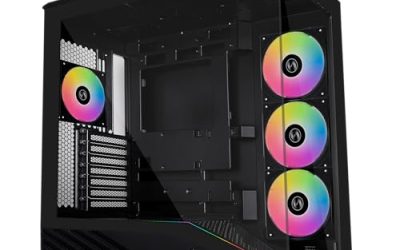
A Mini-ITX board in a small case gives desktop parts in a console-sized box. For retro duty you do not need a high-end GPU; a modest graphics card or capable integrated graphics handles most systems, and extra power mainly helps with upscaling and shaders. Follow the parts checklist and compatibility checks in any PC build guide, and keep airflow in mind because small cases run warm.
Best Retro Gaming OS for PC
Three paths dominate. RetroBat is a free Windows distribution that sets up the EmulationStation frontend with RetroArch and standalone emulators automatically. Batocera is a free Linux operating system that bundles the same stack as a dedicated, console-like system you boot straight into. RetroArch is the cross-platform engine many frontends use. One comparison suggests RetroBat for people who want retro on an existing Windows gaming PC and Batocera for dedicated builds such as a Raspberry Pi, arcade cabinet or mini PC. Another option is running RetroArch directly on Windows if you want full manual control.
Because Batocera and RetroBat are community projects, download them only from their official project pages, and keep them updated. Release numbers change often, so read the project’s page for the current version.
Best Retro Gaming PC Front End
A frontend is the menu that lists your games with box art and launches the right emulator. EmulationStation, used by both RetroBat and Batocera, is the common answer and works with a controller from the couch. RetroArch has its own interface, XMB-style by default, which is functional but less polished for browsing large libraries. Playnite-style launchers that mix emulated and PC games also exist on Windows. Choose by how you will use it: a living-room box suits EmulationStation, while a desktop that also plays modern games suits a launcher that includes both.
Legal Note: ROMs and BIOS Files
The emulator software is legal, and so are the operating systems. The legal question is the game files. Guides on the topic note that backing up games and firmware you personally own is generally treated as legal, while downloading copyrighted ROMs or BIOS files you do not own is not. RetroBat itself states it does not provide ROMs or BIOS files. Laws vary by country and this is not legal advice. The safe path is to dump your own cartridges and discs, or play legally distributed homebrew and re-releases.
Controllers for Retro Gaming
Most USB and Bluetooth gamepads work with RetroBat, Batocera and RetroArch, and the frontends offer a one-time mapping screen. Xbox-style pads are the easiest on Windows. Retro-style pads in the layout of older consoles feel right for 2D games. On Batocera, pads connect over USB or Bluetooth; Steam Input is not part of it. If a controller is not detected, try a wired connection first and map it in the menu.
Best Monitor for Retro Gaming and CRT Filters
Retro games were built for CRT televisions with soft edges and scanlines, so they can look harsh on modern flat panels. Many setups use shaders, such as scanline and CRT-style filters in RetroArch, to restore that look. For picture quality, pick a monitor or TV with low input lag and a resolution that scales cleanly with the game’s native output, for example whole-number multiples. Integer scaling avoids blurry pixels. A 4:3 aspect ratio option is useful for older systems; if your screen is widescreen, use black borders rather than stretching. Higher refresh rates are not essential for retro, but a variable refresh display can help with timing. Choose a display you will also use for other tasks so the machine does double duty.
Best Laptop for Retro Gaming and Emulation
You do not need a high-end gaming laptop for retro. Any recent laptop with a modern integrated graphics chip handles systems up to PS1 and N64 and often much more. If you want PS2, GameCube, Wii or Switch emulation at higher resolution, step up to a laptop with a dedicated graphics chip and good cooling. Check the emulator’s own compatibility pages, since performance depends on the system and game. Laptops cannot be upgraded easily, so buy memory and storage you need up front.
DIY Gaming Console: Putting It All Together
- Choose hardware: a Pi 5, mini PC or your existing computer.
- Download Batocera or RetroBat from the official site and write it to a drive.
- Boot, connect a controller, and set up the frontend.
- Copy your own game files and any required BIOS dumps into the right folders.
- Choose your display filter and test a few games.
- Add a case with airflow, a fan on small boards and a clean power supply.
Which Systems Need How Much Power
Emulation demand rises steeply with console generation. Eight-bit and sixteen-bit systems, such as the NES, Master System, SNES and Mega Drive, run on almost anything. PlayStation 1, Game Boy Advance and arcade boards are comfortable on a Raspberry Pi class device. The Nintendo 64, Dreamcast and PSP sit around the Pi 5 level according to hobbyist reports. PlayStation 2, GameCube and Wii want a mini PC or a desktop with a dedicated GPU, and PS3 and Switch emulation are demanding even on strong hardware. Decide the newest console you care about first, then pick hardware for that, not for the oldest.
Storage, Memory and Power for a Retro Box
Retro libraries are small. Cartridge-era games fit in megabytes and disc-based libraries take more space, so a modest SSD or a good microSD card covers most collections. On a Raspberry Pi use the power supply recommended by the maker, because underpowered supplies cause crashes and throttling. For mini PCs, 8 to 16 GB of memory is plenty. Keep a backup of your save files and configuration, since they are what you would hate to lose.
Cases, Cooling and Noise
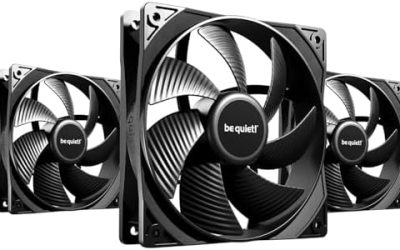
A retro machine often sits in a living room, so quiet matters. Reports say the Pi 5 throttles without active cooling, so use a case with a fan or heatsink designed for it. For a mini PC, choose a model with a quiet fan curve. If you build a Mini-ITX system, pick a case with good airflow and a low-profile cooler that fits the height limit the case maker lists. Leave room behind the box for cables and ventilation.
Controllers, Arcade Sticks and Extras
Besides standard pads, retro setups often use arcade sticks, light guns and spinners for specific games. Check each emulator’s input documentation for support. A wireless pad and a spare wired one make multiplayer easy. Bluetooth works but can add latency, so a USB receiver or a cable is better for rhythm games and fast platformers. A small keyboard is handy for first setup and for entering text in some emulators.
Frequently Asked Questions
What is the best OS for a retro gaming PC?
RetroBat is a good match for Windows machines and Batocera for dedicated boxes. Both bundle RetroArch and EmulationStation. Pick the one that fits your hardware.
Can a Raspberry Pi 5 play PS2 games?
Only some. Sources disagree, and demanding titles may stutter. For dependable PS2 and GameCube, a mini PC is the safer base.
Is retro gaming emulation legal?
The emulators are legal. Backing up games you own is generally treated as legal, while downloading copyrighted ROMs or BIOS files you do not own is not. Local laws vary.
What is the best frontend for retro games?
EmulationStation is the common choice and ships with both RetroBat and Batocera. RetroArch’s own menu works too.
Do I need a powerful laptop to emulate old consoles?
No. Older systems run on modest laptops. Heavier ones like PS2 and GameCube benefit from a dedicated GPU.
How do I make retro games look like a CRT?
Use shader presets with scanlines in RetroArch or your frontend, and scale with whole-number multiples. Adjust to taste.
Sources Consulted
RetroBat’s project and wiki pages, comparison guides for RetroBat and Batocera, and Raspberry Pi 5 emulation reports from several hobbyist outlets. PS2 performance on the Pi 5 is weakly sourced because reports conflict.