Updated November 2026 – How many case fans does a gaming PC need? Three is enough for most mid-range builds: two intake fans at the front and one exhaust fan at the rear. Heavier GPUs and overclocked CPUs benefit from four or five, but placement and the case front panel matter more than the raw count.
Three fans is a sensible floor for a gaming tower, not a magic number. A case with an open mesh front and three well-placed fans can cool a mid-range graphics card better than a sealed case stuffed with six. This guide explains how many fans a gaming PC should have, where each one goes, which sizes to pick, and when adding more stops helping.
How Many Case Fans Does a Gaming PC Need?
Guides from enthusiast sites such as XDA Developers and several case-fan makers broadly converge on a range of three to five fans for a gaming PC. The absolute minimum is usually described as one front intake and one rear exhaust, but with a dedicated graphics card that pair tends to run warmer than ideal. The usual starting layout is two front intakes and one rear exhaust, with an optional top exhaust once the build gets hotter.
Here is the quick-reference version.
| Build type | Fan count | Typical layout | Verdict |
|---|---|---|---|
| Entry 1080p build, mid-range GPU | 2-3 | 1-2 front intake, 1 rear exhaust | Fine if the front panel is mesh |
| Mainstream 1440p build | 3-4 | 2 front intake, 1 rear exhaust, optional 1 top exhaust | The sweet spot for most players |
| High-end GPU, 4K or overclocked CPU | 5-6 | 3 front or bottom intake, 2-3 top and rear exhaust | Worth it, with fan curves tuned |
| Air cooler on CPU | 3-5 | Front intake, rear exhaust, top exhaust | Cooler fan counts as part of the path |
| Top-mounted AIO radiator | 3-4 in total | Radiator fans act as exhaust, 1-2 front intake | Radiator fans count toward the total |
Is 3 Fans Enough for a Gaming PC?
Yes, three fans is enough for most gaming PCs that use a mid-range graphics card and a mainstream processor, provided two of them are intakes and the case front is ventilated. Sources describe two intake plus one exhaust as the functional minimum for gaming, and it also produces the slightly positive pressure that keeps dust down.
Three fans stop being enough in a few situations:
- A high-wattage graphics card dumping heat into a compact case.
- A CPU that runs hot under all-core loads, such as a heavily boosted or overclocked chip.
- A case with a restrictive solid or glass front panel, where the intake fans struggle to pull air in.
- A cramped small-form-factor chassis with little internal volume.
In those cases a fourth or fifth fan on the top or bottom gives hot air a faster path out. Past that, returns diminish quickly, and extra fans mostly add noise.
How Many Fans Should a Gaming PC Have: 3 vs 5 Fans
Moving from three to five fans helps when the heat load justifies it, not as a general upgrade. Reviewers who compare layouts report that the biggest gain comes from fixing a weak spot, such as no top exhaust above a hot CPU, rather than from fan count itself.
When 3 fans are plenty
Think of a modern mid-range card paired with a mainstream processor in a mesh-front mid-tower. Two front fans feed cool air across the graphics card and storage, and the rear fan pulls heat out near the CPU. Stock fan curves keep noise reasonable.
When 5 fans make sense
Five fans suit a build with a hotter graphics card, a large air cooler or a top radiator. Typical layouts are three intakes (front, or front plus bottom) and two exhausts (rear and top). One high-end guide lists five to six fans for demanding builds, with three on the intake side and two or three exhausting.
When six or more is overkill
Guides warn against extremes such as six intakes and a single exhaust. The air has no efficient way out, so it builds pressure and escapes through gaps instead of being pulled across the hot parts. Balance matters more than quantity.
Intake vs Exhaust and Positive vs Negative Pressure
Aim for slightly positive pressure, which means a little more air goes in than comes out. In practice that is two intakes and one exhaust, or three intakes and two exhausts. One guide frames the target as intake airflow that exceeds exhaust by a modest margin rather than a large one.
Why positive pressure is the common advice
- Air enters mainly through filtered intakes, so less dust is drawn through unfiltered gaps.
- The extra air escapes through vents and seams, which keeps internal parts cleaner over time.
- Community readings of Noctua’s airflow guidance describe a layout with no more than one exhaust and the rest as intakes at the front and bottom, though the exact balance depends on the case.
What about negative pressure?
Negative pressure means more air leaves than enters. It can show marginally lower temperatures in some layouts, but it pulls dust in through every unfiltered opening. One third-party guide puts the temperature cost of positive pressure at only a degree or two in practice, so the cleaner interior is usually the better trade. These figures come from secondary guides rather than a single controlled study, so treat them as rough.
Where Case Fans Go
| Position | Direction | What it does |
|---|---|---|
| Front (1-3 fans) | Intake | Feeds cool air to the GPU and drives |
| Bottom (0-2 fans) | Intake | Adds cool air under a large GPU, if the case allows it |
| Rear (1 fan) | Exhaust | Removes heat near the CPU socket and VRM area |
| Top (0-3 fans) | Exhaust | Lets rising warm air escape quickly |
| Top AIO radiator | Exhaust (typical) | Radiator fans count toward exhaust airflow |
Hot air rises, so exhausting at the top and rear works with natural convection. Front-mounted AIO radiators are an alternative, but the radiator then pre-heats the air entering the case, so graphics card temperatures can rise slightly. Check your cooler and case manuals for supported radiator positions.
Fan Sizes: 120mm vs 140mm
Most mid-tower cases take 120mm or 140mm fans, and the right choice depends on what the air must pass through. A third-party comparison of Corsair’s RX120 and RX140 lists roughly 74 CFM for the 120mm and about 96 CFM for the 140mm, with the 120mm showing higher static pressure. Those numbers come from a secondary source, so confirm against the maker’s spec sheet for the exact fan you buy.
- 140mm fans: move more air at lower rotation speed, so they are usually quieter for the same airflow. Good for open mesh fronts and top exhaust.
- 120mm fans: offer higher static pressure, which helps against dust filters, tight grilles, radiators and heatsink fins.
- Mixed layouts: two 140mm front intakes and a 120mm rear exhaust is a common mid-tower baseline in the guides.
Airflow in CFM matters most with open vents, while static pressure matters when air must be pushed through resistance. Check which sizes your case supports before buying.
Best Budget Airflow PC Case: What to Look For
When shopping for a budget airflow PC case, the front panel and the fans it ships with matter more than the brand. Reviewers consistently rank mesh-front cases ahead of solid-front designs for cooling. Gamers Nexus’s noise-normalized comparison of airflow and silent cases concluded that a well-chosen mesh case can be tuned to the same noise level as some quiet cases while delivering better thermals. It also found performance falls off sharply when fans are slowed behind a restrictive front panel.
A short checklist for budget airflow cases:
- Perforated or mesh front panel, not a solid or tight-slotted front.
- Room for at least two front fans and one rear fan, with a top exhaust mount.
- Removable dust filters on the front and the power supply intake.
- Pre-installed fans, since many budget cases ship with one to three.
- Clearance for your graphics card length and CPU cooler height.
Third-party guides claim a mesh front lowers graphics card temperatures by roughly 5 to 15 degrees Celsius versus a glass or solid front, but those ranges vary widely between sources, so treat them as directional only.
Best Budget Gaming PCs With LED Fans: Do Lights Matter?
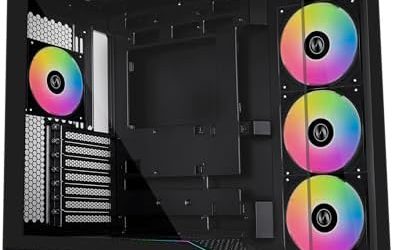
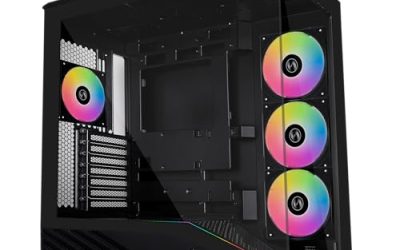
LED or RGB fans are a style choice and do not change cooling by themselves. When comparing budget gaming PCs with LED fans, look at the fan count, the front panel and the fan size, not the lighting.
- Some prebuilts ship with several lit fans but a glass-fronted case that chokes the intake. A buyer review of one prebuilt mentioned constantly running fans and a front panel with fewer fans than shown in the photos, so read the spec list carefully.
- Lighting needs a controller or motherboard header, and daisy-chained RGB fans can complicate cable routing.
- If you add fans later, choose ones with a 4-pin PWM connector so the motherboard can control speed.
If a listing is vague about how many fans are included and where, assume the minimum and plan to add one.
Fan Curves, GPU Heat and CPU Heat
Fan curves tell the motherboard how fast to spin each fan at a given temperature. They are set in the BIOS or in the maker’s software, and menu names vary by motherboard, so use your board manual. Keep changes conservative: a fan that never slows down is loud, and a fan that never speeds up lets heat build.
- Tie intake and exhaust fans to a temperature sensor you care about, usually the CPU package or motherboard sensor.
- Keep a low, steady idle speed so fans do not ramp up and down in short bursts.
- Raise the curve toward high temperatures so gaming loads get strong airflow.
- Run intakes slightly faster than exhausts to hold positive pressure.
Graphics cards exhaust a lot of heat into the case, and many designs push it sideways or upward. If the GPU runs hot, the usual fixes in order are: improve the front intake, add a top or rear exhaust, clear dust filters, then adjust the card’s own fan curve through the maker’s software. For CPU heat, confirm the cooler is seated correctly and that the rear and top exhaust can remove warm air quickly.
Safety notes: switch the PC off and unplug it before touching internals, never open a power supply, and treat BIOS fan or overclocking changes as potentially warranty-affecting. If temperatures stay high after cleaning and rebalancing airflow, contact the case, cooler or GPU maker, or a qualified technician.
Quick Decision Guide
| Pick this setup | If your build is | Pair it with |
|---|---|---|
| 2 intake + 1 exhaust | 1080p or 1440p, mid-range GPU | Mesh-front mid-tower, mainstream CPU |
| 3 intake + 1-2 exhaust | Demanding GPU, long sessions | Case with top exhaust, tuned fan curve |
| Radiator exhaust + 2 intake | AIO cooled CPU | Case with a supported top radiator mount |
| Add a fan | Hot graphics card or hot rear VRM area | Free top, rear or bottom mount |
Frequently Asked Questions
Is 3 fans enough for a gaming PC?
Yes, three fans is enough for most mid-range gaming builds when two are front intakes and one is a rear exhaust. Add a fourth or fifth fan if the graphics card or CPU runs hot, or if the front panel is restrictive.
How many fans should a gaming PC have for a high-end graphics card?
Four to six is the range most guides give for high-end builds. A common layout is three intakes at the front and bottom with two or three exhausts at the rear and top. Keep intake airflow slightly higher than exhaust.
Is it better to have more intake or more exhaust fans?
Slightly more intake is the usual advice, because positive pressure pushes air through filtered intakes and limits dust. Avoid extreme ratios, since too many intakes with one exhaust can trap heat.
Do RGB or LED fans cool better?
No, lighting does not improve cooling. Judge fans by airflow, static pressure, size and noise, and treat RGB as a visual extra.
Is a 140mm fan better than a 120mm fan?
A 140mm fan usually moves more air at lower rotation speed, which tends to be quieter. A 120mm fan offers higher static pressure, which suits radiators and restrictive filters.
Does the case matter more than the number of fans?
Often it does. A mesh-front case with three fans can outperform a solid-front case with more fans, because the intake fans can actually pull in cool air.