A gaming PC buying guide boils down to five decisions: pick your target resolution and refresh rate, buy the graphics card that fits it, match a CPU that will not hold that card back, get 32GB of DDR5 and a 1TB NVMe drive, then size the power supply and case around them. If you want to know how to buy a gaming PC without overpaying, work in that order and spend the largest share of the budget on the GPU.
- Quick Answer: What to Buy at Each Budget Tier
- Step 1: Decide Your Resolution and Refresh Rate First
- Step 2: Pick the Graphics Card (Where Most of the Budget Goes)
- Step 3: Choose a CPU That Will Not Bottleneck the GPU
- Step 4: Memory and Storage Specs That Matter
- Step 5: Power Supply, Case and Cooling
- Prebuilt vs Building Your Own
- Prebuilt Red Flags to Check Before Buying
- Gaming PC Examples Worth Comparing
- Budget the Whole Setup, Not Just the Tower
- Plan for Upgrades Before You Buy
- How to Read a Prebuilt Listing in Two Minutes
- Gaming Laptop or Desktop?
- Common Mistakes When Buying a Gaming PC
- Frequently Asked Questions
- Which One Should You Buy?
- How We Chose
- Sources
Quick Answer: What to Buy at Each Budget Tier
Most buyers fit one of four tiers. Use the table as a starting point, then read the sections below to see why each spec sits where it does.
| Tier | Target | GPU class | CPU class | RAM / Storage | PSU |
|---|---|---|---|---|---|
| Entry (about $900-$1,200) | 1080p, 60-100 fps | RTX 5060 / RX 9060 XT class | Ryzen 5 / Core i5 | 16GB DDR5 / 1TB | 650W Bronze or Gold |
| Mainstream (about $1,500-$1,900) | 1080p high refresh, entry 1440p | RTX 5060 Ti class | Ryzen 7 8700F / Core i5-14400F | 16-32GB DDR5 / 1TB | 650-750W Gold |
| Sweet spot (about $2,000-$2,600) | 1440p high refresh | RTX 5070 / RX 9070 class (12-16GB VRAM) | Ryzen 7 / Core Ultra 7 | 32GB DDR5 / 1-2TB | 750-850W Gold |
| High end ($3,000 and up) | 1440p ultra, 4K | RTX 5080 / 5070 Ti class | Ryzen 7 X3D | 32GB DDR5 / 2TB | 850W+ Gold |
These are budget bands, not quotes. Memory and graphics card pricing has swung hard in 2026, so check current listings before you commit.
Step 1: Decide Your Resolution and Refresh Rate First
Resolution and refresh rate decide everything else. A 1080p 144Hz monitor needs far less GPU than a 4K 120Hz one, and buying a card first, then a monitor, is how people end up overspending or underusing hardware.
Pixel counts show why. 1440p pushes about 1.8 times the pixels of 1080p, and 4K pushes about 4 times.
| Resolution | Pixels per frame | Relative load | Sensible VRAM |
|---|---|---|---|
| 1920×1080 | 2.07 million | 1.0x | 8GB minimum, 12GB safer |
| 2560×1440 | 3.69 million | about 1.8x | 12GB |
| 3840×2160 | 8.29 million | about 4.0x | 16GB |
Worked example: if a card gives you roughly 140 fps in a game at 1080p and the game is fully GPU-bound, expect something near 140 / 1.8 = 78 fps at 1440p and about 35 fps at 4K before upscaling. Real results vary by game, but this simple division tells you quickly whether a card suits your monitor. Upscalers such as DLSS and FSR claw a lot of that back, which is why a 1440p card can still play 4K with upscaling turned on.
Step 2: Pick the Graphics Card (Where Most of the Budget Goes)
The GPU is the most important part of a gaming PC. As a rough rule, put 35 to 45 percent of the total budget into it. Everything else exists to let that card run at full speed.
How much VRAM do you need?
Aim for 12GB as a practical floor in 2026 and 16GB if you plan to keep the PC for four or five years or play at 4K. Modern games with high-resolution textures and ray tracing can overflow 8GB cards at 1440p, which shows up as stutter rather than a lower average frame rate. An 8GB card still works for esports and 1080p, but it is the first spec to age badly.
NVIDIA or AMD?
NVIDIA offers stronger ray tracing and DLSS support, plus better creator-app support. AMD tends to give more VRAM per dollar and has stayed closer to list pricing in recent months. Both are fine choices. Decide based on the games you play and whether you use ray tracing, not brand loyalty.
GPU decision matrix
| If you play… | On a… | Buy |
|---|---|---|
| Esports titles (Valorant, CS2, Fortnite) | 1080p 240Hz | Entry-class card; CPU speed matters as much |
| Mixed AAA and esports | 1080p 144Hz or 1440p 100Hz | RTX 5060 Ti class, 16GB version if possible |
| Modern AAA with high settings | 1440p 144Hz | RTX 5070 / RX 9070 class |
| Ray tracing, path tracing | 1440p ultra or 4K | RTX 5070 Ti / 5080 class |
| Streaming and editing too | Any | NVIDIA for encoder and software support; 12GB+ VRAM |
Step 3: Choose a CPU That Will Not Bottleneck the GPU
For gaming, you want a modern 6 to 8 core processor with strong single-core speed. You do not need 16 cores unless you also render video or run heavy multitasking.
- Entry to mainstream: Ryzen 5 or Ryzen 7 8700F-class, or Core i5-14400F-class. These pair well with GPUs up to the RTX 5070 tier.
- Sweet spot: Ryzen 7 9700X, Core Ultra 7 265F or Core i7-14700F. Plenty of headroom for a 1440p card.
- High end: Ryzen 7 X3D chips, such as the 9800X3D, lead in gaming thanks to their large 3D V-Cache, especially at 1080p and 1440p with a fast GPU.
How do you spot a bottleneck?
If your GPU usage sits well below 90 percent while a single CPU core is pinned in a demanding game, the CPU is limiting you. The fix is a faster CPU, or raising resolution and graphics settings so the GPU takes more of the load. At 4K the CPU matters least; at 1080p with a high-end card it matters most.
Step 4: Memory and Storage Specs That Matter
How much RAM do you need for gaming?
Get 32GB if the budget allows, and treat 16GB as the minimum. Sixteen gigabytes still runs most games, but 32GB removes stutter when you keep a browser, Discord and a launcher open, and it gives some newer titles room. More than 32GB is rarely useful for gaming alone.
Buy DDR5 on any new platform. On AMD systems, a matched 2x16GB DDR5-6000 CL30 kit is the usual sweet spot. Always use two sticks for dual-channel bandwidth, because a single stick can cost real frame rate.
2026 memory note: RAM and SSD prices have risen sharply because of AI-driven demand. That is one reason a prebuilt with 32GB included can be better value right now than buying the kit separately.
How much storage?
Start with a 1TB NVMe SSD, and move to 2TB if you install many large titles. Many current AAA games run 100GB or more each, so 1TB fills after roughly eight to ten big installs once Windows and apps are counted. A PCIe 4.0 drive is plenty; PCIe 5.0 drives cost more and run hotter with little gaming benefit.
| Component | Minimum | Recommended | Overkill for gaming |
|---|---|---|---|
| RAM | 16GB DDR5 | 32GB DDR5-6000 | 64GB+ |
| Storage | 500GB NVMe | 1-2TB NVMe (PCIe 4.0) | PCIe 5.0 flagship drives |
| Wi-Fi / Ethernet | Wi-Fi 6 | 2.5Gb Ethernet, Wi-Fi 7 | 10Gb Ethernet |
Step 5: Power Supply, Case and Cooling
What size power supply do you need?
Add the GPU’s rated board power to the CPU’s, add about 150W for everything else, then multiply by roughly 1.3 for headroom. Worked example: a 250W GPU plus a 65W CPU is 315W; adding 150W gives 465W; times 1.3 gives about 600W. That is why a 650W unit suits that build and a 750 to 850W unit suits a 300W-plus GPU.
Choose 80 Plus Gold from a known maker. A cheap unit with no efficiency rating is the single part most worth upgrading in a bargain PC, because a failure can take other parts with it.
Case airflow and cooling
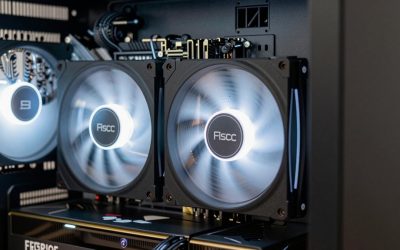
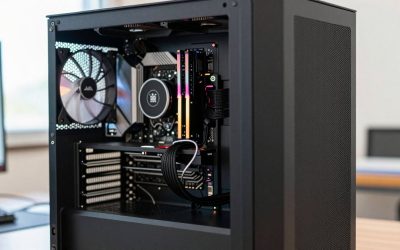
Look for a mesh front panel and at least three intake or exhaust fans. Tempered glass looks good but traps heat if the front is solid. Stock air coolers are fine for mid-range CPUs; a 240 or 360mm liquid cooler is worth considering only for the hottest chips.
Prebuilt vs Building Your Own
With RAM and GPU prices volatile, buying a prebuilt is a reasonable choice, not a compromise. You get a whole-system warranty, a machine assembled and checked before shipping, and bundled memory at a price that is often below the cost of buying a matching kit yourself. Building still wins for flexibility, quieter and better cases, and picking exactly which power supply and motherboard go in.
| Factor | Prebuilt | DIY build |
|---|---|---|
| Price right now | Often competitive thanks to bulk parts | Depends heavily on RAM and GPU street prices |
| Warranty | One company covers everything | Each part has its own warranty |
| Time | Plug in and play | 3 to 6 hours for a first build |
| Upgradability | Varies; check for proprietary parts | Full control |
| Component quality | Varies; PSU and motherboard are common weak points | You choose |
Prebuilt Red Flags to Check Before Buying
- Unnamed power supply: a listing that says only “650W PSU” with no brand or 80 Plus rating.
- Single-channel RAM: one stick of memory instead of two.
- 8GB graphics card at a high price: check the VRAM line, not just the model name.
- Proprietary motherboard or PSU: limits future upgrades.
- Old CPU with a new GPU name: the card may be held back.
- Vague warranty: look for at least one year of parts coverage and clear support terms.
Gaming PC Examples Worth Comparing
The prebuilt systems below show what each tier looks like in real listings. Specs come from the product listings; items marked “not listed” were not stated. We compared them on paper and did not use them ourselves.
Skytech Gaming PC Desktop, Ryzen 7 9800X3D, RTX 5070
As an Amazon Associate we earn from qualifying purchases at no extra cost to you.

- CPU: Ryzen 7 9800X3D; GPU: RTX 5070; RAM: 32GB; storage: 2TB Gen4 NVMe SSD
- DDR5-6000 memory, 850W Gold ATX power supply, Windows 11
Best for: 1440p high-refresh players who want the strongest gaming CPU paired with a sweet-spot GPU. Skip if: you only play at 1080p and do not need an X3D chip.
Pros: top-tier gaming CPU; 2TB of storage; Gold-rated 850W PSU leaves upgrade room. Cons: 12GB-class GPU limits long-term 4K plans; case and cooler details not listed.
Alienware Aurora Gaming Desktop, RTX 5070, Core Ultra 7 265F

- CPU: Intel Core Ultra 7 265F; GPU: RTX 5070; RAM: 32GB DDR5; storage: 1TB SSD
- Wi-Fi 7, Bluetooth, Killer 2.5G Ethernet
Best for: buyers who want a branded system with strong support and modern networking. Skip if: you plan heavy hardware swaps, since branded cases can limit part choice.
Pros: balanced CPU and GPU; Wi-Fi 7 and 2.5G Ethernet; 32GB RAM. Cons: only 1TB of storage; power supply wattage not listed.
CyberPowerPC Gaming PC, Ryzen 7 8700F, RTX 5060 Ti 8GB

- CPU: Ryzen 7 8700F; GPU: GeForce RTX 5060 Ti 8GB; RAM: 16GB DDR5; storage: 1TB PCIe 4.0 SSD
- Wi-Fi ready
Best for: mainstream 1080p high-refresh play on a tighter budget. Skip if: you want 1440p with high textures, because 8GB of VRAM is the limit here.
Pros: fast 8-core CPU; DDR5 and PCIe 4.0 storage; sensible entry-to-mid price tier. Cons: 8GB VRAM ages quickly; 16GB RAM leaves little headroom.
iBUYPOWER Element Gaming PC, Ryzen 9 7900X, RTX 5070 12GB

- CPU: Ryzen 9 7900X; GPU: RTX 5070 12GB; RAM: 32GB DDR5; storage: 1TB
Best for: gamers who also edit video or stream and can use a 12-core CPU. Skip if: you only game, since a cheaper CPU would free budget for a better GPU.
Pros: 12 cores for creator work; 32GB DDR5; 12GB of VRAM. Cons: CPU spend outweighs GPU spend for pure gaming; power supply details not listed.
msi Codex R2 Gaming Desktop, RTX 5070 12GB, Core i5-14400F

- CPU: Intel Core i5-14400F; GPU: RTX 5070 12GB; RAM: 32GB DDR5; storage: 1TB NVMe SSD
Best for: a lower-cost way into 1440p with a 12GB card. Skip if: you want the most CPU headroom for future GPU upgrades.
Pros: pairs a strong GPU with a modest CPU to save money; 32GB DDR5. Cons: 6-core CPU is the first part you may outgrow; cooling and PSU details not listed.
Budget the Whole Setup, Not Just the Tower
A tower alone does not let you play. Before you set a PC budget, list what you already own and what you still need. A common split is 75 to 85 percent of the money on the PC and the rest on the display and accessories.
| Item | What to look for | Rule of thumb |
|---|---|---|
| Monitor | Refresh rate that matches your GPU’s output | 1080p 144-240Hz, 1440p 144-165Hz, 4K 120-144Hz |
| Keyboard and mouse | Wired or low-latency wireless | Do not pay flagship prices until the core PC is settled |
| Headset | Comfort and a clear microphone | Mid-range is enough for most players |
| Operating system | Windows 11 Home | Prebuilts usually include it; DIY builds must add it |
| Surge protector or UPS | Protects an expensive purchase | Small cost compared with the PC |
If the monitor is the weak link, upgrade it first. A 1440p high-refresh screen on a mid-range PC feels like a bigger improvement than a slightly faster GPU behind a 60Hz panel.
Plan for Upgrades Before You Buy
The parts you can swap later are what make a gaming PC last. Check four things before checkout:
- Platform lifespan: AMD’s AM5 socket is designed to accept several CPU generations, so a Ryzen system today can often take a newer chip later. Intel boards tend to change sockets sooner, so an older platform leaves less room.
- Free RAM slots: a board with four slots and two filled lets you add memory without replacing it. Two-slot boards force a full replacement.
- Spare M.2 slots: storage is the cheapest upgrade, so look for at least two NVMe slots.
- PSU headroom: an 850W Gold unit can usually carry a stronger GPU later, while a 500W unit cannot.
The most common upgrade order is storage first, then RAM, then GPU a few years in, and CPU and motherboard last.
How to Read a Prebuilt Listing in Two Minutes
Product titles can hide weak spots, so read them in a fixed order. This quick routine catches most problems:
- GPU model and VRAM: make sure the capacity is stated. Two cards can share a name but differ in memory.
- CPU model: a letter suffix matters. F means no integrated graphics, which is fine with a discrete card, and X3D means extra gaming cache.
- RAM: look for 32GB, DDR5, and a speed such as 6000 on AMD builds. DDR4 is acceptable only at a clearly lower price.
- Storage: NVMe, 1TB or more, and PCIe 4.0 where stated.
- PSU: a named brand, wattage and 80 Plus rating. If any of these are missing, ask or look elsewhere.
- Cooling and case: air or liquid, radiator size, fan count. If the listing does not say, assume it is basic.
- Warranty and support: length, who handles it, and whether parts can be upgraded without voiding it.
A listing that is clear on all seven is usually from a seller who expects scrutiny. A listing heavy on RGB and light on component names deserves more caution.
Gaming Laptop or Desktop?
Desktop wins on performance per dollar, cooling, and upgrades. A desktop RTX 5070 is considerably faster than the laptop version with the same name because it has a higher power limit. Choose a laptop only when you need portability. If you do, match the same VRAM and RAM rules from this guide, and pay attention to the screen and cooling design, which you cannot upgrade later.
Common Mistakes When Buying a Gaming PC
- Overspending on the CPU and shorting the GPU. For games, a mid-range CPU with a better GPU almost always wins.
- Buying 8GB of VRAM for 1440p. Textures overflow and cause stutter.
- Ignoring the monitor. A 60Hz screen wastes a PC that can reach 144 fps.
- Forgetting peripherals. Budget for a keyboard, mouse, headset and monitor if you do not own them.
- Choosing the cheapest PSU. Paying a little more for a quality unit protects the whole system.
- Skipping the dual-channel RAM check. Two sticks, not one.
Frequently Asked Questions
How much should I spend on a gaming PC in 2026?
Plan on roughly $1,200 to $2,200 for a PC that handles current games well, with about $900 for basic 1080p and $2,500 or more for 4K. Memory and GPU prices have been unstable, so compare current listings.
Is it better to buy a prebuilt or build a gaming PC now?
A prebuilt is often the better value while RAM and GPU prices are high, thanks to bundled parts and one warranty. Build if you want a specific case, quieter parts, or full control.
Is 16GB of RAM enough for gaming?
Yes for most games, but 32GB is the safer choice in 2026 for multitasking and newer titles. Choose DDR5 in two matched sticks.
How much VRAM do I need?
Aim for 12GB at 1440p and 16GB for 4K or long-term use. 8GB works for 1080p and esports but ages fastest.
Do I need an expensive CPU for gaming?
No. A modern 6 to 8 core chip is enough for most players; spend extra only if you stream, edit, or chase high frame rates at 1080p.
What power supply wattage do I need?
Add GPU and CPU power, add about 150W, multiply by 1.3. In practice that means 650W for mainstream builds and 750 to 850W for sweet-spot to high-end builds.
When is the best time to buy a gaming PC?
Buy when your current machine limits you and a card in your tier is in stock near its list price. Waiting for the perfect moment rarely pays off, because new generations also push older prices around.
Which One Should You Buy?
- Tight budget, 1080p: a 16GB-RAM, 1TB system with an entry-class GPU such as the CyberPowerPC listing above.
- 1440p, best balance: an RTX 5070-class system with 32GB DDR5, such as the msi or Alienware options.
- 1440p with the best gaming CPU: the Skytech Ryzen 7 9800X3D system.
- Gaming plus creator work: the iBUYPOWER Ryzen 9 build.
Whichever you pick, confirm the VRAM line, the PSU brand and the RAM configuration before you buy.
How We Chose
This guide is research-based. We compared manufacturer specifications, product listings and published guidance from major hardware outlets. We did not personally use the products listed. Verify specifications on the current listing before purchasing, since configurations change.
Sources
- Tom’s Hardware, best gaming PCs and PC builds guides
- PC Gamer, best gaming PC guide
- Engadget, how to buy a GPU
- HP, gaming PC cost buyer’s guide
- NVIDIA and AMD official product specification pages
Last updated: October 2026