

- Top Pick: Kingston NV3 1TB M.2 2280 NVMe SSD | PCIe 4.0 Gen 4×4 | Up to 6000 MB/s | SNV3S/1000G
- Best Value: Acer Predator GM7 1TB SSD: M.2 2280 PCIe Gen 4 x4 NVMe 2.0, Read Speed Up to 7400 MB/s, Internal PC Solid State Drive for Laptop, Desktop and PS5 – BL.9BWWR.118
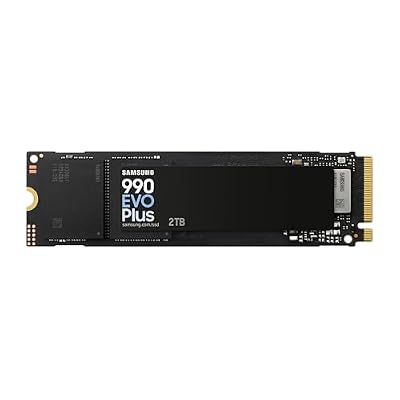
- Premium Choice: Kingston NV3 2TB M.2 2280 NVMe SSD | PCIe 4.0 Gen 4×4 | Up to 6000 MB/s | SNV3S/2000G
Microsoft Flight Simulator is one of the few games where storage choice actually shows up on screen. The world streams in from disk in real time as you fly, and if your drive can’t keep up, you’ll see it: blurry ground textures, buildings popping in late, airports that look like a lower-resolution version of themselves until the data catches up. This is the single clearest case I know of where upgrading storage is a legitimate performance fix, not just a loading-screen convenience.
As an Amazon Associate we earn from qualifying purchases at no extra cost to you.



Why storage matters more in FS2020 than most games
Most games load a level once and then run from RAM. FS2020 doesn’t get that luxury. The world is effectively infinite, built from streamed satellite imagery, elevation data, and Bing-sourced 3D buildings, pulled from local cache and the internet simultaneously. Even with everything cached locally, the game is constantly reading new tiles as you move, especially at higher groundspeeds in airliners or during fast descents into dense cities like a hand-crafted London or New York.
An HDD’s seek time, typically 8-12ms per random read, becomes a bottleneck when the sim needs thousands of small texture and terrain reads per minute. An SSD does the same job in under 0.1ms. That gap is why this is one of the rare titles where the storage upgrade is as noticeable as a GPU upgrade, sometimes more, if your GPU was never the limiting factor to begin with.
What actually happens on an HDD
I’ve run FS2020 off a 7200RPM HDD and the symptoms are consistent: a soft, low-res blur on the ground that sharpens up a second or two after you’d expect it to, autogen buildings that materialize noticeably late, and occasional full texture pop-in when banking hard or flying low over a city. None of this crashes the sim or drops your frame rate directly, but it breaks immersion constantly, and it gets worse the faster you’re moving relative to the ground. A GA aircraft doing 120 knots over rural terrain is mostly fine on an HDD. A jet doing 450 knots over Manhattan is where the drive falls apart.
Load times are the other obvious hit. Loading into a complex airport like KJFK or EGLL can take noticeably longer from a platter drive, and the initial “world is loading” blur phase after you spawn in lasts longer too.
What changes on an SSD
Moving the install to a SATA SSD removes almost all of the pop-in and blur described above, even in dense, fast-moving scenarios. Textures resolve to full detail almost immediately, and loading into an airport takes a fraction of the time. Going further to an NVMe drive helps initial load times and large sequential reads (like scenery downloads or updates), but for the real-time streaming experience during flight, the jump from HDD to SATA SSD is where almost all of the visible improvement happens. NVMe over SATA SSD is a smaller, harder-to-notice gain in this specific game, because the bottleneck during flight is mostly random read latency, not raw throughput, and both SSD types crush HDDs on that metric.
HDD vs SATA SSD vs NVMe SSD for FS2020
| Metric | HDD (7200RPM) | SATA SSD | NVMe SSD |
|---|---|---|---|
| Random read latency | 8-12ms | ~0.1ms | <0.05ms |
| Sequential read speed | 120-180 MB/s | 500-550 MB/s | 2,000-7,000 MB/s |
| Visible texture pop-in | Frequent, especially at speed | Rare | Rare |
| Airport load time (complex) | 45-90 seconds | 15-25 seconds | 10-20 seconds |
| Install size needed | 150GB+ base, 200GB+ with add-ons | Same | Same |
The install itself is large and only grows as you add scenery packs and liveries, so capacity matters as much as speed. A 500GB drive fills up fast once you add a few payware airports; 1TB is the realistic comfortable minimum if you plan to expand the sim at all.
What to actually buy
If you’re running FS2020 off a mechanical drive right now, moving just the sim install to a SATA SSD is the highest-value upgrade you can make for this specific game, and it’s inexpensive relative to the GPU and CPU money people pour into flight sim rigs. You don’t need anything exotic. A basic 1TB SATA SSD handles this job completely, and the price difference between that and an NVMe drive isn’t justified by the in-sim benefit alone.
If you’re building or upgrading a system from scratch anyway, go with an NVMe SSD instead, since NVMe drives are often similarly priced to SATA SSDs now and benefit load times and Windows itself, even if the in-flight streaming gain over SATA is modest. Keep the HDD, if you have one, for cold storage: Windows backups, downloaded installers, screenshots, that kind of thing. There’s no reason to throw out a working drive, just stop asking it to stream a flight sim in real time.
If your library of scenery and liveries is growing past what a single 1TB drive comfortably holds, a 2TB NVMe SSD avoids the annoying cycle of uninstalling add-ons to make room for new ones, which gets old fast once you’re running five or six payware airports.
Is the upgrade actually worth it for you
If you fly mostly GA aircraft at low speed over rural scenery, you’ll notice the HDD’s weaknesses less, and the upgrade is a nice-to-have rather than essential. If you fly jets into major hand-crafted cities, or you’ve invested in detailed scenery add-ons that you’d like to actually see clearly instead of as a blur that catches up a few seconds late, the SSD upgrade stops being optional and starts being the thing standing between you and the experience you paid for.














