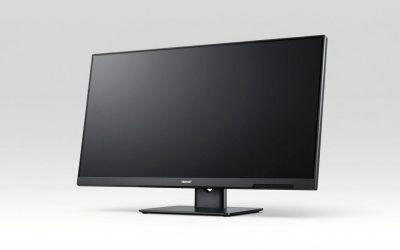
The Cooler Master GM27-FQS ARGB is a 27-inch 2560 x 1440 IPS gaming monitor with a 165Hz refresh rate, adaptive sync and rear ARGB lighting, and it is a solid value pick for players who want sharper-than-1080p visuals at high refresh rates without paying for OLED or Mini-LED; it is not a true HDR display, and getting the full 165Hz requires DisplayPort. This review focuses on what those specs mean in practice, how much GPU you need to drive it, and how it compares with Cooler Master’s pricier GP27-FQS.
As an Amazon Associate we earn from qualifying purchases at no extra cost to you.

As an Amazon Associate we earn from qualifying purchases at no extra cost to you.

Key specifications
| Spec | GM27-FQS ARGB |
|---|---|
| Screen size | 27 inches, flat |
| Resolution | 2560 x 1440 (QHD) |
| Panel type | IPS |
| Refresh rate | Up to 165Hz |
| Rated response time | 1 ms (manufacturer figure, best overdrive mode) |
| Variable refresh | Adaptive sync (FreeSync-type; G-Sync Compatible operation on NVIDIA cards) |
| Pixel density | ~109 PPI |
| Lighting | ARGB on the rear housing |
| Typical price range | Usually around $200–$300 |
At about 109 pixels per inch, 1440p on a 27-inch screen gives noticeably crisper text and finer game detail than 1080p at the same size (about 82 PPI), while staying usable at 100% Windows scaling. That is why 27-inch 1440p remains the most popular upgrade path from 24-inch 1080p.
Why DisplayPort matters for 165Hz: the bandwidth math
Each refresh of a 1440p screen carries 2560 x 1440 pixels plus blanking intervals. Using reduced-blanking timings, 1440p at 165Hz with 8-bit color needs roughly 15.5 Gbps of video bandwidth.
| Link | Usable data rate | 1440p 165Hz, 8-bit (~15.5 Gbps) | 1440p 144Hz, 8-bit (~13.5 Gbps) |
|---|---|---|---|
| HDMI 2.0 | ~14.4 Gbps | Does not fit; usually capped at 144Hz | Fits |
| DisplayPort 1.2 (HBR2) | ~17.3 Gbps | Fits | Fits |
| DisplayPort 1.4 (HBR3) | ~25.9 Gbps | Fits, with room for 10-bit | Fits |
In short: use the DisplayPort cable for your PC to unlock 165Hz. HDMI is fine for a console or a second device. Current consoles top out at 120Hz, which fits within HDMI 2.0 bandwidth at 1440p.
Image quality: what to expect from an IPS panel in this class
- Colors and viewing angles: IPS panels keep colors consistent when viewed off-axis, which helps on a 27-inch screen where the corners sit at an angle to your eyes.
- Contrast: Typical IPS contrast is around 1,000:1. Blacks look grayish in a dark room compared with VA (about 3,000:1) or OLED panels. Some IPS glow in corners on dark scenes is normal for the panel type.
- HDR: Without local dimming, HDR input on monitors in this class mostly changes tone mapping rather than delivering real HDR highlights. Most users get a better image leaving HDR off in Windows and games.
- Motion: At 165Hz, a new frame arrives every 6.1 ms. A fast IPS panel in a moderate overdrive setting keeps trails short; the most aggressive overdrive mode used for the 1 ms figure often adds inverse ghosting (bright halos), so the middle setting is usually the better daily choice.
Recommended settings
| Setting | Suggested value | Reason |
|---|---|---|
| Windows refresh rate | 165Hz (Display settings > Advanced display) | Windows often defaults to 60Hz on first connection |
| Adaptive sync | On in the monitor OSD and in the GPU control panel | Removes tearing within the variable refresh range |
| Frame cap | ~160 fps (3–5 below refresh) | Keeps the GPU inside the VRR window and avoids V-Sync latency |
| Overdrive | Medium / normal | Balance between blur and overshoot |
| Brightness | ~120–160 nits for indoor use | Reduces eye strain and makes IPS glow less visible |
| ARGB lighting | Off or low for competitive play | Rear lighting is ambient; it does not affect the image |
What GPU do you need for 1440p at 165Hz?
Driving 1440p is about 1.8 times as many pixels as 1080p, so GPU demand rises sharply. A rough guide:
| GPU class | Esports titles | Demanding AAA at high settings | VRAM comfort at 1440p |
|---|---|---|---|
| RTX 4060 / RX 7600 class | 150–165+ fps | 50–80 fps, upscaling helps | 8 GB is tight in newer games |
| RTX 4070 / RTX 5070 / RX 9070 class | 165 fps easily | 80–120 fps | 12–16 GB comfortable |
| RTX 4080-class and above | 165 fps easily | 120–165 fps | 16 GB or more |
You do not need to hit 165 fps constantly. With adaptive sync, anything from roughly 60 fps upward feels smooth, and the higher refresh rate pays off most in fast shooters and racing games.
GM27-FQS vs GP27-FQS
Shoppers often see both names. The GM line is Cooler Master’s mainstream gaming range built around conventional edge-lit panels, which keeps prices down. The GP line sits above it with Mini-LED backlighting and local dimming, aimed at stronger contrast and more convincing HDR. If you play mostly in a bright room, care about competitive refresh rates and want to spend less, the GM27-FQS ARGB covers the essentials. If dark-scene contrast and HDR games matter to you, the GP27-FQS’s Mini-LED approach is the reason to pay more; compare the exact dimming-zone count and peak brightness on the official spec page of the version sold in your region.
Who should buy it
| You want… | Fit |
|---|---|
| First move from 1080p 60Hz to high refresh 1440p | Strong fit |
| Competitive shooters at 240Hz or more | Look at a faster 1080p or 1440p 240Hz panel |
| Dark-room movies and HDR gaming | Consider VA, Mini-LED or OLED instead |
| Desk setup with RGB theme | The ARGB rear lighting is a nice extra |
| Mixed PC and console use | Works; PC on DisplayPort, console on HDMI |
Verdict
The Cooler Master GM27-FQS ARGB delivers the core of what most gamers want from a 27-inch monitor: 1440p sharpness, a 165Hz IPS panel and adaptive sync at a mainstream price. Its compromises are typical of the class, namely limited contrast and nominal HDR. Connect it over DisplayPort, use a moderate overdrive setting, cap your frame rate just under 165, and it is an easy, well-balanced upgrade.