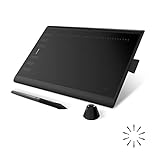
- Top Pick: UGEE M708 Drawing Tablet, 10×6 inch Large Space for Digital Drawing | 8 Hot Keys, Passive Stylus of 16384 Levels Pressure, Digital Graphics Art Tablet, For PC Paint, Design, Art Creation Sketch
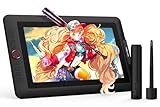
- Best Value: XPPen Artist 13.3 Pro V2 Drawing Tablet with Screen, 16K, Full-Laminated | Anti-Glare 123% sRGB Display, 8 Keys for Art, Animation, Mac, PC, Android, Includes Adjustable Stand, Designed for Beginners
- Premium Choice: HUION Inspiroy H1060P Graphics Drawing Tablet, 10 x 6.25 in, 12+16 Hot Keys | 8192 Pressure Levels, Battery-Free Stylus, Digital Art Tablet Works with Mac, Windows PC and Android
“Tablet” means two very different things to a designer. One is a self-contained device like an iPad, the other is a drawing tablet that plugs into a computer and turns a pen stroke into cursor movement. Every listing below is the second kind, plus one standalone Android drawing tablet, so the choice here is about pen sensitivity, active area, and whether you want to draw on a blank pad or directly on a screen.
This guide is for students, freelancers, and hobbyists in 2026 who retouch photos, draw vector logos, ink comics, or sketch concepts in Photoshop, Illustrator, Krita, and similar apps. It does not cover iPads or Android slates. The ten products range from a compact 6-by-4-inch pad to a Wacom professional model and several pen displays, and all judgments rest on the specs printed in each title.
Quick Picks
As an Amazon Associate we earn from qualifying purchases at no extra cost to you.



| Product | Best for | Key spec from the title |
|---|---|---|
| UGEE M708 | Large pad for beginners | 10×6 inch, 8 hot keys, 16384 pressure levels |
| XPPen Artist 13.3 Pro V2 | Drawing on a screen | Full-laminated, anti-glare, 123% sRGB, 16K |
| HUION Inspiroy H1060P | Shortcut-heavy workflow | 10 x 6.25 in, 12+16 hot keys, 8192 levels |
| XPPen Artist Pro 14 Gen2 | Step-up pen display | 14 inch, 16384 levels, X3 Pro stylus, mini keydial |
| HUION Kamvas 13 (Gen 3) | Color-conscious drawing | 13.3 inch, 99% sRGB, dual dials, 16K pressure |
| XOPPOX Graphics Drawing Tablet | Online teaching and design | 10-by-6-inch area, 8192 levels, 12 hot keys |
| Frunsi T8 Standalone | Drawing with no computer | 8 inch, octa-core CPU, preloaded apps |
| Wacom Intuos Pro Medium | Professional pen tablet | Bluetooth, ProPen 3, ExpressKeys and dials |
| UGEE M708 V2 | Slim large pad | 10×6 inch, ultra thin, 16384 levels |
| HUION Inspiroy H640P | Small desk or travel | 6×4 inch, 8192 levels, tilt, 6 hot keys |
How to Choose
Pad or pen display
A plain pen tablet has no screen: you watch the monitor while you draw on the pad. It takes a week or two to adapt, and it is the more compact, less demanding option. A pen display, such as the XPPen and Kamvas models, lets you draw directly on the image. That feels natural, but it needs more desk space and a monitor-style connection.
Active area size
The active area sets how far your hand travels. About 10 by 6 inches suits most desks and wrist movements, while 6 by 4 inches suits travel and tight setups but forces you to zoom and pan. For detail work, a bigger area gives smoother lines. Match the size to your monitor, because a small pad on a large screen exaggerates every hand tremor.
Pressure levels and stylus type
Listings cite 8192 or 16384 levels of pressure. Both are plenty in practice, since few hands can use the difference. Look instead at the stylus feel and how smoothly the driver handles light strokes. Battery-free styluses never need charging, which several of these titles stress. Tilt recognition, listed on the H640P and the XPPen Pro 14, helps with shading and brush angles.
Display quality and shortcuts
If you buy a pen display, look at the sRGB figure: 99 to 123 percent coverage, as named in these titles, is a respectable range for web and print-adjacent work. Full lamination reduces the gap between pen tip and image. Programmable hot keys and dials cut down on trips to the keyboard, though budget models cut corners on build and driver polish.
The 10 Best Options
UGEE M708
A large 10-by-6-inch pen tablet with 8 hot keys and a passive stylus offering 16384 pressure levels. The title points to paint, design, art creation, and sketching on a PC. It suits beginners who want a roomy workspace without the complexity of a display. The large area also gives logo and lettering work room for long, confident strokes.
- Strength: a large active area.
- Strength: 16384 pressure levels and a passive stylus.
- Trade-off: no screen, so you draw while looking at the monitor.
Skip it if you want to draw on the image itself.
XPPen Artist 13.3 Pro V2
This pen display lists a full-laminated, anti-glare screen with 123% sRGB, 16K pressure, 8 keys, and an adjustable stand. It works with Mac, PC, and Android and is aimed at beginners in art and animation. Drawing directly on the artwork is the main draw, and the Mac, PC, and Android support makes it flexible across machines. Full lamination narrows the gap between the pen tip and the line it makes.
- Strength: full lamination and anti-glare finish.
- Strength: a stand is included.
- Trade-off: it needs a desk with room for a screen and cables.
Skip it if you want a minimal, portable pad.
HUION Inspiroy H1060P
A 10 x 6.25 inch pen tablet with a “12+16” hot key count in the title, 8192 pressure levels, and a battery-free stylus. It works with Mac, Windows, and Android. It suits designers who lean on shortcuts for undo, zoom, brush size, and layer changes, and who would rather keep a hand on the pen than reach for the keyboard.
- Strength: many hot keys for shortcut workflows.
- Strength: battery-free stylus.
- Trade-off: 8192 levels, fewer than the 16K models.
Skip it if you rarely use shortcuts or prefer a lighter, simpler pad.
XPPen Artist Pro 14 Gen2
The step-up XPPen display: 14 inches, full laminated and anti-glare, 16384 pressure levels, an X3 Pro battery-free stylus, 123% sRGB, tilt, a stand, and a mini keydial. It suits illustrators who want a bigger canvas than 13.3 inches and tilt for shading. The mini keydial puts shortcuts within reach of the off hand, which suits long inking sessions.
- Strength: tilt support and a mini keydial.
- Strength: 123% sRGB listed.
- Trade-off: a premium tier compared with the plain pads.
Skip it if a tablet without a screen is enough.
HUION Kamvas 13 (Gen 3)
A 13.3-inch full-laminated pen display with 16K pressure, PenTech 4.0, anti-sparkle canvas glass, 99% sRGB, and dual dials. It suits digital painters and designers who want a textured surface feel and dial controls for zoom or brush size. The anti-sparkle glass is aimed at reducing the grainy look some screens show.
- Strength: anti-sparkle glass and dual dials.
- Strength: full lamination and 16K pressure.
- Trade-off: 99% sRGB is a touch lower than the XPPen listings.
Skip it if wide gamut coverage is your top need.
XOPPOX Graphics Drawing Tablet
A 10-by-6-inch pad with a battery-free stylus, 8192 pressure levels, and 12 hot keys. It is compatible with PC, Mac, and Android, and the title names painting, design, and online teaching. It suits teachers and learners who need a straightforward pad for annotating slides, marking up documents, or sketching ideas during a video call.
- Strength: a large area with 12 hot keys.
- Strength: a battery-free stylus.
- Trade-off: the brand is less established than Wacom or Huion.
Skip it if you want a name-brand driver ecosystem.
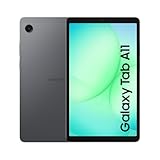
Frunsi T8 Standalone
An 8-inch standalone drawing tablet that lists an octa-core CPU, preinstalled drawing apps, tutorials, and bonus items, and says no computer is needed. It is a self-contained sketchpad for beginners and students. It is not a professional design tool, but it can serve as a practice sketchbook before you commit to a computer-connected setup.
- Strength: works without a computer.
- Strength: drawing apps and tutorials are preinstalled.
- Trade-off: you cannot run desktop Photoshop or Illustrator on it.
Skip it if you need professional software.
Wacom Intuos Pro Medium
The professional pick, listed as a Bluetooth pen tablet with ProPen 3, ExpressKeys, and dials, aimed at animation, photo, video, and 3D pros. It suits full-time designers who want a name-brand tool with strong software support. The dials and ExpressKeys put view controls under your fingers while your other hand stays on the pen.
- Strength: ProPen 3 and ExpressKeys with dials.
- Strength: Bluetooth for a cleaner desk.
- Trade-off: a premium tier against the budget pads.
Skip it if you only draw occasionally.
UGEE M708 V2
The upgraded version of the M708, listed as an ultra-thin, 10×6-inch pad with 8 hot keys and a 16384-level battery-free stylus, for PC and Android devices. It suits students who want a slim pad that slides into a bag between classes and a desk setup at home.
- Strength: ultra-thin and large.
- Strength: a battery-free 16384-level stylus.
- Trade-off: it overlaps closely with the original M708.
Skip it if you already own the first M708, since the two share the same size and layout.
HUION Inspiroy H640P
A compact 6×4 inch pad with 8192 pressure levels, a battery-free stylus, tilt, and 6 hot keys. It works with Mac, PC, and Android and is aimed at beginners, drawing, writing, and teaching. It suits cramped desks and travel, and also anyone who just wants to learn the pen-and-monitor coordination before moving to a bigger pad.
- Strength: tilt on a small footprint.
- Strength: Mac, PC, and Android support.
- Trade-off: the small area limits long strokes.
Skip it if you need a wide drawing area.
Which One Fits Your Situation
You are new and want to try digital art
The HUION Inspiroy H640P or the UGEE M708 keeps the learning curve low, with the M708 offering more space. Start with a plain pad, and upgrade to a display only after you know how you like to work.
You want to draw directly on the artwork
The XPPen Artist 13.3 Pro V2 is the entry display, and the Artist Pro 14 Gen2 adds tilt and a larger screen.
You work professionally every day
The Wacom Intuos Pro Medium is the professional model here, with ExpressKeys and dials.
You have no computer nearby
The Frunsi T8 Standalone works on its own for sketching. Treat it as a practice and idea-capture tool, then move the finished concepts into desktop software when you are back at a computer.
Common Mistakes
- Buying a pen display before trying a plain pad.
- Ignoring the active area and ending up with a pad too small for the monitor.
- Assuming 16K pressure is a major advantage over 8192.
- Forgetting to check operating system and driver compatibility.
- Expecting a standalone tablet to run desktop design software, or a budget pad to match a professional model’s driver polish.
Related guides
- Battery Operated Smoke And Carbon Monoxide Detectors
- Combination Smoke And Carbon Monoxide Detectors
- Aio Liquid Coolers For High Performance Gaming
Frequently Asked Questions
Is a drawing tablet better than an iPad for graphic design?
They serve different needs. A drawing tablet pairs with a computer and full desktop software, while an iPad is self-contained with app-based tools.
Does a design tablet need a built-in screen?
No. Many professionals use a screenless pad. A pen display is more natural at first, but a pad is compact and avoids the extra cables.
Does pressure sensitivity matter?
Up to a point. 8192 levels suit most work, and the 16K models are a bonus. Tilt support and driver quality matter more day to day.
Will these work with Photoshop and Illustrator?
Pen tablets work through a driver with the major design apps. Check each listing for your operating system, since support for Mac, PC, and Android varies.