

- Top Pick: Samsung 32" Odyssey (G55C) Series QHD 1000R Curved Gaming Monitor,
- Best Value: Sceptre New 22-Inch Gaming Monitor, FHD 1080p, Up to 144Hz, HDMI, DisplayPort, Built-in Speakers, Machine Black (E225W-FW144 Series, 2026)
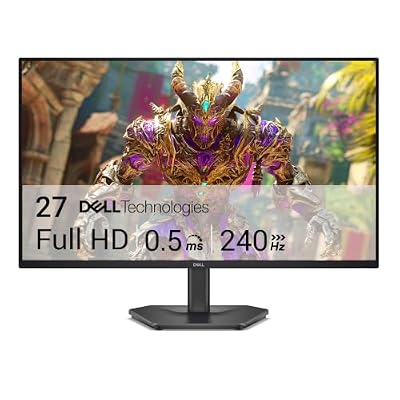
- Premium Choice: Dell 27 240Hz Gaming Monitor – SE2726HG – 27-inch FHD (1920×1080) Display, in-Plane Switching (IPS) Technology, AMD FreeSync Premium, TÜV 3-Star, 2X HDMI, DisplayPort 1.4, Tilt
The Series X tops out at 4K/120Hz on paper, but the real-world ceiling depends more on the game than the console. Most titles run at 4K/60 with ray tracing on, or 1440p/120 (upscaled to 4K) in performance modes. That split matters a lot when you’re picking a monitor, because the “best” panel for a 60fps story game is not the same panel you want for Halo Infinite or Call of Duty at 120fps.
This isn’t a PC monitor guide with a controller plugged in as an afterthought. The Series X has specific quirks (VRR implementation, limited HDR tone mapping options, no G-Sync support) that change what actually matters in a spec sheet.
As an Amazon Associate we earn from qualifying purchases at no extra cost to you.




Resolution and refresh rate: what the Series X actually outputs
The console supports 4K at up to 120Hz over HDMI 2.1, but very few games render native 4K at 120fps. In practice you’re choosing between two use cases:
- 4K/60 with better visual fidelity – most single-player and graphically heavy titles.
- 1440p or 4K-upscaled at 120fps – competitive shooters, racing games, a growing list of patched titles.
If you mostly play the first category, a 4K/60-100Hz monitor is plenty and you won’t notice the extra headroom. If you play a lot of the second category, 120Hz input lag reduction is real and worth paying for. Don’t buy a 4K/144Hz panel expecting the Series X to use all of that; it can’t output above 120Hz regardless of resolution.
Panel types: IPS, VA, and OLED trade-offs
Panel choice affects color, contrast, and motion clarity more than most console players expect:
| Panel | Strengths | Weaknesses | Good fit for |
|---|---|---|---|
| IPS | Accurate color, wide viewing angles, fast enough for 120Hz | Weak native contrast (~1000:1), noticeable black “glow” | General use, bright rooms, varied genres |
| VA | Strong contrast (3000:1-6000:1), deep blacks | Slower pixel response, can smear in dark fast-motion scenes | Dark, cinematic games; movies |
| OLED | Near-infinite contrast, instant pixel response, best motion clarity at 120Hz | Static HUD burn-in risk, pricier, lower peak brightness in SDR | Mixed genre play, HDR, anyone keeping it 3+ years with varied content |
For Series X specifically, OLED is the biggest upgrade you can feel, not just see. Response time differences that are academic on IPS/VA panels become obvious at 120Hz with fast camera pans. The catch is burn-in risk from static UI elements (minimaps, health bars) if you leave the console idle on a paused screen for hours at a time, which does happen with young kids pausing games. If that’s a real risk in your house, VA or IPS is the safer, cheaper choice, not a worse one.
HDR: don’t trust the sticker
Series X HDR output is only as good as the monitor’s actual brightness and local dimming, not its “HDR400/600/1000” badge. VESA’s lower-tier HDR certifications (HDR400) mostly mean the panel accepts an HDR signal, not that it displays HDR well. A panel without real local dimming zones will often look flatter in HDR than the same game in SDR with the console’s built-in calibration. If HDR picture quality matters to you, look for mini-LED or OLED, and expect to pay for it. If you’re on a tighter budget, a good SDR panel with accurate color will usually look better day-to-day than a cheap “HDR-compatible” monitor straining to hit its spec.
VRR, ALLM, and input lag
The Series X supports VRR over HDMI 2.1 (and HDMI 1.4-era VRR on some monitors), plus ALLM to auto-switch into low-latency game mode. Two practical failure modes to watch for:
- VRR flicker: some budget panels show visible brightness flicker in VRR mode during frame rate dips, especially in dark scenes. This is a known issue on certain LG OLED and some lower-end LCD panels and isn’t always fixable with a firmware update.
- Game mode defaults: if ALLM doesn’t trigger properly, you’re stuck with the monitor’s standard picture processing, which can add 20-40ms of lag on cheaper sets. Always confirm game mode is active after swapping inputs.
If you want to minimize setup headaches, stick to monitors explicitly marketed with HDMI 2.1 and console-tested VRR, rather than ones that mention it only in fine print.
Size and viewing distance
Monitor-distance gaming (2-3 feet) makes resolution matter more than it does on a living room TV. At that distance, 1440p on a 27″ screen and 4K on a 32″ screen both look sharp; going above 32″ at a desk starts to feel like a TV, and going below 27″ wastes 4K detail you won’t resolve from that close. If you’re torn between a 27″ 1440p/144Hz monitor and a 32″ 4K/120Hz model at similar price, the 1440p screen will usually feel snappier for competitive games, while the 4K screen will look better for slower, detail-heavy titles.
What to actually buy
For most Series X owners splitting time between story games and competitive multiplayer, a 27-32″ 4K 144Hz gaming monitor with HDMI 2.1 and VRR covers both cases without overspending on refresh rate the console can’t use. If HDR picture quality is a priority and budget allows, step up to an OLED gaming monitor with HDMI 2.1, keeping the burn-in caveat in mind. If you’re budget-constrained and mostly play 60fps single-player games, a 1440p 120Hz monitor is a legitimately good value pick and won’t bottleneck most of your library.
The expensive mistake isn’t picking the wrong panel type, it’s buying a 4K/144Hz panel for a console that can’t push past 120Hz, or chasing an HDR badge on a panel without the brightness and dimming to back it up. Match the monitor to how you actually play, not to the console’s maximum spec sheet.














