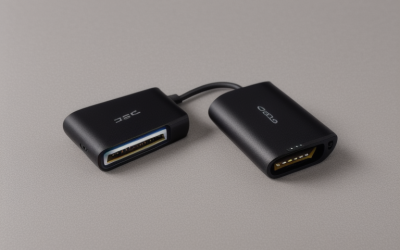
Most monitors leave the factory with a color tint, a gamma curve that wanders, or a white point that drifts as the panel ages. For gaming this barely matters. For photo editing, video grading, thumbnail work or print jobs, it matters a lot, because the image you polish on your screen can look different everywhere else. A monitor calibrator is a small sensor, called a colorimeter, that measures what your display really shows and builds a profile that corrects it.
Before you shop, settle three things. Do you need a basic sensor for one SDR monitor, or one that can handle bright HDR panels? Do you also need a way to match your camera’s color to your screen? And do you want software that adjusts the display through its own menu, or a profile that only works at the operating system level? The five products below cover that range, and the details come from each listing title, so confirm the rest on the spec sheet.
Quick Picks
| Product | Best for | Key spec from the title |
|---|---|---|
| Datacolor SpyderExpress | First-time calibration of a home monitor | Monitor and screen color calibrator |
| ASUS ProArt CaliContrO MCA02 | Pro displays with on-screen menu control | 3-in-1 colorimeter, calibration up to 10000 nits |
| Calibrite Video Photo Kit (Display Plus HL) | Hybrid shooters who edit video and stills | Display Plus HL, ColorChecker Passport Video 2, 10,000 nit |
| Datacolor Spyder X Pro | Photographers who want a step above entry level | Monitor calibrator for accurate photo color |
| Calibrite Creator Kit (Display 123) | Creators who also match camera color | Display 123 colorimeter, ColorChecker Passport Video 2 |
How to Choose
Check the sensor type and HDR range
Entry-level colorimeters are fine for ordinary SDR panels. If you own a bright HDR display, a mini-LED panel or a large OLED, look for a sensor whose listing states a brightness range. Titles that mention 10,000 nits are signaling support for very bright panels. If the listing never mentions brightness range, do not assume it covers HDR and check the full spec sheet. Also note whether the sensor handles bright highlights, since that is where simple sensors can struggle on HDR content.
Look at what software and controls it uses
Some kits create an ICC profile at the operating system level, which affects apps that respect color management. Others can talk to the monitor directly and adjust its on-screen display settings. The second approach tends to be better for games and video, since it changes the display itself. Look for wording such as display OSD control in the title or bullets.
Decide whether you need a camera reference
A ColorChecker target is a printed card of reference patches that helps match camera color. If your work includes video or photography, a kit with that target links what the camera records to what the monitor shows. If you only edit images from other sources, a standalone colorimeter is enough.
Match it to your monitors and operating system
Confirm that the software runs on your operating system and that your display type is supported. Count the screens you plan to calibrate, and see whether the license limits the number. Also check how the device sits on the screen, since some are meant to rest on flat panels and may not suit curved ones, and verify that on the listing. Finally, look at the cable length and any counterweight or cover, because a sensor that hangs awkwardly on a large ultrawide gives unreliable readings and is annoying to use.
The 5 Best Options
Datacolor SpyderExpress

SpyderExpress is the simplest entry in this group. The title calls it a monitor calibrator and screen color calibrator, which is exactly the job for someone who has never calibrated a display before. It suits a creator who edits at home and just wants the screen closer to neutral without learning a lot of settings. The title is short, so check the full spec sheet for supported displays, HDR support and the software included.
- Plain monitor calibration aimed at newcomers, without a lot of settings to learn
- Straightforward fit for a single home monitor
- Limit: the title lists no HDR or brightness range
Skip it if you own a bright HDR panel or need advanced profiling controls.
ASUS ProArt CaliContrO MCA02
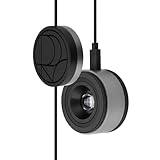
This is a 3-in-1 colorimeter that calibrates with both hardware and software, and the title says it handles brightness up to 10000 nits. It also mentions display OSD control, which points to adjusting the monitor through its own menu rather than only through a profile. That combination is aimed at pro displays, though the title is cut off, so read the compatibility notes to see which monitors are supported. It makes the most sense next to an ASUS ProArt display.
- Hardware and software calibration in one tool
- Supports panels up to 10000 nits per the title
- Limit: compatibility with non-ASUS displays needs checking
Skip it if your monitor is an ordinary office or gaming model.
Calibrite Video Photo Kit With Display Plus HL

Here the Display Plus HL colorimeter ships with a ColorChecker Passport Video 2, forming what the title calls a camera reference system. The 10,000 nit figure tells you it is designed for bright HDR panels, so it makes sense for a creator who grades video and edits stills on a high-end monitor. One box covers both the display and the camera side.
- Display Plus HL colorimeter for bright panels
- Includes ColorChecker Passport Video 2 for camera color
- Limit: more capable than a casual editor needs
Skip it if you only want to correct one standard monitor.
Datacolor Spyder X Pro

Spyder X Pro is positioned in the title as a calibration tool that ensures accurate color for photographic images. By name it is the step up from the SpyderExpress, and it suits photographers who want more control than a one-click tool provides. For a streamer or editor who wants a dependable standard, it is an easy fit. The title is cut off, so check the listing for the supported display types and what the software offers.
- Built for accurate color in photographic work
- Part of the Spyder calibrator line named in the title
- Limit: the title does not mention HDR brightness range
Skip it if you need a camera reference target in the same box.
Calibrite Creator Kit With Display 123

This kit bundles the Display 123 colorimeter with a ColorChecker Passport Video 2. The title describes it as a monitor calibration and capture color control system, so it targets creators who want one workflow from lens to screen. It is a sensible choice for a streamer or YouTuber who films with a mirrorless camera and edits on a desktop monitor, and who wants skin tones to look consistent.
- Display 123 colorimeter plus a camera color target
- Covers monitor and capture in one kit
- Limit: the title gives no brightness range, so check it on the listing
Skip it if you do not shoot video or stills and have no use for the target.
Which One Fits Your Situation
A gaming monitor you also edit on
Start with the Datacolor SpyderExpress or the Spyder X Pro. They tackle the basic job of making colors neutral, which helps thumbnails, overlays and screenshots look right. Pick the Spyder X Pro if photos are a major part of your work.
A creator who films and edits
The Calibrite Creator Kit and the Calibrite Video Photo Kit both include a ColorChecker Passport Video 2. Choose the Creator Kit for a straightforward workflow, and the Video Photo Kit if your monitor is a bright, high-end HDR model.
A pro display with menu-level control
The ASUS ProArt CaliContrO MCA02 is the one to read closely, since the title mentions hardware and software calibration and OSD control. Check that your monitor is on the supported list.
A multi-monitor desk
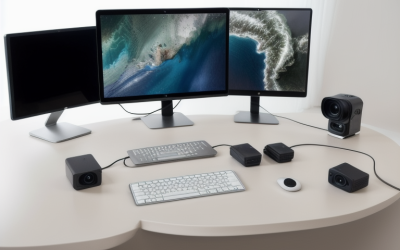
If you run two or three screens and want them to match, check the license terms and software on each listing first. Any of the five can profile more than one display in principle, but the software limits matter, so confirm them. Pair this with matching brightness settings on every panel. If this is your first calibrator, the SpyderExpress is the simplest place to begin.
Common Mistakes
- Calibrating a monitor before it has warmed up, which lets the reading shift afterward.
- Leaving auto brightness, eye-care modes or night light switched on during measurement.
- Ignoring room lighting, since bright light falling on the screen changes how it looks.
- Buying a basic sensor for a bright HDR display without checking its stated brightness range.
- Never repeating the process, even though panels drift over time.
Frequently Asked Questions
How often should I recalibrate a monitor?
Many creators recalibrate on a regular schedule because panels change as they age, and a profile made months ago may no longer match what the screen shows. Follow the guidance in the software you use, and recalibrate whenever you change the monitor’s settings.
Do gamers need a calibrator?
Not usually. Most gamers are fine with the display’s built-in modes, and some prefer the saturated factory look. A calibrator helps when you edit photos or video, or when you want consistent color across several screens.
Is a ColorChecker target necessary?
No. It matters when you shoot with a camera and want to match its color to your screen. Without a camera workflow, a colorimeter alone is enough.
Will a calibrator work on a TV or projector?
Some can, but it depends on the sensor and the software. Check the listing for supported display types before assuming it will work on either one.