The decision is not which plan advertises the highest download number; it is whether your connection stays steady when the household loads it. Ping that looks fine at noon can spike at night when a cloud backup, a stream, and a game update share the same link. So the real choice is where your instability comes from: the wireless hop, the router’s queues, NAT behaviour, or the PC’s own adapter settings — and which fix, free or bought, removes it.
This guide is for three kinds of players: desk gamers who can finally run a cable, households where several people stream and play at once, and owners of faster-than-gigabit plans whose router ports cap them. Every pick below was chosen from the names and specifications printed on its Amazon product page, and each one exists to support a specific setting rather than to replace good settings.
Quick Picks
As an Amazon Associate we earn from qualifying purchases.
| Product | Best for | Key spec from title |
|---|---|---|
| TP-Link Archer AXE75 | A gigabit household adding a clean 6 GHz lane | AXE5400 tri-band WiFi 6E with new 6 GHz band |
| TP-Link Archer BE550 | A faster-than-gigabit plan with WiFi 7 devices | BE9300 WiFi 7 with full 2.5G ports |
| ASUS ROG Rapture GT-AX6000 | A competitive player who wants game traffic prioritised | Dual 2.5G WAN/LAN ports |
| TP-Link TX201 Network Card | A desktop whose motherboard stops at gigabit | PCIe to 2.5 Gigabit Ethernet adapter |
| UGREEN Cat 8 Ethernet Cable 6FT | A desk within a few feet of the router | Braided 40Gbps 2000MHz Cat 8 cord |
How to Choose
Start with the wired path, fall back to the cleanest band
Ethernet removes the two wireless variables that settings cannot fix: retransmission after interference, and airtime shared with every other device in the home. If a cable can reach the desk, even along a skirting board, take it and judge every later change against that stable baseline. When wiring is impossible, put the PC on 5 GHz or 6 GHz rather than 2.4 GHz, keep the router in the open on the same floor, and choose the least congested channel a Wi-Fi analyser shows. Prefer an 80 MHz channel width in crowded housing; a wide channel that collides with neighbours helps nobody.
QoS and traffic control decide busy-hour ping
Bufferbloat is the usual villain. One large upload fills the buffer at the router or modem, and small game packets wait in line behind it, so ping collapses only while the house is busy. Enable QoS or SQM, enter upload and download limits around 85 to 95 percent of your measured speeds, and give the gaming PC the highest priority. Setting those limits slightly below the real speeds keeps the queue on your router, where QoS can manage it, instead of at the modem. Routers differ in how visible and usable these controls are, which is why they anchor the picks below.
NAT type and port behaviour affect matchmaking, not raw ping
An open NAT will not shave milliseconds off a match, but strict NAT blocks party chat, prevents hosting, and narrows matchmaking pools in many titles. Enable UPnP so games can request the ports they need, or forward specific ports manually for a fixed PC. The common trap is double NAT, where a modem-router and your own router both translate addresses. Put the upstream unit in bridge mode, or let one device handle routing, before chasing individual port rules. If a PC or console still reports moderate or strict NAT after that, the remaining translating device is where to look.
DNS, MTU and adapter settings are finishing touches
DNS is resolved before a match starts, so a slow resolver makes launchers and logins feel sluggish without touching in-match latency; set a reputable resolver on the router so every device inherits it. Leave MTU at 1500 for cable and fibre, or 1492 on PPPoE connections, unless a test proves fragmentation. On the PC itself, turn off adapter power saving so Windows cannot sleep the network card mid-session, keep drivers current, and pause cloud sync and launcher downloads while playing. These are small, reversible changes, so note the original values before touching any of them.
The 5 Best Options
TP-Link Archer AXE75

The Archer AXE75 suits a household replacing a WiFi 5 router on a gigabit plan. Its cleanest contribution is the 6 GHz band: a gaming PC with a WiFi 6E adapter gets a lane that neighbouring networks barely use, which steadies the wireless hop without running new cables. QoS lives in the Tether app, so prioritising the PC takes minutes rather than a hand-built rule set. Six antennas and OneMesh support leave room to extend coverage later. Buyers whose plan stops at gigabit lose nothing here; the ceiling only shows when the internet connection itself outgrows gigabit ports.
Specs
- WiFi 6E AXE5400 tri-band: 2402 Mbps on 6 GHz, 2402 Mbps on 5 GHz, 574 Mbps on 2.4 GHz
- New 6 GHz band with 160 MHz channels
- Quad-core CPU
- OneMesh support for mesh expansion
- VPN server and client support
- WPA3 security
Best for: A shared home on a gigabit plan that needs a quieter wireless lane for the gaming PC.
Watch out for: Check your plan speed first — the wired ports are gigabit-class, so a faster-than-gigabit connection needs a 2.5G router instead.
ASIN: B0B3SQK74L
TP-Link Archer BE550

Pick the Archer BE550 when the internet plan already runs faster than gigabit, or when several WiFi 7 devices arrived before the router did. Multi-Link Operation lets a compatible client use more than one band at once, smoothing the dips that show up as jitter, while 320 MHz channels on 6 GHz keep local transfers from crowding the link. Every wired port runs at 2.5G, WAN included, so a cabled PC, a console, and a network drive can each run at full multi-gigabit speed without a switch sitting in between.
Specs
- WiFi 7 BE9300 tri-band: 5760 Mbps on 6 GHz, 2880 Mbps on 5 GHz, 574 Mbps on 2.4 GHz
- Multi-Link Operation, Multi-RUs, 4K-QAM and 320 MHz channels
- One 2.5G WAN port and four 2.5G LAN ports
- Six internal antennas, coverage listed up to 2,000 sq ft
- EasyMesh support for expansion
- USB 3.0 port
Best for: A multi-gigabit household that games, streams and downloads at the same time.
Watch out for: Your PC needs a WiFi 7 or 6E adapter to use the 6 GHz band and Multi-Link Operation; an older WiFi 6 card falls back to 5 GHz.
ASIN: B0CJSNSVMR
ASUS ROG Rapture GT-AX6000

The ROG Rapture GT-AX6000 is the pick for a player who wants traffic control as the headline feature rather than a buried menu. Its triple-level game acceleration and dedicated gaming port exist to keep game packets ahead of downloads and streams, and the dual 2.5G ports cover both a fast plan and a fast wired PC. AiMesh support means a second ASUS unit can rescue a dead room later. The trade is wireless generation: this is WiFi 6 with no 6 GHz band, so it rewards wired players and 5 GHz setups most.
Specs
- WiFi 6 dual-band up to 6000 Mbps, with 160 MHz channels
- Dual 2.5G WAN/LAN ports, with traffic via 2.5G ports given top priority
- 2.0 GHz quad-core CPU and 1 GB RAM
- Triple-Level Game Acceleration and a dedicated gaming port
- WAN aggregation and VPN Fusion
- AiMesh compatible, with lifetime internet security and Instant Guard
Best for: A competitive player in a busy home who wants gaming traffic prioritised at every step.
Watch out for: There is no 6 GHz band, so WiFi 6E and WiFi 7 clients cannot use a dedicated clean lane.
ASIN: B09L8PCTPT
TP-Link TX201 Network Card

The TX201 solves one narrow problem well: the router offers a 2.5G LAN port, the plan can feed it, but the motherboard stops at gigabit. It drops into a spare PCIe slot, brings a low-profile bracket for small cases, and negotiates down to gigabit or 100 Mbps on older networks without complaint. Windows and Linux support is printed on the listing, which matters for dual-boot rigs. It will not improve a gigabit connection, and it is pointless behind a gigabit router port, so buy it only when both ends of the cable can run faster.
Specs
- PCIe to 2.5 Gigabit Ethernet network adapter (2.5G Base-T)
- Backward compatible with 2.5 Gbps, 1 Gbps and 100 Mbps connections
- Standard and low-profile brackets included
- Supports Windows 11/10/8.1/8/7, Windows Server 2022/2019/2016 and Linux
Best for: A desktop with a spare PCIe slot whose onboard Ethernet caps a multi-gigabit wired setup.
Watch out for: Confirm the slot is free and the router’s LAN port is actually 2.5G; on a gigabit port the card simply negotiates down.
ASIN: B0BG685PKM
UGREEN Cat 8 Ethernet Cable 6FT
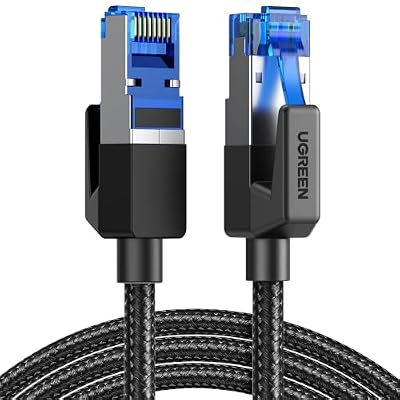
This six-foot UGREEN cable is the finishing piece for a desk that sits near the router. The braided jacket tolerates being pulled around monitor arms and power bricks, the shielded pairs stay quiet inside a tangle of display and charging cables, and the 40 Gbps rating means the cable itself will never be the bottleneck on a gigabit or 2.5G link. Six feet is also its limit: treat it as a same-desk patch lead rather than a room-crossing run, and measure the route before ordering.
Specs
- Cat 8 RJ45 Ethernet cable, 6 ft length
- Rated up to 40 Gbps data transfer and 2000 MHz bandwidth
- Braided, shielded indoor heavy-duty design
- Model 80431
- Listed as compatible with gaming PC, PS5, Xbox, modem and router
Best for: A wired desk setup where the router sits within a few feet of the PC.
Watch out for: Measure first — six feet will not cross a room, and longer runs of this cable are sold under separate listings.
ASIN: B0875VL1CJ
Which One Fits Your Situation
Your ping is fine alone and awful when the family is online
That pattern is bufferbloat, and the fix is traffic control rather than bandwidth. The GT-AX6000 puts game acceleration and a gaming port at the centre of its firmware, while the Archer AXE75 covers the same QoS job with a 6 GHz lane on top. Either way, set the QoS limits a little below your measured speeds, or the queue rebuilds at the modem and the spikes return.
Your plan just went past gigabit and the router became the cap
Work from the wall inward. The Archer BE550 accepts the fast plan on its 2.5G WAN port and hands it to wired devices on 2.5G LAN ports. If the PC’s motherboard still stops at gigabit, the TX201 card closes that last gap. Skip either piece and the slowest remaining port quietly sets the ceiling for the whole desk.
The router sits beside your desk and you still play on Wi-Fi
This is the cheapest stability upgrade in the guide. Plug in the UGREEN Cat 8 cable, confirm the link negotiates at the expected speed, and most wireless variables disappear at once: no retransmissions, no channel fights, no signal dropping through the wall behind you. Keep Wi-Fi for the laptop and phone, and let the fixed gaming PC stop sharing airtime with them.
You play competitive shooters and want every layer aligned
Start with the GT-AX6000 wired into the PC, QoS enabled, and NAT open, then align the game side as well. Our walkthrough of balanced Fortnite settings for PC covers the in-game half of that pairing. Network and graphics settings fail in similar ways when changed blindly, so adjust one variable, play, and compare before moving on.
Common Mistakes
- Paying for a faster plan to cure ping spikes that are really bufferbloat on the existing connection
- Setting QoS limits to the full measured speed, which lets the queue form at the modem again
- Gaming on the 2.4 GHz band because the signal bars look stronger, despite its congestion and retransmissions
- Running a modem-router and a second router in series, then blaming the game for strict NAT
- Copying DNS and MTU values from a forum and expecting them to lower in-match latency
Frequently Asked Questions
Does a faster internet plan lower ping?
Not by itself. Ping is mostly the distance to the server plus how busy each hop is along the way. A faster plan helps only when saturation was the problem, for example when uploads were filling the link every evening. It cannot move a server closer, and it cannot fix a congested wireless hop inside your own home.
Is Wi-Fi good enough for competitive gaming?
It can be, on a clean 5 GHz or 6 GHz network in the same room as the router, with QoS enabled and few competing devices. The weakness is consistency rather than peak speed: interference and retransmissions vary minute to minute. For a fixed desk, Ethernet remains the steadier choice and removes that variable entirely.
Should I change my DNS for gaming?
Change it for faster lookups in launchers, logins and store pages, and set it on the router so every device benefits from one change. Do not expect an in-match improvement, because the server address is resolved before play begins. Note the original resolver before switching, so reverting takes seconds if anything misbehaves.
What is the first setting I should change?
Enable QoS, enter speeds slightly below your measured result, and give the gaming PC the highest priority. That single change attacks bufferbloat, the most common cause of ping that collapses under household load. If the PC can also be wired, do that first and then judge QoS against the calmer baseline the cable provides.