As an Amazon Associate we earn from qualifying purchases.
The RTX 3090 was built for high-resolution gaming. It can drive demanding games at 4K, push high frame rates at 1440p, and handle ray-traced titles when the display, cable, and settings are matched to the card. A 1080p 60Hz screen wastes most of that ability, while a 4K high-refresh or 1440p very-high-refresh panel lets the card work in its intended range.
This guide compares four monitors currently listed on Amazon US. Three are 4K panels at 144Hz, the natural sweet spot for single-player, cinematic, and mixed gaming on this card. The fourth is a curved 1440p panel at 240Hz, for players who prioritise frame rate over pixel count. Each pick is compared on size, panel, resolution, refresh rate, ports, and variable refresh rate (VRR) support.
If you are also weighing a newer graphics card build, our guide to the best gaming monitor for RTX 5060 covers how the same size, resolution, and refresh-rate trade-offs apply at a different performance level.
Quick Comparison Table
| Monitor | Size | Panel | Resolution | Refresh rate | Ports listed | VRR listed |
|---|---|---|---|---|---|---|
| LG UltraGear 27GP950-B | 27-inch | Nano IPS | 3840 x 2160 | 144Hz, 160Hz overclock | HDMI 2.1, DisplayPort 1.4, USB | G-SYNC Compatible, FreeSync Premium Pro |
| ASUS ROG Swift PG32UQ | 32-inch | IPS | 3840 x 2160 | 144Hz | HDMI 2.1, DisplayPort, USB | G-SYNC Compatible |
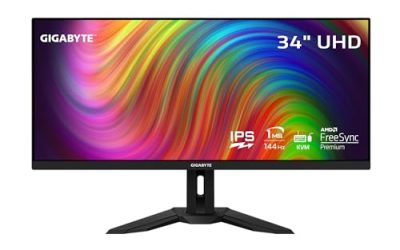
| GIGABYTE M32U | 32-inch | SS IPS | 3840 x 2160 | 144Hz | DisplayPort 1.4, HDMI 2.1, USB Type-C | FreeSync Premium Pro |
| Samsung Odyssey G7 (LC32G75TQSNXZA) | 32-inch | VA, curved | 2560 x 1440 | 240Hz | HDMI, DisplayPort, USB | G-Sync, FreeSync Premium Pro |
How to Choose a Monitor for an RTX 3090
Resolution: 4K first, 1440p for speed
At 4K, the RTX 3090 delivers detailed images in story-driven and open-world games, especially with balanced rather than maximum settings. At 1440p, it can sustain much higher frame rates, which is why competitive players accept fewer pixels for 240Hz. Choose 4K for a mix of single-player, racing, and strategy; choose high-refresh 1440p if fast multiplayer titles dominate your library.
Refresh rate and response time
A 144Hz panel is a major step up from 60Hz, because the card can often fill those frames at 4K with adjusted settings. All four listings state a 1ms response time figure, as GtG or MPRT depending on the model. Treat those as manufacturer-listed specifications for comparing models on paper, not as a guarantee of identical motion clarity, since overdrive tuning differs between brands.
Panel type
The LG, ASUS, and GIGABYTE picks use IPS or Nano IPS panels, with listings highlighting wide viewing angles and colour features such as DCI-P3 coverage and HDR certification. The Samsung pick uses a curved VA panel with a 1000R curve for immersion and very high refresh. A 32-inch 4K screen gives more workspace and a larger image, while a 27-inch 4K screen packs the same pixels into a tighter, sharper image.
Ports and VRR
For PC gaming, DisplayPort is the primary connection for full resolution and refresh rate, with Display Stream Compression where a listing states it is needed for the highest mode. HDMI 2.1 matters if you also connect a current console, because the 4K listings describe 4K at 120Hz over HDMI 2.1. G-SYNC Compatible and FreeSync Premium Pro support, as listed, help the display match changing frame output and reduce tearing.
The Picks in Detail
1. LG UltraGear 27GP950-B — Sharp 27-Inch 4K Pick

View the LG UltraGear 27GP950-B on Amazon
The Amazon listing describes the 27GP950-B as a 27-inch UHD Nano IPS monitor at 3840 x 2160, with a 144Hz refresh rate, an overclock to 160Hz, and a listed 1ms GtG response time. It lists G-SYNC Compatible and FreeSync Premium Pro support, DCI-P3 98% coverage, and VESA DisplayHDR 600 certification. LG’s specification summary lists two HDMI 2.1 ports and one DisplayPort 1.4 connection, with VRR up to 120Hz from HDMI 2.1.
For an RTX 3090 owner, this is the pick for a compact desk where image density matters. The 27-inch size keeps the 4K image very sharp, and it also suits a mixed PC and console desk. Choose it if you want 4K detail without moving to a 32-inch screen.
2. ASUS ROG Swift PG32UQ — Large 4K Pick With HDMI 2.1

View the ASUS ROG Swift PG32UQ on Amazon
The Amazon listing describes the PG32UQ as a 32-inch 4K UHD IPS monitor designed for 144Hz gaming, with a listed 1ms response time, G-SYNC Compatible certification, and DisplayHDR 600. Its description states that HDMI 2.1 supports native 4K 120Hz visuals on the latest consoles without subsampling. The listing also confirms 3840 x 2160 resolution, IPS technology, and USB and HDMI connectivity.
The larger canvas makes this a strong choice for immersive single-player games, flight and racing setups, and anyone who also works on the same screen. Choose it if you want a big 4K image and a monitor that can serve both a gaming PC and a console.
3. GIGABYTE M32U — 32-Inch 4K Pick With KVM and USB Type-C

View the GIGABYTE M32U on Amazon
The Amazon listing describes the M32U as a 32-inch, listed in detail as 31.5-inch, SS IPS monitor at 3840 x 2160 with a 144Hz refresh rate and a 1ms GtG response time. It lists FreeSync Premium Pro, VESA DisplayHDR 400, one DisplayPort 1.4 port, two HDMI 2.1 ports, USB Type-C, and USB 3.0 ports, plus a Type-C KVM feature and height adjustment.
That KVM combination separates the M32U in this group. For an RTX 3090 PC that shares a desk with a work laptop, it reduces cable swapping while still giving a 4K 144Hz panel. Adaptive sync here is listed under the FreeSync name, so check driver and connection settings carefully when setting up variable refresh with an NVIDIA card. Choose it if you want 4K, 144Hz, HDMI 2.1, and KVM switching in one screen.
4. Samsung Odyssey G7 — Curved 1440p Pick for 240Hz Play

View the Samsung Odyssey G7 on Amazon
The Amazon listing for this Odyssey G7, model LC32G75TQSNXZA, describes a 32-inch WQHD curved monitor at 2560 x 1440 with a 240Hz refresh rate, a listed 1ms response time, HDMI connectivity, and both G-Sync and FreeSync Premium Pro support. Samsung’s description notes the 1000R curved screen.
An RTX 3090 at 1440p can push very high frame rates in competitive games, and a 240Hz panel can display far more of those frames than a 144Hz screen. The trade-off is clear: you give up 4K sharpness for refresh rate and curve. Choose it if frame rate is your first priority and most of your gaming happens at 1440p.
Selection Criteria Used in This Guide
Products were selected using the following checks, in order:
- Currently listed on Amazon US: each model above has an Amazon US product page with the ASIN shown in its section.
- Fit for the RTX 3090: each panel offers either 4K at 144Hz or 1440p at 240Hz, the two resolution and refresh combinations that make sensible use of this card.
- VRR support stated in the listing: each listing names G-SYNC, G-SYNC Compatible, FreeSync, or FreeSync Premium Pro support.
- Ports stated in the listing: DisplayPort for PC gaming is listed across the group, and HDMI 2.1 is listed for the three 4K models.
- Verifiable specifications only: size, panel, resolution, refresh rate, and port claims in this guide come from the Amazon listings and manufacturer specification summaries found during research. No measured latency or brightness result is claimed here, because no independent measurement source for these exact listings was used.
FAQ
Is 4K or 1440p better for an RTX 3090?
It depends on genre. At 4K, you get the sharpest image and the best fit for cinematic, open-world, and strategy games. At 1440p with a 240Hz panel such as the Odyssey G7 in this guide, you get much higher displayable frame rates for competitive play. Many RTX 3090 owners choose 4K 144Hz as the balanced option.
Do I need HDMI 2.1 for an RTX 3090 gaming PC?
For PC gaming alone, DisplayPort is the key connection, and the 4K models here list DisplayPort alongside HDMI 2.1. HDMI 2.1 becomes important when you also connect a current console or another HDMI 2.1 source and want the 4K 120Hz mode described in those listings.
Does G-SYNC Compatible differ from FreeSync Premium Pro on these monitors?
Both are variable refresh rate systems named in the listings. Several models here list both, while the ASUS lists G-SYNC Compatible and the GIGABYTE lists FreeSync Premium Pro. In practice, enable variable refresh in your graphics driver and in the monitor menu after connecting with the cable recommended for your chosen resolution and refresh rate, then confirm the active mode in the monitor’s on-screen display.
What size should I choose, 27-inch or 32-inch?
A 27-inch 4K monitor gives a tighter, denser image at a close desk distance. A 32-inch 4K monitor gives a larger image and more workspace, which suits immersive games and mixed work use. At 1440p, 32 inches in the curved Odyssey G7 prioritises immersion and speed over pixel density.
Can an RTX 3090 run every game at 4K 144Hz?
No. Frame rates vary widely by game, settings, ray tracing, and scene. A 144Hz monitor gives the card headroom to display higher frame rates when a game allows it, and VRR helps when output falls below the maximum. Lowering a few demanding settings is normal for the most intensive titles at 4K.
Conclusion
For most RTX 3090 owners, the best gaming monitor is a 4K 144Hz panel with DisplayPort, HDMI 2.1, and VRR. Pick the LG UltraGear 27GP950-B for sharp 27-inch 4K play, the ASUS ROG Swift PG32UQ for a larger 4K screen with DisplayHDR 600 listed, or the GIGABYTE M32U if KVM and USB Type-C matter for a shared work and gaming desk. Pick the Samsung Odyssey G7 instead if your library is built around fast competitive titles and a curved 1440p 240Hz experience matters more than 4K detail. Match the panel to your games first, then confirm the exact ASIN, ports, and listed specifications on Amazon before you order.