For most people, the best GPU for gaming and content creation in 2026 is a 16GB NVIDIA card such as the RTX 5070 Ti or RTX 5080. Gaming rewards raw raster speed and upscaling; creative work rewards VRAM, encoder quality and CUDA support. Sixteen gigabytes plus NVENC is the smallest card that refuses to compromise on either side.
- Why the Best GPU for Gaming and Content Creation Is Rarely the Same Card
- VRAM Needs by Creative Workload
- NVENC vs AMD AMF vs Intel QSV: Encoder Quality Is Not a Tie
- CUDA and OptiX vs ROCm and HIP: What Your Software Actually Supports
- Drivers, Multi-Monitor and 10-Bit Output
- Power and Cooling for Long Renders
- Picks by Budget and by Primary Workload
- Frequently Asked Questions




Why the Best GPU for Gaming and Content Creation Is Rarely the Same Card
Games are a real-time workload with a hard deadline. Every frame must finish in roughly 16 milliseconds, so an engine leans on rasterisation throughput, clock speed and upscaling to hit it. None of that rewards memory capacity beyond what the current frame needs.
Creative applications are the opposite. A Blender render or a Stable Diffusion batch has no frame deadline — it either fits in VRAM and runs, or it crashes, spills to system RAM at a huge speed penalty, or falls back to the CPU. Capacity is binary in a way that frame rate never is. That is why a card that wins every gaming benchmark at $600 can be the wrong buy for an editor at the same price.
The three things that decide creator performance — VRAM, encoder block quality and ecosystem support — are exactly the three things GPU marketing spends the least time on. Work through them in that order before you look at a single gaming chart. If you are building the whole machine, our step-by-step PC build guide covers the parts that surround this decision.
VRAM Needs by Creative Workload
VRAM is the first filter because it is the one spec that turns a task from slow into impossible. An 8GB card can still game respectably at 1080p in 2026, but it will stall on a 4K multi-layer timeline and it cannot load a modern image model at full precision at all.
| Workload | Comfortable VRAM | What happens if you are short |
|---|---|---|
| 1080p video editing, simple cuts and colour | 8GB | Fine; system RAM matters more |
| 4K timeline, multicam, noise reduction in Resolve | 12–16GB | Dropped frames on playback, “GPU memory full” on render |
| After Effects with 3D layers and heavy effects | 12GB+ (with 32–64GB system RAM) | Falls back to CPU, RAM preview shortens dramatically |
| Blender Cycles, moderate scenes | 12–16GB | Scene spills to host memory; render time multiplies |
| Blender with 4K textures, large environments | 24GB+ | Out-of-memory failure mid-render |
| SDXL / image generation locally | 12–16GB | Forced to lower resolution or quantised models |
| Larger local models (video gen, bigger LLMs) | 24–32GB | Will not load without heavy quantisation |
| 8K or RAW-heavy finishing work | 24GB+ | Unusable playback, constant caching |
Read that as a ceiling, not a target. Buying 32GB for a 1080p YouTube channel is money set on fire; buying 8GB because a review said it beats the 16GB card in games is the mistake this article exists to prevent — the same trap we cover in our breakdown of how much VRAM you actually need.
NVENC vs AMD AMF vs Intel QSV: Encoder Quality Is Not a Tie
Every modern GPU has a dedicated hardware encoder, a fixed-function block that turns frames into H.264, HEVC or AV1 without touching the shader cores. It matters twice: when you stream, and when you export. The three implementations are not equivalent.
NVIDIA NVENC remains the reference. On the RTX 50 series it handles AV1 and HEVC with 4:2:2 support, which matters if you shoot on a mirrorless camera recording 10-bit 4:2:2 — hardware decode of that footage separates a scrubbing timeline from a stuttering one. Higher-tier cards carry more than one encoder block, so long exports split across them, and at a given bitrate NVENC simply looks cleaner than the alternatives.
Intel Quick Sync on Arc is the surprise. Intel’s media engine is genuinely excellent, particularly for AV1, and per dollar it is the strongest encoder you can buy. The catch is everything else: Arc’s compute ecosystem is thinner and its gaming drivers still have rough edges in older titles.
AMD AMF improved substantially with RDNA 4 and is no longer the liability it was five years ago. At high bitrates for local recording the gap is small enough to ignore. At the constrained bitrates platforms allow for live streaming, NVENC still holds a visible advantage in fine detail and motion.
If your main output is a live stream, treat encoder quality as a top-two criterion. If you export offline, it drops in importance — a good CPU encode beats all three for archival quality. Our guide to building a streaming setup covers single-PC versus dual-PC encoding.
CUDA and OptiX vs ROCm and HIP: What Your Software Actually Supports
Here the honest answer is uncomfortable for anyone hoping to recommend AMD. CUDA is not merely faster in some benchmarks; it is often the only path that exists. OptiX, NVIDIA’s ray-tracing backend for Blender Cycles, is meaningfully quicker than AMD’s HIP and HIP-RT equivalent in comparable scenes. Most local AI tooling — the PyTorch ecosystem, image generation front-ends, video models — is written and tested against CUDA first, with ROCm support arriving later, on fewer cards, and with more manual setup.
Video is less lopsided. DaVinci Resolve, Premiere Pro and most NLEs are well optimised across all three vendors, and an AMD card edits video perfectly happily. The divergence appears the moment you add 3D rendering, machine learning, or a plugin written by a small studio that only ever tested on GeForce. So check your specific applications and plugins before buying on price: for editing and streaming all three vendors are viable, but for Blender, local AI or niche plugins NVIDIA removes an entire category of problems. We compare the silicon side in our NVIDIA versus AMD comparison.
Drivers, Multi-Monitor and 10-Bit Output
NVIDIA ships two driver branches. Game Ready arrives fast, tuned for new releases. Studio ships less often and is validated against creative applications, trading day-one game optimisation for stability during a long project. You can switch freely but not run both: if a deadline matters more than launch-day frames, run Studio and update deliberately. AMD’s Pro Edition drivers follow the same philosophy.
Output plumbing is easy to overlook. Every current card drives multiple high-refresh displays without drama, but check the port mix against your monitors. Ten-bit output is supported across all consumer cards now — the old professional-card restriction is gone — though display and application both need configuring for it, and multi-monitor setups keep memory clocks elevated, adding idle power and fan noise.
Power and Cooling for Long Renders
Gaming load is bursty. A render is not. An overnight Blender job or a two-hour 4K export holds the GPU near its power limit continuously, and that changes what “adequate cooling” means. Three things follow. Size the power supply with real headroom rather than the bare minimum, because transient spikes on high-end cards are steep. Favour a generous triple-fan cooler; a compact card that peaks fine in a 20-minute benchmark throttles and gets loud after ninety. And case airflow beats cooler design — a card exhausting into a sealed case heat-soaks everything, including the drives holding your footage. Our guide to PC cooling covers layouts that survive sustained load.
Picks by Budget and by Primary Workload
| GPU | VRAM | Approx. board power | Encoder | Best for | Skip if |
|---|---|---|---|---|---|
| Intel Arc B580 | 12GB | ~190W | Quick Sync (excellent AV1) | Budget 1080p editing and streaming | You need Blender or local AI |
| RTX 5060 Ti 16GB | 16GB | ~180W | NVENC (AV1) | Best value entry into CUDA with real capacity | You mainly want raw gaming frames |
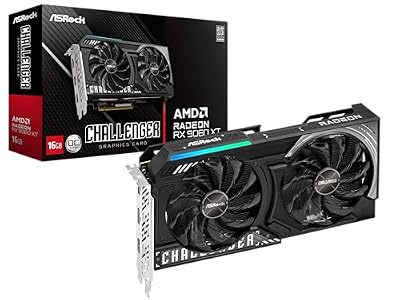
| Radeon RX 9060 XT 16GB | 16GB | ~160W | AMF | Editing-first builds on a budget | Your work is 3D or AI |
| Radeon RX 9070 XT | 16GB | ~300W | AMF | Strong raster gaming plus video editing | You render in Cycles regularly |
| RTX 5070 Ti | 16GB | ~300W | NVENC (AV1, 4:2:2) | The balanced dual-purpose pick | Your scenes exceed 16GB |
| RTX 5080 | 16GB | ~360W | NVENC, multi-encoder | High-refresh 4K gaming and heavy editing | Capacity, not speed, is your limit |
| RTX 5090 | 32GB | ~575W | NVENC, multi-encoder | Large 3D scenes, 8K, local AI models | You only game — the money is wasted |
Best overall dual-purpose: RTX 5070 Ti
Sixteen gigabytes, a full-fat NVENC block, CUDA and OptiX, and enough raster performance for high-refresh 1440p or 4K with upscaling. The trade-off is honest: it is not the cheapest route to a given frame rate, and if your scenes exceed 16GB it only delays the problem. Skip it if you will never open a timeline.
Best on a budget: RTX 5060 Ti 16GB or Arc B580
The 16GB 5060 Ti is the cheapest card offering CUDA plus capacity — the 8GB version is a trap for creators, and the price gap is small next to what it unlocks. The Arc B580 is the alternative if your work is editing and streaming rather than 3D: superb encoder, 12GB, low price. Skip Arc if you rely on niche plugins.
Best for 3D, AI and 8K: RTX 5090
Thirty-two gigabytes changes which projects are possible rather than how fast they finish, the only justification for the price and power draw. Budget for a serious PSU and airflow, and skip it unless a workload is already failing on 16GB — for gaming alone the value is poor, as our 4K gaming GPU guide explains.
Best editing-first value: RX 9070 XT
Excellent raster gaming, 16GB, and genuinely competitive video editing. Choose it if your creative work stops at video and you want the most gaming performance per dollar. Skip it if Blender or Stable Diffusion might enter your workflow later, since retrofitting CUDA means buying another card. For the rest of the build, see our CPU picks for editing.
Frequently Asked Questions
Is 8GB of VRAM still enough for content creation in 2026?
For 1080p video editing with light effects, yes. For almost anything else, no. An 8GB card will choke on 4K multicam timelines, fail outright on large Blender scenes, and cannot load current image or video generation models without aggressive quantisation. Since 16GB cards now exist at mid-range prices, paying a small premium for double the capacity is the single highest-value decision in a creator build.
Does a professional workstation card make sense instead of a GeForce card?
For most people, no. Workstation cards justify their price through certified drivers for CAD and simulation software, ECC memory, and very large VRAM pools in compact, low-power form factors. If your applications are Resolve, Premiere, Blender, or AI tooling, a consumer GeForce card delivers more performance per dollar and runs the same CUDA code. Choose workstation hardware only when a vendor certification is contractually required.
Should I install Studio drivers or Game Ready drivers if I do both?
Run Studio drivers if you have project deadlines, and accept that a brand-new game may run slightly below its potential for a few weeks. Run Game Ready if launch-day performance matters more and your creative work is a hobby. Switching is a simple reinstall, so the decision is not permanent — but avoid updating mid-project in either branch, because a driver regression during a render schedule is genuinely costly.
Will an AMD GPU work for Blender and Stable Diffusion?
It will work, but with friction. Blender supports AMD through HIP and HIP-RT, and render times are usable, though generally behind an equivalently priced NVIDIA card using OptiX. Local AI tooling through ROCm has improved but still means fewer supported cards, more setup work, and features that arrive later than on CUDA. If those workloads are central to what you do, NVIDIA saves you hours you will not get back.
Does a second GPU help with rendering and streaming?
Sometimes. Blender Cycles can pool multiple GPUs for rendering, though each card must hold the whole scene in its own VRAM, so two 12GB cards do not give you 24GB. Using a second card purely to offload stream encoding is largely obsolete, because modern encoders handle a game and a stream simultaneously with minimal frame impact. Spend the money on one better card instead.