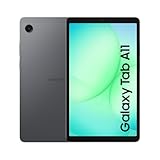
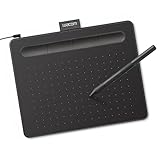
- Top Pick: Wacom Intuos Small, Wired Graphic Drawing Tablet with Pen + Software | Battery-free pen, 4 ExpressKeys for shortcuts, works with Mac, Windows & Chromebook; Ideal for creators, students & teachers
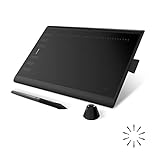
- Best Value: HUION Inspiroy H1060P Graphics Drawing Tablet, 10 x 6.25 in, 12+16 Hot Keys | 8192 Pressure Levels, Battery-Free Stylus, Digital Art Tablet Works with Mac, Windows PC and Android
- Premium Choice: XPPen Deco 01 V3 10×6 Drawing Tablet, 16K Battery-Free Stylus, 8 Keys | Battery-Free Stylus, 8 Keys for Digital Art, Teaching, OSU, Mac, PC, Android, Chromebook, Designed for Beginners
Pairing a drawing tablet with a PC comes down to a fork in the road: do you want a blank pad that you draw on while watching your monitor, or a pen display that puts the picture directly under the stylus? Pads are lighter, simpler, and easier on a desk. Pen displays feel more natural but add a screen to power, calibrate, and find room for. The ten products below cover both paths, from a pocket-sized 4.17 inch pad up to a 21.5 inch pen display.
This guide serves beginners trying digital art for the first time, teachers sketching on shared slides, osu! players who want a pen for aiming, and working illustrators picking a second device. Every claim comes from the listed product titles, so numbers like pressure levels and active area are the ones the manufacturers printed. For 2026, the sensible approach is to choose the size and pen technology first, and only then worry about shortcut keys and extras.
Quick Picks
As an Amazon Associate we earn from qualifying purchases at no extra cost to you.




| Product | Best for | Key spec from the title |
|---|---|---|
| Wacom Intuos Small | First tablet, wired setup | Battery-free pen, 4 ExpressKeys |
| HUION Inspiroy H1060P | Large pad with many shortcuts | 10 x 6.25 in, 12+16 hot keys, 8192 levels |
| XPPen Deco 01 V3 | Beginners wanting more pressure steps | 10×6, 16K battery-free stylus, 8 keys |
| HUION Inspiroy H640P | Compact desks | 6×4 in, 8192 levels, tilt, 6 hot keys |
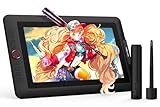
| HUION Kamvas 13 (Gen 3) | Entry pen display | 13.3 inch, full lamination, 99% sRGB, dual dial |
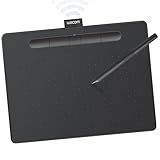
| Wacom Intuos Medium | Wireless drawing | Bluetooth, battery-free pen, 4 ExpressKeys |
| XPPen Artist 13.3 Pro V2 | Color-minded illustrators | Full-laminated, 123% sRGB, anti-glare, 8 keys |
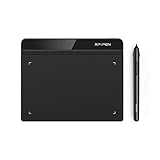
| XPPen StarG640 | Mobile and remote work | 6×4 in, battery-free stylus |
| XPPen Artist 22R Pro | Studio desk setup | 21.5 inch, 120% sRGB, 20 keys, 2 dials |
| HUION H420X | osu! and small spaces | 4.17 x 2.6 in, 8192 levels |
How to Choose
Decide between a pad and a pen display
A pad such as the Wacom Intuos or HUION Inspiroy has no screen, so your hand and eyes work in different places. Most people adapt within a week or two. A pen display such as the Kamvas 13 or Artist 22R Pro lets you draw on the image itself, which suits detailed inking and photo retouching. Expect extra cables and a stand, and check that your PC has a free video output.
Match active area to your desk and monitor
A 6×4 inch pad fits beside a keyboard and is adequate for notes, signatures, and osu!. A 10×6 inch area gives your arm room to sweep, which most digital painters prefer. For pen displays, 13.3 inches is portable enough for a backpack, while 21.5 inches belongs on a dedicated desk. Choose the smallest area that does not force you to draw with only your wrist.
Read the pen specs, but do not overrate them
Pressure levels are printed as 8192, 16K, or 16384. All of them far exceed what a hand can control, so the jump from 8192 to 16K is a spec-sheet difference more than a visible one. Look instead for battery-free styluses, which the majority here have, and tilt support, which the H640P names. Hot keys and dials speed up zoom and brush changes, but ExpressKeys on a small pad can feel cramped.
Check compatibility and display quality
Listings name Windows, Mac, Chromebook, Android, and Linux support in varying combinations, so verify your system is on the list. On pen displays, full lamination narrows the gap between glass and image, and sRGB coverage figures hint at color accuracy. Budget screens often cut corners on brightness and calibration, so illustrators who print should plan on a quick color check.
The 10 Best Options
Wacom Intuos Small
A wired pad with a battery-free pen, four ExpressKeys, and software included. The title says it works with Mac, Windows, and Chromebook, and pitches it at creators, students, and teachers. A good, familiar starting point for sketching, photo touch-ups, and annotating documents. The small size keeps it out of the way next to a keyboard, which matters on shared desks.
- Strength: battery-free pen.
- Strength: Chromebook compatibility is stated.
- Trade-off: wired only in this version.
Skip it if you want a wireless pad or a large drawing area.
HUION Inspiroy H1060P
A 10 x 6.25 inch pad with 8192 pressure levels, a battery-free stylus, and 12+16 hot keys. The title lists Mac, Windows PC, and Android support. The many keys appeal to anyone who wants shortcuts for zoom, undo, and brush size, and the wide surface suits painters who like long, sweeping strokes without lifting the pen. Keep in mind that it is a pad only, so you still look at your monitor while drawing.
- Strength: generous active area.
- Strength: 28 combined shortcuts.
- Trade-off: Android compatibility does not make it a standalone device.
Skip it if desk space is tight.
XPPen Deco 01 V3
A 10×6 inch tablet with a 16K battery-free stylus and eight keys, marketed to beginners and teachers. The title lists Mac, PC, Android, and Chromebook, and mentions osu!. It aims at the same crowd as the Wacom Medium but with a bigger pressure number. With eight keys and a battery-free stylus, it covers lessons, quick storyboards, and first attempts at digital painting without asking you to learn a complicated driver setup on day one.
- Strength: broad platform list.
- Strength: 16K stylus levels.
- Trade-off: no wireless mode is mentioned.
Skip it if you want a smaller footprint.
HUION Inspiroy H640P
A compact 6×4 inch pad with 8192 levels, tilt, and six hot keys, working with Mac, PC, and Android. The title says it suits beginners, writing, and teaching. It is a straightforward starter for someone who wants to try a stylus before committing to a bigger surface. Tilt recognition lets shading tools respond to the pen angle, which is a welcome extra at this size.
- Strength: tilt support.
- Strength: small, portable size.
- Trade-off: limited room for broad strokes.
Skip it if you paint large compositions.
HUION Kamvas 13 (Gen 3)
A 13.3 inch pen display with full lamination, Canvas Glass 2.0, 99% sRGB, PenTech 4.0 with 16384 levels, a dual dial, and a stand. It works with PC, Mac, and Android. This is a sensible first step into screen drawing, especially for artists who want to see the stroke land exactly where the pen touches. The dual dial gives quick control over zoom or brush size without reaching for the keyboard.
- Strength: 99% sRGB coverage.
- Strength: stand included.
- Trade-off: requires cabling to your PC.
Skip it if you prefer a plain pad.
Wacom Intuos Medium
The medium Intuos adds Bluetooth, a battery-free pen, four ExpressKeys, and software. It works with Mac, Windows, and Chromebook. The wireless link makes it tidy for laptops and shared classrooms, where trailing cables are an annoyance. It sits between the small and large sizes, so it works for note-taking, sketching, and light illustration alike.
- Strength: Bluetooth connectivity.
- Strength: medium area for broader strokes.
- Trade-off: four keys only.
Skip it if you want dials or a screen.
XPPen Artist 13.3 Pro V2
A 13.3 inch pen display with a 16K stylus, full lamination, an anti-glare 123% sRGB screen, eight keys, and an adjustable stand. The title targets art, animation, and beginners across Mac, PC, and Android. Anti-glare treatment helps in a bright room, and the eight keys cover the usual shortcuts, so it suits an illustrator who wants a compact but color-minded screen.
- Strength: 123% sRGB figure.
- Strength: anti-glare finish.
- Trade-off: sRGB percentages above 100 are not the same as accuracy.
Skip it if you only need a pad.
XPPen StarG640
A 6×4 inch graphics pad with a battery-free stylus for Mac, Windows, and Chromebook. The title mentions drawing, e-learning, and remote working. It is a minimal tool for signing documents, recording lessons, and sketching while on video calls. With no shortcut keys named, it relies on your software shortcuts, which keeps the body clean but slows down heavy illustration work.
- Strength: Chromebook support.
- Strength: simple, light design.
- Trade-off: no pressure figure in the title.
Skip it if you want shortcut keys.
XPPen Artist 22R Pro
A 21.5 inch pen display with a battery-free stylus, full lamination, 120% sRGB, 20 shortcut keys, and two red dials. It is meant for a fixed desk, where the large surface lets you work at near-natural scale on posters, comics, and detailed paintings. The shortcut-heavy layout favors artists who keep one hand on the keys while the other holds the pen.
- Strength: very large drawing surface.
- Strength: many keys and two dials.
- Trade-off: bulky for travel.
Skip it if you lack desk space.
HUION H420X
The smallest here: a 4.17 x 2.6 inch pad with 8192 levels and a battery-free stylus, working with PC, Mac, Linux, and mobile. The title names osu!, design, drawing, and teaching. Its small size suits rhythm-game players who aim with small wrist motions, and it slips into a bag easily for lessons away from home.
- Strength: tiny footprint.
- Strength: Linux support.
- Trade-off: small area limits drawing.
Skip it if you plan detailed art.
Which One Fits Your Situation
You are a teacher annotating on a laptop
The Wacom Intuos Medium suits that setup, since Bluetooth keeps cables off the desk.
You want to draw on the image
Pick the HUION Kamvas 13 (Gen 3) for a portable screen, or the XPPen Artist 22R Pro for a studio desk.
You play osu! or have a cramped desk
The HUION H420X fits both. If you want a little more room, the H640P is the next step up.
You are learning digital painting
The XPPen Deco 01 V3 offers a large 10×6 inch area and plenty of keys for experimenting.
Common Mistakes
- Choosing a pen display without checking your PC’s video output.
- Buying the smallest pad for painting that needs broad arm strokes.
- Treating 16K versus 8192 pressure levels as a major quality gap.
- Ignoring operating system support in the listing.
- Forgetting that sRGB percentages do not guarantee calibrated color.
Related guides
- Combination Smoke And Carbon Monoxide Detectors
- Aio Liquid Coolers For High Performance Gaming
- Graphics Cards For Low Wattage Power Supplies
Frequently Asked Questions
Do drawing tablets need batteries?
Not the pens listed here, since all ten are described as battery-free. The Wacom Intuos Medium uses Bluetooth, so the tablet itself needs power.
Pad or pen display for a beginner?
A pad is simpler and easier to set up. A pen display is more intuitive but needs a video connection.
Can I use these with Chromebook?
Several list it, including both Wacom models, the XPPen Deco 01 V3, and the StarG640. Check the title for the exact wording, since some listings name Chromebook support while others stop at Windows and Mac, and driver features can differ between systems.
Is a bigger active area always better?
No. A large area needs more arm movement and desk room, and it can tire your shoulder during long sessions. Pick one that suits your habits, and remember that a medium pad can map neatly to a single monitor. Left-handed users can usually rotate a pad in the driver settings, though the titles do not address handedness, so confirm that option in the manufacturer’s notes.