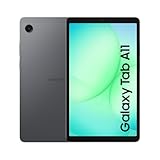
- Top Pick: HUION Inspiroy H640P 6×4 inch Drawing Tablet 8192 Pen Pressure | Battery-Free Stylus, Tilt, 6 Hot Keys, Work with Mac/PC/Android, Digital Art for Beginner, Drawing, Writing, Design, Teaching
- Best Value: HUION Drawing Tablet H420X Graphics Tablet with 8192 Level Pen Pressure | Battery-Free Stylus, 4.17×2.6 IN Digital Art Tablet for OSU Game, Design, Drawing, Teaching, Work with PC, Mac, Linux, Mobile
- Premium Choice: 4 Pack LCD Writing Tablet for Kids, 8.5 Inch Colorful Doodle Board Drawing Tablet, Educational Learning Toys Birthday Gifts for Boys Girls Age 3 4 5 6 7 8
Anyone shopping for a budget drawing tablet is really deciding between two things: how much desk space and active area they want, and which extras they can live without. A pen tablet that sits on the desk while you look at the monitor is the entry point for digital art, photo retouching, note-taking in online classes, and rhythm games where cursor control matters. Screens, tilt-heavy pens and dozens of shortcut keys belong to higher tiers. At the budget end, what counts is a battery-free stylus, a pressure range that registers light and heavy strokes, and a working area that matches how you move your arm.
This guide is for beginners, students, teachers and osu players who want a first tablet in 2026 without paying for features they will not touch. The nine models below span tiny 4-inch pads aimed at gaming and signatures, 6×4 inch sketch pads, and larger 10×6 inch surfaces for painting. Kids' LCD doodle boards are left out on purpose, because they do not connect to a computer and are not graphics tablets.
Quick Picks
As an Amazon Associate we earn from qualifying purchases at no extra cost to you.




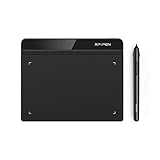
| Product | Best for | Key spec from the title |
|---|---|---|
| HUION Inspiroy H640P | First sketch tablet with tilt | 6×4 inch, 8192 pressure levels, tilt, 6 hot keys |
| HUION H420X | osu and note-taking on a tiny desk | 4.17×2.6 inch, 8192 pressure levels, battery-free stylus |
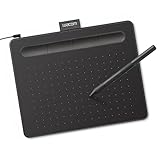
| Wacom Intuos Small | Beginners who want a known brand | Wired, battery-free pen, 4 ExpressKeys, software included |
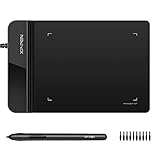
| XPPen G430S | Ultrathin pad for osu and teaching | 4×3 inch, 8192 levels, battery-free stylus |
| HUION 420 | Handwriting and light drawing | 4×2.23 inch active area, digital stylus |
| XOPPOX 10×6 | Big-area painting and design | 10×6 inch, 8192 levels, 12 hot keys, Android support |
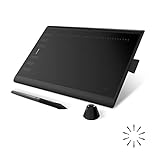
| HUION Inspiroy H1060P | Roomy surface with many shortcuts | 10×6.25 inch, 12+16 hot keys, 8192 levels |
| XPPen 6×4 art tablet | Remote work and e-learning | 6×4 inch, battery-free stylus, Chromebook support |
| XPPen Deco 01 V3 | Beginners who want a large pad | 10×6 inch, 16K battery-free stylus, 8 keys |
How to Choose
Active area and your drawing style
A small area, roughly 4×3 inches or less, suits osu, signing documents and annotating slides, since the cursor moves with wrist flicks. A 6×4 inch tablet is the usual sketching size and fits next to a keyboard. At 10×6 inches, you can draw with your whole forearm, which feels more natural for illustration and painting but takes real desk room. If you plan on a 27 inch monitor, a larger pad usually feels less cramped.
Pen pressure and stylus type
Most budget models list 8192 pressure levels, which is plenty for beginners. One model here lists a 16K stylus, a higher figure that still depends on software support. Look for a battery-free pen so there is nothing to charge or replace. Tilt recognition, listed on the H640P, helps with shading and brush angle effects, but it is not essential for note-taking or osu.
Compatibility and connections
Check the operating systems named in the title before you commit. Several tablets list Windows and Mac, while others add Linux, Android or Chromebook. If you plan to draw on a phone or a school Chromebook, only buy a model that names it. Wired designs are the norm at this tier, so confirm that your computer has the right port or that you own an adapter.
Shortcut keys and what to skip
Hot keys, called ExpressKeys on the Wacom, put undo, brush size and eraser at your fingertips. Four to eight keys are enough for a beginner; 12 or 28 total buttons help in design apps but are easy to ignore. Skip unneeded extras, and watch for corners cut on budget units, such as thinner surfaces, basic pen nibs, and limited bundled software.
The 9 Best Options
HUION Inspiroy H640P
The H640P is a compact entry for digital sketching. Its title lists a 6×4 inch area, 8192 pressure levels, battery-free stylus, tilt support and 6 hot keys, with Mac, PC and Android compatibility.
- Strength: tilt recognition adds shading options rare in the smallest tablets.
- Strength: 6 hot keys cover common shortcuts without clutter.
- Trade-off: the 6×4 inch area feels tight for large illustration work.
Because the pen is battery-free and the pad is cross-platform, it also works as a spare tablet for a laptop or phone. Skip it if you want to paint with big arm strokes or need a desk-sized canvas.
HUION H420X
This is the small-footprint pick. The H420X title lists a 4.17×2.6 inch active area, 8192 pressure levels and a battery-free stylus, with osu, drawing, design and teaching in mind. It works with PC, Mac, Linux and mobile.
- Strength: tiny size leaves space for keyboard and mouse on a crowded desk.
- Strength: broad compatibility, including Linux, suits mixed setups.
- Trade-off: the pad is too small for comfortable full sketches.
The wording points at precise cursor work rather than large illustrations, which is exactly where a pad this size shines. Skip it if drawing detail is your main goal rather than cursor control or notes.
Wacom Intuos Small
The Wacom Intuos Small is the recognizable-brand option, listed as wired with a battery-free pen and software included. It carries 4 ExpressKeys and works with Mac, Windows and Chromebook, aimed at creators, students and teachers.
- Strength: an established brand with bundled software for new users.
- Strength: 4 ExpressKeys offer practical shortcuts without overwhelming a beginner.
- Trade-off: the title lists no pressure levels or active area, so verify those details.
It is the simplest path for a student or teacher who wants a name they already know, and four keys are about right for a first month. Skip it if you need a larger surface or Android support.
XPPen G430S
The G430S is an ultrathin 4×3 inch pad with 8192 pressure levels and a battery-free stylus. The title ties it to osu and online teaching and lists Windows and Mac support.
- Strength: slim body fits in a laptop bag for school or work.
- Strength: 8192 levels and a battery-free stylus are solid basics at this size.
- Trade-off: no shortcut keys are listed, so every command stays on the keyboard.
The ultrathin build is the main selling point here. Skip it if you want hot keys or Linux and mobile compatibility.
HUION 420
This pad offers a 4×2.23 inch active area with a digital stylus, aimed at drawing, writing, design and animation on Mac or Windows. It is one of the smallest tablets here.
- Strength: minimal footprint for writing, signing and quick edits.
- Strength: the title names animation and design, hinting at light creative use.
- Trade-off: no pressure figure or battery-free claim appears in the title.
Treat it as a pad for writing and signing first, with drawing as a bonus. Skip it if you want confirmed pressure sensitivity or a roomy sketching surface.
XOPPOX 10×6
XOPPOX targets painting and design with a large active area, battery-free stylus, 8192 pressure levels and 12 hot keys. The listing names PC, Mac and Android and also highlights online teaching.
- Strength: a 10×6 inch surface gives arm-sized room for strokes.
- Strength: 12 hot keys add a generous set of shortcuts.
- Trade-off: the larger pad needs more desk space than 6×4 inch models.
Painters who work from the shoulder will like the extra space, and the Android mention opens up tablet-and-phone use. Skip it if your workspace is cramped or you want a recognized brand name.
HUION Inspiroy H1060P
The H1060P pairs a 10×6.25 inch surface with 12+16 hot keys, 8192 pressure levels and a battery-free stylus. Mac, Windows and Android appear in the title.
- Strength: 28 total programmable buttons support heavy shortcut use in design apps.
- Strength: the large surface suits full-arm illustration.
- Trade-off: beginners may find that many keys overwhelming.
Buyers who rely on keyboard shortcuts in photo or design programs will use the extras; newcomers can leave most unassigned. Skip it if you want a minimalist tablet with few buttons.
XPPen 6×4 Art Tablet
This 6×4 inch pad, listed for drawing, e-learning and remote working, includes a battery-free stylus and names Mac, Windows and Chromebook compatibility. It sits at the sketch-friendly size.
- Strength: Chromebook support suits school-issued laptops.
- Strength: the 6×4 inch size balances desk space and drawing room.
- Trade-off: the title gives no pressure figure or key count.
It is a sensible pick for video calls and class demonstrations where you annotate a shared screen. Skip it if you want Android support or programmable hot keys.
XPPen Deco 01 V3
The Deco 01 V3 is designed for beginners, per its title. It lists a 10×6 inch surface, a 16K battery-free stylus, 8 keys and support for Mac, PC, Android and Chromebook, with teaching and osu use.
- Strength: the 16K stylus listing and 8 keys offer room to grow.
- Strength: the broadest compatibility list on this page.
- Trade-off: the large pad takes up desk space compared with 6×4 inch units.
Its beginner-first positioning makes it an easy first purchase for someone not yet sure which software they will settle on. Skip it if you want a pocket-sized tablet for travel.
Which One Fits Your Situation
You play osu or take notes on a small desk
The HUION H420X or XPPen G430S fits tight spaces and stays out of the way of a keyboard.
You are learning to sketch
The HUION Inspiroy H640P gives a 6×4 inch canvas with tilt, which is useful when you start shading.
You want a big canvas for painting
The XPPen Deco 01 V3 or XOPPOX 10×6 provide a 10×6 inch surface, with the Deco listing a 16K stylus and the XOPPOX adding 12 hot keys.
You teach or study from a school Chromebook
The Wacom Intuos Small and the XPPen 6×4 art tablet both list Chromebook compatibility along with Mac and Windows.
Common Mistakes
- Buying a kids' LCD writing pad and expecting it to connect to a computer.
- Choosing the largest tablet without measuring desk space beside the keyboard.
- Assuming a bigger pressure number automatically means better drawing.
- Ignoring operating system support, which breaks setups on Chromebooks and phones.
- Counting hot keys instead of asking whether you will ever program them.
Related guides
- Combination Smoke And Carbon Monoxide Detectors
- Aio Liquid Coolers For High Performance Gaming
- Graphics Cards For Low Wattage Power Supplies
Frequently Asked Questions
Do I need a screen on my drawing tablet?
No. Pen tablets such as these have no display, so you look at your monitor while you draw. It takes a few sessions to adjust hand-eye coordination, and the look-at-the-monitor habit usually settles in after a short period of regular sketching. Skipping the display is also what keeps this tier simple and light.
Is 8192 pressure sensitivity enough?
For beginners it is plenty. Higher figures such as 16K are listed on one model, but your software, driver settings and technique decide how much of that you will actually use. A steady hand matters more than an extra pressure tier.
What size should I choose?
Choose a 4×3 inch pad for osu, notes and signatures, 6×4 inches for sketching, and 10×6 inches for painting with larger arm movements.
Can I use these with a phone or Chromebook?
Only the models whose titles name Android or Chromebook support. Always check the compatibility list before buying, and note that some tablets need a driver installed on the computer first.