

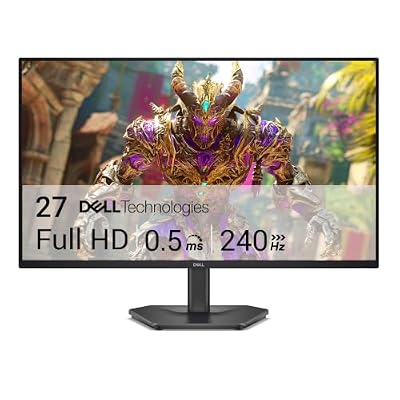
- Top Pick: Dell 27 240Hz Gaming Monitor – SE2726HG – 27-inch FHD (1920×1080) Display, in-Plane Switching (IPS) Technology, AMD FreeSync Premium, TÜV 3-Star, 2X HDMI, DisplayPort 1.4, Tilt
- Best Value: Acer 27in FHD 1920×1080 IPS 120Hz Gaming Monitor | Office KB272 G0bi
- Premium Choice: Samsung 27" Odyssey G5 (G51F) Series QHD (1440P) Gaming Monitor
Three hundred bucks is actually a sweet spot for 27 inch monitors right now. You’re past the budget 1080p panels with washed-out color and into territory where you can get a decent 1440p IPS screen with a real refresh rate. The catch is you have to know which specs are marketing fluff and which ones actually affect how the monitor feels to use.
As an Amazon Associate we earn from qualifying purchases at no extra cost to you.


Why 1440p is the target at this size and price
At 27 inches, 1080p looks soft. You’re stretching the same pixel count across more screen than a 24 inch monitor, so text edges and fine detail get fuzzy unless you sit further back than you’d like. 1440p (2560×1440) fixes this and is realistic to find under $300 at 27 inches now. 4K at this size and price is mostly a trap: the panels are either low refresh rate (60Hz) or the GPU demands to drive 4K at a usable frame rate push you into hardware spending that defeats the point of a budget monitor. Stick with 1440p unless you’ve got a GPU that can push 100+ fps at 4K, which most budget builds can’t.
Panel type matters more than the box art
Three panel types show up in this price range: VA, IPS, and the occasional TN holdout. Each has a real trade-off, not just a marketing difference.
VA panels give you the best contrast and deepest blacks, which matters a lot for dark games like horror titles or anything with a lot of night scenes. The trade-off is slower pixel response, which shows up as smearing in fast motion, sometimes called “black smear” when dark objects move against dark backgrounds. IPS panels respond faster and have better color consistency and viewing angles, but blacks look more gray, especially in a dark room. TN is mostly gone at this size and price, and that’s fine. It’s faster but the color and viewing angles are bad enough that you’d notice immediately.
If you’re playing mostly competitive shooters, IPS is the better call. If you’re playing single-player, story-driven, or atmospheric games, VA’s contrast will matter more than you’d expect. Searching 27 inch 1440p IPS gaming monitors versus VA models side by side on review sites before buying is worth the ten minutes, because the spec sheet alone won’t tell you which smear issues a specific panel has.
Refresh rate: where the real money goes
In this price bracket, 144Hz is the baseline worth caring about and 165Hz shows up often enough that it’s not a stretch. Going higher, to 240Hz, usually means dropping to 1080p or sacrificing panel quality at 27 inches and $300, so don’t chase it here. The jump from 60Hz to 144Hz is the one that actually changes how a game feels, smoother mouse tracking, less perceived input lag, less motion blur. The jump from 144Hz to 240Hz is real but subtle, and you need a GPU capable of consistently hitting those frame rates for it to matter at all. If your graphics card tops out around 100-120 fps in the games you play, a 165Hz monitor already has headroom you’re not using.
What you actually get at each tier
| Tier | Typical specs | Best for | Watch out for |
|---|---|---|---|
| Budget ($150-200) | 1080p or 1440p, VA or budget IPS, 75-100Hz | Casual gaming, general use | Limited HDR, weaker stands, no height adjustment |
| Mid ($200-260) | 1440p, IPS or VA, 144Hz | Most gamers, best value zone | HDR often “HDR10 support” without real brightness to back it up |
| Upper ($260-300) | 1440p, IPS, 144-165Hz, better stand/ergonomics | Competitive and casual mixed use | Diminishing returns past this point without spending more |
HDR at this price is mostly a checkbox
Monitors in this range frequently list “HDR10 support” or “HDR Ready.” That label just means the panel can accept an HDR signal, not that it can display HDR well. Real HDR needs high peak brightness, usually 600 nits or more with local dimming zones, and panels at this price rarely clear 350-400 nits with no local dimming at all. The result is HDR mode often looks flatter than SDR with a good color profile. Don’t pick a monitor because of an HDR badge. Pick it for base brightness, contrast ratio, and color accuracy in SDR, since that’s what you’ll actually be looking at most of the time.
Adaptive sync: check your GPU brand first
Most budget monitors now support some flavor of adaptive sync, either FreeSync or G-Sync Compatible, sometimes both. The important thing is that it matches your graphics card. AMD cards work with FreeSync, Nvidia cards work with G-Sync Compatible, and the good news is most monitors that advertise one now work fine with the other in practice, since G-Sync Compatible is really just certified FreeSync. Confirm the specific refresh rate range the sync works across though. Some budget panels only support adaptive sync from 48Hz to 144Hz, which is fine, but a few cut off at a higher floor, and that gap is where you’ll notice stutter in GPU-limited scenes.
Features not worth paying extra for
Curved screens at 27 inches add little, the curve only really helps at 32 inches and up where your peripheral vision reaches the edges. Built-in speakers are universally mediocre, don’t let that sway a purchase decision. USB-C with power delivery is genuinely useful if you’re also using the monitor with a laptop, otherwise skip paying more for it. If you’re shopping broadly, browsing 27 inch 144Hz gaming monitors under $300 and sorting by review count rather than star rating alone tends to filter out the panels with inconsistent quality control, since even good models have some bad units in any batch.
The honest take
If you’re deciding between a cheaper 1080p 144Hz panel and stretching for 1440p at the same refresh rate, go 1440p almost every time at 27 inches, the sharper image is noticeable in daily use, not just gaming. But if your GPU can’t push 1440p above 90-100 fps in your main games, a 1080p panel at the same refresh rate will actually feel smoother in practice, even though it’s the “worse” spec on paper. Buy for the hardware you have, not the hardware you wish you had.














