Short answer: Pick Batocera if you want to boot retro gaming off a USB stick on almost any PC or Pi with nothing installed. Pick Recalbox if you are new to this and want sane defaults that just work. Pick RetroPie if you own a Raspberry Pi and want to hand-tune every emulator, shader and script yourself.
- Batocera vs Recalbox vs RetroPie at a glance
- What these systems actually include (and what they do not)
- Which hardware should you run it on?
- Install difficulty, compared honestly
- Front-end, theming and scraping
- Controllers, netplay and updates
- Community and documentation
- Troubleshooting the usual problems
- So which one should you install?
- Frequently Asked Questions
All three are free, Linux-based retro gaming operating systems that wrap the same underlying emulator cores (mostly RetroArch/libretro plus standalone emulators) in a couch-friendly front-end. The differences are not really about which one “emulates better” — on identical hardware, an identical core runs at roughly identical speed. The differences are about hardware reach, how much setup you do, and how much the system lets you break things.
Batocera vs Recalbox vs RetroPie at a glance
| OS | Hardware | Install difficulty | Front-end | Best for |
|---|---|---|---|---|
| Batocera | x86/x86-64 PCs, Raspberry Pi 3/4/5, many ARM SBCs and handhelds, Steam Deck | Easy — flash to USB/SD and boot, no installation required | EmulationStation (Batocera fork), heavily themed, built-in scraper | Reusing an old PC or laptop without touching its existing Windows install |
| Recalbox | Raspberry Pi 3/4/5, x86-64 PCs, Odroid and a few other boards | Easiest — flash, boot, follow an on-screen wizard | EmulationStation with the polished Recalbox theme, web manager in the browser | First-timers, kids’ setups, anyone who does not want to read a wiki |
| RetroPie | Raspberry Pi first and foremost; can be layered onto Debian/Ubuntu x86 | Moderate — image or script install, then manual configuration | EmulationStation plus the RetroPie-Setup menu for everything | Tinkerers who want per-core control, custom scripts and arcade cabinet builds |
What these systems actually include (and what they do not)
This matters before you download anything: none of these projects ship with games. They are operating systems and emulator front-ends. You supply the game files yourself, and legally that means your own dumps made from cartridges, discs and boards you own. Several systems — PlayStation, Saturn, Dreamcast and some others — also require BIOS firmware files, and those must come from hardware you own too. Neither Batocera, Recalbox nor RetroPie distributes them, and asking in their forums will get you pointed straight back at this rule.
Be equally wary of the “plug and play” shortcut. Pre-loaded microSD cards, “10,000 games included” emulation boxes and ready-made consoles sold through marketplaces are, in the overwhelming majority of cases, distributing copyrighted games and copyrighted BIOS code without permission. Buying one is not a legal grey area you can argue your way out of, and those sellers regularly disappear mid-order. Buy the bare hardware — the Pi, the case, the controller, the power supply — and put your own files on it.
Which hardware should you run it on?
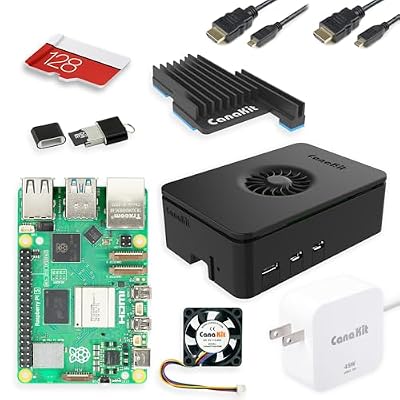
Your hardware choice caps what you can play far more than your OS choice does. A Raspberry Pi 5 and a five-year-old desktop are different classes of machine, and the systems that fall apart are always the demanding ones: Saturn, PS2, GameCube, Wii and anything needing heavy upscaling.

![V-Kits Raspberry Pi 3 Model B+ (B Plus) Retro Arcade Gaming Kit with 2 Classic USB Gamepads [2018 Model]](https://m.media-amazon.com/images/I/51FbNcsLmpL._SL400_.jpg)

| Hardware | Realistic system ceiling | Best OS fit | Notes |
|---|---|---|---|
| Raspberry Pi 3 / 3B+ | Up to PS1, SNES, Genesis, GBA, arcade up to CPS2/Neo Geo | RetroPie or Recalbox | N64 and Dreamcast are per-title lotteries, not a general capability |
| Raspberry Pi 4 (4GB+) | Solid PS1, most N64 and Dreamcast, PSP at reduced settings | All three | The sweet spot for a first build; active cooling strongly recommended |
| Raspberry Pi 5 | Comfortable N64/Dreamcast/PSP, some Saturn | Batocera or Recalbox | Confirm current Pi 5 support status before committing to RetroPie |
| Old desktop or laptop (Intel 6th gen or newer) | GameCube, Wii, PS2 on many titles | Batocera | Runs entirely from USB, so the existing OS on the internal drive is untouched |
| Modern mini PC (Ryzen APU / 12th gen+) | PS2, GameCube, Wii reliably; Switch-era emulation is a separate conversation | Batocera | The quietest way to get a console-shaped box with real horsepower |
If you are still deciding between a tiny board and a small desktop, our breakdown of what a mini PC can actually handle for gaming maps the same performance tiers onto x86 hardware.
Install difficulty, compared honestly
Batocera’s selling point is that there is no install. You write the image to a USB stick or SD card with a tool like Raspberry Pi Imager or balenaEtcher, boot from it, and you are in EmulationStation in under a minute. Your games and saves live on the same drive’s share partition, so the machine’s internal disk is never written to. That is genuinely useful if the PC is a family computer or a work laptop you want to hand back unchanged. You can install Batocera to an internal drive later; you do not have to.
Recalbox is nearly as fast to flash, but leans harder on hand-holding after first boot: a setup wizard, a clean language and controller flow, and a web-based Recalbox Manager you open from another device on the same network to drag files across and change settings without touching a terminal. It is the one I would put in front of someone who has never used Linux.
RetroPie asks for more. You can flash a Pi image, but the real RetroPie experience is the RetroPie-Setup script — a menu-driven installer where you add individual emulator packages, drivers, and extras. Nothing there is hard, but it assumes you are willing to read, occasionally SSH in, and edit a config file. In exchange you get per-core control that the other two abstract away.
Front-end, theming and scraping
All three run a version of EmulationStation, so the basic shape — a carousel of systems, a game list, box art — is familiar across the board. Batocera ships a large theme selection and a built-in scraper that pulls artwork, video snaps and metadata. Recalbox’s default theme is the most visually finished out of the box and the least likely to need fiddling. RetroPie has the deepest theme ecosystem after two decades of community work, and is the easiest to bend into something unusual, like an arcade cabinet with a vertical marquee. If a polished living-room interface matters, our guide to building a living room gaming setup covers the display and seating-distance side of it.
Controllers, netplay and updates
Controller setup is close to identical: plug in a USB or Bluetooth pad, press the buttons it asks for, done. Batocera and Recalbox auto-map most mainstream pads (Xbox, DualShock/DualSense, 8BitDo) without intervention. RetroPie maps the front-end fine but more often needs per-emulator remapping for systems with unusual layouts, like N64 or arcade sticks. For wireless, Bluetooth latency on a Pi is real but modest; a 2.4GHz dongle pad is the safer choice, and the same logic that drives wireless controller latency on desktop applies here.
Netplay works through RetroArch on all three. Batocera exposes it best, with a lobby browser inside the front-end so you can join a session without leaving the couch. Recalbox surfaces it in settings. On RetroPie, netplay is functional but configured per core and is the most manual of the three. Across all of them, netplay only pairs players running the same core and the same file — which, again, must be your own dump.
Updates follow the same pattern. Batocera and Recalbox both do in-place upgrades from the interface, with Batocera keeping your share partition intact across versions. RetroPie updates through the setup script, package by package, which is more granular and more work. Batocera and Recalbox iterate quickly; RetroPie’s pace is slower and more conservative, which is a virtue if your cabinet already works and a frustration if you want day-one support for new hardware.
Community and documentation
RetroPie has the largest archive of accumulated knowledge because it has been around the longest: search an obscure error and the answer probably sits in a forum thread from years ago. Batocera has a well-organised wiki and a fast-moving Discord, which suits a project that changes often. Recalbox documents the beginner path best but covers fewer edge cases.
Troubleshooting the usual problems
It boots to a black screen or the wrong resolution. Almost always HDMI handshake on a Pi. Force a known-good video mode in the boot config, or try the other HDMI port on a Pi 4/5 — the port next to the power connector is the primary one.
A system shows no games. Files are in the wrong folder or the wrong extension for that system. Every one of these OSes reads a specific directory per platform; check the folder name exactly, and remember that some platforms want an uncompressed file rather than a zip.
A system exists but every game errors out. That is the BIOS message in disguise. The system needs firmware from hardware you own, placed in the bios folder with the exact filename and checksum the emulator expects.
Everything stutters after ten minutes. Thermal throttling. A bare Pi 4 or 5 under emulation load needs a heatsink and a fan, not just a case. Our notes on keeping small systems cool apply directly.
Controller works in the menu, not in-game. Front-end mapping and per-core mapping are separate layers. Remap inside RetroArch’s quick menu for that core, then save the core remap.
So which one should you install?
If you have an old PC or laptop sitting in a closet, put Batocera on a USB stick tonight — it costs you nothing, changes nothing on the machine, and gives you the highest performance ceiling of the three by virtue of running on x86. If you are buying a Raspberry Pi specifically for this and want it working the same afternoon, Recalbox. If you enjoy the build as much as the games, are aiming at an arcade cabinet or a custom handheld, and want to choose your own core for every system, RetroPie. Pairing it with a decent screen matters more than people expect; see our guidance on choosing a display for retro consoles and on scanline and shader options if you are chasing the CRT look.
Frequently Asked Questions
Is Batocera, Recalbox or RetroPie legal to use?
Yes. All three are free, open-source operating systems, and emulator software itself is legal in the United States. What matters is the content you add. Game files must be dumps you made from cartridges or discs you own, and BIOS firmware must come from your own hardware. Downloading games or BIOS files you do not own is copyright infringement regardless of which OS you installed.
Which is fastest for emulation?
None of them meaningfully, because all three run the same underlying emulator cores. On identical hardware with identical settings you will see near-identical frame rates. Speed differences people report usually trace back to a different default core, a different resolution setting, or thermal throttling rather than the OS. Choose based on hardware support and how much configuration you want to do.
Can I run Batocera without installing it on my PC?
Yes, and that is its main advantage. Batocera boots and runs entirely from a USB drive or SD card, storing games and saves on that same drive’s share partition. Your computer’s internal drive is never modified, so you can unplug the stick and the machine boots back into Windows exactly as before. Installing internally is optional.
Should I buy an SD card or console that comes with games loaded?
No. Pre-loaded “ROM-filled” SD cards and emulation consoles advertised with thousands of built-in games are distributing copyrighted games and BIOS code without permission, which is unlawful, and sellers frequently vanish after payment. Buy bare hardware — board, case, power supply, controller — flash a free OS yourself, and supply your own legally obtained files.
Is a Raspberry Pi 5 enough, or do I need a mini PC?
A Pi 5 handles everything up to and including N64, Dreamcast and PSP comfortably, and some Saturn. If your list stops there, a Pi is cheaper, smaller and quieter. If you want GameCube, Wii or PS2 running reliably, you need x86 hardware — a modern mini PC or a repurposed desktop — and at that point Batocera is the natural fit.