Short answer: yes, in most cases. A mid-range or better gaming PC already contains the hardware a video editor actually uses — a discrete GPU with hardware encode and decode blocks, a multi-core CPU, fast NVMe storage and a healthy amount of RAM. For 1080p and mainstream 4K editing in Adobe Premiere Pro or DaVinci Resolve, a gaming rig is not a compromise purchase; it is often the same machine an editor would build, wearing RGB lighting. The gaps appear at the edges: colour-critical work, very large projects, RAW camera footage and long overnight exports expose the places where gaming machines cut corners.
As an Amazon Associate we earn from qualifying purchases.
Why gaming hardware maps so well onto editing
Games and editors stress a PC in surprisingly similar ways. Both want a GPU that can push large amounts of texture and frame data quickly, a CPU that can feed it, and storage fast enough that assets are never the bottleneck. The overlap is real in four specific areas.
GPU compute and VRAM. Premiere Pro’s Mercury Playback Engine and DaVinci Resolve both offload effects, scaling, noise reduction and colour operations to the GPU. Resolve is especially GPU-dependent: Blackmagic Design’s published configuration guidance has long treated the graphics card as the single most important component, because most image processing happens there rather than on the CPU. VRAM is the hard limit — a card with 8GB handles 1080p and light 4K timelines comfortably, while 12GB to 16GB gives 4K timelines with effects and noise reduction real headroom. Gaming cards and workstation cards share the same silicon families, so a gaming GPU’s raw editing throughput is genuinely comparable.
Hardware encode and decode blocks. Modern GPUs and many CPUs carry fixed-function media engines that games barely use but editors rely on daily. NVIDIA’s NVENC encoder accelerates H.264 and H.265 exports in both Premiere Pro and Resolve, and RTX 40-series and newer cards add AV1 encoding. Intel Quick Sync, built into most Intel Core processors with integrated graphics, is often the fastest path for decoding H.264 and H.265 footage during timeline scrubbing — Adobe lists Quick Sync as a supported route for hardware-accelerated encoding and decoding in Premiere Pro. AMD’s AMF engine covers the same ground on Radeon cards, though software support is less uniform. A gaming PC almost always has at least one of these engines; a cheap office PC frequently has none.
CPU cores for export and background work. Final exports, proxy generation, stabilisation analysis and audio processing still lean on the CPU. Gaming builds have moved to 6, 8 and 12-plus core processors, which is exactly the range where export times drop sharply. The main nuance is that gaming-flagship chips optimised for cache and single-thread speed are not always the fastest exporters — a higher-core-count productivity chip can finish long renders sooner — but no modern gaming CPU is a bad editing CPU.
Fast storage. A PCIe NVMe SSD, now standard in gaming builds, is fast enough for 4K compressed footage, snappy project loads and large cache files. This is the one area where the gaming spec sheet and the editor’s wishlist already agree completely at mainstream bitrates.
What the software makers actually require
Adobe’s published system requirements for Premiere Pro call for a GPU with hardware acceleration support and list Intel Quick Sync, NVIDIA and AMD hardware as the routes to accelerated H.264 and H.265 encoding and decoding. In practice that means a gaming PC with a recent GeForce, Radeon or Intel Core processor ticks every box Adobe prints.
DaVinci Resolve splits the picture by edition. Blackmagic Design’s published feature comparison notes that the free version of Resolve limits some GPU-accelerated features: on Windows, hardware-accelerated decoding of H.264 and H.265 media and the fastest Neural Engine features are tied to the paid Studio edition, and Resolve Studio also unlocks higher frame rates, resolutions above Ultra HD and additional GPU support for systems with more than one card. The hardware in a gaming PC is fully usable — but a gamer moving into Resolve should know the free edition deliberately leaves some of that hardware’s media-engine performance on the table.
One more software-level detail matters: NVIDIA publishes two Windows driver branches. Game Ready drivers are tuned for launch-day game performance, while Studio drivers are tested against creative applications including Premiere Pro and Resolve. They are free to switch between, and editors using a gaming PC are generally better served by the Studio branch for stability with creative software.
Where a gaming PC falls short for editing
The display. This is the biggest gap, and it is not close. Gaming monitors chase refresh rate and response time; colour accuracy is a secondary spec, and many gaming panels cover only part of the DCI-P3 or Rec709 colour spaces an editor grades in, with uneven brightness across the panel. A gaming PC can be perfect in every other respect and still mislead you about what your footage actually looks like. Serious colour work needs a colour-accurate monitor, ideally calibrated — the tower is rarely the problem.
RAM ceilings on budget boards. Editing eats memory: 16GB is workable for 1080p, 32GB is the sensible floor for 4K, and large multicam or After Effects-heavy projects want 64GB. Many budget gaming motherboards ship with two DIMM slots already filled by a 2x8GB kit, so the cheap upgrade path is blocked and reaching 32GB or 64GB means replacing the kit entirely. Check slot count and population before assuming a gaming PC can grow into an editing role.
Storage throughput for RAW and high-bitrate footage. Compressed 4K from a mirrorless camera is easy for any NVMe drive. RAW formats and high-bitrate codecs from cinema cameras are a different workload: sustained read speeds across very large files, plus a separate fast scratch disk for cache and previews, quickly become the plan rather than a single small boot SSD shared with a game library. Gaming PCs optimise for one fast drive; editing rigs are usually built around two or three with defined roles.
Noise and thermals under sustained load. A game stresses a PC in bursts; an export stresses it at full tilt for tens of minutes or hours. Gaming cases and fan curves tuned for short sessions can get loud and hot during long renders, and some compact gaming builds throttle the CPU during exactly the sustained workloads editing depends on. It does not make the machine unsuitable, but a quiet, well-ventilated case matters more to an editor than to a gamer.
Configuration habits. Gaming prebuilds often ship with a single small SSD, memory in the slowest supported configuration, and background gaming overlays competing for resources. None of this is fatal, but an editor adopting a gaming PC should expect a short setup session — drivers switched to the Studio branch, cache locations pointed at the fastest drive, overlays trimmed — before it behaves like a workstation.
The upgrade path, in priority order
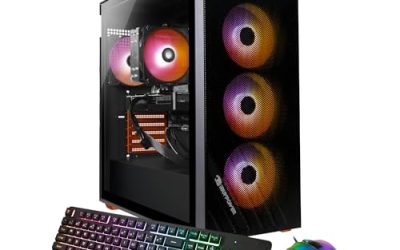
If you already own a gaming PC, the good news is that the fixes are incremental and the base machine carries over. Readers comparing complete systems can also browse our roundup of the best gaming PCs for video editing to see how these priorities look in finished builds. For an existing rig, upgrade in this order:
- Memory first. Move to 32GB for 4K work; it is the cheapest change with the widest effect on timeline behaviour.
- Add a second NVMe SSD dedicated to active projects and cache, keeping the boot drive for the OS, applications and games.
- Check the display honestly. If colour decisions matter, a calibrated colour-accurate monitor transforms the machine more than any internal part.
- GPU only if VRAM-limited. Upgrade the graphics card when timelines stutter under effects or noise reduction, not for general export speed — the media engines matter more than raw gaming performance here.
- CPU last. A core-count upgrade helps exports but rarely transforms day-to-day editing, and it may require a motherboard change.
So, are gaming PCs good for video editing?
For the large majority of editors — YouTube creators, streamers cutting highlights, hobbyists and many working freelancers — yes. A gaming PC’s GPU media engines, VRAM, core counts and NVMe storage line up with what Premiere Pro and DaVinci Resolve actually use, and the upgrade path to fix its weak points is straightforward. The exceptions are colour-critical professional work, where the display becomes the real purchase, and RAW-heavy cinema workflows, where storage architecture matters as much as processing power. Buy the gaming PC for the games; with modest expectations and a RAM upgrade, it will edit very well too.