AFMF 2 and Anti-Lag Setup for AMD GPUs
AFMF 2 and Anti-Lag are two AMD features that buyers often mix up with NVIDIA’s technologies. AFMF stands for AMD Fluid Motion Frames, a driver-level frame generation feature, and Anti-Lag is AMD’s latency reduction technology. This guide explains what each one does, how to configure them in the right order, and where they fit when you compare Radeon cards with GeForce rivals. The NVIDIA equivalent of latency reduction is Reflex, which is a separate technology and is not part of AMD’s stack. We have not benchmarked these settings for this article, so the advice focuses on setup order and trade-offs rather than on fixed numbers.

What AFMF 2 Does and Does Not Do
AFMF 2 is a driver-level frame generation feature. It inserts extra frames between frames the game has already rendered, which raises the number of frames shown on screen. Because it works at the driver level, it can apply to more titles than a feature that must be built into each game, though the exact list depends on the driver version and the game’s rendering path. Check AMD’s current release notes for the games that support it.
The key point is that the frames AFMF adds are not the same as the frames your input drives. A higher counter can look smoother while the response to your mouse or controller still follows the frames the engine simulates. That is why the latency setting and the frame cap matter as much as the generation switch. Judge the feature by how the game feels, not only by the number on the overlay.
AFMF and Upscaling Are Separate Decisions
AFMF is not the same as FSR upscaling. Upscaling renders the scene at a lower internal resolution and reconstructs a sharper image. AFMF generates extra frames. The two can be used together, but test upscaling first so you can judge the image before adding generated frames. Turning on both at once makes it harder to see which one causes a problem.
What Anti-Lag Does and Where It Applies
Anti-Lag reduces the delay between input and the rendered frame by keeping the CPU from running too far ahead of the GPU. Like NVIDIA’s Reflex, it aims at system latency rather than frame rate. AMD’s newer Anti-Lag technology works with game integration in supported titles, while the driver also offers a Radeon Anti-Lag option that may behave differently. Read the description in the driver and the game before you assume one setting covers both.
Why Latency Is Separate From Frame Rate
Frame rate and latency are related but not identical. A game can run at a high frame rate and still feel slow if a queue of frames builds up between the CPU and GPU. Anti-Lag targets that queue. Frame generation adds visual smoothness on top of the rendered frames, so it does not reduce the delay of the rendered frames by itself. Keep the two goals separate when you set up the card.
Hardware Fit: Choosing a Radeon Card for These Features
AFMF 2 and Anti-Lag depend on a current Radeon card and a current driver. The hero listing in this guide is a representative card in the Radeon family. Confirm the exact model, memory size and power connector on the card page before you buy, because the listing may be a close match rather than the precise model named in a review.
Matching the Card to Your Resolution
At 1440p, a mid-to-upper tier Radeon card usually has enough headroom to run a stable base frame rate, which is the prerequisite for any generation feature. At 1080p, the base rate is easier to hold, and generation is more of an option than a need. At 4K, the base rate is harder to reach in demanding titles, so generation is most useful when the card already holds a steady frame rate before you enable it.
Comparing Radeon With the Alternatives
If you are weighing a Radeon card against a GeForce card, do not decide on frame generation alone. Raster performance in your games, memory, driver stability and price all matter. The RX 9070 versus RTX 5070 comparison works through a current head-to-head, and the RTX 5070 versus RX 9070 breakdown shows the same pair from the other side. The AMD versus NVIDIA buyers guide lays out the broader decision.
Step-by-Step AFMF 2 and Anti-Lag Setup
Work in a fixed order: driver, base frame rate, latency setting, then generation. This keeps the source of any problem easy to find.
Update the Driver and Confirm Game Support
Install the current AMD Adrenalin driver. Open the game and confirm whether it lists Anti-Lag or any AMD-specific frame generation option. If a feature is missing, check AMD’s release notes for the game before you assume a driver setting will apply. Do not rely on an old tutorial, because option names and locations change between releases.
Set the Base Frame Rate First
Choose a graphics preset that holds a steady frame rate without generation. A stable base is essential, because generation adds to whatever base you give it. If the base rate dips sharply in busy scenes, lower one or two demanding settings before enabling anything else.
Enable Anti-Lag and Test the Response
Turn on Anti-Lag in the game or driver, following the description for your title. Play a short, repeatable scene with fast aim or steering and note whether the response feels more direct. Test the setting on and off so you can tell whether the change is real or simply a different scene.
Add AFMF Only if the Base Holds
Enable AFMF after the base rate and latency setting feel right. Start with the default behavior, then compare the image and the input feel in the same scene. If stutter or artifacts appear, turn AFMF off and keep the latency setting, which is often the more valuable part of the stack.
Cap the Frame Rate for Stable Pacing
Set a frame cap a few frames below your display’s refresh rate. This prevents the GPU from running at its limit and keeps the frame pace steady. Recheck the cap after driver updates, because default behavior can change between releases.
Comparison: AMD Latency and Generation Options
The table below groups the common setups by goal. Price columns use tiers rather than numbers. Check the current listing before you commit.
| Setup | Best for | Requirement | Price tier |
|---|---|---|---|
| Anti-Lag only | Competitive play where input feel matters most | Current Radeon card and supported game | Depends on existing hardware |
| Anti-Lag plus frame cap | Stable pacing on a steady base frame rate | Any supported Radeon card | No extra cost beyond the card |
| AFMF 2 with a steady base | Single-player titles where smoothness matters | Current Radeon card, supported driver and game | Mid-range to premium, check current price |
| Everything off | Troubleshooting or titles without support | Any system | No extra cost |
For most buyers, the first two rows are the practical starting point. Enable AFMF only when the base frame rate is steady and the game supports it well.
Troubleshooting AFMF and Anti-Lag
Problems with these features usually come from one of four causes: a base frame rate that is too low, an uncapped frame rate, a driver that does not match the game, or a monitor setting that adds its own delay. Work through them in that order.
Artifacts Around Fast Motion
Artifacts around fast camera movement or on HUD elements usually point to the generation step. Test with AFMF off. If the artifact disappears, keep generation off for that title or lower the demand on the base rate. If it remains, the problem may sit in the game’s rendering path, and a driver or game update is the likely fix.
Input Still Feels Slow
If the game still feels slow, check the frame rate in busy scenes. A dip means the GPU is not keeping up, and a lower preset may help more than any latency switch. Also check the monitor’s game mode, because a display’s own processing adds delay that no driver setting removes.
Pacing Problems After a Driver Update
A driver update can change how the latency and generation paths behave. If stutter appears after an update, test with a clean profile and reapply the settings in order. Keep notes on the driver version, the preset and the cap so you can return to a known good state.
Who Should Use These Features
AFMF 2 and Anti-Lag suit Radeon owners who play a mix of single-player and competitive titles and want the best response their card can deliver. Anti-Lag is a sensible default for competitive play when it is supported and the feel is better in your test. AFMF is a smoothness tool for single-player games, and it should be judged game by game. Competitive players should test every setting in their own title, because the feel of input can differ between games.
Your processor matters too, because a slow CPU can hold back the frame queue. The best AMD CPU for gaming guide covers the processor side, and the FPS gaming tips explain frame cap and in-game options that help across brands. For a display to match the card, the 240Hz gaming monitor guide covers refresh rate and response trade-offs.
For a mid-range Radeon build aimed at 1440p, our best GPU for 1440p gaming guide sorts cards by price band. If you are comparing Radeon and Intel options, the Intel versus AMD gaming comparison covers the platform side, and the best gaming GPU roundup lists the cards by tier.

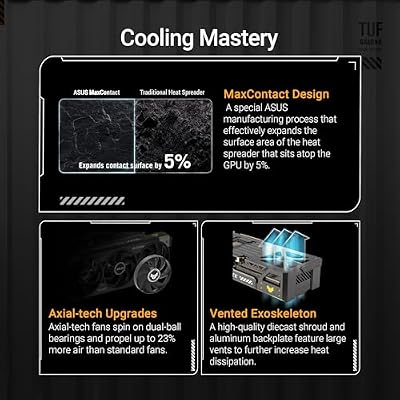
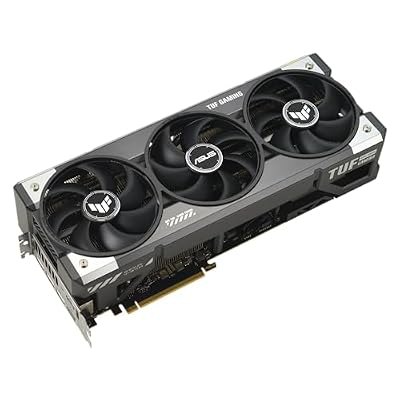
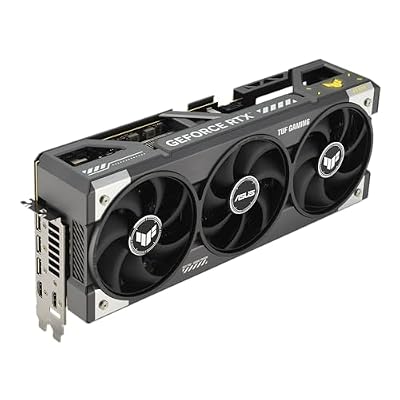
ASUS TUF Gaming GeForce RTX 5090 32GB GDDR7 OC Edition Gaming Graphics Card | PCIe 5.0, HDMI/DP 2.1, 3.6-slot, Military-grade Components, Protective PCB Coating, Axial-tech Fans









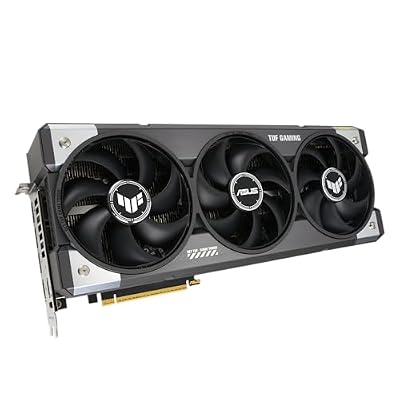

As an Amazon Associate we earn from qualifying purchases. Product prices and availability are accurate as of the date/time indicated.
Thermals affect every feature on this list, because a hot card drops its boost behavior and the frame pace suffers. Use our temperature checking guide to read the core and hotspot values during a session, and watch them when you test generation for the first time.
Frequently Asked Questions
Is AFMF 2 the same as NVIDIA frame generation?
No. Both add frames between rendered ones, but they are separate technologies with different implementation paths, support lists and quality trade-offs. Compare them in the games you play, because the result depends on the title and the hardware.
What is the NVIDIA equivalent of Anti-Lag?
The closest NVIDIA equivalent is Reflex. Both target system latency rather than frame rate, but they are separate technologies with different support lists. Check each game’s settings and the vendor’s current notes.
Should I enable AFMF and Anti-Lag together?
You can, but test them one at a time. Start with Anti-Lag if the game supports it, then add AFMF only if the base frame rate is steady and the result feels right. Changing both at once makes the source of any problem hard to find.
Do these features need the newest Radeon card?
Support depends on the feature and the driver. Newer cards generally have the widest support, but older Radeon cards may get some of the same options through driver updates. Check AMD’s current release notes for your card and the game you play.