

- Top Pick: Samsung T7 Portable SSD 1TB (MU-PC1T0T/AM)
- Runner-up: SanDisk Extreme 256GB microSDXC (SDSQXAV-256G-GN6MA)
- Also consider: SanDisk Ultra 256GB microSDXC (SDSQUAC-256G-GN6MA)
Every retro library starts the same way: a downloads folder full of zips, three copies of the same game in different languages, and a handheld showing forty near-identical entries for one title. The mess is not a storage problem. It is a structure problem, and it compounds every time a new device arrives. The fix is boring, permanent and done exactly once: one master library, on one drive, organized by rules that never change, with every handheld and frontend treated as a read-only copy of that master.
As an Amazon Associate, we earn from qualifying purchases.
Quick Answer
Keep a single master library on one PC drive, sorted into one folder per system using the short folder names frontends expect. Leave file names in No-Intro format instead of renaming by hand, keep BIOS files in one separate folder outside the ROM tree, apply a one-game-one-ROM rule with a fixed region priority, give every disc game its own folder, and sync filtered copies out to each device.
The Master Library Rule: One Source of Truth
Every working scheme shares one decision: the library lives in exactly one place, and that place is not a handheld. A PC drive is the master because it alone has room for the full collection, the alternates, and a backup. Handhelds, mini consoles and phones hold subsets sized to their cards. When a device needs different games, you change the copy, never the master.
This sounds obvious, but the common failure mode is editing on the device: deleting a duplicate on one handheld, renaming a file on another, patching a game on a third. Within months the copies disagree and nobody knows which one is correct. The rule that prevents it is absolute. Files are added, renamed and removed only in the master library. Devices receive one-way copies, and a card that comes back from a trip gets wiped and re-synced rather than merged.
Step 1: One Folder Per System, Named the Frontend Way
The top level of the library is a single folder, call it ROMs, and inside it sits one folder per system. Use the short, lowercase names that EmulationStation-based systems popularized, because frontends and firmware builds scan for exactly these: nes, snes, gb, gbc, gba, n64, gamecube, wii, nds, 3ds, genesis, mastersystem, gamegear, saturn, dreamcast, psx, ps2, psp, arcade, neogeo, pcengine, sega32x, segacd. Laid out this way, the library drops onto a new handheld or a fresh frontend install with zero renaming.
One refinement: split arcade by set rather than dumping it in one pile, because arcade ROMs only work as complete matched sets, and keep hacks and fan translations in a subfolder named hacks inside each system folder.
Step 2: Let No-Intro Names Do the Filing
The single highest-value habit in library organization is not renaming anything. No-Intro naming looks verbose — a typical file carries the game title, then region, revision and language tags in parentheses — but every tag is information a frontend, a scraper or a hash check can use. The title portion matches the databases scrapers query, so a No-Intro library scrapes cleanly while a hand-renamed one fills with missed matches.
Hand renaming destroys all of that. Shortened names break hash-based verification, defeat duplicate detection, and desync the moment a second device holds the same game under a different label. The rule is simple: a file with a proper No-Intro name keeps that name forever. Only files arriving with scene-release junk names get renamed, to the No-Intro standard, once, in the master.
Step 3: BIOS Files Live Outside the ROM Tree
BIOS files are the most common cause of a broken setup after a reorganization, because they look like clutter and get swept into system folders or deleted as unknown binaries. Keep them apart by design: one folder named bios, sitting next to the ROMs folder rather than inside any system folder, holding every BIOS image the library needs.
Separation buys three things. Emulators and frontends that want a dedicated BIOS path can be pointed at one folder that never moves. Duplicated BIOS files across system folders — a quiet source of wrong-version bugs — become impossible, because there is only one copy of each. And when a setup breaks, the check is instant: either the file is in the BIOS folder with the right name or it is not.
Step 4: Duplicates, Regions and the 1G1R Rule
Storage is cheap, but a bloated library is not a storage cost — it is a browsing cost, paid every time you scroll past five versions of the same game. The 1G1R principle, one game one ROM, fixes the playing copy at exactly one file per title. Making it work requires a region priority decided in advance, for example: your home region first, then the other major English region, then Japan for titles that never left it. Revisions always win over the original release.
The key is what happens to the losers. Alternate regions and older revisions are not deleted; they move to an archive folder outside the scanned tree, so the collection stays complete while the playable library stays lean. Deleting alternates feels tidy and reads as a mistake the first time a preferred version has a glitch the other region fixed.
Step 5: Disc Games Get One Folder Each
Cartridge systems tolerate a flat pile of files. Disc systems do not. A PlayStation, Saturn, Dreamcast or GameCube game can be several files, and scattering those across a shared folder guarantees that moving or deleting one game corrupts another. The rule for anything that shipped on a disc: one subfolder per game inside the system folder, named after the game, holding every file that belongs to it.
Inside that structure, two habits pay off. Keep the cue sheet with its game, always, because the cue is the index the emulator reads even when the data sits in a single image. And for multi-disc games, keep every disc in the same game folder and add a playlist file listing the discs in order, so supporting frontends present one entry instead of three.
Step 6: Sync Copies Out to Each Device
With the master clean, getting games onto devices becomes a copying decision instead of an organizing session. Each device gets a subset defined by what it plays well: the pocket handheld takes the 8-bit and 16-bit folders whole, the stronger handheld adds PlayStation and Nintendo 64, the TV box takes the disc systems. A sync is then a straight folder copy — point a file-sync tool at the master and mirror the folders that device earns.
Saves are the one thing that flows the other way, so they live outside the ROM tree entirely. A saves folder per device, backed up to the PC on a schedule, means a wiped card costs a re-sync, not your progress. ROMs flow out from the master, saves flow back, and nothing else moves.
Storage and Readers That Suit a Master Library
The workflow above leans on three kinds of hardware: a fast drive for the master, dependable cards for the devices, and a reader that makes syncing painless.
Samsung T7 Portable SSD 1TB (MU-PC1T0T/AM)

The master library belongs on something fast enough that copying a full PlayStation folder is a short wait, and the T7 is the natural home for it: USB 3.2 Gen 2 transfers in a compact metal shell that moves easily between desktop and laptop.
Specs:
– Capacity: 1 TB
– Interface: USB 3.2 Gen 2, USB-C
– Sequential read: up to 1,050 MB/s
– Sequential write: up to 1,000 MB/s
– Form factor: portable external SSD, shock resistant
SanDisk Extreme 256GB microSDXC (SDSQXAV-256G-GN6MA)
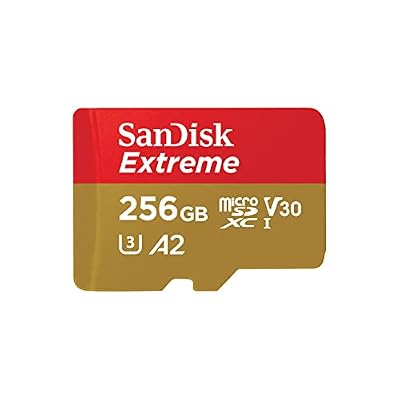
For the strongest handheld in the rotation, the Extreme is the card that keeps large folders feeling instant. Its A2 rating and fast writes suit libraries that get re-synced often.
Specs:
– Capacity: 256 GB
– Read speed: up to 190 MB/s
– Write speed: up to 130 MB/s
– Ratings: A2, V30, UHS-I U3, Class 10
– Includes: full-size SD adapter
SanDisk Ultra 256GB microSDXC (SDSQUAC-256G-GN6MA)

The second device in the house does not need the fastest card; it needs a reliable one. The Ultra is the sensible pick for a budget handheld or a spare card mirroring the cartridge-era folders.
Specs:
– Capacity: 256 GB
– Read speed: up to 150 MB/s
– Ratings: A1, UHS-I, Class 10
– Includes: full-size SD adapter
UGREEN USB 3.0 Dual Slot Card Reader

Syncing two cards at once is where a dual-slot reader earns its place: the UGREEN reads an SD card and a microSD card simultaneously over USB 3.0, turning a two-device refresh into one operation.
Specs:
– Slots: SD and microSD, usable at the same time
– Interface: USB 3.0, up to 5 Gbps
– Card support: SDXC, SDHC, microSDXC, microSDHC, UHS-I
– Compatibility: Windows, macOS, Linux, Chrome OS
SanDisk MobileMate USB 3.0 microSD Card Reader (SDDR-B531-GN6NN)

For single-card jobs — one handheld, one refresh — the MobileMate is the small dedicated reader that lives in the drawer: microSD only, UHS-I, and fast enough that a sync is limited by the card, not the reader.
Specs:
– Slot: microSD only
– Interface: USB 3.0
– Card support: microSDHC and microSDXC, UHS-I
– Form factor: compact stick reader
How to Choose
Start with the master, because every other choice follows from it. If your library includes disc systems, size the master drive for the collection you will have in two years, not the one in your downloads folder today. Cards come second: match the card to the device tier — fast A2 cards for the handheld that plays disc games, plain reliable cards for the ones that stop at 16-bit. Readers come last and are mostly about slots: one device means a single-slot reader is fine, while several handhelds justify a dual-slot reader.
Who Should Skip
Skip the full rebuild if your library is small enough to see on one screen; a single folder of favorites does not need a region policy. Skip it, too, if you play on exactly one device and never plan to add another — most of this system exists to keep multiple copies from diverging.
Frequently Asked Questions
How long does the initial cleanup take?
For a mid-sized library, an afternoon. The folder tree and the BIOS separation take under an hour; the slow part is the 1G1R pass, because it is hundreds of small keep-or-archive decisions. Work one system at a time and the job stays finite.
Should ROMs stay zipped or be extracted?
Follow the system. Most cartridge emulators read zip files directly, and zips keep a big library compact. Disc games are the exception: keep those extracted in their per-game folders, because multi-file disc images and cue sheets behave badly inside archives. Choose once, in the master.
What do I do with games I have in three regions?
Apply the region priority you wrote down, keep the winner in the system folder, and move the other two to the archive folder outside the scanned tree. The collection stays complete and the frontend shows one entry.
Can I sync the same library to devices running different firmware?
Yes, and that is exactly what the standard folder names are for. EmulationStation-based firmware, RetroArch setups and most custom firmware builds all scan the same short system folder names, so one master tree feeds all of them.
Final Verdict
A tidy ROM library is not a weekend project that decays; it is five decisions made once — one master, frontend folder names, No-Intro names left alone, BIOS kept apart, one game one ROM — plus a copying habit that never edits on the device. Build that master on fast storage, and every future device becomes a ten-minute setup instead of a fresh mess.







