

- Top Pick: fanxiang S101 1TB SSD SATA SSD 1TB Internal Solid State Drive SATA III 6Gb/s 2.5" SSD, UP to 520MB/s, 3D NAND TLC, Upgrade Laptop PC and Desktops
- Best Value: Silicon Power 1TB SSD 3D NAND A55 SLC Cache Performance Boost SATA III 2.5" Internal Solid State Drive (SP001TBSS3A55S25)
- Premium Choice: SSK Portable SSD 1TB External Solid State Hard Drive USB C Up to 1050MB/s
512 SSD vs 1TB Hard Drive
A 512GB SSD and a 1TB hard drive solve different storage problems. The SSD is roughly twice as fast, quieter, more durable, and usually the better choice for an operating-system drive. The 1TB hard drive gives you about twice the advertised capacity for storing games, videos, photos, and backups, but it is much slower and more vulnerable to physical damage.
The right choice depends on whether you need speed or space. For a modern Windows PC, a 512GB SSD is usually the better primary drive. For bulk storage on a desktop that already has an SSD, a 1TB hard drive can be the cheaper and more sensible option.
As an Amazon Associate we earn from qualifying purchases at no extra cost to you.


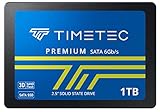
Quick comparison
| Feature | 512GB SSD | 1TB hard drive |
|---|---|---|
| Usable capacity | About 476GB | About 931GB |
| Typical sequential speed | About 450–7,000MB/s, depending on SATA or NVMe | About 100–200MB/s |
| Random access | Very fast; little mechanical delay | Slow; heads must physically move |
| Noise | Silent | Audible spinning and seeking |
| Shock resistance | Good, with no moving parts | Limited, especially while operating |
| Best use | Windows, applications, active games | Large files, archives, media storage |
Capacity and real-world space
Neither drive provides its full advertised capacity in Windows. A 512GB SSD normally shows approximately 476GB, while a 1TB hard drive shows approximately 931GB. Formatting, system recovery partitions, and operating-system files reduce the available space further.
A 512GB SSD is enough for Windows, common applications, and a moderate game library. It becomes tight quickly if you install several modern games. Many large PC games now occupy 80GB to 150GB each, and some exceed 200GB with downloadable content. Keeping at least 15% to 20% of an SSD free is also sensible for updates, temporary files, and consistent performance.
The 1TB hard drive is more comfortable for media and archives. It can hold hundreds of thousands of photos or many hours of compressed video, but it is not a substitute for a backup. If the drive fails, all data stored on it can disappear at once. Important files should exist on another drive or in a separate cloud backup.
How much faster is the SSD?
The practical difference is largest during booting, application launches, Windows updates, file searches, and tasks involving many small files. A SATA SSD can read data at roughly 450–550MB/s. An NVMe SSD may reach 2,000–7,000MB/s on compatible PCIe hardware. A typical 7,200 rpm hard drive usually manages around 120–200MB/s under ideal sequential conditions, and its random access is dramatically slower.
These numbers do not mean every task will be ten times faster. Copying one large file may be limited by the source drive, USB connection, or network. However, an SSD makes a PC feel much more responsive because it handles thousands of small reads without waiting for a mechanical disk head to move.
Windows installed on a hard drive can still work, but boot times, updates, and multitasking often feel sluggish. A hard drive also becomes noticeably slower when nearly full or when it is heavily fragmented. Defragmentation can help a mechanical drive, but it cannot make it behave like an SSD.
Which one should you buy?
Choose a 512GB SATA SSD if your computer has a 2.5-inch drive bay or you are replacing an older laptop hard drive. It is a major upgrade for an aging PC and is usually simple to install. SATA SSDs are limited to roughly 550MB/s, but that is still several times faster than a hard drive for everyday use.
Choose a 500GB NVMe SSD if your motherboard has an available M.2 slot and supports the drive’s PCIe generation. NVMe models are faster, smaller, and do not need a separate data cable. For normal gaming and office work, the difference between a good SATA SSD and a good NVMe SSD is less important than the difference between either SSD and a hard drive.
Choose a 1TB internal hard drive when low cost and extra capacity matter more than responsiveness. It is a reasonable secondary drive for downloaded installers, recorded video, music, older games, and files you do not open constantly. It also makes sense in a desktop that already boots from an SSD.
For external storage, a 1TB external hard drive is often adequate for occasional backups and file transport. Do not place it where it can be knocked over while running. A portable SSD costs more, but it is faster, quieter, and better suited to travel.
Installation and compatibility checks
Before buying, check the computer’s connections. A 2.5-inch SATA SSD requires a SATA data connection and power from a desktop power supply, while a laptop may require a 7mm drive and a mounting bracket. An M.2 SSD must match the slot’s keying, physical length, and supported interface. Some M.2 slots accept only SATA drives; others accept NVMe, so the motherboard or laptop manual matters.
Replacing the boot drive also requires cloning or reinstalling Windows. Make a full backup first, confirm that the new drive is detected in the firmware, and keep the old drive untouched until the new installation starts successfully. A failed clone or an accidentally erased source drive is a common upgrade failure.
Reliability, lifespan, and failure modes
SSDs have no moving parts, so they tolerate vibration and drops better. They can still fail without much warning, particularly after controller, firmware, or flash-memory problems. Their endurance is commonly listed in terabytes written, but ordinary home users rarely reach that limit quickly.
Hard drives can last many years, but bearings, motors, and read/write heads wear out. Warning signs include clicking, repeated spin-up attempts, disappearing files, very slow transfers, and read errors. Treat unusual noises as a backup emergency, not a problem to monitor casually.
For most upgrades, the best arrangement is a 512GB SSD for Windows and applications plus a larger hard drive for bulk files. If you can buy only one drive, select the SSD unless you regularly need more than roughly 400GB of active storage. Speed affects every session; extra capacity only matters when you actually use it.














