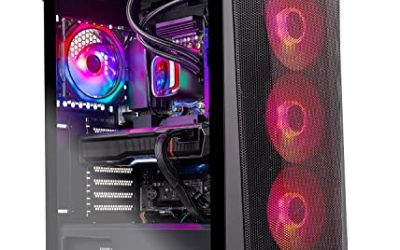
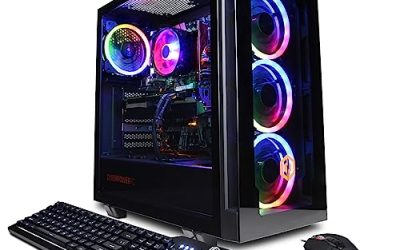
CyberPowerPC sells gaming desktops two ways: ready-made systems through retailers, and configurable systems built to order on its own site. Either way, the headline parts are familiar retail components from Intel, AMD and NVIDIA, which means two systems with the same processor and graphics card can still differ a lot underneath. The differences hide in the parts listings emphasize less. This checklist walks through what to check in a CyberPowerPC gaming PC, in the order that matters, so you can match a configuration to your games, your monitor and your budget instead of paying for the wrong things.
As an Amazon Associate we earn from qualifying purchases.
The Quick Checklist
| Part | What to check | Why it matters |
|---|---|---|
| GPU | Model, video memory, and the monitor resolution it is paired with | The graphics card decides frame rates more than any other part |
| CPU | Generation, core count, and whether it bottlenecks the GPU | An unbalanced pairing wastes money on one side or the other |
| RAM | Total capacity, stick count (1 or 2), speed and generation | A single stick runs in single-channel mode and leaves performance on the table |
| SSD | NVMe or SATA, PCIe generation, capacity, drive brand | Storage type affects load times; capacity fills faster than expected |
| PSU | Named brand, wattage, 80 Plus level, ATX 3.x connector support | A weak or vague power supply limits upgrades and reliability |
| Motherboard | Chipset, spare PCIe and M.2 slots, Wi-Fi and LAN | The board decides what you can add later |
| Upgradeability | Spare slots, drive bays, PSU headroom, case clearance | Standard parts make a CyberPowerPC easy to improve over time |
Begin With the Graphics Card and Your Monitor
The GPU is the part to choose first, because everything else exists to support it. Choose it based on the monitor you own or plan to buy: a system built for fast 1080p esports play needs a very different card from one meant for a 1440p high-refresh panel or a 4K display, and overspending here is the most common mistake buyers make. Check the exact model name and its video memory rather than a vague family label, and be wary of listings that lead with the CPU while keeping the graphics card in small print.
Also confirm the card is a desktop part with the memory capacity you expect. NVIDIA and AMD publish full specification pages for every GeForce RTX and Radeon RX model, including memory size and the recommended system power for the card, so a two-minute check on the maker’s site confirms what a listing claims. If you would rather compare finished systems, our roundup of the best CyberPowerPC gaming PCs gathers ready-made options at several levels.
Match the CPU to the GPU
Once the graphics card is set, the processor only needs to be fast enough to feed it. For a gaming-focused build, a current or recent-generation mid-range chip from Intel’s Core or AMD’s Ryzen lines is the sensible partner for a mid-range GPU, while the strongest cards justify stepping up to higher-end processors with more cache and cores. Chasing the flagship CPU while cutting the graphics card almost always produces a slower gaming machine for the same spend.
Check the exact model suffix as well. On the Intel side, an F-suffix chip has no integrated graphics, which is fine alongside a discrete card but removes a useful troubleshooting fallback. On the AMD side, X3D models carry extra cache that benefits gaming. If you also stream or edit video, extra cores earn their keep; for pure gaming, put the money toward the GPU first.
RAM: Capacity, Stick Count and Speed
Memory is where prebuilt listings most often cut corners quietly. Look for three things:
- Capacity. 16GB is the workable floor for modern gaming, and 32GB is the comfortable target if you multitask while gaming or plan to keep the system for years.
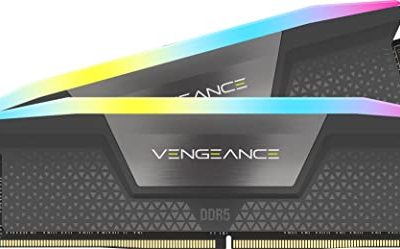
- Stick count. Two sticks (listed as 2x8GB or 2x16GB) run in dual-channel mode. A single 16GB stick runs in single-channel mode and can hold back frame rates, especially on AMD systems. CyberPowerPC’s configurator writes memory in this notation — for example, 64GB (32GBx2) DDR5/6000MHz dual channel — so check that your listing does the same. If it states only a total, resolve that before ordering.
- Speed and generation. Current systems use DDR5; older or cheaper ones may use DDR4 on an older platform. Either can game well, but the generation decides future memory and motherboard compatibility, and DDR5 platforms are the ones still receiving new processors.
If a system ships with one stick, adding a matched second stick later is one of the cheapest upgrades available, provided the motherboard has a free slot, which is covered below.
SSD: Type, Generation and Room to Grow
Nearly every CyberPowerPC gaming system now boots from an NVMe M.2 SSD, and that is what you want. A SATA SSD or, worse, a mechanical hard drive as the main drive makes a new PC feel old. Check the listing for three details: whether the drive is NVMe rather than SATA, which PCIe generation it uses (Gen 3, Gen 4 or Gen 5), and the brand. Named drives such as Samsung’s 990 Pro, which Samsung publishes with sequential reads up to 7,450 MB/s, are a good sign; a listing that just says “1TB SSD” tells you nothing about speed.
Capacity matters as much as speed. Modern game installs are large, and a 500GB drive fills quickly. 1TB is the sensible minimum and 2TB is comfortable. Then look at expansion: a second M.2 slot or a free drive bay makes adding storage later a minutes-long job.
The Power Supply: The Most Important Line in the Listing
The PSU is the part prebuilt brands save money on, and the part you should scrutinize hardest. A good listing names the brand and model, the wattage, and an 80 Plus efficiency level such as Gold. CyberPowerPC’s configurator offers exactly that spread, from house options described mainly by wattage to named units such as Corsair’s RM series with 80 Plus Gold certification and ATX 3.1 support, including the 12+4-pin connector used by current PCIe 5.x graphics cards.
Two checks follow from that. First, compare the wattage against the GPU maker’s recommended system power, which NVIDIA and AMD publish on their specification pages; the system should meet it with headroom to spare, because headroom is what lets you install a stronger graphics card in two or three years without replacing the PSU as well. Second, treat a listing that gives only a wattage, with no brand or efficiency level, as a caution flag on any system above the entry level. A quality power supply also protects everything else in the case, so this is the last place to accept a mystery part.
Motherboard: Chipset, Slots and Connections
The motherboard rarely gets headline billing, but it decides your upgrade path. CyberPowerPC’s configurator lists boards with their layouts spelled out — for example, ATX boards from MSI are listed with counts such as four PCIe x16 slots, three M.2 slots and four SATA ports — so use those numbers rather than the chipset name alone. What to confirm:
- Chipset and socket. The chipset (for example an AMD B650 or X870, or an Intel B760 or Z790) decides overclocking support and how many fast connections the board offers. The socket decides which future CPUs fit.
- Memory slots. Four DIMM slots leave room to add memory; two-slot boards cap your options.
- Spare M.2 and PCIe slots. A free M.2 slot is your future storage upgrade, and a spare PCIe slot leaves room for a capture card or faster networking.
- Built-in connections. Check for Wi-Fi if the PC will not sit near a cable, and note the LAN speed and USB selection if you move large files or use several peripherals.
Most CyberPowerPC systems use standard ATX or micro-ATX boards, which is good news: they can be replaced later, unlike proprietary boards in some big-brand desktops.
Case, Airflow and Cooling
A tempered-glass front panel looks clean in product photos and breathes badly in a warm room. Prefer a case with a mesh front or generous side intakes, and check how many fans are actually included rather than how many the case can hold; fan counts are stated in the specifications.
Match the CPU cooler to the processor: high-end chips ship with 240mm or 360mm liquid coolers in many CyberPowerPC configurations, while mid-range chips are fine on a capable air cooler. Also check graphics card clearance if you plan to upgrade later, since longer cards do not fit every mid-tower. It decides noise levels and whether parts hold their boost clocks during long sessions.
Warranty: Read the Channel, Not Just the Headline
Warranty terms depend on where you buy. CyberPowerPC’s own ecommerce warranty document states one year for parts and one year for labor on systems bought through retail channels, with longer coverage for some channels such as Costco purchases, while systems ordered directly from CyberPowerPC have carried different, longer terms. The practical lesson is to read the warranty line on the exact listing or order page in front of you rather than relying on a general claim.
Individual components often carry their own maker warranties that run longer than the system’s parts term, which can help with a failed graphics card or SSD later. Parts you add yourself are not covered by the system warranty, so keep the original components and your invoice safe.
Matching a Configuration to Your Needs and Budget
With the checks above in mind, build from the monitor backwards:
- 1080p esports and competitive play: prioritize a high-refresh pairing — a mid-range GPU, a fast recent CPU, 16GB to 32GB of dual-channel memory and a 1TB NVMe drive. Spend on the monitor before the flagship parts.
- 1440p high settings: this is the sweet spot for most buyers. Step the GPU up a tier, keep 32GB of memory, choose a 2TB SSD if the budget allows, and make sure the PSU is a named 80 Plus Gold unit with headroom.
- 4K or creator-plus-gaming: the top GPU tiers, a high-end CPU, 32GB or more of memory and a strong power supply. At this level, motherboard quality and case airflow stop being details and become requirements.
Where budgets get trimmed, cut in this order: case cosmetics, extra storage you can add later, then CPU tier. Protect the graphics card, the dual-channel memory layout and the power supply, because those are the hardest to fix after the fact.
FAQ
Is it better to configure a CyberPowerPC or buy a ready-made one?
Configuring on CyberPowerPC’s site lets you choose the exact motherboard, memory layout and power supply, which removes most of the weak points this checklist covers. Ready-made systems ship faster. Either route works as long as you verify the same details on the listing.
How much RAM does a CyberPowerPC gaming PC need?
16GB is the floor for current games, and 32GB is the comfortable choice for a system you plan to keep. Whichever capacity you choose, confirm it arrives as two sticks so it runs in dual-channel mode, or plan to add a matched second stick yourself.
What power supply wattage should I look for?
Match it to your graphics card using the recommended system power on NVIDIA’s or AMD’s specification page for that GPU, then add headroom for a future upgrade. Just as important, look for a named brand and an 80 Plus Gold level rather than a bare wattage figure.
Can I upgrade a CyberPowerPC later?
In most cases, yes. The systems generally use standard ATX or micro-ATX motherboards, power supplies and cases, so memory, storage and graphics card upgrades follow the same process as a home-built PC. Your ceiling is set by PSU wattage, spare motherboard slots and case clearance.
Conclusion
A CyberPowerPC is only as good as its full parts list, not its two headline components. Confirm the graphics card against your monitor, pair the CPU sensibly, insist on dual-channel memory and an NVMe drive from a named maker, and refuse to accept a mystery power supply. Check the motherboard’s spare slots, the case’s airflow and the warranty terms for the channel you are buying through. Do that, and the system you order is the system you actually wanted.